
TP-Link MR600
TP-Link Archer MR600 AC1200 4G+ Cat6 Mobile Wi-Fi Router User Manual
Model: MR600
Introduction
The TP-Link Archer MR600 is a 4G+ Cat6 Mobile Wi-Fi Router designed to provide high-speed internet access by utilizing a 4G/3G SIM card. This router supports advanced features such as MU-MIMO for efficient data streaming, TP-Link OneMesh for seamless whole-home Wi-Fi coverage, and full Gigabit Ethernet ports for reliable wired connections. It is ideal for various environments including homes, remote areas, temporary stores, and holiday homes, offering flexible and convenient internet access without the need for traditional broadband.
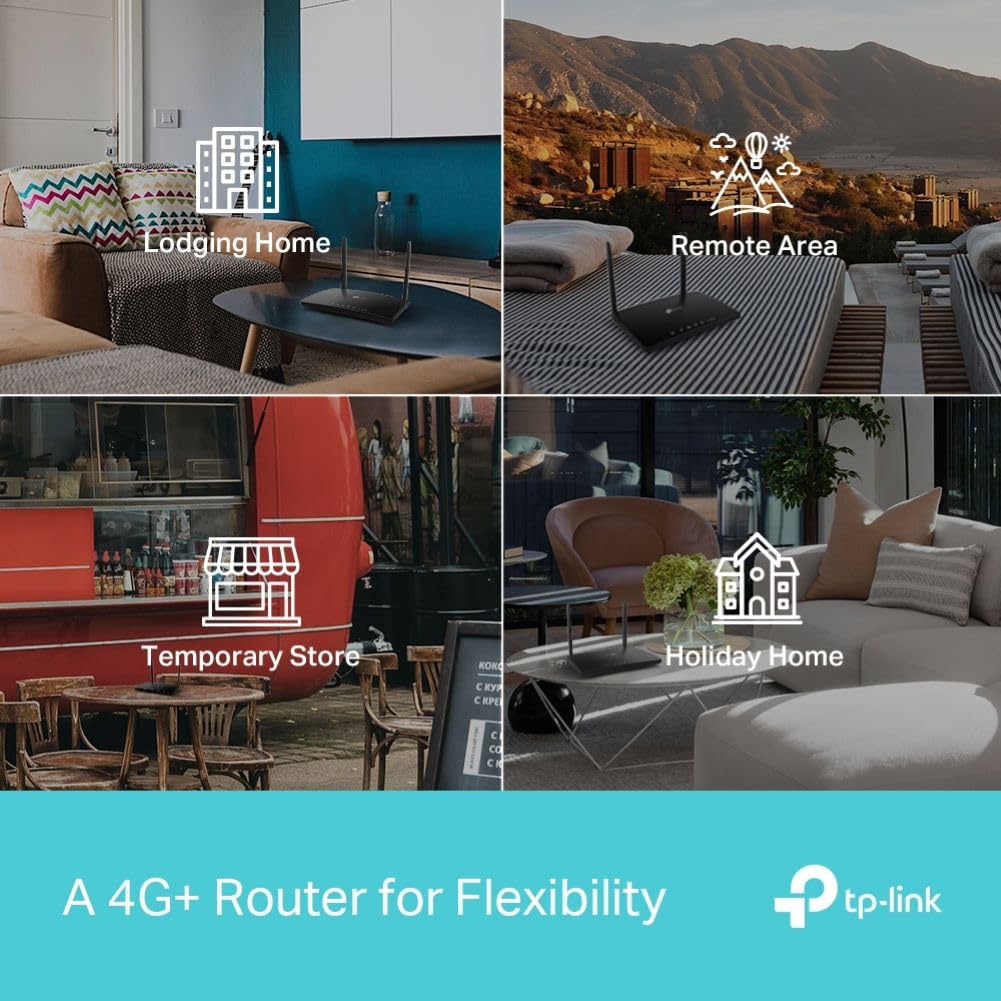
The Archer MR600 router offers flexible internet access for diverse environments.
Package Contents
Before you begin, please verify that all items are included in your package:
- Archer MR600 Router
- Power Adapter
- RJ45 Ethernet Cable
- Quick Installation Guide
Setup Guide
1. Hardware Installation
- Insert the SIM Card: Locate the Nano SIM card slot on the side of the router. Gently insert your 4G/3G Nano SIM card into the slot until it clicks into place. Ensure the SIM card is oriented correctly as indicated by the diagram near the slot.

Insert your Nano SIM card into the designated slot on the router.
- Connect the Power Adapter: Connect the provided power adapter to the router's power port and then plug the other end into a standard electrical outlet. The router will power on automatically.

Connect the power adapter to the router's power input.
- Position the Router: Place the router in an open area, away from obstructions, and preferably near a window for optimal 4G/3G signal reception. The two external LTE antennas should be positioned upright.

Ensure the router is placed in an optimal location for signal reception.
2. Initial Configuration (Plug and Play)
The Archer MR600 is designed for plug-and-play operation. In most cases, it will automatically detect your SIM card's settings and establish an internet connection without manual configuration.
- Wait for the 4G/3G LED indicator on the router to turn solid blue, indicating a successful connection to the mobile network.
- The Wi-Fi LED indicator should also be solid, indicating the wireless network is active.

The Archer MR600 boosts 4G+ speeds, allowing for seamless internet access anywhere.
Operating Instructions
Connecting Devices
You can connect devices to the Archer MR600 via Wi-Fi or Ethernet cable.
- Wi-Fi Connection:
Locate the Wi-Fi network name (SSID) and password printed on the label at the bottom of the router. On your device (smartphone, laptop, tablet), select this SSID from the list of available Wi-Fi networks and enter the password to connect. The Archer MR600 supports dual-band Wi-Fi (2.4 GHz and 5 GHz) and can connect up to 64 devices simultaneously.

Share powerful dual-band Wi-Fi with up to 64 devices.
- Wired Connection:
For devices requiring a stable wired connection (e.g., desktop computers, gaming consoles, smart TVs, NAS), use an RJ45 Ethernet cable to connect them to any of the router's Gigabit LAN ports (LAN1, LAN2, LAN3). The LAN/WAN port can also be used as a standard LAN port if not used for WAN.

Utilize the full Gigabit ports for fast and reliable wired connections.
Advanced Features
- MU-MIMO Technology: The Archer MR600 supports MU-MIMO (Multi-User, Multiple-Input, Multiple-Output) technology, which allows the router to communicate with multiple devices simultaneously. This reduces waiting time, increases Wi-Fi throughput, and boosts network efficiency, providing a faster network with less interference and lower latency.
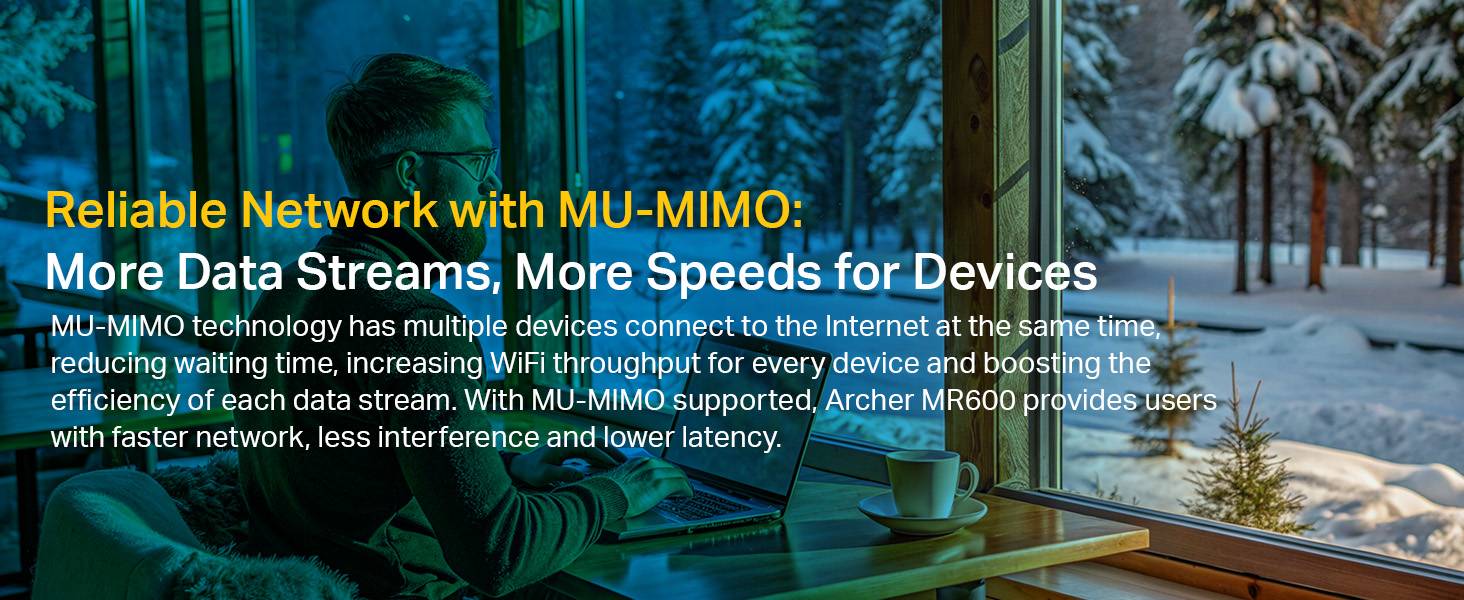
MU-MIMO technology enhances network reliability and speed for multiple devices.
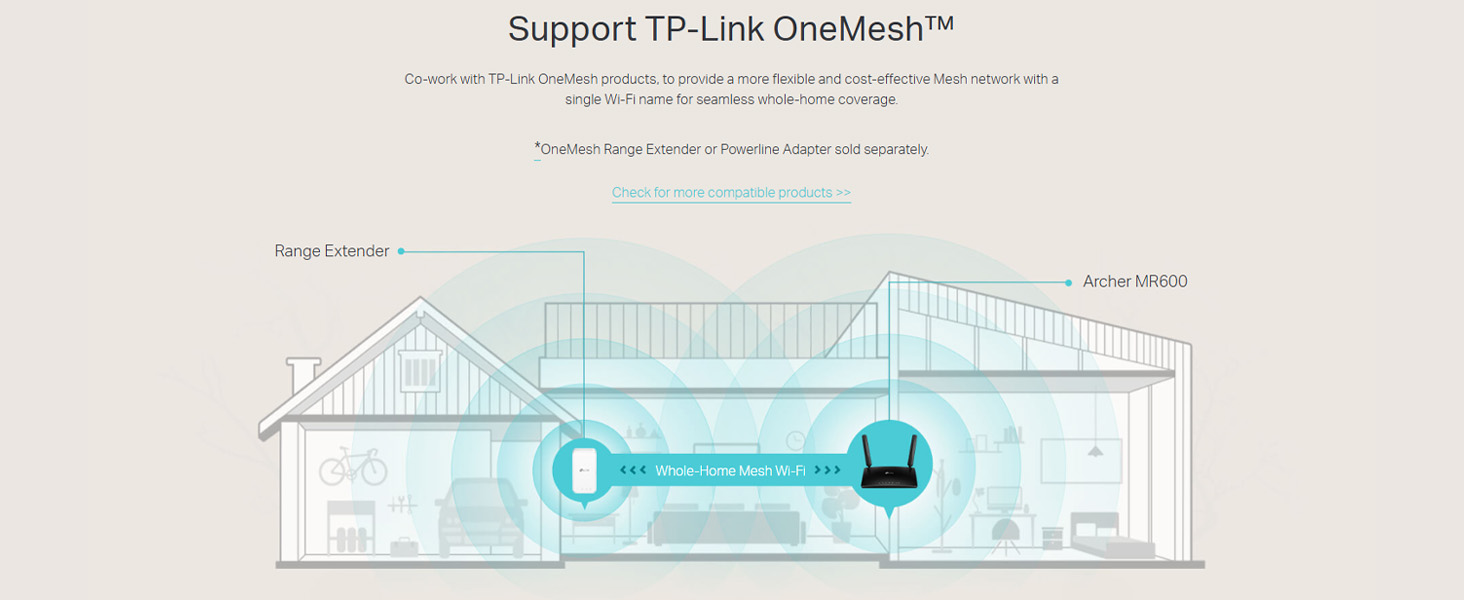
- TP-Link OneMesh™ Support: The router can co-work with other TP-Link OneMesh products (e.g., range extenders) to create a flexible and cost-efficient Mesh network. This provides seamless whole-home Wi-Fi coverage under a single Wi-Fi name, eliminating dead zones as you move around your home.

Achieve seamless roaming with TP-Link OneMesh™ technology.
- Wi-Fi Router Mode: If a 4G connection is unavailable or you prefer a wired internet source, you can plug an Ethernet cable from a modem or existing router into the LAN/WAN port. The Archer MR600 will then function as a traditional Wi-Fi router.
- Parental Controls & Guest Network: Manage internet access for children and guests through the router's web interface or the Tether app. Create separate guest networks to ensure security and privacy for your main network.
Management via Tether App
The TP-Link Tether app provides an easy way to set up and manage your Archer MR600 router from any Android or iOS device. You can view connected devices, set parental controls, manage guest networks, and access other network settings.
Easy setup and management are available through the TP-Link Tether app.
Download the Tether app: tp-link.com/app/qrcode/?app=tether
Maintenance
- Firmware Updates: Regularly check for and install firmware updates from the TP-Link official website. Firmware updates can improve performance, add new features, and enhance security.
- Cleaning: Keep the router clean and free from dust. Use a soft, dry cloth to wipe the exterior. Do not use liquid cleaners or aerosols.
- Ventilation: Ensure the router is placed in a well-ventilated area to prevent overheating. Do not cover the ventilation holes.
- Restarting: If you experience network issues, try restarting the router by unplugging the power adapter for 10 seconds and then plugging it back in.
Troubleshooting
- No Internet Access:
- Check if the SIM card is inserted correctly and if the 4G/3G LED is solid blue.
- Verify that your SIM card has an active data plan and sufficient balance.
- Try restarting the router.
- Access the router's web management page (usually 192.168.1.1 or tplinkmodem.net) and check the network status. You may need to manually configure APN settings if automatic detection fails.
- Weak Wi-Fi Signal:
- Relocate the router to a central location, away from obstacles and interference sources (e.g., microwaves, cordless phones).
- Ensure the external antennas are positioned correctly.
- Consider using a TP-Link OneMesh range extender to expand coverage.
- Cannot Access Web Management Page:
- Ensure your device is connected to the router's Wi-Fi or via an Ethernet cable.
- Verify that you are using the correct default access address (e.g., tplinkmodem.net or 192.168.1.1).
- Clear your browser's cache or try a different browser.
Specifications
| Feature | Detail |
|---|---|
| Brand | TP-Link |
| Model Name | Archer MR600 |
| Connectivity Type | 4G, Wi-Fi, 3G |
| Wireless Type | 802.11a/b/g/n/ac (AC1200) |
| Frequency Band Class | Dual-Band (2.4 GHz & 5 GHz) |
| 4G+ Cat6 Speed | Up to 300 Mbps |
| Ethernet Ports | 3x Gigabit LAN, 1x Gigabit LAN/WAN |
| SIM Card Slot | Nano SIM |
| Antennas | 2x Detachable External LTE Antennas |
| Dimensions (LxWxH) | 24 x 69 x 2.5 cm (approx.) |
| Item Weight | 490 g |
| Special Features | MU-MIMO, TP-Link OneMesh, Parental Control, Guest Network, Remote Access (via Tether App) |
Warranty and Support
TP-Link products come with a limited warranty. Please refer to the warranty card included in your package or visit the official TP-Link website for detailed warranty information specific to your region.
For technical support, firmware updates, and additional resources, please visit the TP-Link support website:
You can also contact TP-Link customer service for assistance with product setup, configuration, or troubleshooting.
Related documentsMR600


Ask a question about this manual
Ask about setup, troubleshooting, compatibility, parts, safety, or missing instructions. Manuals+ will review the question and use this page’s manual context to help answer it.