
1. Introduction
The TP-Link Deco E4 is a Whole Home Mesh Wi-Fi System designed to provide seamless wireless coverage throughout your home. This system eliminates Wi-Fi dead zones by creating a unified network, allowing devices to switch between Deco units without signal interruption. The Deco E4 (3-Pack) offers extensive coverage and supports multiple devices for a stable and fast internet experience.
Key features include:
- Mesh Wi-Fi: Delivers a fast, stable, and seamless Wi-Fi connection up to 1167Mbps.
- Seamless Roaming: Connected devices switch between Deco units without signal loss.
- Scalable Coverage: Easily expand coverage by adding more Deco units. Compatible with other Deco models.
- Parental Control: Efficient settings for managing internet access for children.
- Quality of Service (QoS): Prioritize applications to maintain fluidity even with network congestion.
- Voice Commands: Compatible with Amazon Alexa for convenient control.
- Deco App: Simplifies configuration and management of your network.
2. Setup Guide
Setting up your TP-Link Deco E4 system is designed to be straightforward using the Deco mobile application. Follow these steps for initial installation:
- Unpack the System: Carefully remove all components from the packaging. The Deco E4 (3-Pack) includes three Deco E4 units, a power adapter for each unit, an Ethernet cable, and a Quick Installation Guide.
- Download the Deco App: Search for "TP-Link Deco" in the App Store (iOS) or Google Play Store (Android) and download the application.
- Connect the First Deco Unit:
- Power off your modem.
- Connect one Deco unit to your modem using the provided Ethernet cable.
- Power on your modem, then power on the Deco unit. Wait for the Deco unit's LED to pulse blue.
- Launch the Deco App: Open the Deco app on your smartphone or tablet. Log in with your TP-Link ID or sign up if you don't have one.
- Follow In-App Instructions: The app will guide you through the process of creating your Deco network, including setting up a Wi-Fi name and password.
- Add Additional Deco Units: Once the first Deco unit is set up, the app will prompt you to add the remaining units. Place them strategically around your home for optimal coverage. Power them on and wait for their LEDs to pulse blue, then follow the app's instructions to add them to your network.

Image: Three Deco E4 units, illustrating their compact design and rear ports for power and Ethernet connections, essential for initial setup.

Image: The Deco app interface, demonstrating its capabilities for managing multiple Deco units, checking connected devices, and accessing network settings.
3. Operating Instructions
Once your Deco E4 system is set up, you can manage and optimize your home network using the TP-Link Deco app. The system is designed for ease of use and provides advanced features for a superior Wi-Fi experience.
3.1 Network Management via Deco App
The Deco app serves as your central control panel for the entire mesh system:
- View Connected Devices: See all devices connected to your Deco network. You can identify them, assign them to profiles, and prioritize their internet access.
- Parental Controls: Set up profiles for family members, filter content, set time limits, and pause internet access for specific devices.
- QoS (Quality of Service): Prioritize bandwidth for specific activities (e.g., gaming, streaming) or devices to ensure smooth performance.
- Guest Network: Create a separate Wi-Fi network for guests, keeping your main network secure.
- Monthly Reports: Get an overview of network usage, security threats, and connected devices.
3.2 Seamless Roaming and Coverage
The Deco E4 system provides a single Wi-Fi network name (SSID) across all units. Your devices will automatically connect to the Deco unit with the strongest signal as you move around your home, ensuring an uninterrupted connection. The system is designed to eliminate Wi-Fi dead zones, covering up to 4,000 sq ft (370 m²) with a 3-pack.
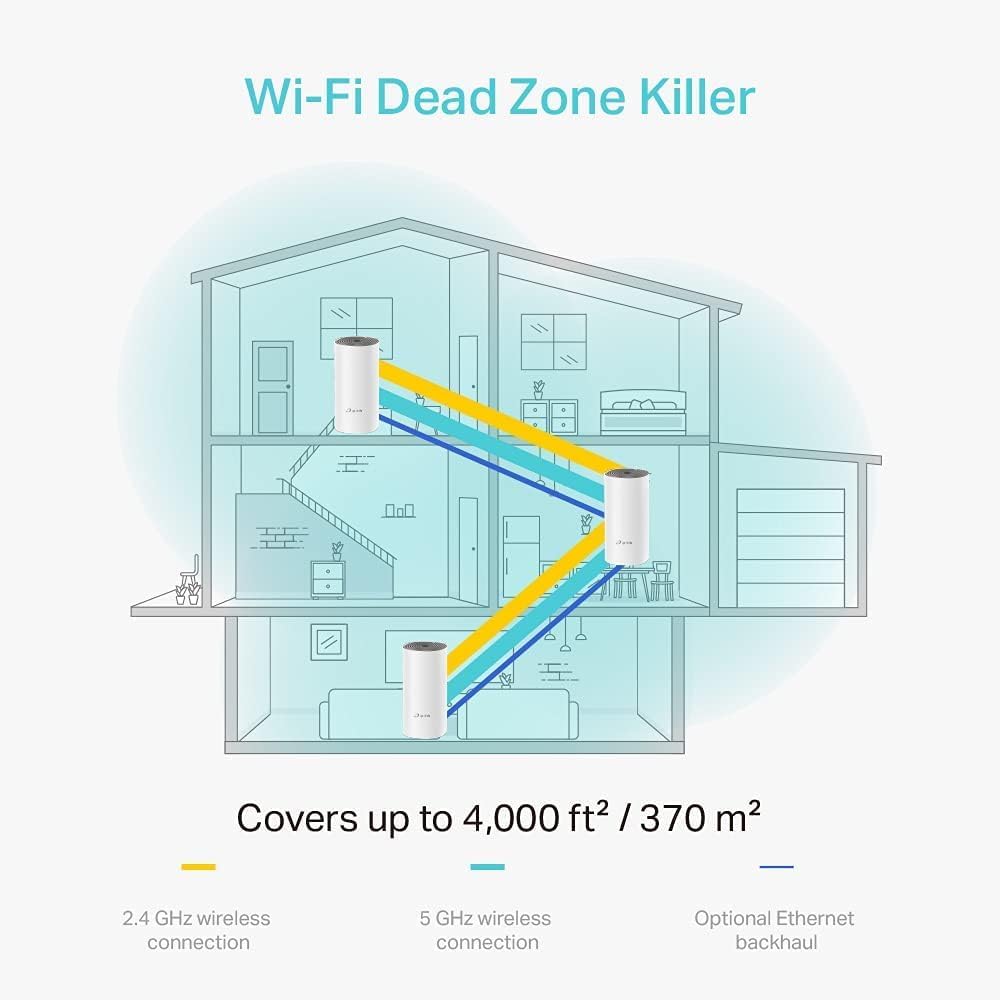
Image: A visual representation of the Deco E4 system eliminating Wi-Fi dead zones across a multi-story home, utilizing both 2.4 GHz and 5 GHz wireless connections, and optional Ethernet backhaul.
3.3 Device Capacity
The Deco E4 system supports connections for up to 100 devices simultaneously, making it suitable for homes with numerous smart devices, laptops, smartphones, and tablets. It handles various activities including high-speed downloading, 720P/1080P/4K streaming, web browsing, smart home device management, and IP camera streaming.

Image: Infographic detailing the Deco E4's capacity to connect up to 100 devices across its 5 GHz and 2.4 GHz bands, supporting diverse internet activities.
3.4 Compatibility with Other Deco Models
The Deco E4 is compatible with other Deco models, allowing you to create a flexible and expandable mesh network tailored to your specific needs. This ensures that you can mix and match different Deco units to optimize coverage and performance.

Image: A network diagram illustrating how different TP-Link Deco models can work together to form a comprehensive mesh Wi-Fi system.
4. Maintenance
To ensure optimal performance and longevity of your TP-Link Deco E4 system, consider the following maintenance tips:
- Firmware Updates: Regularly check for and install firmware updates via the Deco app. Updates often include performance improvements, security enhancements, and new features.
- Physical Cleaning: Keep the Deco units clean and free from dust. Use a soft, dry cloth to wipe the surfaces. Avoid using liquid cleaners or abrasive materials.
- Ventilation: Ensure that the Deco units are placed in well-ventilated areas. Do not cover the ventilation holes, as this can lead to overheating and reduced performance.
- Optimal Placement: Periodically review the placement of your Deco units using the app's signal strength indicators to ensure they are providing the best possible coverage.
- Restarting: If you experience minor network issues, a simple restart of your Deco units (unplugging and replugging them after a minute) can often resolve the problem.
5. Troubleshooting
If you encounter issues with your Deco E4 system, try the following troubleshooting steps:
5.1 No Internet Connection
- Check Modem: Ensure your modem is working correctly and has an active internet connection.
- Cable Connections: Verify that the Ethernet cable connecting the main Deco unit to your modem is securely plugged in.
- Restart Devices: Power cycle your modem and all Deco units. Wait a few minutes for them to restart and re-establish connections.
- Deco App Diagnostics: Use the Deco app to run network diagnostics. It can often identify and suggest solutions for common connectivity problems.
5.2 Weak Wi-Fi Signal or Dead Zones
- Relocate Deco Units: Adjust the placement of your Deco units. Ensure they are not too far apart and are free from obstructions like thick walls or large metal objects.
- Add More Units: If coverage is still insufficient, consider adding another Deco unit to expand your mesh network. The Deco E4 is compatible with other Deco models.
- Check for Interference: Other electronic devices (e.g., microwaves, cordless phones) can interfere with Wi-Fi signals. Try moving Deco units away from such devices.
5.3 Devices Not Connecting to Deco
- Verify Wi-Fi Password: Double-check that you are entering the correct Wi-Fi password.
- Restart Device: Restart the device that is having trouble connecting.
- Forget Network: On your device, "forget" the Wi-Fi network and then try to reconnect.
- Check MAC Filtering: Ensure that MAC filtering is not enabled on your Deco system, or if it is, that your device's MAC address is whitelisted. This can be managed through the Deco app.
6. Specifications
| Feature | Detail |
|---|---|
| Brand | TP-Link |
| Model Name | DECO E4 |
| Wireless Standard | 802.11ac |
| Frequency Band Class | Dual-Band (2.4 GHz & 5 GHz) |
| Data Transfer Rate | 1200 Megabits Per Second (AC1200) |
| Maximum Upstream Data Transfer Rate | 600 Megabits Per Second |
| LAN Port Bandwidth | 1000 Mbps |
| Number of Ports | 2 (per Deco unit) |
| Security Protocol | WPA2, WPA3 |
| Control Method | App (TP-Link Deco App) |
| Antenna Type | Internal |
| Coverage (3-Pack) | Up to 4,000 sq ft / 370 m² |
| Compatible Devices | Laptop, Smartphone, Tablet |
| Smart Home Compatibility | Amazon Alexa Compatible |
| Item Weight | 1.3 Kilograms (for the system) |
| Item Dimensions (L x W x H) | 14.17"L x 6.3"W x 9.45"H (packaging dimensions) |
7. Warranty Information
The TP-Link AC1200 Mesh WiFi System Deco E4 (3-Pack) comes with a 3-year warranty. This warranty covers defects in materials and workmanship under normal use.
For detailed terms and conditions of the warranty, including specific coverage, limitations, and how to make a claim, please refer to the official TP-Link website or the warranty card included with your product. Keep your proof of purchase for warranty service.

Image: The product packaging for the Deco E4 system, clearly indicating the 3-year warranty period.
8. Support
For further assistance, technical support, or to access additional resources for your TP-Link Deco E4 Mesh WiFi System, please utilize the following options:
- TP-Link Deco App: The app provides in-app support, FAQs, and diagnostic tools.
- Official TP-Link Website: Visit the official TP-Link support website for comprehensive FAQs, troubleshooting guides, firmware downloads, and contact information for customer service. You can typically find this by searching for "TP-Link support" online.
- Online Community Forums: Engage with other TP-Link users and experts on official or unofficial forums for community-driven support.
Always refer to the latest information available on the official TP-Link channels for the most accurate and up-to-date support.


