
1. Introduction
This manual provides detailed instructions for the installation, operation, and maintenance of your FERMAX Monitor Wifi Veo-Xs 4.3" Duox Plus. Please read this manual thoroughly before using the device to ensure proper functionality and safety. The FERMAX Veo-Xs monitor is a key component of your Duox Plus video intercom system, offering advanced communication and control features for your home or office.
2. Product Overview
The FERMAX Monitor Wifi Veo-Xs 4.3" Duox Plus is a state-of-the-art video intercom monitor designed for modern living. It features a 4.3-inch display, intuitive controls, and Wi-Fi connectivity for integration with smart home systems and mobile applications.
Key Features:
- High-resolution display for clear video quality.
- User-friendly interface with clear audio transmission.
- Wi-Fi connectivity for remote access and smart integration.
- Integration capabilities with existing video systems.
- Customizable solutions to meet personal preferences and needs.
Components:
The FERMAX Monitor Wifi Veo-Xs 4.3" Duox Plus includes the monitor unit and necessary mounting hardware. Familiarize yourself with the various parts of the monitor:
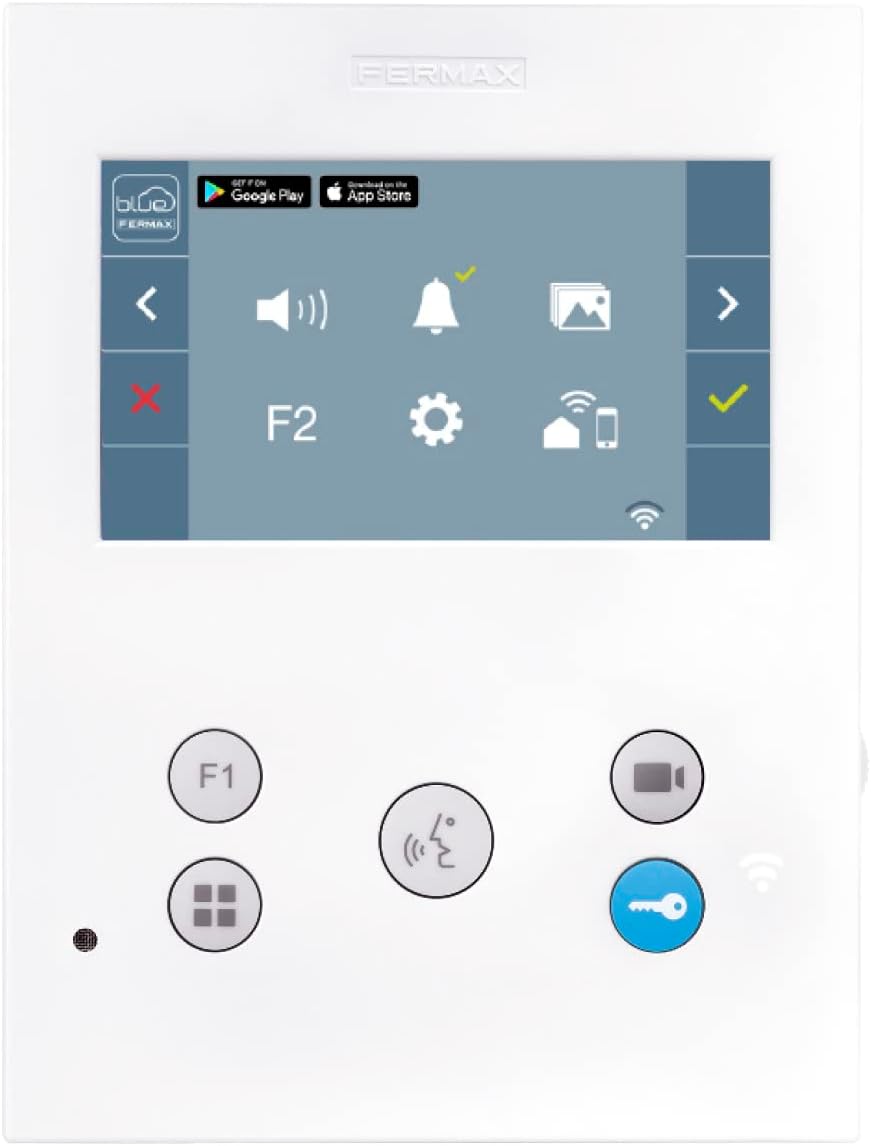
Figure 2.1: Front View of the Monitor. This image displays the monitor's front panel, including the 4.3-inch screen, touch-sensitive controls for navigation, volume, settings, and call management, along with the FERMAX branding at the top.

Figure 2.2: Back View of the Monitor. This image shows the rear of the monitor, highlighting the wiring terminals (A+, B-, Bout, Bin) for system connection, the product label with model number (REF 9448), voltage requirements (18-24 Vdc), and manufacturing details.

Figure 2.3: Side View of the Monitor. This image illustrates the slim profile of the FERMAX Veo-Xs monitor from the side.
3. Setup and Installation
Proper installation is crucial for the optimal performance of your FERMAX Monitor. It is recommended that installation be performed by a qualified technician.
3.1 Mounting the Monitor
- Choose a suitable location on an interior wall, away from direct sunlight or heat sources.
- Secure the mounting bracket (not shown, typically included) to the wall using appropriate screws and anchors.
- Ensure the bracket is level before proceeding.
3.2 Wiring Connections
Refer to Figure 2.2 for the location of the wiring terminals on the back of the monitor. The FERMAX Veo-Xs uses the Duox Plus system, which simplifies wiring.
- A+ / B- Terminals: Connect these to the main Duox Plus bus line from your building's intercom system. Ensure correct polarity.
- Bout / Bin Terminals: These are typically used for daisy-chaining multiple monitors in a single apartment or for specific accessory connections. Consult your system's overall wiring diagram for details.
- Power Supply: The monitor operates on 18-24 Vdc. Ensure your system provides the correct voltage.
Caution: Incorrect wiring can damage the device and the intercom system. Always disconnect power before making any connections.
3.3 Initial Configuration and Wi-Fi Setup
- Once wired and mounted, restore power to the system. The monitor will power on.
- Follow the on-screen prompts for initial language selection and basic settings.
- To enable Wi-Fi features and app connectivity, navigate to the "Settings" menu on the monitor (represented by a gear icon).
- Select "Wi-Fi" and connect to your home's wireless network. You will need your network name (SSID) and password.
- Download the official FERMAX app (available on Google Play and App Store, as indicated on the monitor's UI in Figure 2.1) to your smartphone or tablet.
- Follow the app's instructions to pair your mobile device with the monitor for remote access and control.
4. Operating Instructions
The FERMAX Veo-Xs monitor provides intuitive controls for daily use. The main screen displays various icons for quick access to functions.

Figure 4.1: Monitor Displaying Live Video. This image shows the monitor's screen actively displaying a video feed, likely from the outdoor panel, indicating an incoming call or monitoring function.
4.1 Receiving a Call
When someone calls from the outdoor panel, the monitor will ring, and the screen will automatically display the video feed from the outdoor camera (as seen in Figure 4.1).
- To answer the call: Press the Call/Answer button (typically a phone icon or a green checkmark on the screen).
- To end the call: Press the End Call button (typically a red 'X' on the screen).
- To open the door: During a call, press the Door Unlock button (key icon).
4.2 Monitoring the Entrance
You can manually activate the outdoor camera to view the entrance at any time.
- Press the Camera button (video camera icon) on the monitor's control panel. The screen will display the live video feed.
- Press the button again to turn off monitoring.
4.3 Adjusting Settings
Access the settings menu to customize your monitor's behavior.
- Press the Settings button (gear icon) on the screen.
- Use the navigation arrows (left/right chevrons) to browse through options such as:
- Volume: Adjust ringtone and conversation volume.
- Brightness/Contrast: Modify display settings.
- Wi-Fi: Manage network connections.
- Date/Time: Set system time.
- Advanced Settings: For system-specific configurations (consult a technician if unsure).
- Press the Checkmark button to confirm changes or the Red X button to cancel.
4.4 Using the F1/F2 Buttons
The F1 and F2 buttons are programmable function buttons. Their specific actions depend on your system's configuration. They can be used to activate secondary doors, turn on lights, or other auxiliary functions.
- Press F1 or F2 to activate their assigned function.
5. Maintenance
To ensure the longevity and optimal performance of your FERMAX Monitor, follow these simple maintenance guidelines:
- Cleaning: Use a soft, dry, lint-free cloth to clean the screen and exterior. For stubborn marks, slightly dampen the cloth with water. Avoid abrasive cleaners, solvents, or aerosol sprays, as these can damage the finish and screen.
- Environment: Keep the monitor in a dry environment, away from excessive dust, humidity, and extreme temperatures.
- Power: If the monitor will be unused for an extended period, it is advisable to disconnect it from the power supply.
6. Troubleshooting
If you encounter issues with your FERMAX Monitor, refer to the following common problems and solutions:
| Problem | Possible Cause | Solution |
|---|---|---|
| No power to the monitor. | Power supply disconnected or faulty wiring. | Check power connections and ensure the system's power supply is active. Verify wiring to A+/B- terminals. |
| No video or audio during a call. | Wiring issue, outdoor panel malfunction, or monitor settings. | Check A+/B- wiring. Ensure the outdoor panel is functioning. Check monitor volume and brightness settings. |
| Cannot connect to Wi-Fi. | Incorrect password, weak signal, or network issue. | Verify Wi-Fi password. Ensure the monitor is within range of your router. Restart your router and the monitor. |
| Door unlock function not working. | Wiring issue to the door release, or system configuration. | Check wiring to the door release mechanism. Consult your system installer for configuration verification. |
| App connectivity issues. | Monitor not connected to Wi-Fi, app not paired, or network firewall. | Ensure monitor has active Wi-Fi. Re-pair the app if necessary. Check router settings for any firewalls blocking communication. |
If the problem persists after attempting these solutions, please contact FERMAX technical support or a qualified technician.
7. Specifications
Technical specifications for the FERMAX Monitor Wifi Veo-Xs 4.3" Duox Plus:
- Model Number: 8424299094496
- Manufacturer: Fermax
- Display Size: 4.3 inches
- System Type: Duox Plus
- Power Supply: 18-24 Vdc
- Max Power Consumption: 6.5 W
- Material: Metal, Plastic, Polycarbonate
- Color: Multicolore (Multicolor)
- Item Weight: 40 g
- Dimensions: One Size (Specific dimensions not provided in detail, but implied by "Taglia unica")
- Connectivity: Wi-Fi
- First Available Date: August 5, 2019
8. Warranty and Support
For warranty information, please refer to the documentation provided with your purchase or visit the official FERMAX website. FERMAX products typically come with a manufacturer's warranty covering defects in materials and workmanship.
For technical assistance, troubleshooting beyond this manual, or to inquire about repairs, please contact FERMAX customer support:
- Website: www.fermax.com (Check for local support contacts)
- Contact Information: Refer to the FERMAX website for regional contact numbers and email addresses.
When contacting support, please have your product model number (8424299094496) and purchase date readily available.


