
Introduction
This manual provides instructions for the setup, operation, and maintenance of your Cimetech 2.4GHz Wireless Ergonomic Optical Mouse. This device offers reliable wireless connectivity, ease of use, and a comfortable design for various computing tasks.
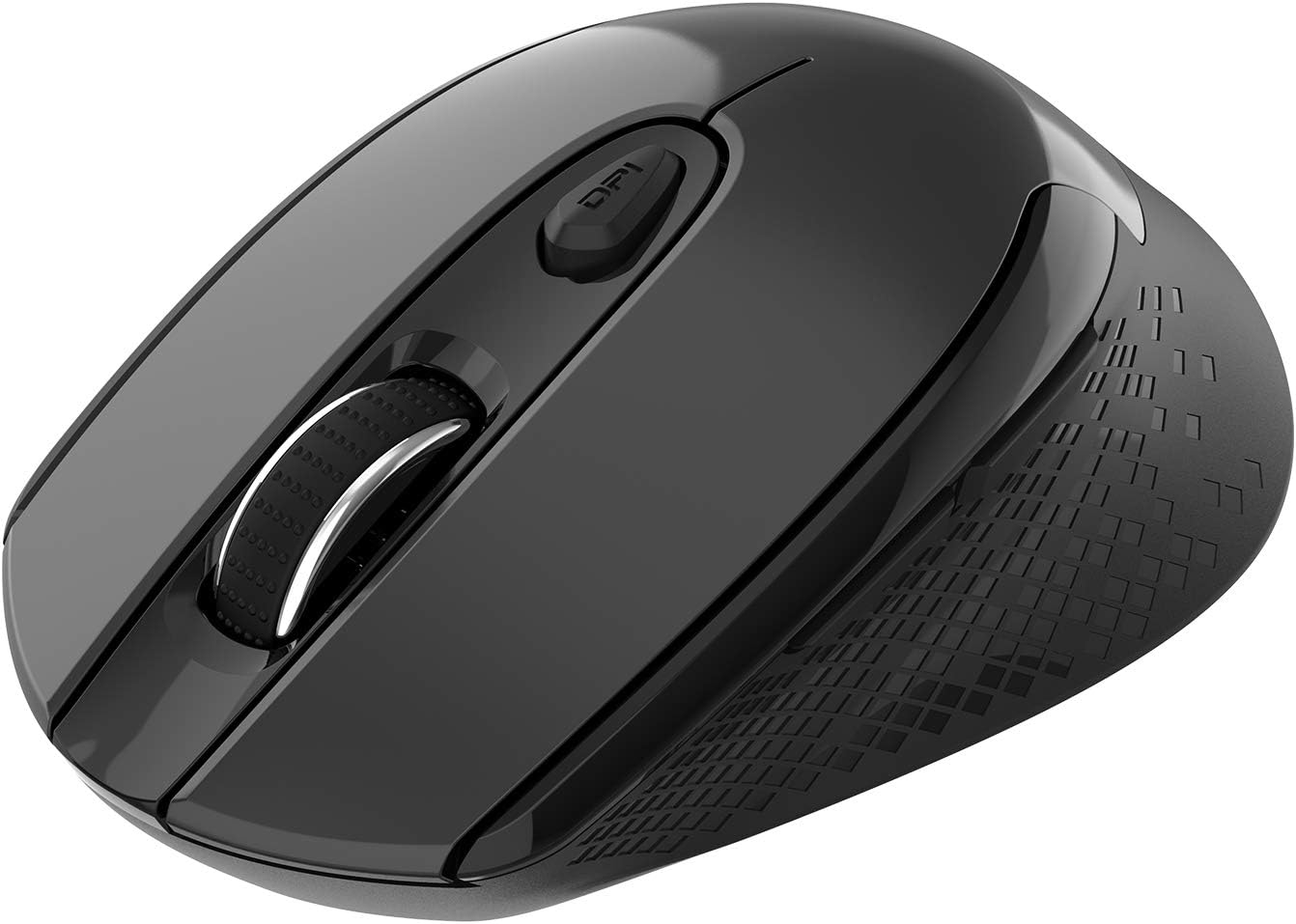
Image: Top-down view of the Cimetech Wireless Ergonomic Optical Mouse.

Image: The mouse connected via 2.4G wireless technology, showing the USB receiver plugged into a laptop.
Package Contents
Verify that all items are present in the package:
- 1 x Cimetech Cordless Mouse
- 1 x USB Receiver (stored in the battery compartment of the mouse)
- 1 x User Manual
Setup
1. Battery Installation
- Locate the battery compartment cover on the underside of the mouse.
- Gently slide or lift the cover to open the compartment.
- Insert one AA battery (not included) into the compartment, ensuring correct polarity (+/-).
- Replace the battery compartment cover.
2. USB Receiver Connection
- Open the battery compartment cover and carefully remove the USB receiver.
- Plug the USB receiver into an available USB port on your computer (laptop, desktop, Mac, or PC).
- The mouse should automatically connect to your device. No additional drivers are typically required.

Image: Visual guide for installing the AA battery and connecting the USB receiver.
Operating Instructions
Button Functions
The Cimetech Wireless Mouse features 6 buttons for enhanced functionality:
- Left Click Button: Standard primary click function.
- Right Click Button: Standard secondary click function.
- Scroll Wheel: For vertical scrolling. Can also be pressed for middle-click functionality.
- DPI Switch Button: Adjusts mouse sensitivity (DPI).
- Forward Button: Navigates forward in web browsers or file explorers.
- Backward Button: Navigates backward in web browsers or file explorers.

Image: Labeled diagram showing the location of the Left Click, Right Click, Scroll Wheel, DPI Switch, Forward, and Backward buttons, along with mouse dimensions.
DPI Adjustment
The mouse offers three adjustable DPI (Dots Per Inch) levels to control cursor speed and sensitivity. To change the DPI setting:
- Press the DPI button once: DPI is set to 800.
- Press the DPI button a second time: DPI is set to 1200 (default setting).
- Press the DPI button a third time: DPI is set to 1600.
The mouse retains the last selected DPI setting even after being turned off and on.
Intelligent Power-Saving Modes
The mouse is designed with three power-saving stages to conserve battery life:
- Stage 1 (Standby): Enters after 3 seconds of inactivity. Move the mouse to wake it up.
- Stage 2 (Auto Shut-off): Enters after 60 seconds of inactivity. Move the mouse to wake it up.
- Stage 3 (Deep Sleep): Enters after 15 minutes of inactivity. Move the mouse to wake it up.
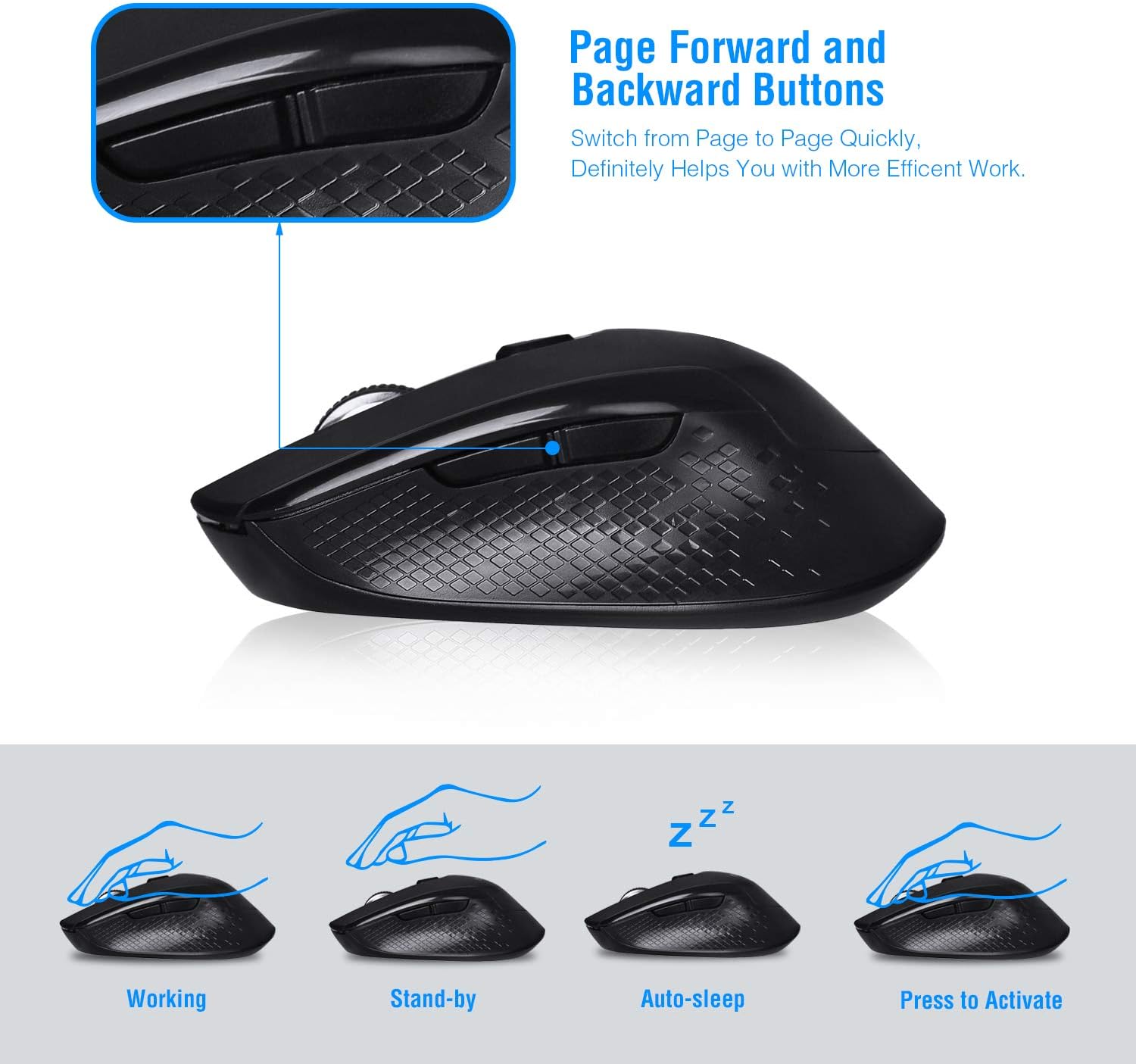
Image: Visual representation of the mouse's working, standby, auto-sleep, and activation states.
Maintenance
- Keep the mouse clean by wiping it with a soft, dry cloth.
- Avoid exposing the mouse to extreme temperatures, direct sunlight, or liquids.
- When not in use for extended periods, consider removing the battery to prevent leakage.
- Store the USB receiver inside the mouse's battery compartment when traveling to prevent loss.
Troubleshooting
| Problem | Solution |
|---|---|
| Mouse not responding |
|
| Cursor movement is erratic or imprecise |
|
| Forward/Backward buttons not working |
|
Specifications
| Model Number | CQ-TM004 |
| DPI Levels | 800 / 1200 (default) / 1600 |
| Polling Rate | 125Hz |
| Operating Range | Up to 50 feet (approximately 15 meters) |
| Connectivity | 2.4GHz Wireless via USB Receiver |
| Battery Type | 1 x AA battery (not included) |
| Compatibility | Windows 2000/ME/XP/7/8/10, VISTA, Mac OS |
| Product Dimensions | 4.13 x 2.64 x 0.1 inches (10.5 x 6.7 x 0.25 cm) |
| Item Weight | 2.82 ounces (80 grams) |
Compatibility
The Cimetech Wireless Mouse is compatible with a wide range of operating systems, including:
- Windows 2000
- Windows ME
- Windows XP
- Windows Vista
- Windows 7
- Windows 8
- Windows 10
- Mac OS
It is suitable for use with desktops, laptops, PCs, and MacBooks.
Warranty and Support
Specific warranty information is not provided in this manual. For warranty details, technical support, or further assistance, please refer to the official Cimetech website or contact their customer service directly.
You can often find support resources, FAQs, and contact information on the manufacturer's product support page.