
1. Introduction
This manual provides detailed instructions for the safe and efficient operation of your Blackweb Portable Blu-ray/DVD Player, model SDVD1183-BW. Please read this manual thoroughly before using the device and retain it for future reference. This portable player features an 11.4-inch HD screen, USB and SD card slots for media playback, and supports both Blu-ray and DVD discs.
2. Safety Information
- Power Source: Use only the provided AC adapter. Ensure the voltage matches the requirements specified on the adapter.
- Battery Safety: The device contains a Lithium-Ion battery. Do not expose to extreme temperatures, puncture, or disassemble. Dispose of batteries according to local regulations.
- Ventilation: Do not block ventilation openings. Ensure adequate airflow around the device during operation.
- Water and Moisture: Keep the device away from water, rain, and high humidity. Do not operate with wet hands.
- Cleaning: Disconnect power before cleaning. Use a soft, dry cloth. Avoid liquid cleaners or aerosols.
- Disc Handling: Handle discs by their edges. Avoid touching the playback surface. Keep discs clean and free from scratches.
- Temperature: Operate the device within a temperature range of 5°C to 35°C (41°F to 95°F).
- Children: This device is not a toy. Keep out of reach of small children.
3. Product Overview
Familiarize yourself with the components and controls of your portable Blu-ray/DVD player.

Figure 3.1: Front view of the Blackweb Portable Blu-ray/DVD Player (SDVD1183-BW) with the screen open. The 11.4-inch display is visible at the top, and the control panel with navigation buttons, volume controls, and disc tray area is at the bottom.
3.1 Front Panel Controls (Open View)
- Screen: 11.4-inch HD display.
- Disc Tray: Area for inserting Blu-ray or DVD discs.
- Power Button: Turns the device on or off.
- MODE/SOURCE Button: Switches between input sources (Disc, USB, SD).
- Navigation Buttons (Left/Right/Up/Down/Enter): For menu navigation and selection.
- Play/Pause Button: Starts or pauses playback.
- Stop Button: Stops playback.
- Fast Forward/Rewind Buttons: Skips chapters or fast forwards/rewinds playback.
- SETUP Button: Accesses the system settings menu.
- VOL +/- Buttons: Adjusts the volume level.
- Speakers: Integrated stereo speakers.
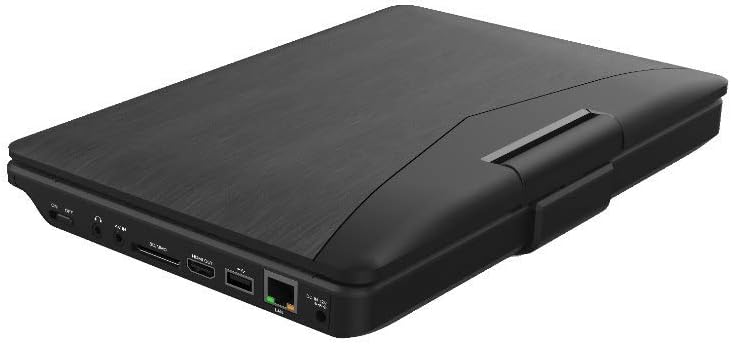
Figure 3.2: Side view of the Blackweb Portable Blu-ray/DVD Player (SDVD1183-BW) when closed, highlighting the various input/output ports. These include the DC IN port, USB port, SD card slot, HDMI OUT port, and LAN (RJ45) port.
3.2 Side Panel Ports
- DC IN: Power input for the AC adapter.
- USB Port: Connect USB flash drives for media playback.
- SD Card Slot: Insert SD memory cards for media playback.
- HDMI OUT: Connect to an external display (TV, monitor) for larger viewing.
- LAN (RJ45) Port: For wired network connection (if applicable for online features, though not explicitly stated for this model).
- Headphone Jack: 3.5mm audio output for private listening.
4. Setup
4.1 Charging the Battery
- Connect the supplied AC power adapter to the DC IN port on the player.
- Plug the other end of the AC adapter into a standard wall outlet.
- The charging indicator light will illuminate, typically red, during charging. It will change color (e.g., green or off) when fully charged.
- Allow approximately 4-6 hours for a full charge before first use.
4.2 Powering On/Off
- To Power On: Open the screen and press the POWER button. The screen will light up.
- To Power Off: Press and hold the POWER button until the screen turns off.
5. Operating Instructions
5.1 Playing Blu-ray/DVD Discs
- Ensure the player is powered on.
- Gently open the disc tray cover.
- Place a Blu-ray or DVD disc onto the spindle with the label side facing up. Press down gently until it clicks into place.
- Close the disc tray cover. The player will automatically detect the disc and begin playback or display the disc menu.
- Use the navigation buttons and ENTER to select options from the disc menu.
- Use the PLAY/PAUSE, STOP, FF, and REW buttons to control playback.
5.2 Playing Media from USB/SD Card
- Insert a USB flash drive into the USB port or an SD card into the SD card slot.
- Press the MODE/SOURCE button to select "USB" or "SD" as the input source.
- The player will display the file browser. Use the navigation buttons to browse your media files (videos, photos, music).
- Press ENTER to select and play a file.
5.3 Adjusting Settings
- Press the SETUP button to access the system settings menu.
- Use the navigation buttons to select categories such as "Video Setup," "Audio Setup," "Language Setup," etc.
- Press ENTER to enter a sub-menu and adjust settings like screen brightness, contrast, aspect ratio, audio output, and subtitle preferences.
- Press SETUP again to exit the menu.
5.4 Connecting to an External Display (HDMI)
- Ensure both the portable player and the external display (TV/monitor) are powered off.
- Connect one end of an HDMI cable (not included) to the HDMI OUT port on the portable player.
- Connect the other end of the HDMI cable to an HDMI input port on your external display.
- Power on both devices. Select the corresponding HDMI input on your external display.
- The portable player's output will now be displayed on the external screen. The portable player's screen may turn off or mirror the content, depending on settings.
5.5 Using Headphones
- Plug standard 3.5mm headphones into the headphone jack on the side of the player.
- The internal speakers will automatically mute when headphones are connected.
- Adjust volume using the VOL +/- buttons.
6. Maintenance
6.1 Cleaning the Device
- Always disconnect the power adapter before cleaning.
- Use a soft, dry, lint-free cloth to wipe the exterior surfaces.
- For the screen, use a screen-specific cleaning cloth or solution, applying it to the cloth first, not directly to the screen.
- Do not use abrasive cleaners, waxes, or solvents.
6.2 Disc Care
- Handle discs by their edges to avoid fingerprints and scratches on the playing surface.
- Store discs in their cases when not in use.
- If a disc is dirty, wipe it gently from the center outwards with a soft, lint-free cloth. Do not use harsh chemicals.
7. Troubleshooting
| Problem | Possible Cause | Solution |
|---|---|---|
| Player does not power on. | Battery is depleted. Power adapter not connected or faulty. | Connect the AC adapter and charge the battery. Ensure the AC adapter is securely connected to both the player and a working power outlet. |
| No picture on screen. | Screen brightness too low. HDMI cable connected to external display. | Adjust screen brightness in the SETUP menu. Disconnect HDMI cable or ensure external display is correctly configured. |
| No sound. | Volume is too low or muted. Headphones are connected. Audio settings incorrect. | Increase volume using VOL + button. Disconnect headphones if you want sound from speakers. Check audio settings in the SETUP menu. |
| Disc does not play. | Disc is dirty, scratched, or inserted incorrectly. Disc format not supported. Region code mismatch. | Clean the disc and reinsert it correctly. Ensure the disc is a supported Blu-ray or DVD format. This player supports region-free or compatible region discs. |
| USB/SD media not recognized. | Incorrect input source selected. File format not supported. USB drive/SD card corrupted or incompatible. | Press MODE/SOURCE to select "USB" or "SD". Refer to specifications for supported file formats. Try a different USB drive or SD card. Ensure it is formatted correctly (e.g., FAT32). |
8. Specifications
- Model: SDVD1183-BW
- Screen Size: 11.4 inches
- Screen Resolution: 1280x720
- Media Type: Blu-Ray, DVD
- Connectivity: USB, SD Card Slot, HDMI Out, LAN (RJ45), 3.5mm Headphone Jack
- Power Source: AC Adapter, Built-in Lithium Ion Battery
- Item Weight: Approximately 4.15 pounds (1.88 kg)
- Product Dimensions (LxWxH): 16 x 14.5 x 3.5 inches (40.64 x 36.83 x 8.89 cm)
- Manufacturer: Blackweb
9. Warranty and Support
For warranty information and technical support, please refer to the documentation provided at the time of purchase or contact the retailer. As this product is often sold as "Renewed," specific warranty terms may vary. Please consult the Amazon Renewed Guarantee for details regarding refurbished products purchased through Amazon.
For further assistance, you may also visit the official Blackweb support website or contact their customer service if available.