
1. Introduction and Overview
This manual provides essential information for setting up, operating, maintaining, and troubleshooting your Dell XPS 15 7590 laptop. The Dell XPS 15 7590 is a high-performance laptop designed for demanding tasks, featuring a stunning 4K UHD InfinityEdge touch display and powerful internal components.
Key Features:
- 15.6" 4K UHD (3840 x 2160) InfinityEdge anti-reflective touch IPS display.
- 9th Generation Intel Core i7-9750H processor (6 Cores, up to 4.5 GHz).
- NVIDIA GeForce GTX 1650 4GB GDDR5 graphics card.
- 16GB DDR4-2666MHz RAM.
- 1TB PCIe SSD storage.
- Backlit English keyboard with integrated fingerprint reader.
- Connectivity options including Thunderbolt, USB 3.0, and SD card reader.
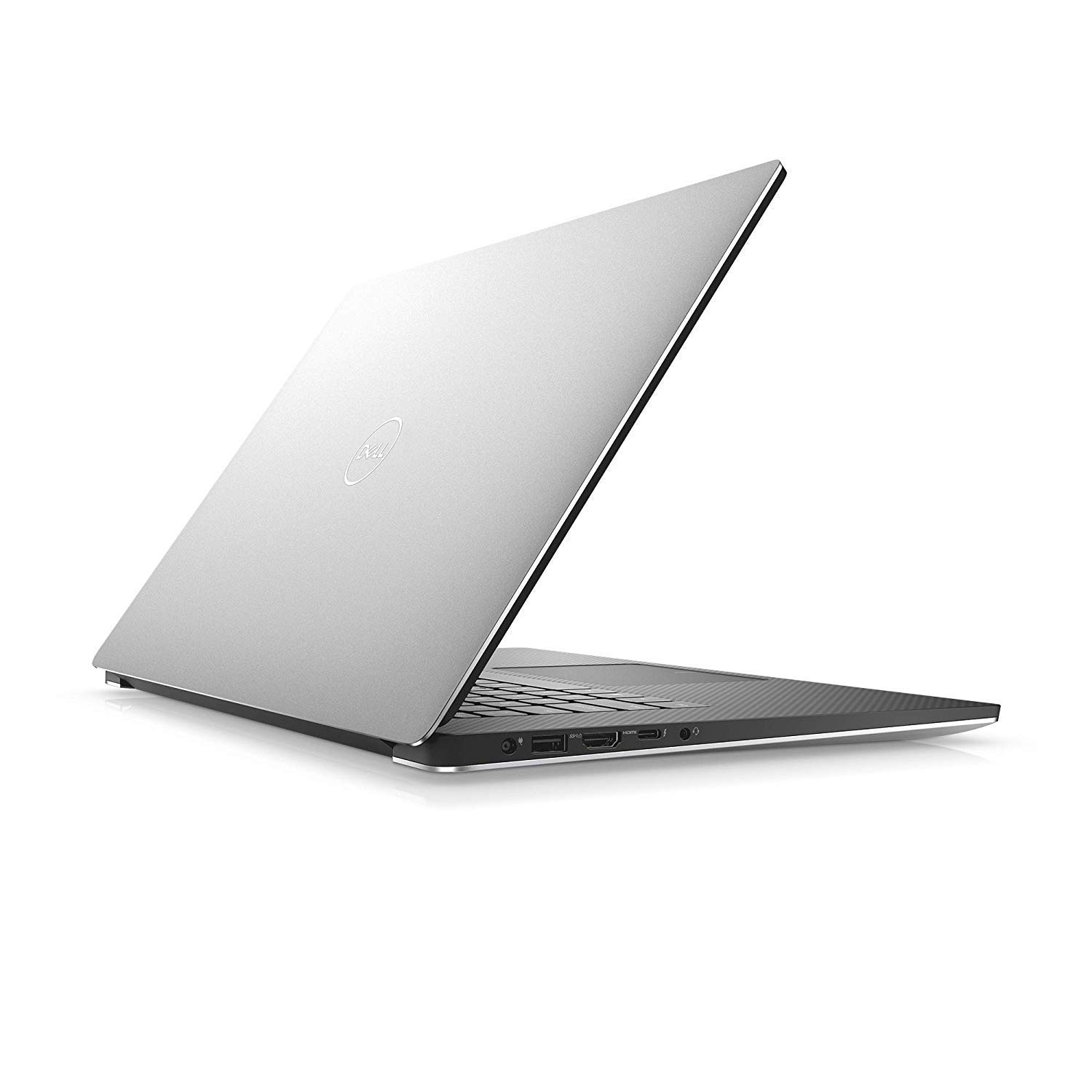
Figure 1: Top view of the Dell XPS 15 7590 laptop, showcasing its sleek design.
2. Setup Guide
2.1 Unboxing and Initial Inspection
Carefully remove your Dell XPS 15 7590 laptop and its accessories from the packaging. Verify that all components are present, including the laptop and the US Power Cord. Inspect the laptop for any physical damage before proceeding.
2.2 Connecting the Power Adapter
Connect the US Power Cord to the power adapter, then plug the adapter into a wall outlet. Insert the power adapter connector into the power port on the side of your laptop. The battery will begin charging automatically.
2.3 First Power-On and Operating System Setup
Open the laptop lid and press the power button, typically located on the top-right of the keyboard deck. The laptop will power on and guide you through the initial setup of Windows 10. Follow the on-screen instructions to configure your language, region, network settings, and user account.

Figure 2: Front view of the Dell XPS 15 7590 laptop with the screen open, showing the Windows operating system interface.
3. Operating Your Dell XPS 15 7590
3.1 Display Features
Your laptop features a 15.6-inch 4K UHD (3840 x 2160) InfinityEdge touch display. This display offers vibrant colors and sharp details, ideal for multimedia and professional applications. The touch functionality allows for intuitive interaction with the operating system and applications.
3.2 Keyboard and Touchpad
The backlit English keyboard provides comfortable typing in various lighting conditions. Adjust backlight intensity using the function keys. The precision touchpad supports multi-touch gestures for navigation. The integrated fingerprint reader, typically located on the power button, allows for secure and quick login.
3.3 Ports and Connectivity
The Dell XPS 15 7590 includes various ports for connecting peripherals:
- Thunderbolt: For high-speed data transfer, video output, and charging.
- USB 3.0: For connecting standard USB devices.
- SD Card Reader: For transferring data from SD cards.
- HDMI: For connecting to external displays.
- Audio Jack: For headphones or external speakers.
Wireless connectivity includes Wi-Fi (802.11bgn) and Bluetooth 5.0 for connecting to networks and wireless accessories.

Figure 3: Side view of the Dell XPS 15 7590 laptop, illustrating its slim profile and available ports.
4. Maintenance
4.1 Cleaning Your Laptop
To maintain optimal performance and appearance, regularly clean your laptop. Use a soft, lint-free cloth dampened with water or a specialized screen cleaner for the display. For the keyboard and chassis, use a soft cloth. Avoid harsh chemicals or abrasive materials.
4.2 Software Updates
Ensure your operating system and drivers are up to date. Windows Update automatically manages OS updates. For Dell-specific drivers and firmware, use the Dell Update application or visit the official Dell support website.
4.3 Battery Care
The laptop is equipped with a 6-cell 97Whr integrated Lithium-Ion battery. To prolong battery life, avoid extreme temperatures and fully discharging the battery frequently. Dell Power Manager software can help optimize battery settings.
5. Troubleshooting
This section addresses common issues you might encounter with your Dell XPS 15 7590.
5.1 System Not Responding / Freezing
- Force Restart: If the system becomes unresponsive, press and hold the power button for about 10-15 seconds until the laptop shuts down. Wait a few seconds, then press the power button again to restart.
- Check for Updates: Ensure all Windows updates and Dell drivers are current. Outdated software can cause instability.
- Resource Usage: Use Task Manager (Ctrl+Shift+Esc) to check if any applications are consuming excessive CPU, memory, or disk resources. Close such applications if necessary.
5.2 Display Issues
- No Display: Ensure the laptop is powered on. Try connecting an external monitor to check if the issue is with the laptop's internal display.
- Flickering/Distorted Display: Update your graphics drivers. If the issue persists, contact Dell support.
5.3 Peripheral Connectivity Problems
- USB Devices Not Recognized: Try connecting the device to a different USB port. Ensure drivers for the peripheral are installed.
- Wi-Fi/Bluetooth Issues: Check if Wi-Fi and Bluetooth are enabled in Windows settings. Restart your router for Wi-Fi issues. Update wireless drivers.
For more detailed troubleshooting, refer to the Dell support website or contact Dell technical support.
6. Specifications
| Feature | Specification |
|---|---|
| Brand | Dell |
| Model Name | XPS 15 7590 |
| Model Number | XPS7590-7565SLV-PUS |
| Screen Size | 15.6 Inches |
| Display Resolution | 4K UHD (3840 x 2160) InfinityEdge Touch IPS |
| Processor | 9th Generation Intel Core i7-9750H (6 Cores, up to 4.5 GHz) |
| Graphics Coprocessor | NVIDIA GeForce GTX 1650 4GB GDDR5 |
| RAM Memory | 16 GB DDR4-2666MHz (2x8G) |
| Storage | 1 TB PCIe SSD |
| Operating System | Windows 10 Home |
| Keyboard | Backlit English keyboard with fingerprint reader |
| Wireless Connectivity | Bluetooth 5.0, Wi-Fi (802.11bgn) |
| Ports | Thunderbolt, USB 3.0 (Total 3), SD Card Reader, HDMI (Total 1) |
| Battery | 6-Cell 97Whr integrated Lithium-Ion |
| Item Weight | 5.5 Pounds |
| Dimensions (L x W x Thickness) | 235"L x 14.06"W x 0.67"Th |
7. Warranty and Support
7.1 Product Warranty
Your Dell XPS 15 7590 laptop comes with a 1 Year Hardware Service with Onsite/In-Home Service After Remote Diagnosis. This warranty covers manufacturing defects and hardware failures under normal use conditions. For specific terms and conditions, please refer to the warranty documentation included with your product or visit the official Dell website.
7.2 Technical Support
For technical assistance, driver downloads, or further troubleshooting, please visit the official Dell Support website. You can typically find support resources by searching for your product model (XPS 15 7590) on the Dell support portal. Contact information for Dell customer service and technical support can also be found on their website.


