
1. Introduction
Thank you for choosing the NEXT-SHINE YK02-Charging Food Kitchen Scale. This digital scale is designed for high-precision weighing in various kitchen applications, from baking and cooking to meal preparation. It features a large stainless steel platform, a backlit LCD, and multiple unit options. Please read this manual thoroughly before use to ensure proper operation and maintenance.
2. Safety Information
- Do not immerse the scale in water or other liquids.
- Clean the scale with a damp cloth; do not use abrasive cleaners.
- Place the scale on a hard, flat, and stable surface for accurate measurements.
- Avoid extreme temperatures and humidity.
- Do not overload the scale beyond its maximum capacity of 5kg (11lb).
- Keep out of reach of children.
- If the scale is not used for an extended period, remove the AAA batteries if installed.
3. Package Contents
Verify that all items are present in the package:
- NEXT-SHINE YK02-Charging Food Kitchen Scale
- 50g Calibration Weight
- Plastic Tray
- Type-C USB Charging Cable
- User Manual (this document)

Image: The complete kit including the scale, calibration weight, plastic tray, and charging cable.
4. Product Features
- High Precision: Measures with 0.1g accuracy for precise results.
- Large Capacity: Weighs items from 0.4g up to 5kg (11lb).
- Multiple Units: Supports 9 units (g, gn, oz, ozt, dwt, ct, lb, tl, ml).
- Type-C Rechargeable: Built-in rechargeable battery with Type-C charging port.
- AAA Battery Option: Can also be powered by 2 AAA batteries (not included).
- Large Stainless Steel Platform: Durable and easy to clean weighing surface.
- Backlit LCD Display: Clear and easy-to-read display in various lighting conditions.
- Tare Function: Allows weighing of ingredients in a container by subtracting the container's weight.
- Hold Function: Locks the weight reading on the display.
- Counting Function (PCS): Counts small, uniform items.
- Auto Shut-Off: Conserves battery life.

Image: The scale demonstrating 0.1g precision with a small amount of flour.

Image: The scale's display showing the nine available measurement units.
5. Setup
5.1 Power Supply
The scale can be powered by its internal rechargeable battery or by 2 AAA batteries (not included).
- Internal Rechargeable Battery: Connect the provided Type-C USB cable to the scale's charging port and to a USB power source (e.g., computer, wall adapter). The charging indicator will flash while charging and remain solid when fully charged.
- AAA Batteries: Open the battery compartment on the underside of the scale. Insert 2 AAA batteries, ensuring correct polarity. Close the compartment.

Image: Details of the Type-C charging port and the AAA battery compartment.
5.2 Initial Placement
Place the scale on a firm, level, and stable surface. Avoid placing it on soft or uneven surfaces, which can affect accuracy.
6. Operation
6.1 Power On/Off
- Press the ON/OFF button to turn the scale on.
- Press and hold the ON/OFF button for 3 seconds to turn the scale off.
- The scale will automatically turn off after a period of inactivity to conserve battery.
6.2 Unit Conversion
With the scale on, press the UNIT button to cycle through the available measurement units: g, gn, oz, ozt, dwt, ct, lb, tl, ml.
6.3 Tare Function
The Tare function allows you to subtract the weight of a container, so you only measure the contents.
- Place an empty container on the weighing platform.
- Wait for the display to stabilize, then press the ZERO button. The display will reset to 0.0g.
- Add the items you wish to weigh into the container. The display will show the net weight of the items.
6.4 Hold Function
The Hold function locks the current weight reading on the display, which is useful when adding ingredients dynamically or when the display is obscured.
- Place an item on the scale.
- Press the HOLD button to lock the weight. The reading will remain on the display even if the item is removed.
- Press the HOLD button again to release the function.

Image: The Hold function in action, locking the weight of flour in a bowl.
6.5 Counting Function (PCS)
This function allows you to count a quantity of uniform items.
- Turn on the scale.
- Long press the PCS button until a sample quantity (e.g., 25, 50, 75, 100) appears on the display.
- Press the UNIT button to select the desired sample quantity that matches the number of items you will place on the scale.
- Place the exact number of sample items (e.g., 25 pieces) on the platform.
- Press the PCS button again to confirm the sample. The display will show "PCS" and the number of items.
- You can now add more items, and the scale will count them based on the sample weight.
Video: Demonstration of the scale's counting function, showing how to set a sample and count multiple items.
7. Calibration
The scale comes pre-calibrated, but re-calibration may be necessary over time or if accuracy issues arise. A 50g calibration weight is included.
- Place the scale on a stable, level surface.
- Turn the scale on.
- Press and hold the CAL button until the display shows "CAL" followed by the required calibration weight (e.g., "50.00g").
- Place the 50g calibration weight precisely in the center of the weighing platform.
- Wait for the display to stabilize and show "PASS" or return to normal weighing mode (0.0g). This indicates successful calibration.
- Remove the calibration weight.
8. Maintenance and Cleaning
- Wipe the scale surface with a soft, damp cloth. For stubborn stains, a mild detergent can be used.
- Do not use abrasive cleaners, harsh chemicals, or immerse the scale in water.
- Store the scale in a clean, dry place when not in use.
- The included plastic tray can be used to protect the weighing platform and for easy cleaning after weighing messy ingredients.
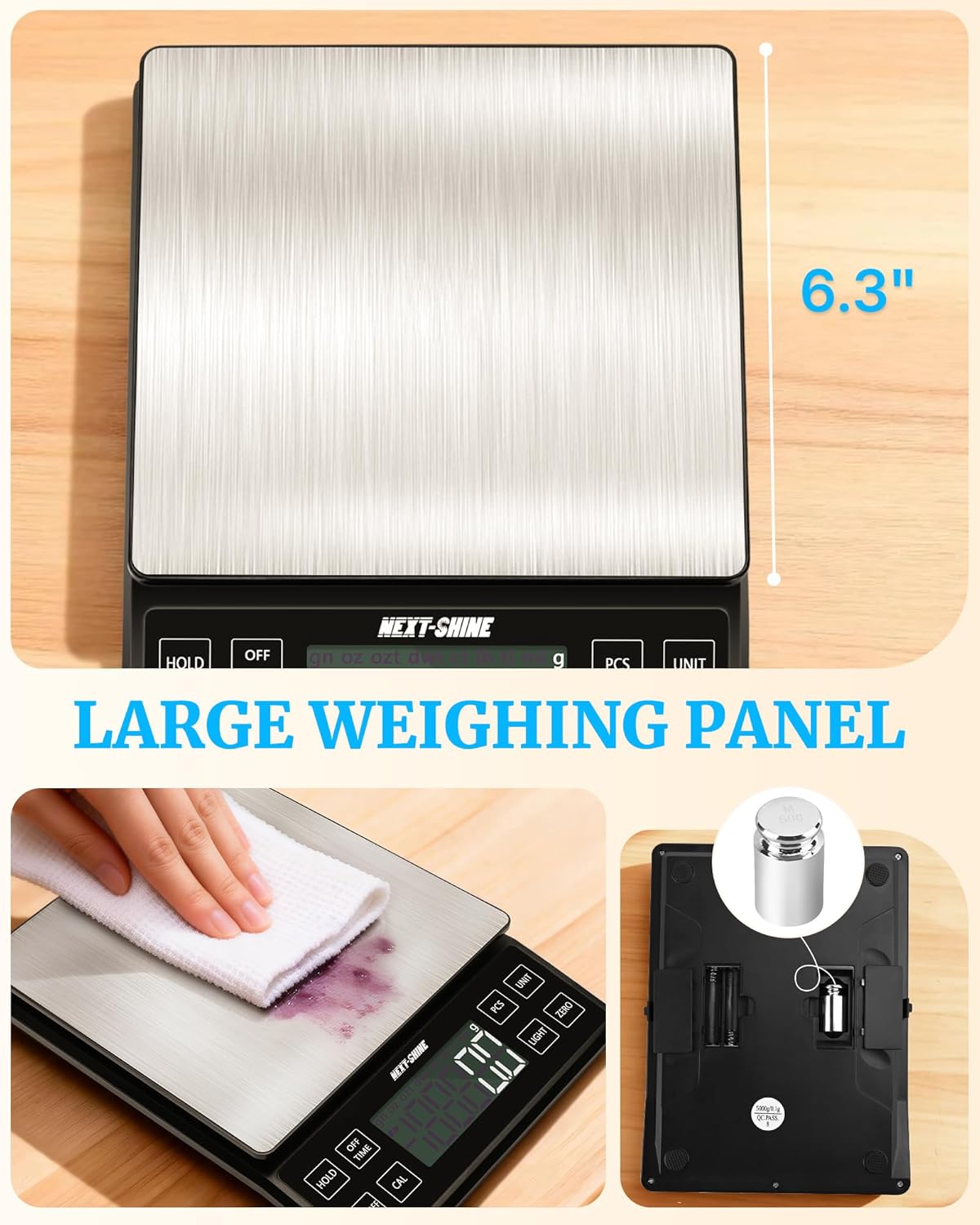
Image: Cleaning the large stainless steel weighing panel of the scale.
9. Troubleshooting
| Problem | Possible Cause | Solution |
|---|---|---|
| Scale does not turn on | Low battery or no power. | Charge the scale using the Type-C cable or replace AAA batteries if installed. |
| Inaccurate readings | Uneven surface, overloaded, or needs calibration. | Place on a flat surface, ensure weight is within 5kg limit, or perform calibration. |
| Display shows "EEEE" | Overload error. | Remove items immediately to prevent damage. Ensure total weight is below 5kg. |
| Display shows "UNST" | Unstable reading. | Ensure the scale is on a stable surface and there are no vibrations or air currents. |
10. Specifications
| Feature | Detail |
|---|---|
| Model Number | YK02-Charging |
| Weight Capacity Maximum | 5 Kilograms (11 lbs) |
| Readout Accuracy | +/- 0.1 g |
| Measurement Units | g, gn, oz, ozt, dwt, ct, lb, tl, ml |
| Display Type | LCD with Backlight |
| Power Source | Rechargeable Lithium Ion battery (included) or 2x AAA batteries (not included) |
| Charging Port | Type-C USB |
| Product Dimensions | 19 x 14.22 x 2.49 cm |
| Item Weight | 662 Grams |
| Material | Acrylonitrile Butadiene Styrene (ABS) |
| Manufacturer | NEXT-SHINE |
| Country of Origin | China |
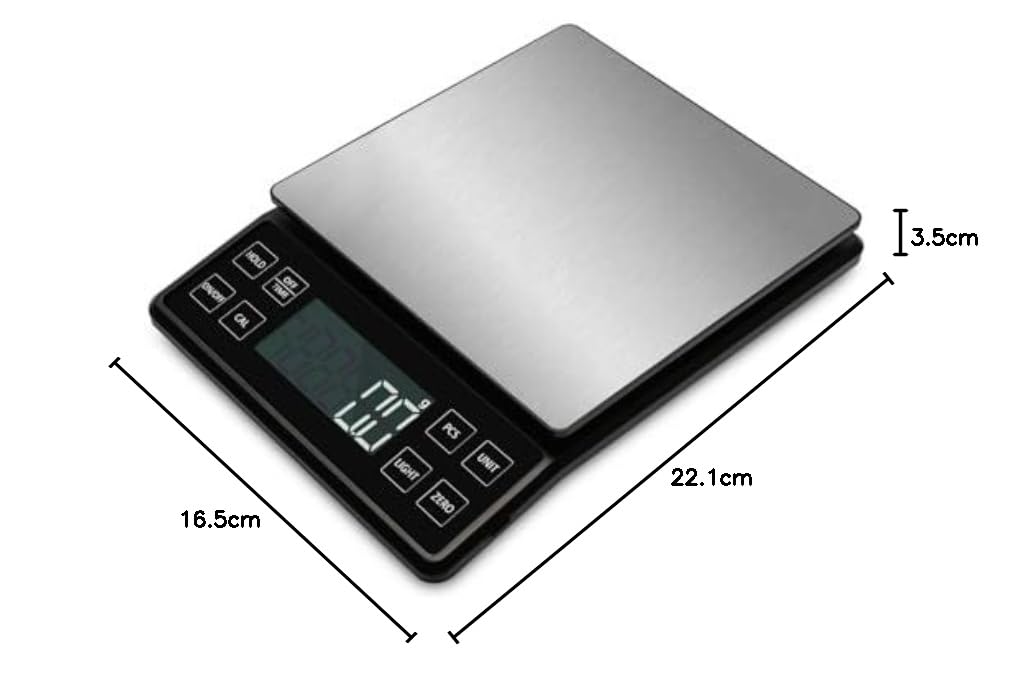
Image: Diagram showing the physical dimensions of the scale.
11. Warranty and Support
This NEXT-SHINE YK02-Charging Food Kitchen Scale comes with a 1-Year Manufacturer Warranty from the date of purchase. This warranty covers defects in materials and workmanship under normal use.
For warranty claims, technical support, or any questions regarding your product, please contact NEXT-SHINE customer service through the retailer where the product was purchased or refer to the contact information provided on the product packaging.