
Introduction
This manual provides essential information for setting up, operating, maintaining, and troubleshooting your Dell XPS 15 7590 laptop. Please read these instructions carefully to ensure proper use and longevity of your device.
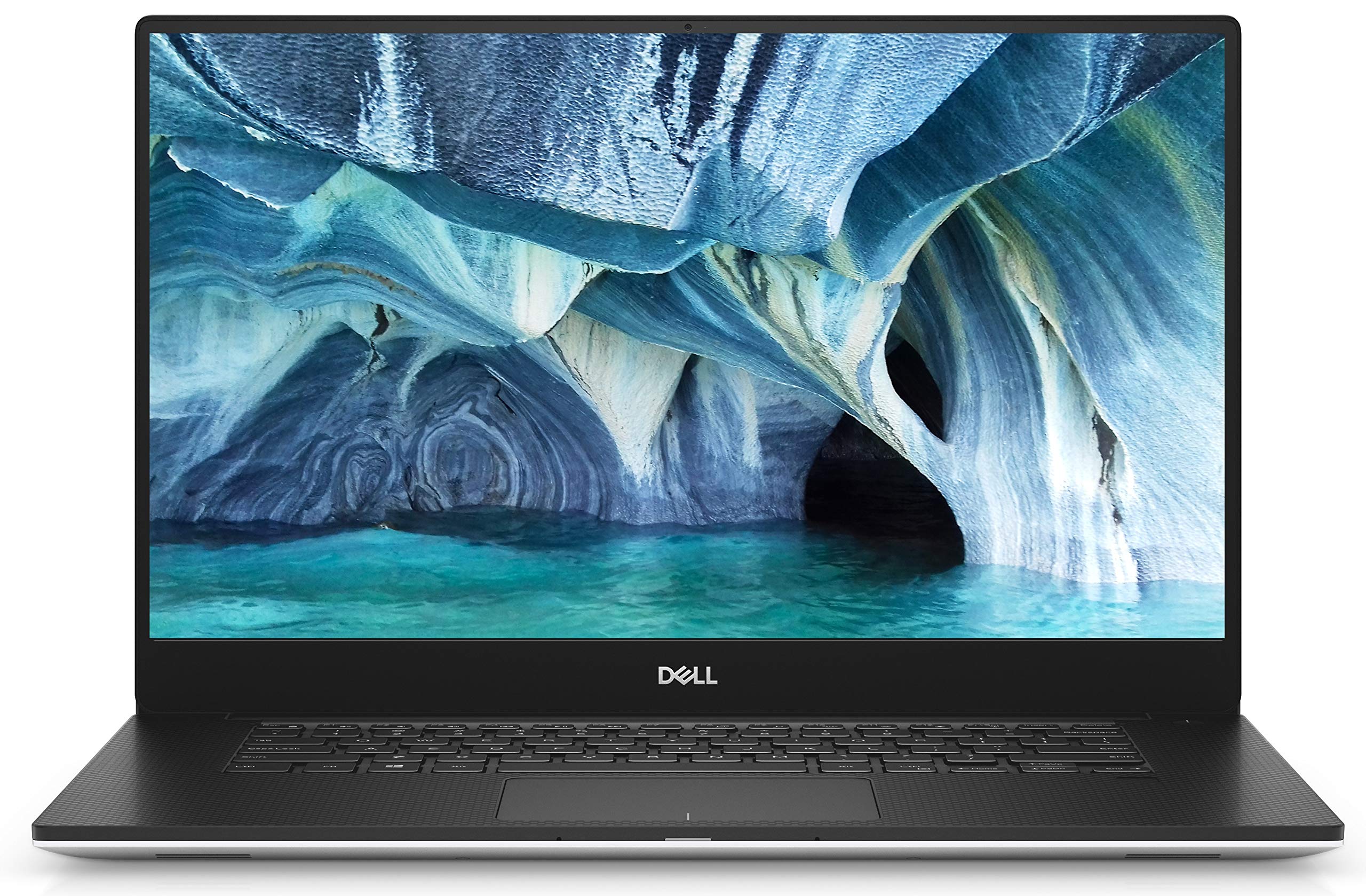
Image: Front view of the Dell XPS 15 7590 Laptop, showcasing its InfinityEdge display.
1. Initial Setup
1.1 Unpacking and Inspection
- Carefully remove the laptop and all accessories from the packaging.
- Verify that all components are present: Dell XPS 15 7590 laptop, AC adapter, and US Power Cord.
- Inspect the laptop for any physical damage. If damage is found, contact Dell support immediately.
1.2 Connecting the Power Adapter
- Connect the AC adapter to the power connector on the side of your laptop.
- Plug the power cord into a wall outlet.
- Allow the battery to charge for at least 30 minutes before initial use, or until the battery indicator shows sufficient charge.

Image: Right side of the Dell XPS 15 7590 Laptop, showing the power port, USB 3.0 port, and SD card reader.
1.3 First Power On and Windows Setup
- Open the laptop lid.
- Press the power button located on the top-right of the keyboard.
- Follow the on-screen instructions to complete the Windows 10 Home setup process. This includes selecting your region, language, accepting terms, and creating a user account.
- Connect to a Wi-Fi network when prompted to ensure updates can be downloaded.
2. Operating Your Laptop
2.1 Keyboard and Touchpad
The Dell XPS 15 7590 features a backlit English keyboard and a precision touchpad. The keyboard backlight can be adjusted using function keys (Fn + F10, typically). The touchpad supports multi-touch gestures for navigation.

Image: Top-down view of the Dell XPS 15 7590 Laptop keyboard and precision touchpad.
2.2 Ports and Connectivity
Your laptop is equipped with various ports for connecting external devices:
- USB 3.0 Ports: For connecting USB devices like external drives, mice, and keyboards.
- Thunderbolt Port: A versatile port supporting data transfer, video output, and power delivery.
- HDMI Port: For connecting to external displays or projectors.
- SD Card Reader: For reading and writing data to SD cards.
- Audio Jack: For headphones or external speakers.

Image: Left side of the Dell XPS 15 7590 Laptop, showing the power input, HDMI port, USB 3.0 port, and Thunderbolt port.
2.3 Biometric Security
The laptop includes a fingerprint reader integrated into the power button for enhanced security and quick login via Windows Hello.
3. Maintenance and Care
3.1 Cleaning Your Laptop
- Always power off the laptop and disconnect the AC adapter before cleaning.
- Use a soft, lint-free cloth dampened with water or a specialized screen cleaner for the display.
- For the keyboard and chassis, use a soft cloth. Avoid harsh chemicals or abrasive materials.
- Periodically clean the air vents to prevent dust buildup, which can affect cooling performance.
3.2 Battery Care
- To maximize battery lifespan, avoid consistently discharging the battery completely or keeping it at 100% charge for extended periods.
- Store the laptop in a cool, dry place when not in use.
- If the laptop will be stored for a long time, ensure the battery is charged to approximately 50-60%.

Image: Side view of the Dell XPS 15 7590 Laptop highlighting the external battery indicator lights.
4. Troubleshooting
This section addresses common issues you might encounter with your Dell XPS 15 7590 laptop.
4.1 Laptop Does Not Power On
- Ensure the AC adapter is securely connected to both the laptop and a working power outlet.
- Check the power indicator light on the AC adapter. If it's off, try a different outlet or adapter.
- If the battery is completely drained, it may take a few minutes of charging before the laptop can power on.
- Perform a hard reset: Disconnect the AC adapter, press and hold the power button for 15-20 seconds, then reconnect the AC adapter and try to power on.
4.2 Battery Not Charging
- Verify the AC adapter is correctly connected and functioning.
- Check the battery status in Windows. If it indicates "plugged in, not charging," try restarting the laptop.
- Update your laptop's BIOS and chipset drivers from the Dell support website.
- If the issue persists, the battery or AC adapter may require service.
4.3 Cursor Freezes or is Unresponsive
- Ensure the touchpad is not accidentally disabled (check function keys, e.g., Fn + F5).
- Try connecting an external USB mouse to see if it functions correctly.
- Update the touchpad drivers from the Dell support website.
- Restart the laptop.
4.4 Overheating and Fan Noise
- Ensure the laptop's air vents are not obstructed. Use the laptop on a hard, flat surface.
- Close unnecessary applications running in the background to reduce CPU/GPU load.
- Update your system drivers and BIOS.
- Consider using a cooling pad if you frequently perform intensive tasks.
4.5 Wi-Fi Connectivity Issues
- Ensure Wi-Fi is enabled on your laptop (check function keys or Windows settings).
- Restart your Wi-Fi router and modem.
- Update your wireless adapter drivers from the Dell support website.
- Try connecting to a different Wi-Fi network to determine if the issue is with your laptop or the network.
5. Specifications
| Feature | Detail |
|---|---|
| Brand | Dell |
| Model Name | XPS 15 7590 |
| Screen Size | 15.6 Inches |
| Display Resolution | 1920 x 1080 (FHD) |
| Display Type | InfinityEdge Anti-Glare Non-Touch IPS, 500 nits |
| Processor | 9th Gen Intel Core i7-9750H (up to 4.5 GHz, 6 Cores) |
| Graphics Card | NVIDIA GeForce GTX 1650 4GB GDDR5 |
| RAM Memory | 8GB DDR4 2666MHz |
| Storage | 512GB PCIe SSD |
| Operating System | Windows 10 Home 64bit English |
| Battery | 6 Cell 97Whr integrated Lithium Ion |
| Ports | SD Card Reader, Thunderbolt, USB 3.0 (x2), HDMI |
| Wireless Connectivity | Wi-Fi (802.11bgn), Bluetooth |
| Security | Fingerprint Recognition |
| Dimensions (L x W x Th) | 14.06"L x 9.27"W x 0.66"Th |
| Model Year | 2019 |
| UPC | 884116316541 |
6. Warranty and Support
6.1 Product Warranty
Your Dell XPS 15 7590 laptop comes with a 1 Year Hardware Service with Onsite/In-Home Service After Remote Diagnosis. For detailed terms and conditions, please refer to the warranty documentation included with your product or visit the official Dell support website.
6.2 Technical Support
For technical assistance, driver downloads, or further troubleshooting, please visit the official Dell Support website or contact Dell customer service. Have your product's service tag ready for faster assistance.
Dell Support Website: www.dell.com/support


