
1. Product Overview
The TP-Link Archer T4U Plus is an AC1300 Dual Band Wireless USB Adapter designed to provide high-speed Wi-Fi connectivity for desktop computers. It supports the 802.11ac Wi-Fi standard, offering speeds of up to 867 Mbps on the 5 GHz band and 400 Mbps on the 2.4 GHz band. Equipped with dual high-gain antennas and a USB 3.0 interface, it aims to enhance wireless range and data transfer efficiency.

The TP-Link Archer T4U Plus USB WiFi Adapter, featuring two high-gain antennas and a USB 3.0 cable for connection to a computer.
2. Package Contents
Verify that your package contains the following items:
- AC1300 Dual Antennas High-Gain Wireless USB Adapter (Archer T4U Plus)
- 1-meter USB 3.0 Cable
- Quick Installation Guide
- Resource CD (for drivers)
3. Setup Instructions
3.1 Hardware Installation
- Unpack the Adapter: Carefully remove the Archer T4U Plus adapter and its USB cable from the packaging.
- Connect the USB Cable: Connect one end of the provided 1-meter USB 3.0 cable to the USB 3.0 port on the Archer T4U Plus adapter.
- Connect to Computer: Plug the other end of the USB 3.0 cable into an available USB 3.0 port on your desktop computer. For optimal performance, use a USB 3.0 port (typically blue inside).
- Position the Adapter: Place the adapter in a location that allows for good signal reception, ideally away from obstructions. The adjustable antennas can be rotated and angled for best performance.

The Archer T4U Plus adapter shown connected to a USB port via its included cable, illustrating its desktop placement.
3.2 Driver Installation
The Archer T4U Plus requires drivers to function correctly. Drivers can be installed via the included Resource CD or by downloading them from the TP-Link website.
For Windows Operating Systems (Windows 11/10/8.1/8/7/XP):
- Using the Resource CD: Insert the Resource CD into your computer's CD-ROM drive. Follow the on-screen instructions to install the drivers.
- Downloading from TP-Link Website: If your computer lacks a CD-ROM drive, visit the official TP-Link support website, search for "Archer T4U Plus", and download the latest drivers for your specific Windows version. Run the downloaded installer and follow the prompts.
- Automatic Installation (Windows 10/11): In some cases, Windows 10 or 11 may automatically detect and install the necessary drivers upon connecting the adapter. Verify installation in Device Manager under "Network Adapters".
For Mac OS (10.15 and earlier):
- Downloading from TP-Link Website: Visit the official TP-Link support website, search for "Archer T4U Plus", and download the latest drivers for your Mac OS version.
- Install Drivers: Open the downloaded file and follow the installation instructions. You may need to restart your computer after installation.
4. Operating Instructions
4.1 Connecting to a Wireless Network
Once the drivers are successfully installed, you can connect to a Wi-Fi network:
- Access Network Settings:
- Windows: Click the Wi-Fi icon in the system tray (bottom-right corner of the screen).
- Mac OS: Click the Wi-Fi icon in the menu bar (top-right corner of the screen).
- Select Network: A list of available wireless networks will appear. Select your desired network (SSID).
- Enter Password: If prompted, enter the Wi-Fi password (security key) for your network.
- Connect: Click "Connect" to establish the wireless connection.
4.2 Dual Band Operation
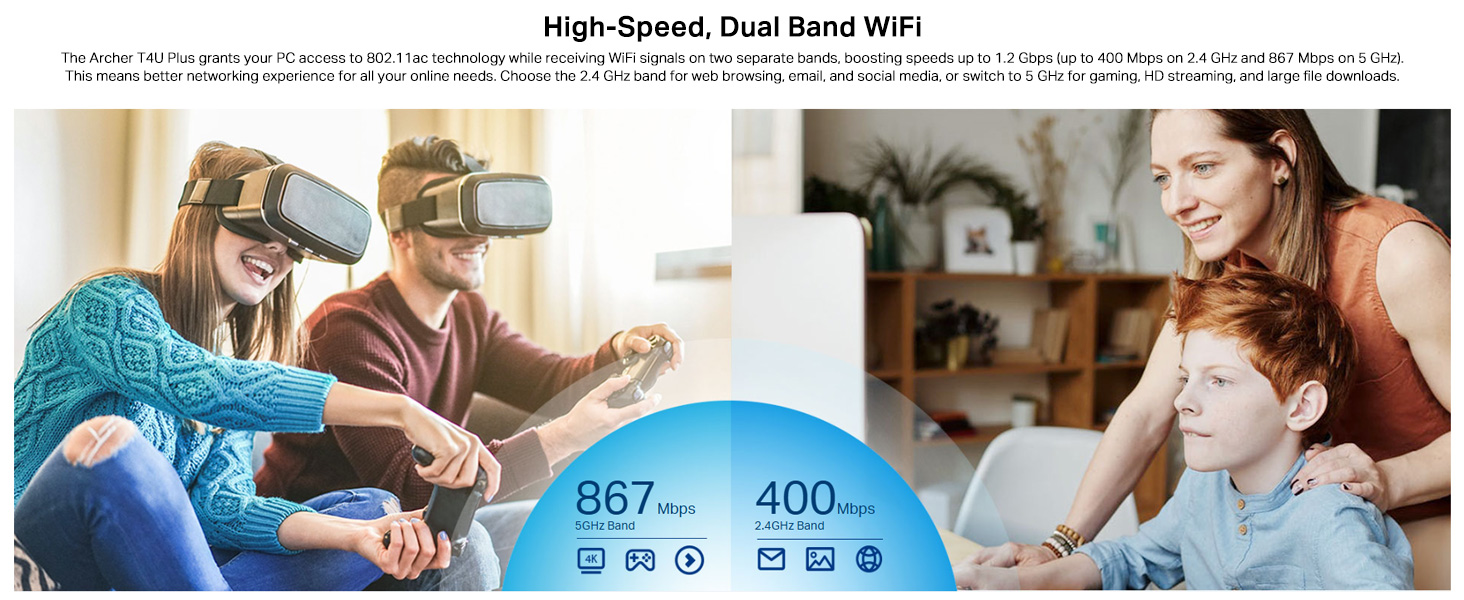
The Archer T4U Plus supports both 2.4 GHz and 5 GHz Wi-Fi bands. You can choose the band that best suits your needs:
- 2.4 GHz Band: Offers broader coverage and better penetration through walls, suitable for general internet use like web browsing and email.
- 5 GHz Band: Provides faster speeds and less interference, ideal for bandwidth-intensive activities such as online gaming, HD video streaming, and large file transfers.
Your router may broadcast separate SSIDs for each band (e.g., "MyWiFi_2.4GHz" and "MyWiFi_5GHz"). Select the appropriate network from the available list.

An image illustrating the dual-band capabilities of the adapter, showing 867 Mbps on the 5GHz band for activities like 4K streaming and gaming, and 400 Mbps on the 2.4GHz band for web browsing and email.
4.3 Enhanced Coverage and MU-MIMO
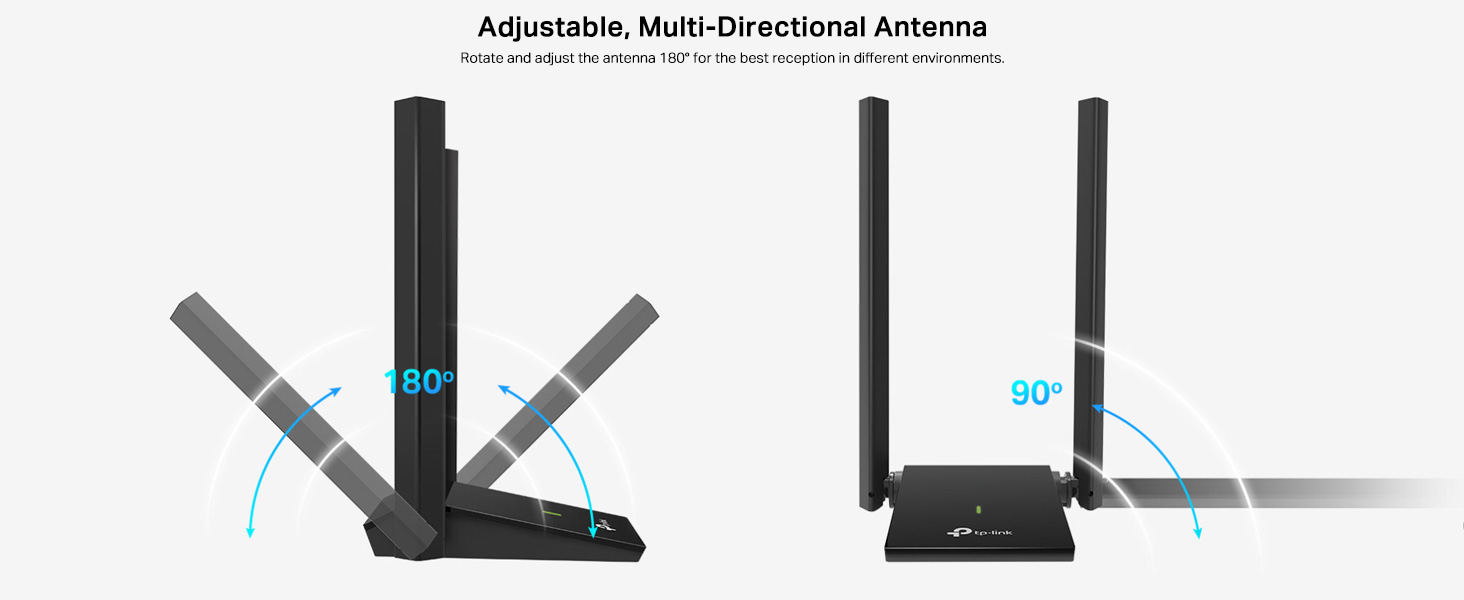
The dual high-gain antennas are designed to improve signal transmission and reception, extending your wireless coverage. For optimal performance, adjust the antennas to point towards your wireless router.
Illustrates the flexibility of the adapter's antennas, which can be rotated 180 degrees and adjusted 90 degrees for optimal signal reception.
The adapter also supports MU-MIMO technology. When used with a compatible MU-MIMO router, this technology allows the adapter to communicate with multiple devices simultaneously, improving network throughput and efficiency.
A visual representation of MU-MIMO technology, showing how the Archer T4U Plus adapter, when paired with a compatible router, can communicate with multiple devices simultaneously for improved network efficiency.
5. Maintenance
- Keep Drivers Updated: Regularly check the TP-Link support website for the latest drivers to ensure optimal performance and compatibility.
- Clean the Device: Use a soft, dry cloth to clean the adapter. Avoid using liquid cleaners or solvents.
- Proper Placement: Ensure the adapter is placed in a well-ventilated area and not covered, to prevent overheating.
- Secure Connection: Ensure the USB cable is securely connected to both the adapter and your computer to prevent intermittent disconnections.
6. Troubleshooting
- No Wi-Fi Connection:
- Ensure the adapter is properly connected to a USB port.
- Verify that the drivers are correctly installed. Check Device Manager (Windows) or System Information (Mac OS) for the adapter's status.
- Restart your computer and router.
- Try connecting to a different USB port.
- Slow Wi-Fi Speeds:
- Ensure you are connected to the 5 GHz band if available and your router supports it, for faster speeds.
- Adjust the adapter's antennas for better signal reception.
- Minimize physical obstructions between the adapter and your router.
- Check for interference from other devices (e.g., microwaves, cordless phones).
- Update your adapter's drivers to the latest version.
- Frequent Disconnections:
- Ensure the USB cable is not loose.
- Try a different USB port, preferably a USB 3.0 port.
- Check for updated drivers.
- Ensure the adapter is not overheating.
- Driver Installation Issues:
- Disable any antivirus or firewall software temporarily during installation.
- Download drivers directly from the official TP-Link website for your specific operating system.
- For Linux users, specific driver installation steps may be required, often involving command-line instructions. Refer to community forums or TP-Link's support for detailed guidance.
7. Specifications
| Feature | Description |
|---|---|
| Brand | TP-Link |
| Model Number | Archer T4U Plus |
| Hardware Interface | USB 3.0 |
| Wireless Standard | 802.11ac |
| Data Transfer Rate | 1300 Mbps (867 Mbps on 5GHz, 400 Mbps on 2.4GHz) |
| Antennas | Dual High-Gain 5dBi Antennas |
| Operating Systems | Windows 11/10/8.1/8/7/XP, Mac OS 10.15 and earlier |
| Dimensions (L x W x H) | 8.4L x 15.6W x 1.9H Centimeters |
| Item Weight | 100 Grams |
| Color | Black |
8. Warranty and Technical Support
8.1 Warranty Information
This product comes with a 3-year manufacturer's warranty. Please retain your proof of purchase for warranty claims.
8.2 Technical Support
For technical assistance, driver downloads, or further inquiries, please contact TP-Link support:
- TP-Link India Private Limited
- Address: Green Industrial Park, Dongri Pada, Poman, Kaman-Bhiwandi Road, Vasai East, Palghar, Maharashtra – 401208
- Toll Free Contact: 1800 2094 168
- Email Support: support.in@tp-link.com
- Manufacturer: TP-Link Corporation, South Building, No.5 Keyuan Road, Central Zone, Science & Technology Park, Nanshan, Shenzhen, P.R. China
For the most up-to-date support information and resources, please visit the official TP-Link website.


