
1. Introduction
The TP-Link TL-SG108 is an 8-Port Gigabit Desktop Switch designed to expand your network capacity with minimal effort. This unmanaged switch offers a simple, plug-and-play solution for connecting multiple wired devices, such as computers, gaming consoles, printers, and smart TVs, to your network. Its sturdy metal casing ensures durability, and its fanless design provides quiet operation. This manual provides essential information for setting up, operating, and maintaining your TL-SG108 switch.
2. Package Contents
Verify that your package contains the following items:
- TP-Link 8-Port Gigabit Desktop Switch (TL-SG108)
- Power Adapter
- Rubber Feet (for desktop placement)

Image: The retail packaging for the TP-Link TL-SG108 switch, showing the device and its accessories.
3. Product Features
- 8 Gigabit Ethernet Ports: Provides 8 10/100/1000 Mbps auto-negotiation RJ45 ports for high-speed wired connections.
- Plug-and-Play: Requires no configuration or software installation for immediate use.
- Sturdy Metal Case: Durable metal housing with a fanless design for quiet operation.
- Traffic Optimization (QoS): Supports 802.1p and DSCP QoS for smooth handling of latency-sensitive traffic like voice and video.
- Reliable Data Transfer: IEEE 802.3x flow control ensures dependable data transmission.
- Energy Efficiency: Features Green Technology for up to 80% power saving by automatically adjusting power consumption based on link status and cable length.
- Auto-Negotiation: Supports Auto-MDI/MDIX, eliminating the need for crossover cables.
- Versatile Placement: Designed for desktop use or wall-mounting.

Image: Diagram illustrating the advanced functions of the TL-SG108 switch, including QoS for fluent online experience and IGMP Snooping for traffic optimization in IPTV.

Image: The TP-Link TL-SG108 switch with icons representing its energy-saving 'Green Tech' and 'Energy Conversion' features.
4. Setup
The TL-SG108 switch is designed for easy installation. Follow these steps to set up your device:
- Place the Switch: Choose a stable, flat surface for the switch, or mount it to a wall using appropriate hardware (not included). Ensure adequate ventilation around the device.
- Attach Rubber Feet: If placing on a desktop, attach the included rubber feet to the bottom of the switch to prevent scratching and provide stability.
- Connect Power: Plug the power adapter into the switch's power port and then into a standard electrical outlet. The Power LED on the switch should illuminate.
- Connect Devices: Connect your network devices (e.g., router, computer, gaming console, printer, smart TV) to any of the 8 RJ45 ports on the switch using Ethernet cables. The Link/Act LEDs for connected ports will light up, indicating an active connection.
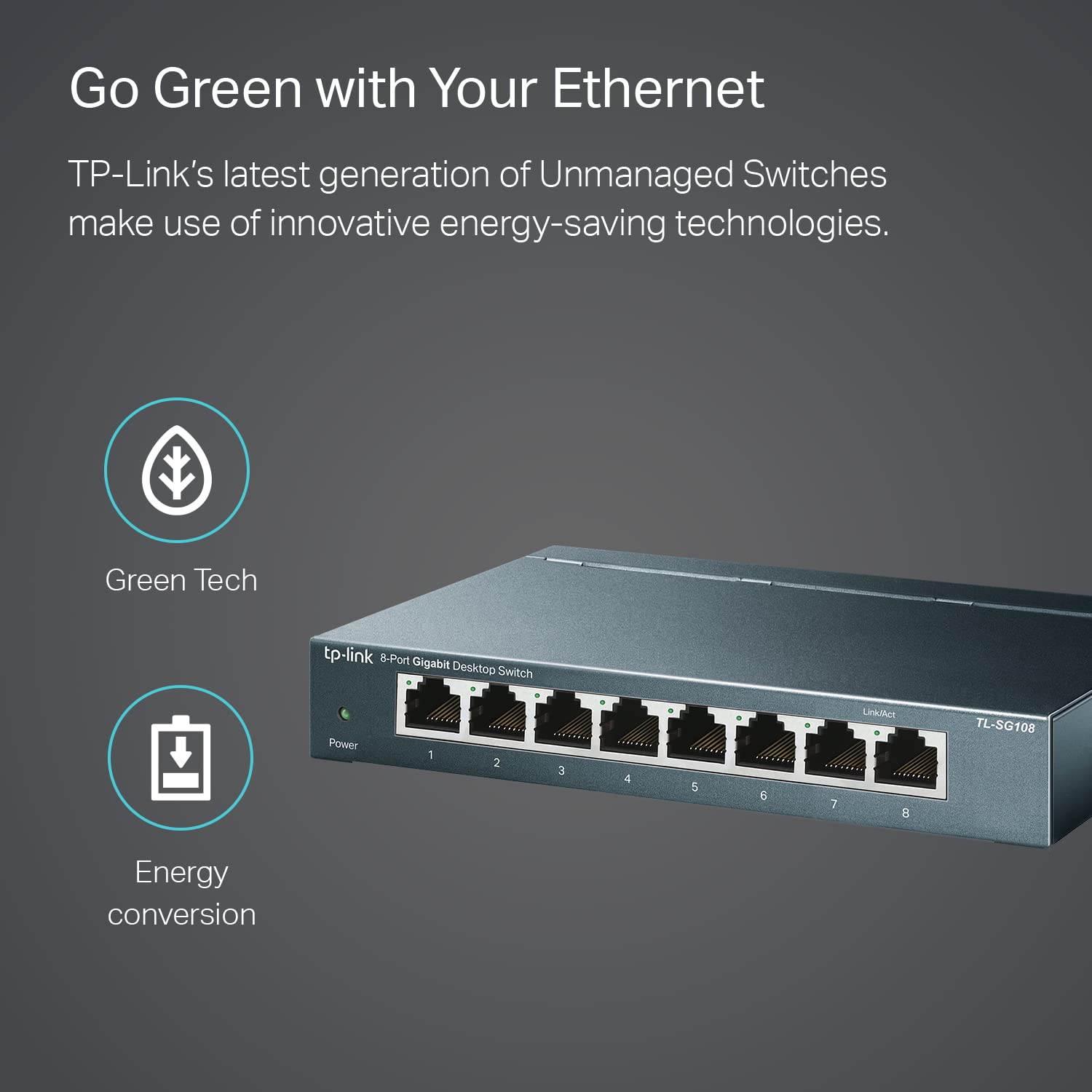
Image: The TP-Link TL-SG108 switch demonstrating its role in expanding network connectivity, showing connections to a computer, gaming console, printer, and smart TV.

Image: Visual representation of the TP-Link TL-SG108 switch's versatility in different environments: home, gaming setups, and business offices.
5. Operating Instructions
The TL-SG108 is an unmanaged switch, meaning it operates automatically without requiring user configuration. Once powered on and connected, it will begin forwarding data between connected devices.
- Power LED: A green LED indicates the switch is powered on. If this LED is off, check the power connection.
- Link/Act LEDs (per port): Each RJ45 port has an associated LED. A solid green light indicates a stable link, while a blinking green light indicates data activity (transmitting or receiving data).

Image: A front-angle view of the TP-Link TL-SG108 8-Port Gigabit Desktop Switch, showing its power indicator and eight RJ45 ports with their respective Link/Act LEDs.
6. Maintenance
To ensure optimal performance and longevity of your TL-SG108 switch, follow these maintenance guidelines:
- Cleaning: Use a soft, dry cloth to clean the exterior of the switch. Do not use liquid or aerosol cleaners.
- Ventilation: Ensure the switch is placed in a well-ventilated area to prevent overheating. Do not block the ventilation holes.
- Environmental Conditions: Operate the switch within the specified temperature range of 0°C to 40°C (32°F to 104°F) and avoid environments with high humidity.
- Power Cycle: If the switch experiences issues, try power cycling it by unplugging the power adapter, waiting a few seconds, and then plugging it back in.
7. Troubleshooting
If you encounter problems with your TL-SG108 switch, refer to the following common issues and solutions:
- No Power:
- Ensure the power adapter is securely connected to the switch and a working electrical outlet.
- Verify the power outlet is functional by plugging in another device.
- No Link/Activity on a Port:
- Check that the Ethernet cable is securely connected to both the switch port and the device.
- Try a different Ethernet cable to rule out a faulty cable.
- Ensure the connected device is powered on and its network adapter is functioning correctly.
- Try connecting the device to a different port on the switch.
- Slow Network Speed:
- Ensure all connected devices and cables support Gigabit Ethernet (Cat5e or higher cables are recommended for Gigabit speeds).
- Check for excessive network traffic or bandwidth-intensive applications running on your network.
- Verify that your internet service provider (ISP) is delivering the expected speeds to your router.
8. Specifications
| Feature | Description |
|---|---|
| Model | TL-SG108 |
| Number of Ports | 8 x 10/100/1000 Mbps RJ45 Ports |
| Data Transfer Rate | 1000 Megabits Per Second (Mbps) |
| Interface Type | RJ45 |
| Case Material | Metal |
| Dimensions (L x W x H) | 5.91 x 3.15 x 5.91 inches |
| Item Weight | 13.8 ounces (0.86 lbs) |
| Operating Temperature | 0°C to 40°C (32°F to 104°F) |
| Storage Temperature | -40°C to 70°C (-40°F to 158°F) |
| Voltage | 220 Volts (Input for Power Adapter) |
| Power Consumption | Maximum: 3.97W (220V/50Hz) |
9. Warranty and Support
TP-Link provides a limited lifetime warranty for this product. For technical assistance, unlimited 24/7 technical support is available free of charge. Please refer to the TP-Link official website for detailed warranty terms and contact information for support services.


