
Introduction
The Easyfone Prime-T6 is a 4G cell phone designed for ease of use, particularly for seniors. It features large picture memory buttons, a simple operating system, clear sound, an SOS emergency button, and a convenient charging dock. This manual provides instructions for setting up, operating, maintaining, and troubleshooting your device.
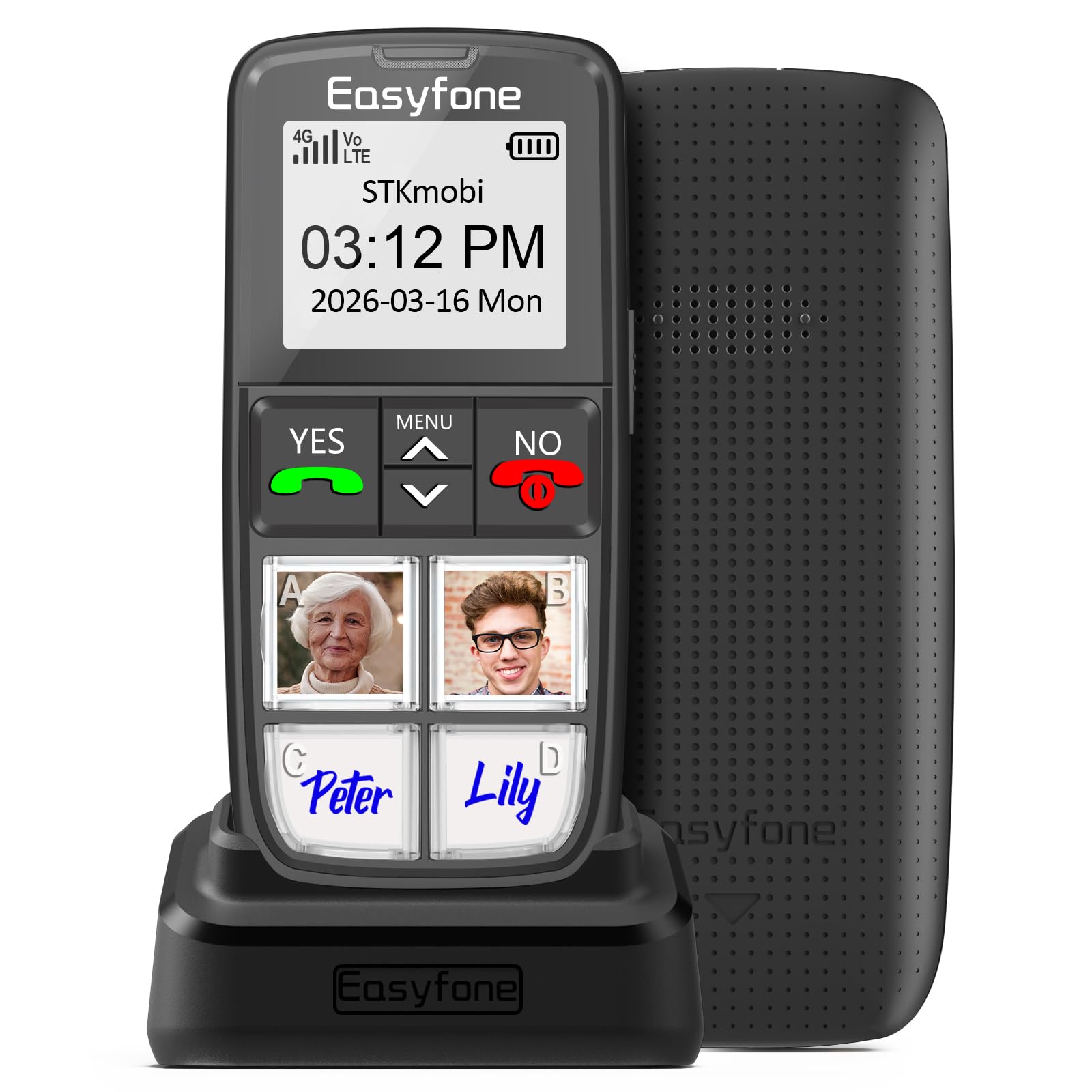
Front and back view of the Easyfone Prime-T6 4G Cell Phone, highlighting its large display and textured back cover.
What's in the Box
Please check the package contents to ensure all items are present:
- T6 Handset
- Charging Station and Cable
- Picture Cutting Adapter
- User Manual
- Speedtalk SIM Card

The Easyfone Prime-T6 package contents, including the phone, charging dock, picture cutting adapter, and user manual.
Setup
1. SIM Card and Battery Installation
- Remove the Back Cover: Gently pry open the back cover of the phone using the notch located at the bottom.
- Insert SIM Card: Locate the SIM card slot. Insert the Nano SIM card into the designated slot with the gold contacts facing down and the cut corner aligned correctly. Ensure it clicks into place.
- Insert Battery: Place the battery into the battery compartment, ensuring the contacts align with the phone's terminals.
- Replace Back Cover: Align the back cover and press firmly until it snaps securely into place.
The back of the Easyfone Prime-T6 phone with the cover removed, showing the SIM card slot and battery compartment.
2. Charging the Phone
Before first use, fully charge the phone. The Easyfone Prime-T6 comes with a convenient charging dock.
- Connect the charging cable to the charging station and plug the adapter into a power outlet.
- Place the phone into the charging dock, ensuring it sits securely. The charging indicator on the phone's screen will show that it is charging.
- A full charge typically takes approximately 2-3 hours.

The Easyfone Prime-T6 phone securely placed in its charging dock, ready for charging.
3. Setting Up Picture Buttons
The Prime-T6 features four large customizable picture buttons (A, B, C, D) for quick dialing.
- Prepare Photos: Print or cut small photos of your desired contacts. Use the included picture cutting adapter as a guide for size.
- Insert Photos: Gently lift the clear plastic covers on the picture buttons. Insert the prepared photos underneath the covers.
- Assign Numbers: Access the phone's menu to assign a contact number to each picture button (A, B, C, D). Refer to the phone's on-screen menu for specific steps to link numbers to these buttons.

The Easyfone Prime-T6 displaying its four large picture buttons, with example photos and name labels inserted.
Operating Instructions
1. Power On/Off
- To Power On: Press and hold the red 'NO' (End Call) button until the screen lights up.
- To Power Off: Press and hold the red 'NO' (End Call) button until the power off option appears on the screen, then confirm.
2. Making Calls
- Using Picture Buttons: Press the desired picture button (A, B, C, or D) once to initiate a call to the assigned contact.
- Dialing a Number: Use the numeric keypad to enter the phone number, then press the green 'YES' (Call) button to dial.
3. Receiving Calls
When an incoming call is received, the phone will ring and display the caller ID (if available). Press the green 'YES' (Call) button to answer the call.
4. SOS Emergency Function
The SOS button is located on the back of the phone and is designed for emergencies.
- Activate SOS: Press and hold the SOS button for a few seconds.
- Emergency Sequence: The phone will automatically send an emergency SMS message to up to five pre-set emergency contacts and then begin dialing them sequentially until one answers.

A close-up view of the dedicated SOS emergency button located on the side of the Easyfone Prime-T6.
5. Volume Adjustment
Use the volume buttons located on the side of the phone to adjust the call volume during a conversation or the ringtone volume when idle.
6. Hearing Aid Compatibility (HAC)
The Easyfone Prime-T6 is HAC compatible, providing clear sound for users with hearing aid devices.

Illustration demonstrating the Easyfone Prime-T6's compatibility with hearing aid devices for enhanced audio clarity.
7. Flashlight and Radio
- Flashlight: Press and hold the '0' key to turn the flashlight on or off.
- FM Radio: The phone includes an FM radio function. Access it through the main menu. Headphones may be required for optimal reception.
Maintenance
- Keep the phone dry. Moisture can damage the device.
- Use a soft, dry cloth to clean the phone. Avoid harsh chemicals.
- Do not expose the phone to extreme temperatures.
- Handle the phone with care to prevent physical damage.
Troubleshooting
| Problem | Possible Solution |
|---|---|
| Phone does not power on | Ensure the battery is correctly inserted and fully charged. Connect to the charging dock for at least 30 minutes. |
| Cannot make or receive calls | Check if the SIM card is properly inserted. Verify that you have network coverage. Contact your service provider if issues persist. |
| Poor sound quality | Adjust the volume using the side buttons. Ensure the speaker/microphone is not obstructed. If using a hearing aid, ensure HAC is functioning correctly. |
| SOS button not working | Ensure emergency contacts are correctly set up in the phone's menu. Test the function in a non-emergency situation to confirm setup. |
| Phone not charging | Check the charging cable and adapter for damage. Ensure the phone is correctly seated in the charging dock. Try a different power outlet. |
Specifications
| Feature | Detail |
|---|---|
| Brand | Easyfone |
| Model Name | Prime-T6 |
| Operating System | Easyfone OS |
| Cellular Technology | 4G |
| Wireless Carrier Compatibility | T-Mobile, SpeedTalk, Tello Mobile |
| Screen Size | 1.8 Inches |
| Memory Storage Capacity | 16 GB |
| SIM Card Slot Count | Single SIM (Nano) |
| Connector Type | USB Type C |
| Battery Capacity | 1050 Milliamp Hours (Lithium-Ion) |
| Item Dimensions | 4.53 x 2.05 x 0.63 inches |
| Item Weight | 0.13 Pounds |
| Additional Features | Big Picture Buttons, Charging Station, Powerful Speaker, SIM Card Included, HAC Compatible |
| Water Resistance Level | Not Water Resistant |
Warranty
The Easyfone Prime-T6 comes with a 1-year manufacturer's warranty from the date of purchase. This warranty covers defects in materials and workmanship under normal use. It does not cover damage caused by misuse, accidents, unauthorized repairs, or normal wear and tear. Please retain your proof of purchase for warranty claims.
Support
For further assistance, please refer to the detailed user manual included in your package or visit the official Easyfone support website. If you encounter issues not covered in this manual, please contact Easyfone customer service for technical support.


