
Introduction
This manual provides detailed instructions for the assembly, operation, and maintenance of your Cooler Master MasterBox CM694 TG Middle Tower PC Case. Please read this manual thoroughly before beginning installation to ensure proper setup and optimal performance.
Key Features
- Curved Mesh Panels: Front and top mesh panels with a diamond pattern for optimal breathability and dust filtration.
- Tempered Glass Side Panel: Provides a clear view of internal components.
- Modular Drive Cage: Updated design for enhanced storage expandability, supporting 2.5" SSDs and 3.5" HDDs.
- Dual 5.25" Bays: Accommodates optical drives or other 5.25" devices.
- Graphics Card Stabilizer: Arm mechanism to support large graphics cards, preventing motherboard distortion and ensuring safe transport.
- Motherboard Compatibility: Supports E-ATX, ATX, microATX, and Mini-ITX motherboards.
- Liquid Cooling Support: Accommodates up to 360mm water cooling radiators.
- Expansion Card Clearance: Space for expansion cards up to 410 mm (16.1 inches).
- Power Supply Cover: Integrated cover to conceal the power unit for a cleaner build.
- Full I/O Ports: Features 2 x USB 3.0, 1 x USB 3.1 (Gen 2) Type-C, and a 4-pole headset jack with rubber dustproof caps.
Setup
1. Unpacking the Case
Carefully remove the PC case from its packaging. Inspect for any damage during transit. Retain all packaging materials for future transport or warranty claims.

Figure 1: Front view of the Cooler Master MasterBox CM694 TG PC Case.
2. Removing Side Panels
Locate the thumbscrews on the rear of the case securing the tempered glass side panel. Unscrew them and carefully remove the panel. Repeat for the opposite steel side panel if necessary.
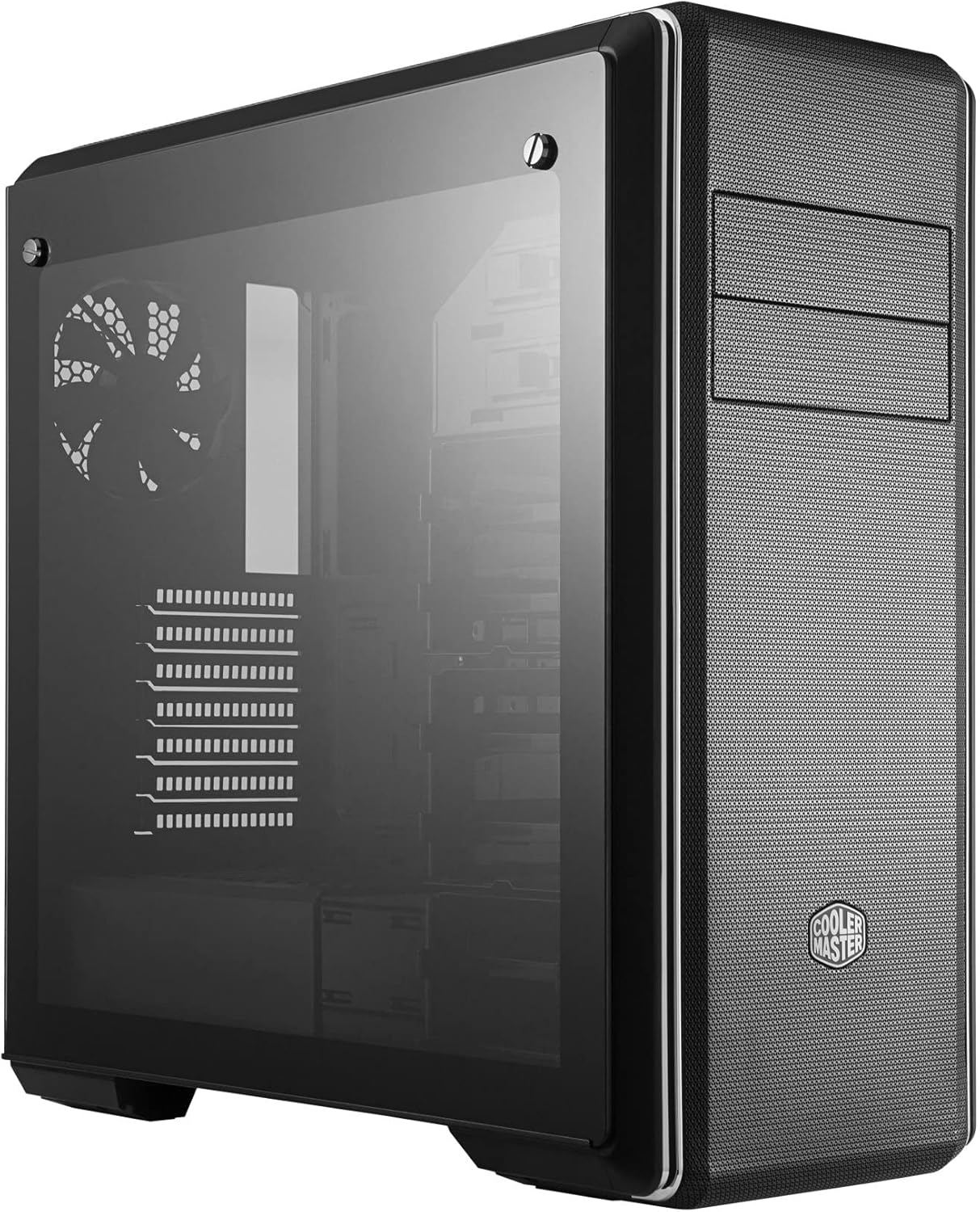
Figure 2: Side view of the PC case featuring the tempered glass panel.
3. Motherboard Installation
Install the appropriate standoffs for your motherboard form factor (E-ATX, ATX, microATX, Mini-ITX). Carefully place your motherboard onto the standoffs and secure it with screws.

Figure 3: Interior view of the PC case, showing the motherboard tray and drive bays.
4. Power Supply Installation
Mount your ATX power supply in the designated compartment at the bottom rear of the case. Secure it with screws from the exterior.
5. Drive Installation
Utilize the modular drive cages for 2.5" SSDs and 3.5" HDDs. The case also features two 5.25" bays for optical drives or other accessories. Refer to the specific drive cage mechanism for tool-less or screw-based installation.

Figure 4: Detailed interior view highlighting the modular drive cages.
6. Graphics Card and Expansion Card Installation
Install your graphics card and other expansion cards into the PCIe slots on the motherboard. Use the included graphics card stabilizer for larger cards to prevent sagging.
7. Cooling System Setup
The MasterBox CM694 TG supports various cooling configurations. Install additional fans or liquid cooling radiators as needed. The case supports up to 360mm radiators.

Figure 5: Diagram illustrating fan and radiator mounting locations and sizes.
8. Cable Management
Utilize the cable routing cutouts and tie-down points behind the motherboard tray to manage cables for improved airflow and a clean aesthetic.
Operating
Once all components are installed and secured, connect your peripherals and power cable. Press the power button on the front I/O panel to start your system.
Front I/O Panel
- Power Button: Initiates system startup.
- Reset Button: Restarts the system.
- USB 3.0 Ports (x2): For high-speed data transfer with compatible devices.
- USB 3.1 (Gen 2) Type-C Port (x1): For fast data transfer and device connectivity.
- 4-Pole Headset Jack: Supports simultaneous audio input and output for headsets.

Figure 6: Top view of the PC case, showing the front I/O panel with various ports and buttons.
Maintenance
Dust Filter Cleaning
The MasterBox CM694 TG features mesh panels that act as dust filters. Regularly clean these panels to maintain optimal airflow and prevent dust buildup inside the case. Gently remove the panels and use compressed air or a soft brush to clear dust.
General Cleaning
Use a soft, damp cloth to wipe down the exterior of the case. Avoid abrasive cleaners or solvents that could damage the finish. For the tempered glass panel, use a glass cleaner and a microfiber cloth.
Troubleshooting
- System not powering on:
- Ensure the power supply is switched on and properly connected to the wall outlet and motherboard.
- Check all front panel connectors (power switch, reset switch) are correctly attached to the motherboard.
- No display output:
- Verify that your monitor is connected to the graphics card (not the motherboard integrated graphics, unless intended).
- Reseat the graphics card and RAM modules.
- Overheating:
- Ensure all case fans are spinning and properly oriented for optimal airflow.
- Clean dust filters and internal components regularly.
- Verify CPU cooler and thermal paste application.
Specifications
| Feature | Detail |
|---|---|
| Brand | Cooler Master |
| Model Number | MCB-CM694-KG5N-S00 |
| Case Type | Middle Tower |
| Motherboard Compatibility | E-ATX, ATX, Micro-ATX, Mini-ITX |
| Material | Steel, Tempered Glass |
| Dimensions (L x W x H) | 19.41 x 8.66 x 19.92 inches |
| Item Weight | 4.4 pounds (2 Kilograms) |
| I/O Ports | 2x USB 3.0, 1x USB 3.1 (Gen 2) Type-C, 1x 4-Pole Headset Jack |
| 5.25" Drive Bays | 2 |
| Graphics Card Clearance | Up to 410 mm |
| Liquid Cooling Support | Up to 360mm radiators |
Warranty and Support
For warranty information and technical support, please visit the official Cooler Master website or contact your local retailer. Keep your proof of purchase for any warranty claims.
Online Resources: www.coolermaster.com


