
Haweel Haweel1001
Haweel MOCUTE 050 Bluetooth Gaming Controller User Manual
Model: Haweel1001
1. Product Overview
The Haweel MOCUTE 050 is a versatile Bluetooth gaming controller designed for use with a wide range of smartphones, including iPhone, Galaxy, Huawei, Xiaomi, and HTC devices. It features a compact and ergonomic design, providing an enhanced gaming experience for mobile users. This manual provides detailed instructions for setting up, operating, and maintaining your MOCUTE 050 controller.

Figure 1.1: Front view of the Haweel MOCUTE 050 Bluetooth Gaming Controller, highlighting its compact design and Bluetooth connectivity.
2. Key Features
- Wireless Connectivity: Utilizes Bluetooth for seamless connection to compatible smartphones.
- Integrated Phone Holder: Features an adjustable grip to securely hold your smartphone during gameplay.
- Ergonomic Design: Shaped for comfortable extended gaming sessions.
- Precision Controls: Equipped with dual analog sticks, a D-pad, action buttons, and shoulder triggers.
- Touchpad Functionality: Provides additional input options for certain games or navigation.
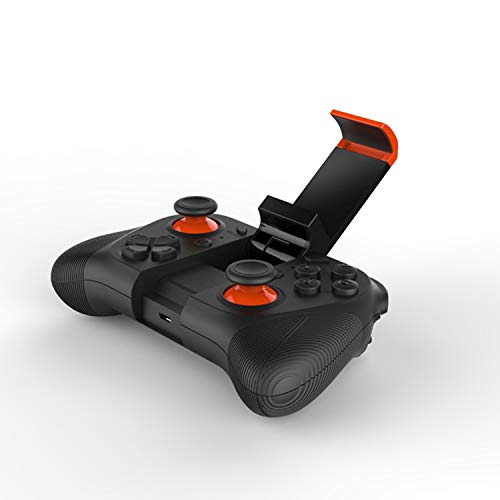
Figure 2.1: The MOCUTE 050 controller with its integrated phone holder extended, ready to accommodate a smartphone.
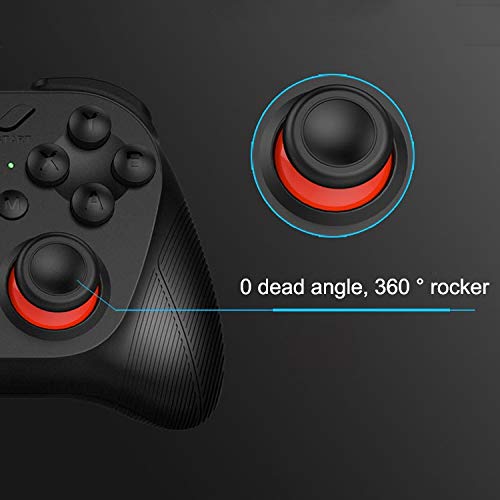
Figure 2.2: Detail of the controller's analog stick, emphasizing its 0 dead angle and 360-degree rotational capability for precise control.
3. Setup and Pairing
- Charge the Controller: Before first use, ensure the controller is fully charged using the provided USB cable. The charging indicator light will change once charging is complete.
- Power On: Press and hold the power button (usually the "HOME" or "M" button) for a few seconds until the indicator light starts blinking, indicating it's in pairing mode.
- Enable Bluetooth on Your Smartphone: Go to your smartphone's settings and turn on Bluetooth.
- Search for Devices: Your smartphone will scan for available Bluetooth devices. Look for "MOCUTE-050" or a similar name in the list.
- Pair the Device: Select "MOCUTE-050" from the list to initiate pairing. Once successfully paired, the controller's indicator light will become solid.
- Mount Your Smartphone: Extend the integrated phone holder and carefully place your smartphone into the grip. Ensure it is securely seated.
Note: If you encounter issues pairing, ensure no other Bluetooth devices are interfering and try restarting both the controller and your smartphone.
4. Operating Instructions
The MOCUTE 050 controller offers various modes for compatibility with different games and operating systems. Refer to the button layout below for control identification.
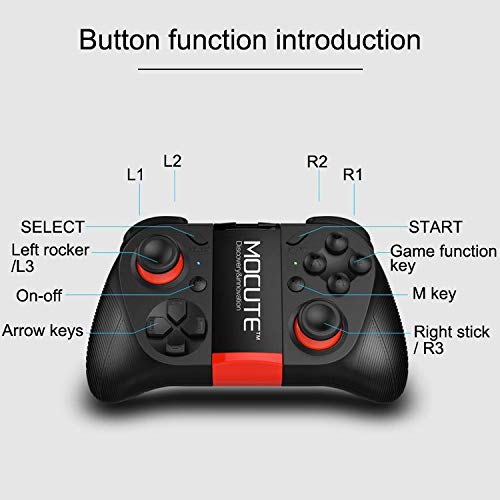
Figure 4.1: Detailed diagram illustrating the function of each button and control on the MOCUTE 050 gamepad, including L1, L2, R1, R2, SELECT, START, Left/Right Rockers (L3/R3), Arrow Keys, Game Function Keys, and M key.
4.1. Button Functions
| Button/Control | Function |
|---|---|
| Left Rocker / L3 | Movement control, press for L3 function. |
| Right Rocker / R3 | Camera control or aiming, press for R3 function. |
| Arrow Keys (D-pad) | Directional input, menu navigation. |
| SELECT | Select option, often used for menu navigation. |
| START | Pause game, start game, confirm selection. |
| L1 / R1 | Shoulder buttons, typically for actions like shooting or item use. |
| L2 / R2 | Trigger buttons, often for aiming or accelerating. |
| Game Function Keys (A, B, X, Y) | Primary action buttons, functions vary by game. |
| M Key | Mode switching or special function key. Refer to game or device specific instructions. |
4.2. Game Compatibility
The MOCUTE 050 supports various game modes to ensure compatibility with a wide range of mobile games. Specific mode switching instructions may be found in the controller's quick start guide or by pressing combinations of the "M" key and other buttons. Always refer to the game's settings to ensure controller support is enabled.
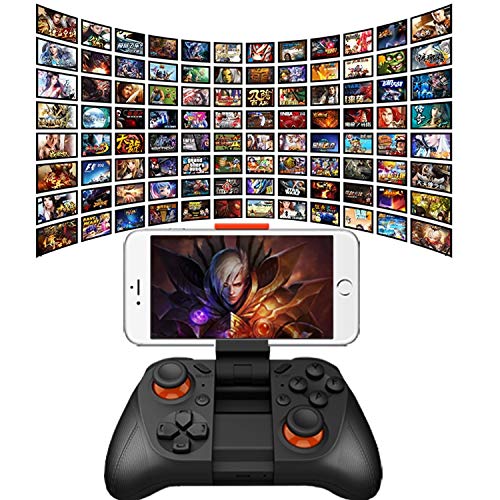
Figure 4.2: The MOCUTE 050 controller in use with a smartphone, demonstrating its capability to enhance mobile gaming across a diverse library of titles.
5. Maintenance
- Cleaning: Use a soft, dry cloth to wipe the surface of the controller. Do not use harsh chemicals or abrasive cleaners.
- Storage: Store the controller in a cool, dry place away from direct sunlight and extreme temperatures.
- Battery Care: To prolong battery life, avoid fully discharging the battery frequently. Charge the controller regularly, even if not in use for extended periods.
- Avoid Drops: Protect the controller from physical shocks and drops, which can damage internal components.
6. Troubleshooting
| Problem | Possible Solution |
|---|---|
| Controller does not power on. | Ensure the controller is charged. Connect it to a power source using the USB cable. |
| Cannot pair with smartphone. |
|
| Buttons or joysticks are unresponsive. |
|
| Lag or disconnection during gameplay. |
|
7. Specifications
| Feature | Detail |
|---|---|
| Model Number | Haweel1001 |
| Connectivity | Bluetooth Wireless |
| Compatibility | Smartphones (iPhone, Galaxy, Huawei, Xiaomi, HTC, etc.) |
| Input Features | Dual Analog Sticks, D-pad, Action Buttons, Shoulder Triggers, Touchpad |
| Country of Origin | China |
| ASIN | B07T1GYWCM |
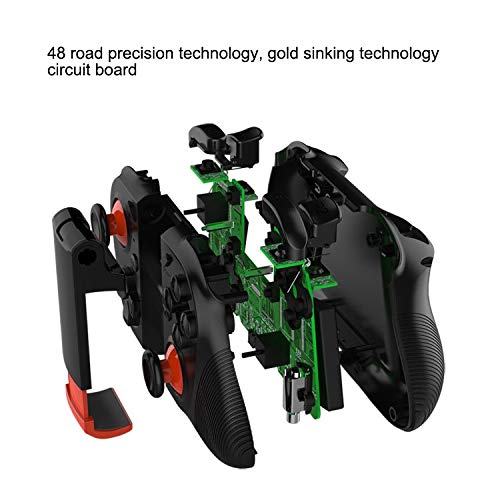
Figure 7.1: An internal view of the MOCUTE 050 controller, revealing its precision circuit board and internal components.
8. Warranty and Support
This product is covered by a standard manufacturer's warranty against defects in materials and workmanship. The specific terms and duration of the warranty may vary by region and retailer. Please retain your proof of purchase for warranty claims.
For technical support, troubleshooting assistance beyond this manual, or warranty inquiries, please contact the retailer where you purchased the product or visit the official Haweel support website (if available).
Please note that unauthorized disassembly or modification of the device may void the warranty.
Ask a question about this manual
Ask about setup, troubleshooting, compatibility, parts, safety, or missing instructions. Manuals+ will review the question and use this page’s manual context to help answer it.