
BASECENT ghetrryxc-252
Basecent Wireless USB Quick Laser Barcode Scanner Reader User Manual
Brand: BASECENT | Model: ghetrryxc-252
1. Introduction
Thank you for choosing the Basecent Wireless USB Quick Laser Barcode Scanner Reader. This device is designed for efficient and reliable barcode scanning in various applications, including library management, warehouse inventory, and retail operations. It offers both wireless and wired connectivity options for maximum flexibility.

Figure 1: Basecent Barcode Scanner and USB Receiver
2. Key Features
- Wireless and Wired Modes: Supports cordless scanning with a 2.4G mini USB receiver and wired scanning via USB cable, which also charges the device. No driver installation is required for either mode.
- Quick Barcode Reading: Achieves a maximum scanning speed of 300 scans per second, capable of reading UPC, ISBN, EAN, Code11, Code39, Code93, Code128, Full ASCII, Codabar, industrial/Interleaved 2/5, MSI, and other common 1D barcode labels.
- Long Distance Transmission: Offers a wireless transmission range of 60 to 100 meters (196.8ft) indoors and up to 400 meters (1312.3ft) in open air.
- Instant Upload & Storage Mode: Data can be transferred instantly when within wireless range or stored internally when out of range for later upload.
- Wide System Compatibility: Compatible with most operating systems and devices, including Windows (XP to 11), Mac OSX, Linux (including Google Chrome OS), iOS, and Android, for devices with a USB interface.
- Durable Design: Engineered with a shock-resistant design, capable of withstanding drops from 1.5 meters (5 feet) without damage.
3. Package Contents
Upon opening the package, please ensure all the following items are present:
- 1 x Barcode Scanner
- 1 x USB Cable (for Charging and Data Transmission)
- 1 x User Guide
- 1 x 2.4G Mini Receiver
4. Specifications
Physical Parameters
- Material: ABS+PC
- Size: 169 x 67 x 90 mm (6.65 x 2.64 x 3.54 inches)
- Item Weight: 10.2 ounces
Performance Parameters
- Processor: 32-bit MCU
- Interface: USB and wireless 2.4G
- Radio Frequency: 2.4G
- Battery: 800MAH 3.7v Lithium Polymer (included)
- Light Source: 650nm (class I)
- Capability: UPC / EAN (include extra code), ISBN/ISSN, Code11, Code39, Code93, Code128, Full ASCII, Codabar, industrial/Interleaved 2/5, MSI, etc.
- Trigger Mode: Manual; Auto; Continuous; Flash
- Resolution: >=0.1mm (4mils) pcs 45%
- Decoding Speed: 300 scans/sec
- Scanning Distance: 5cm-30cm
- Contrast: 30%
- Scan Angles: Roll 30°, Pitch 75°, Yaw 65°
Other Parameters
- IP Protection Grade: IP54
- Operating Temp.: 0 to 50 °C / 32 to 122 °F
- Storing Temp.: -20 to 70 °C / -4 to 158 °F
- Operating Humidity: 20-95% (no condensation)
- Shock Resistance: 1.5 meters (5 feet)
5. Setup
5.1 Wireless Mode Setup
To use the scanner in wireless mode, simply plug the 2.4G mini USB receiver into an available USB port on your computer or device. The scanner is plug-and-play, requiring no additional driver installation.

Figure 2: Wireless Connection Setup
5.2 Wired Mode Setup
For wired operation, connect the scanner to your computer using the provided USB cable. The scanner will function immediately, and the cable will also charge the scanner's internal battery simultaneously. No drivers are needed for wired use.

Figure 3: Wired Connection Setup
5.3 Compatibility
The scanner is designed for broad compatibility across various platforms and devices with a USB interface, including:
- Windows (Win XP, Win7, Win8, Win10, Win11)
- Mac OSX
- Linux (Note: Compatibility may vary with specific Linux distributions, Google Chrome OS is supported)
- iOS
- Android
Compatible devices include desktop computers, laptops, servers, and tablets with USB ports.
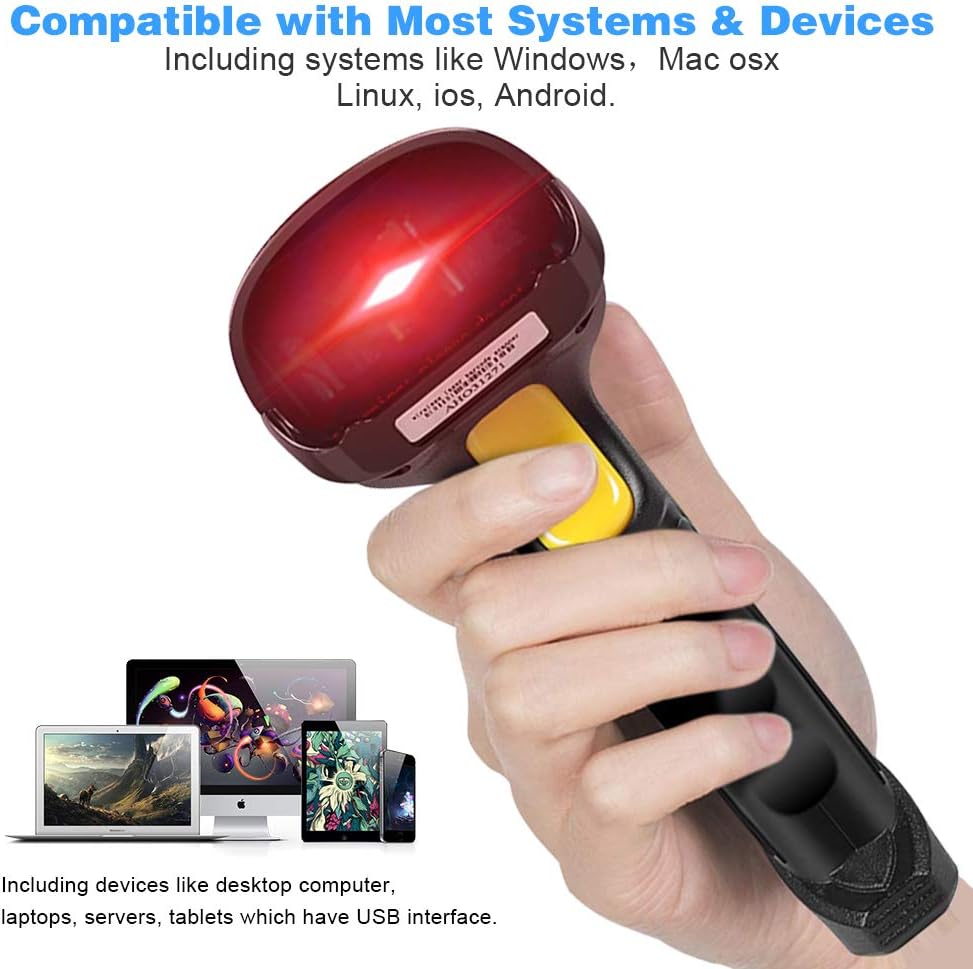
Figure 4: System and Device Compatibility
6. Operating the Scanner
6.1 Basic Scanning
Once connected (either wirelessly or wired), the scanner operates like a keyboard input device. To scan a barcode:
- Point the scanner's laser at the barcode you wish to read.
- Press and hold the trigger button. A red laser line will appear.
- Ensure the laser line fully covers the barcode.
- Upon successful scan, the scanner will emit a beep, and the barcode data will appear in the active text field on your connected device.
6.2 Barcode Types Supported
The scanner is optimized for reading all standard 1D barcodes, including but not limited to:
- UPC / EAN (including extra code)
- ISBN/ISSN
- Code11
- Code39
- Code93
- Code128
- Full ASCII
- Codabar
- Industrial/Interleaved 2/5
- MSI

Figure 5: Supported 1D Barcode Types
6.3 Data Upload and Storage Modes
The scanner supports two primary data handling modes:
- Instant Upload Mode: When the scanner is within the wireless transmission range of its receiver, scanned barcode data is immediately transmitted to the connected device.
- Storage Mode: If the scanner is outside the wireless transmission range, scanned data will be stored internally in the scanner's memory. This stored data can then be uploaded to your device once the scanner is back within range or connected via USB cable. Refer to the included User Guide for specific instructions on how to retrieve stored data.
6.4 Product Demonstration Video
For a visual guide on setting up and operating your Basecent Barcode Scanner, please watch the official product video below:
Video 1: Basecent Wireless Barcode Scanner Demonstration. This video illustrates both wireless and wired setup, as well as basic scanning operations.
7. Maintenance
To ensure the longevity and optimal performance of your barcode scanner, follow these maintenance guidelines:
- Cleaning: Regularly wipe the scanner's exterior with a soft, dry cloth. For the scanning window, use a lint-free cloth and a mild, non-abrasive cleaner if necessary. Avoid harsh chemicals or abrasive materials.
- Storage: Store the scanner in a cool, dry place away from direct sunlight and extreme temperatures.
- Handling: While the scanner features a durable, shock-resistant design (withstanding drops up to 1.5 meters), avoid unnecessary drops or impacts to prevent potential damage.
- Battery Care: Charge the battery regularly, even if the scanner is not in frequent use, to maintain battery health. Avoid fully discharging the battery for extended periods.

Figure 6: Durable Shock-Resistant Design
8. Troubleshooting
If you encounter issues with your Basecent Barcode Scanner, consider the following common solutions:
- Scanner Not Responding: Ensure the scanner is fully charged. If using wireless mode, verify the USB receiver is securely plugged in and within range. If wired, check the USB cable connection.
- No Data Output: Confirm the scanner is properly paired (wireless) or connected (wired). Check if the target application (e.g., Notepad, Excel) is active and ready to receive input.
- Incorrect Barcode Data: Ensure the barcode is clean, undamaged, and fully illuminated by the laser. Some specific barcode types or configurations may require scanning programming codes from the user guide to adjust scanner settings (e.g., adding prefixes/suffixes, changing baud rate).
- Wireless Connection Issues: Try unplugging and re-plugging the USB receiver. Ensure no other 2.4G devices are causing interference.
- Battery Draining Quickly: Ensure the scanner is fully charged before use. Reduce continuous scanning if not needed, as this consumes more power.
For more detailed troubleshooting or specific configuration needs, please refer to the comprehensive User Guide included in your package or contact Basecent customer support.
9. Warranty and Support
For information regarding product warranty, returns, or technical support, please refer to the warranty card included with your product or visit the official Basecent website. You may also contact Basecent customer service directly for assistance with any product-related inquiries.
Ask a question about this manual
Ask about setup, troubleshooting, compatibility, parts, safety, or missing instructions. Manuals+ will review the question and use this page’s manual context to help answer it.