
1. Introduction
This manual provides instructions for the installation, operation, and maintenance of the Dell Mellanox ConnectX-4 LX 25GbE Dual Port SFP+ PCI-E x8 LP Adapter (Model: 020NJD). This high-performance network adapter is designed to deliver 25 Gigabit Ethernet connectivity, enhancing data center and enterprise network capabilities. It features two SFP+ ports and utilizes a PCI-E x8 interface for efficient data transfer.

Image 1.1: Top-down view of the Dell Mellanox ConnectX-4 LX 25GbE Dual Port SFP+ PCI-E x8 LP Adapter.
2. Safety Information
Observe the following safety precautions to prevent injury and damage to the equipment:
- Always disconnect power from the computer before installing or removing any components.
- Wear an anti-static wrist strap or frequently touch a grounded metal object to discharge static electricity before handling the adapter.
- Handle the adapter by its edges; avoid touching the gold connectors or components on the board.
- Ensure proper ventilation for the computer system to prevent overheating.
- Do not expose the adapter to moisture or extreme temperatures.
3. Package Contents
Verify that your package contains the following items:
- Dell Mellanox ConnectX-4 LX 25GbE Dual Port SFP+ PCI-E x8 LP Adapter (Model: 020NJD)
- Low-profile bracket (if not already installed)
- Documentation (this manual, if provided in print)
Note: SFP+ transceivers and cables are typically sold separately and are not included with the adapter.
4. Setup
4.1 System Requirements
- Available PCI Express (PCI-E) x8 or x16 slot.
- Compatible operating system (e.g., Windows Server, Linux distributions, VMware ESXi).
- Sufficient power supply for the system.
4.2 Physical Installation
- Power Off and Disconnect: Power down your computer and disconnect all power cables.
- Open Computer Case: Remove the computer case cover.
- Locate PCI-E Slot: Identify an available PCI-E x8 or x16 slot on your motherboard.
- Remove Slot Cover: Remove the metal slot cover corresponding to the chosen PCI-E slot.
- Install Adapter: Carefully align the adapter with the PCI-E slot and press it firmly until it is securely seated. Ensure the bracket aligns with the opening in the case.
- Secure Adapter: Secure the adapter with the screw or retention clip provided by your computer case.
- Close Case: Replace the computer case cover and reconnect all power cables.
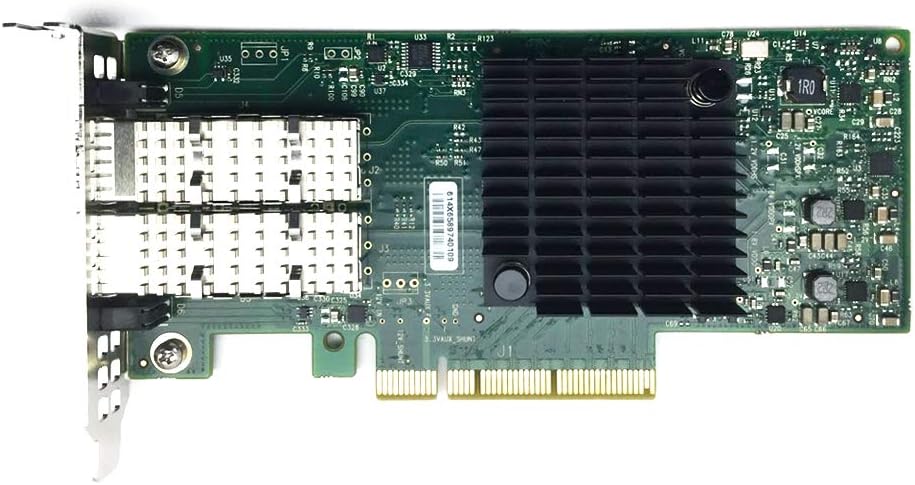
Image 4.1: Top view of the adapter, highlighting the heatsink and PCI-E connector for installation.

Image 4.2: Back view of the adapter's PCB, showing component layout.
4.3 Driver Installation
After physical installation, power on your computer. The operating system may automatically detect and install generic drivers. For optimal performance and full functionality, it is recommended to download and install the latest drivers from the official Dell support website or Mellanox (NVIDIA) website. Search for drivers using the model number "020NJD" or "ConnectX-4 LX".
5. Operating the Adapter
5.1 Connecting SFP+ Transceivers and Cables
The adapter features two SFP+ ports. Insert compatible 25GbE SFP+ transceivers into the ports. Once transceivers are installed, connect appropriate fiber optic or direct attach copper (DAC) cables to establish network links.

Image 5.1: Front view of the adapter, showing the two SFP+ ports for network connections.
5.2 Network Configuration
After driver installation and cable connection, configure the network settings within your operating system. This typically involves:
- Assigning IP addresses (static or DHCP).
- Configuring subnet masks and default gateways.
- Setting up VLANs or other advanced network features as required by your network infrastructure.
Refer to your operating system's documentation for detailed network configuration instructions.
5.3 LED Indicators
The adapter typically features LED indicators near each SFP+ port to provide status information:
- Link/Activity LED:
- Solid Green/Amber: Indicates a successful network link.
- Flashing Green/Amber: Indicates network activity (data transmission/reception).
- Off: No link detected or adapter is not powered.
Note: Specific LED behavior may vary slightly. Consult the Mellanox documentation for precise details.
6. Maintenance
The Dell Mellanox ConnectX-4 LX adapter is designed for reliable operation with minimal maintenance. However, periodic checks can help ensure optimal performance.
- Dust Removal: Periodically inspect the computer's interior and the adapter for dust accumulation. Use compressed air to gently clean the heatsink and other components to maintain proper cooling.
- Firmware Updates: Check the Dell or Mellanox (NVIDIA) support websites for available firmware updates. Firmware updates can improve performance, add features, or resolve known issues. Follow the provided instructions carefully when performing firmware updates.
- Cable Inspection: Ensure all network cables are securely connected and free from damage.
7. Troubleshooting
If you encounter issues with your adapter, refer to the following troubleshooting steps:
7.1 No Link Light / No Network Connectivity
- Check Cables: Ensure SFP+ transceivers are fully seated and network cables are securely connected to both the adapter and the network switch/device.
- Verify Transceivers: Confirm that the SFP+ transceivers are compatible with both the adapter and the connected network equipment.
- Driver Installation: Ensure the correct drivers are installed. Reinstall drivers if necessary.
- PCI-E Seating: Power off the system, open the case, and re-seat the adapter firmly in its PCI-E slot.
- BIOS/UEFI Settings: Check your system's BIOS/UEFI settings to ensure the PCI-E slot is enabled.
7.2 Slow Network Speed
- Driver Updates: Ensure you have the latest drivers and firmware installed.
- Cable Quality: Use high-quality, certified 25GbE compatible cables. Damaged or low-quality cables can degrade performance.
- Network Configuration: Verify network settings (e.g., duplex, speed) are correctly configured on both the adapter and the switch.
- System Resources: Ensure the host system has sufficient CPU, memory, and PCI-E bandwidth to handle 25GbE traffic.
7.3 Adapter Not Detected by OS
- Re-seat Adapter: Power off and re-seat the adapter in the PCI-E slot. Try a different PCI-E slot if available.
- Check Device Manager (Windows) / `lspci` (Linux): Verify if the adapter appears in the system's device list, even if with an error.
- BIOS/UEFI Update: Ensure your motherboard's BIOS/UEFI is up to date.
If issues persist, contact Dell support for further assistance.
8. Specifications
| Feature | Description |
|---|---|
| Brand | Dell |
| Model Number | 020NJD |
| Hardware Interface | PCI Express x8 |
| Data Link Protocol | Ethernet |
| Data Transfer Rate | 25 Gigabits Per Second |
| Ports | Dual SFP+ |
| Compatible Devices | Desktop (Servers, Workstations) |
| Item Weight | 0.2 Kilograms |
| Manufacturer | Dell Computers |
9. Warranty and Support
For warranty information and technical support, please refer to the official Dell support website. You will typically need your product's service tag or model number (020NJD) to access specific support resources, drivers, and documentation.
Dell Support Website: www.dell.com/support
Keep your purchase receipt and any packaging materials for warranty claims.


