
Introduction
This manual provides detailed instructions for the installation, operation, and maintenance of your Sonew WiFi Smart Touch Switch. This smart switch allows you to control your lights and household appliances remotely via an application, touch, or voice commands, enhancing your smart home experience.
Please read this manual carefully before installation and use to ensure proper functionality and safety.
Product Features
- Touch Control: Capacitive touch control for easy on/off operation. Features a scratch-resistant glass panel.
- Remote Control: Connects via WiFi for remote control through a mobile application. Real-time status notifications.
- Voice Control: Compatible with Amazon Alexa (Echo / Dot / Tap), Google Assistant, and IFTTT for hands-free operation.
- Timing Function: Schedule specific times for turning devices on or off to save energy. Includes timer and scene control.
- LED Night Vision: Backlight for easy location in the dark. Waterproof and fireproof tempered glass panel.
- Real-time Status Sync: Transmits device status to the application in real-time.
- Shared Control: Allows sharing control of smart devices with family members.
- Wide Voltage Input: Supports 90V-250V with a two-wire "L" and "N" connection for enhanced safety.
- Smart Scenes: Configure scenes or smart scenes for automatic device triggering.

Image: The Sonew WiFi Smart Touch Switch, illustrating its sleek design and key features like WiFi networking, voice control, scenario writing, app control, time switch, light control, backlight off, and touch key functionality.
Package Contents
Verify that all items are present in the package:
- 1 x Sonew Smart Switch
- 2 x Mounting Screws
- 1 x User Manual (Note: Manual may be in French)

Image: The Sonew Smart Touch Switch shown alongside two mounting screws, representing the typical package contents.
Setup and Installation
Important Safety Information: Installation should be performed by a qualified electrician. Ensure power is turned off at the circuit breaker before beginning installation to prevent electric shock.
Wiring Instructions
- Turn off Power: Locate the circuit breaker controlling the switch you are replacing and turn it off. Verify power is off using a voltage tester.
- Remove Old Switch: Carefully remove the existing wall plate and switch from the wall box. Disconnect the wires.
- Connect Wires: The Sonew Smart Switch requires both a Live (L) wire and a Neutral (N) wire.
- Connect the Live wire from your wall box to the 'L' terminal on the smart switch.
- Connect the Neutral wire from your wall box to the 'N' terminal on the smart switch.
- Connect the Load wire (to the light fixture) to the 'L1', 'L2', or 'L3' terminal corresponding to the switch button you wish to control. (This model appears to have 3 gangs, so L1, L2, L3 are likely for each gang).
- Ensure all connections are secure.
- Mount the Switch: Gently push the wired switch into the wall box. Use the provided screws to secure the switch.
- Install Wall Plate: Attach the glass touch panel to the switch module.
- Restore Power: Turn the power back on at the circuit breaker.
The switch will light up, indicating it is powered on and ready for pairing.
App Installation and Pairing
- Download App: Download the "Smart Life" application from the App Store (iOS 6.0 and above) or Google Play Store (Android 2.3 and above).
- Register/Login: Open the Smart Life app and register a new account or log in with an existing one.
- Add Device: In the app, tap the "+" icon to add a new device. Select "Electrical Switch" or a similar category.
- Enter WiFi Details: Follow the on-screen instructions to put the switch into pairing mode (usually by pressing and holding a button on the switch until an indicator light flashes rapidly). Enter your 2.4GHz WiFi network name and password.
- Complete Pairing: The app will search for and connect to the switch. Once connected, you can rename the switch and assign it to a room.

Image: A smartphone screen showing the "Smart Life" application interface, demonstrating remote control capabilities of the Sonew Smart Switch, with icons for WiFi networking, voice control, scenario writing, app control, time switch, light control, backlight off, and touch key.
Operating Instructions
Manual Touch Control
Simply touch the capacitive buttons on the glass panel to turn the connected lights or appliances on or off. The LED backlight will help locate the switch in the dark.
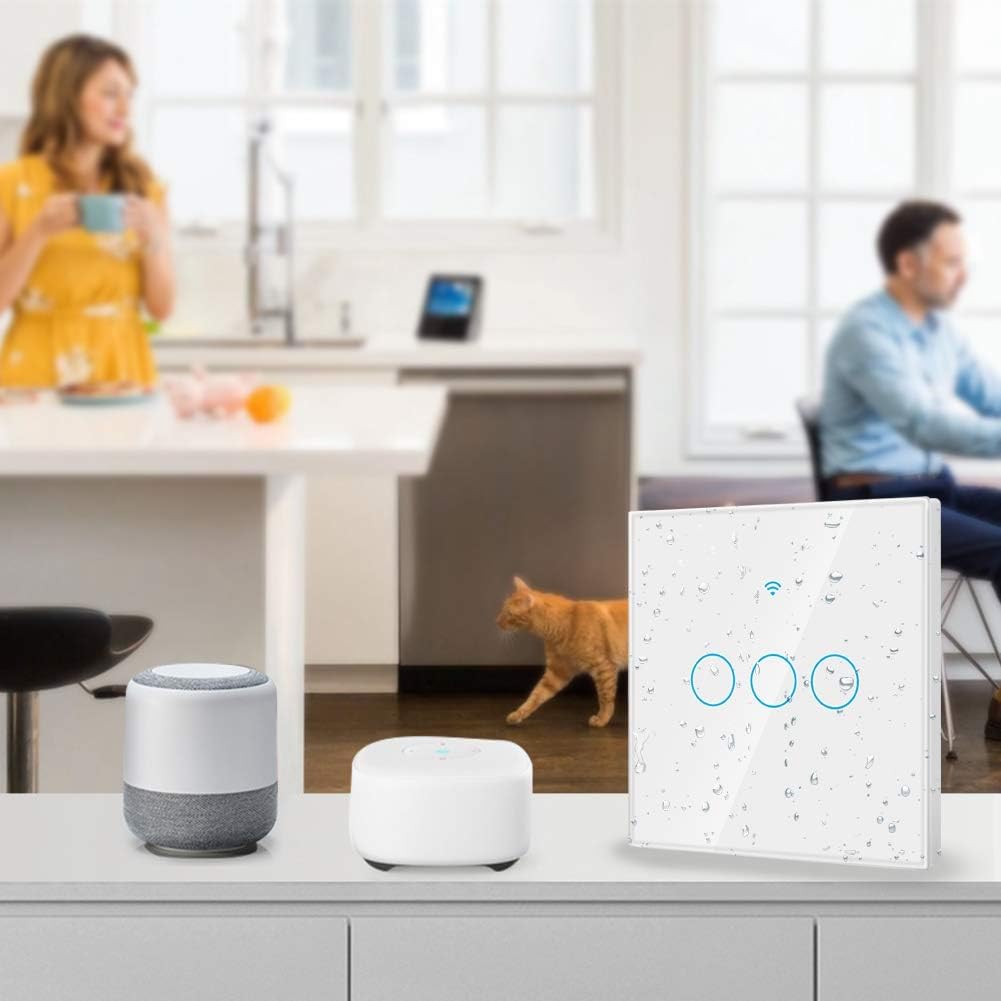
Image: The Sonew Smart Touch Switch with water droplets on its surface, highlighting its waterproof and shockproof design, allowing for safe operation even with wet hands.
App Remote Control
Once paired with the Smart Life app, you can control your switch from anywhere with an internet connection (2G/3G/4G/WiFi). Open the app, select your switch, and tap the on/off icon to control it. The app will display the real-time status of your device.
Voice Control Integration
To enable voice control, link your Smart Life account with Amazon Alexa or Google Home/Assistant:
- Open the Alexa or Google Home app.
- Navigate to "Skills & Games" (Alexa) or "Works with Google" (Google Home).
- Search for "Smart Life" and enable the skill/service.
- Link your Smart Life account using your credentials.
- Discover devices. Your Sonew Smart Switch should now be controllable by voice.
Example Voice Commands:
- "Alexa, turn on the living room light."
- "Hey Google, turn off the kitchen switch."
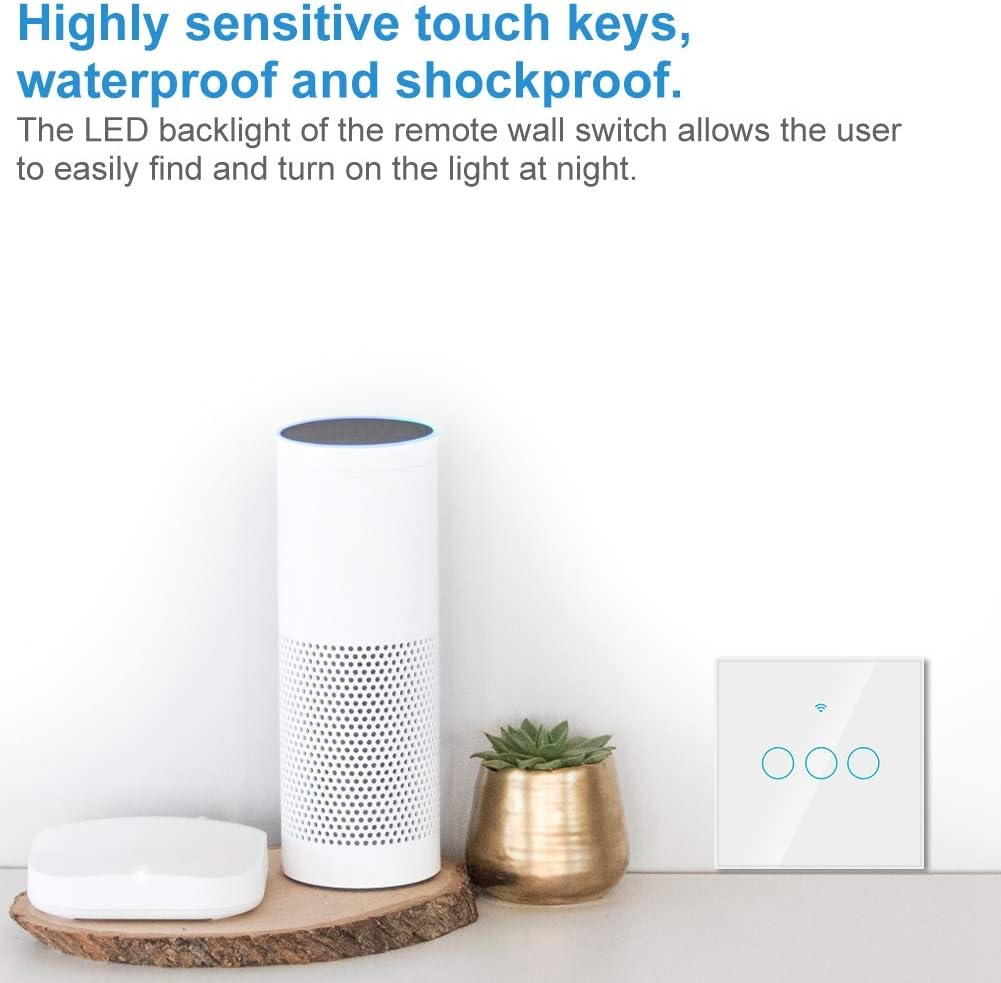
Image: The Sonew Smart Touch Switch positioned next to an Amazon Echo device, illustrating its compatibility with voice control systems like Alexa.
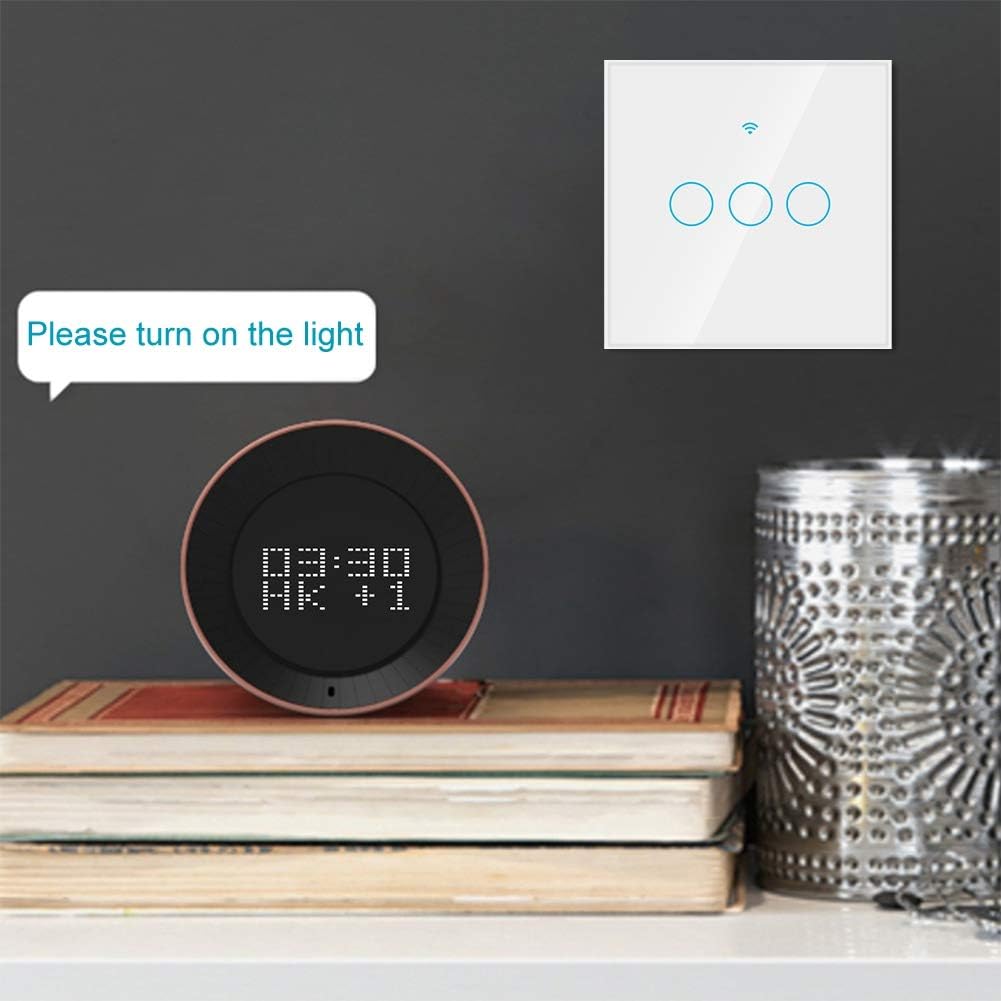
Image: The Sonew Smart Touch Switch on a shelf next to a smart speaker displaying the time, with a text bubble saying "Please turn on the light," demonstrating voice command interaction.
Timing and Scene Functions
Use the Smart Life app to set schedules and create smart scenes:
- Timer: Set specific times for the switch to turn on or off daily, weekly, or on custom schedules. This is useful for energy saving and home automation.
- Countdown: Set a countdown timer for the switch to turn off after a specified duration.
- Scenes: Create custom scenes that trigger the switch based on various conditions, such as time of day, weather, or other smart devices. For example, a "Good Morning" scene could turn on your lights at sunrise.

Image: A smartphone displaying the timer settings within the "Smart Life" app, showing options to set daily, once, or repeat schedules for the Sonew WiFi wall switch, which can control lights or household appliances.
Maintenance
- Cleaning: The tempered glass panel can be cleaned with a soft, damp cloth. Avoid abrasive cleaners or solvents that may damage the surface.
- Firmware Updates: Keep the Smart Life app updated to ensure your switch receives the latest firmware and features.
- Environmental Conditions: Ensure the switch is installed in an environment within its operating temperature and humidity ranges.
Troubleshooting
| Problem | Possible Cause | Solution |
|---|---|---|
| Switch not responding to touch. | No power; faulty wiring; switch malfunction. | Check circuit breaker. Verify wiring connections (L and N wires). If problem persists, contact support. |
| Cannot connect to WiFi. | Incorrect WiFi password; 5GHz WiFi network; switch too far from router; incorrect pairing mode. | Ensure correct 2.4GHz WiFi password. Move switch closer to router. Ensure switch is in rapid flashing pairing mode. |
| Voice control not working. | Smart Life skill not enabled; account not linked; device not discovered. | Verify Smart Life skill is enabled and linked in Alexa/Google Home app. Redo device discovery. Ensure correct device name is used in commands. |
| Lights flicker or don't turn off completely. | Incompatibility with certain LED bulbs; no neutral wire connection. | Try different LED bulbs. Ensure a neutral wire is correctly connected to the switch. Consult a qualified electrician. |
Specifications
| Feature | Detail |
|---|---|
| Brand | Sonew |
| Model Number | Sonew316b4czdo8-01 |
| Application | Smart Life |
| Control Method | App Control / Touch Switch |
| Power Supply | AC 100-250 V |
| Maximum Current | 10 A / gang |
| Maximum Power | 2000 W / gang |
| Supported OS | iOS 6.0 and above / Android 2.3 and above |
| Transmission Type | WiFi Communication |
| Control Distance | Unlimited (under 2G/3G/4G/WIFI) |
| Housing Material | Flame-retardant ABS |
| Panel Material | Tempered Glass |
| Security Mechanism | WPA-PSK / WPA2-PSK |
| Product Dimensions (L x W x H) | 90 x 90 x 40 mm (approx. 3.5 x 3.5 x 1.6 inches) |
| Item Weight | 168 g |
| Color | Black (Note: Product images show a white switch, but specifications list 'Black'.) |

Image: A diagram illustrating the dimensions of the Sonew Smart Touch Switch, showing it measures 90mm (3.5in) in length and width, and 40mm (1.6in) in depth.
Warranty and Support
Specific warranty information is not provided in the product details. For warranty claims or technical support, please contact your retailer or the manufacturer, Sonew, directly. Refer to the contact information provided with your purchase or visit the official Sonew website.
For further assistance, you may also refer to the Sonew Brand Store on Amazon.