
1. Introduction
The Verbatim Keypad Secure USB 3.0 Flash Drive provides secure data storage with 256-bit AES hardware encryption and a built-in keypad for password entry. This manual provides essential information for setting up, operating, maintaining, and troubleshooting your device, ensuring your data remains protected and accessible.

Image: Verbatim Keypad Secure USB drive connected to a laptop, illustrating its secure function.
2. Safety Information
- Do not expose the device to extreme temperatures, direct sunlight, or high humidity.
- Avoid dropping or subjecting the device to strong impacts.
- Keep out of reach of children.
- Do not attempt to disassemble or modify the device. This will void the warranty and may cause damage.
- Ensure proper ventilation when in use to prevent overheating.
3. Product Overview
Key Features:
- Built-in Keypad: For secure password entry, supporting up to 12 digits.
- 256-bit AES Hardware Encryption: Encrypts all data on the drive in real-time.
- 100% Data Encryption: Ensures complete data protection.
- Data Wipe Feature: Automatically erases data after multiple failed password attempts to prevent unauthorized access.
- USB 3.0 Type-A Interface: Offers high-speed data transfer, backward compatible with USB 2.0.
- Cross-Platform Compatibility: Works with both PC (Windows) and Mac operating systems.
- 32GB Storage Capacity: Ample space for important documents, photos, and videos.
Components:
- USB Connector: Standard USB Type-A for connecting to your computer.
- Keypad: Numeric keys (0-9) and lock/unlock buttons for password input.
- LED Indicators: Display power, lock, and encryption status.
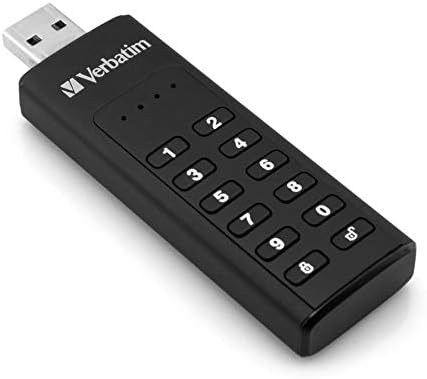
Image: Close-up of the Verbatim Keypad Secure USB drive, highlighting the keypad.
4. Setup
Follow these steps for initial setup and password creation:
- Connect the Drive: Plug the Verbatim Keypad Secure USB drive into an available USB port on your computer. The drive's LED indicators will illuminate.
- Initial Password Entry: The drive will typically require an initial default password. Refer to the small instruction leaflet included in the packaging for this default password.
- Set Your Personal Password: After entering the default password and unlocking the drive, you will be prompted to set a new, personal password. This password should be between 6 and 12 digits long. Enter your desired password and confirm it.
- Drive Initialization (if necessary): For some operating systems or if the drive is not immediately recognized, you may need to initialize and format the drive through your computer's disk management utility. Follow on-screen prompts or consult your operating system's help for 'Disk Management' or 'Disk Utility'.
- Secure the Drive: Once your password is set, the drive will automatically lock when removed from the USB port or after a period of inactivity.

Image: Connecting the Verbatim Keypad Secure USB drive to a computer via a USB hub.
5. Operating Instructions
Unlocking the Drive:
- Plug the drive into a USB port.
- Press the Unlock button (often represented by an open padlock icon) on the keypad.
- Enter your personal password using the numeric keys.
- Press the Unlock button again to confirm. The LED indicator will change to show the drive is unlocked and ready for use.
Transferring Data:
Once unlocked, the drive functions like any standard USB flash drive. You can drag and drop files, copy and paste, or save directly to the drive.
Locking the Drive:
The drive automatically locks when safely ejected from the computer or when power is removed. To manually lock the drive while connected, press the Lock button (often represented by a closed padlock icon) on the keypad.
Safe Removal:
Always safely eject the USB drive from your operating system before physically removing it from the USB port to prevent data corruption.
6. Maintenance
- Keep Clean: Use a soft, dry cloth to clean the exterior of the drive. Avoid liquid cleaners.
- Firmware Updates: Periodically check the Verbatim website for any available firmware updates for your device to ensure optimal performance and security.
- Data Backup: While the drive offers strong security, it is always recommended to maintain backups of critical data on multiple storage devices.
- Storage: Store the drive in a cool, dry place away from direct sunlight and strong magnetic fields.
7. Troubleshooting
- Drive not recognized by computer:
- Ensure the drive is fully inserted into the USB port.
- Try a different USB port on your computer.
- Test the drive on another computer to rule out a computer-specific issue.
- Check your computer's Device Manager (Windows) or Disk Utility (Mac) to see if the drive is detected but not assigned a drive letter or formatted.
- Cannot unlock the drive:
- Ensure you are entering the correct password.
- The drive will wipe its data after a certain number of incorrect password attempts (typically 10-20 attempts). If this occurs, the data is unrecoverable, and the drive will need to be reset and reformatted.
- Slow data transfer speeds:
- Ensure you are connected to a USB 3.0 port on your computer for optimal performance. USB 2.0 ports will result in slower speeds.
- Avoid using long or low-quality USB extension cables, as these can degrade transfer speeds.
- Large file transfers can sometimes cause the drive to warm up, which may lead to a temporary reduction in speed to protect the device.
- Drive gets warm during use:
- It is normal for the drive to become warm during extended periods of data transfer, especially with USB 3.0 speeds. This is generally not a cause for concern unless it becomes excessively hot to touch.
8. Specifications
| Model Name | Keypad Secure |
| Model Number | 49427 |
| Capacity | 32 GB |
| Interface | USB 3.0 (USB 3.1 Gen 1) Type-A |
| Encryption | AES 256-bit Hardware Encryption |
| Read Speed | Up to 160 MB/s |
| Write Speed | Up to 130 MB/s |
| Compatibility | Windows 7, 8, 10; Mac OS X 10.4 or higher |
| Dimensions (L x W x H) | 93.5 mm x 28 mm x 12 mm |
| Weight | 30 g |
| Color | Black |

Image: Dimensional diagram of the Verbatim Keypad Secure USB drive.
9. Warranty Information
For detailed warranty information, please refer to the warranty card included with your product packaging or visit the official Verbatim website. Warranty terms and conditions may vary by region.
10. Support
If you encounter any issues or have questions not covered in this manual, please visit the official Verbatim support website for FAQs, driver downloads, and contact information for technical assistance.
Official Website: www.verbatim.com


