
1. Introduction
This manual provides essential information and instructions for the safe and efficient use of your Motorola Moto Z4 smartphone. Please read this guide thoroughly before operating your device.
The Moto Z4 is a 5G-upgradable smartphone featuring a 48 MP camera sensor, extended battery life, and a large OLED display with an integrated fingerprint sensor. It operates on the Android platform.
2. What's in the Box
Verify that all items are present in your product packaging:
- Motorola Moto Z4 Smartphone
- SIM Tray Ejector
- USB Cable
3. Initial Setup
3.1. Powering On Your Device
To power on your Moto Z4, press and hold the Power button located on the right side of the device until the Motorola logo appears on the screen.
3.2. Inserting the SIM Card
- Locate the SIM card tray on the side of your device.
- Insert the SIM tray ejector tool into the small hole next to the tray and press firmly until the tray pops out.
- Place your Nano-SIM card into the tray with the gold contacts facing down. If applicable, insert a microSD card into the designated slot.
- Carefully reinsert the tray into the device.
3.3. Initial Configuration
Follow the on-screen prompts to complete the initial setup:
- Language and Region: Select your preferred language and region.
- Wi-Fi Connection: Connect to a Wi-Fi network to download necessary updates and apps.
- Google Account: Sign in with your Google account or create a new one. This is essential for accessing Google services and the Play Store.
- Security Setup: Set up a PIN, pattern, or password for screen lock. You can also configure the in-display fingerprint sensor for quick and secure unlocking.
- Data Transfer: Optionally transfer data from an old device.
- Software Updates: Allow the device to check for and install any available software updates.
4. Operating Your Device
4.1. Navigation
The Moto Z4 uses Android's standard navigation system. You can choose between gesture navigation or traditional three-button navigation during setup or in Settings.
- Home: Swipe up from the bottom (gestures) or tap the Home button.
- Back: Swipe from the left or right edge (gestures) or tap the Back button.
- Recent Apps: Swipe up and hold from the bottom (gestures) or tap the Recent Apps button.
4.2. Display and Interface
The device features a 6.4-inch OLED display with a resolution of 2340 x 1080 pixels. Key display features include:
- On-Screen Fingerprint Reader: Integrated into the display for secure unlocking.
- Ambient Light Sensor: Automatically adjusts screen brightness.
- Customization: Personalize your device by changing wallpaper, font size, and theme via the Settings menu.
5. Camera Features
The Moto Z4 is equipped with advanced camera technology for high-quality photography and videography.
5.1. Rear Camera
The main rear camera features a 48 MP sensor with Quad Pixel technology and Optical Image Stabilization (OIS). Key features include:
- Night Vision Mode: Enhances low-light sensitivity for clear photos in dark conditions.
- High-Resolution Photos: Captures detailed images with the 48 MP sensor.
5.2. Front Camera
The front-facing camera is 25 MP, also utilizing Quad Pixel technology for improved low-light performance in selfies.
5.3. Camera App Modes
Explore various modes within the camera application:
- Photo: Standard photo capture.
- Video: Records video.
- Portrait: Creates a depth effect with blurred backgrounds.
- Night Vision: Specialized mode for low-light photography.
- More: Access additional modes like Panorama, Scan, Photo Booth, Tilt-shift, Slow Motion, Time-lapse, and Dual Capture.
6. Battery and Charging
The Moto Z4 is powered by a 3000 Milliampere Hour (mAh) Lithium Ion battery, designed to provide up to 2 days of battery life with typical usage.
6.1. Charging
The device supports TurboPower charging, allowing for hours of power in just minutes. Use the provided USB cable with a compatible TurboPower charger (sold separately) for optimal charging speeds.
6.2. Battery Optimization
To maximize battery life:
- Adjust screen brightness and screen timeout settings.
- Enable Battery Saver mode when battery is low.
- Close unused applications running in the background.
7. Specifications
| Feature | Specification |
|---|---|
| Model Name | MOTXT19804 |
| Brand | Motorola |
| Operating System | Android |
| RAM | 1 GB |
| Memory Storage Capacity | 128 GB (Internal) |
| Screen Size | 6.4 Inches |
| Display Technology | OLED |
| Resolution | 2340 x 1080 |
| Rear Camera | 48 MP (Quad Pixel, OIS) |
| Front Camera | 25 MP (Quad Pixel) |
| Battery Capacity | 3000 mAh |
| Talk Time | 40 Hours |
| Special Features | 5G Capability with Moto Mod (not included), On-screen Fingerprint Reader |
| Connectivity | Wi-Fi, Cellular, GPS |
| Audio Jack | 3.5 mm |
| Product Dimensions | 6.22 x 2.95 x 0.29 inches |
| Item Weight | 8.8 ounces |
8. Maintenance
Proper care ensures the longevity and optimal performance of your Moto Z4.
- Cleaning: Use a soft, lint-free cloth to clean the screen and device body. Avoid abrasive materials or harsh chemicals.
- Protection: Consider using a screen protector and a protective case to guard against scratches and accidental drops.
- Temperature: Avoid exposing your device to extreme temperatures (hot or cold) as this can affect battery life and internal components.
- Water Resistance: The Moto Z4 is not waterproof. Avoid submerging it in water or exposing it to excessive moisture.
9. Troubleshooting
If you encounter issues with your Moto Z4, try the following common solutions:
- Device Unresponsive: Press and hold the Power button for about 10-15 seconds to force a restart.
- App Crashing: Close the app and reopen it. If the issue persists, clear the app's cache or reinstall it.
- Connectivity Issues: Toggle Wi-Fi or cellular data off and on. Restart your device. For Wi-Fi, try forgetting the network and reconnecting.
- Battery Draining Quickly: Check battery usage in Settings to identify power-hungry apps. Reduce screen brightness and disable unnecessary features.
- Software Glitches: Ensure your device's software is up to date. A factory reset (backup data first) can resolve persistent software problems.
10. Warranty and Support
Your Motorola Moto Z4 comes with a US Warranty. For specific details regarding warranty coverage, terms, and conditions, please refer to the warranty card included in your product packaging or visit the official Motorola support website.
For further assistance, technical support, or service inquiries, please contact Motorola Customer Service or your service provider (Verizon).
11. Product Images

Image 1: Front view of the Motorola Moto Z4, showcasing its large OLED display and front camera.

Image 2: Back view of the Motorola Moto Z4, highlighting the rear camera module and Motorola logo.

Image 3: Side profile of the Motorola Moto Z4, showing its slim design and physical buttons.

Image 4: Bottom view of the Motorola Moto Z4, featuring the USB-C port and 3.5mm audio jack.
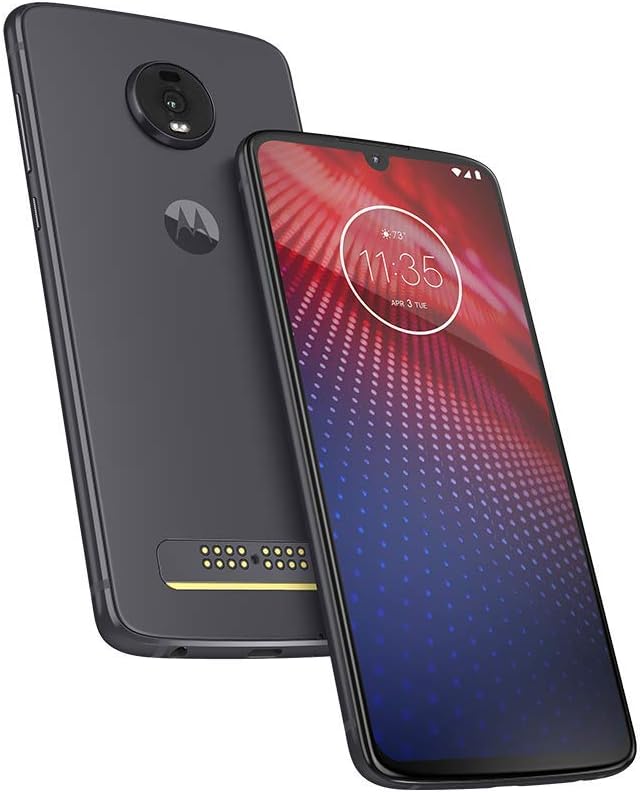
Image 5: Angled view of the Motorola Moto Z4, displaying both the front screen and the back panel.