
SteelSeries 64636
SteelSeries Apex 7 Mechanical Gaming Keyboard User Manual
Model: 64636
Introduction
The SteelSeries Apex 7 is a mechanical gaming keyboard designed for performance and customization. It features an integrated OLED Smart Display, dedicated media controls, USB passthrough, and durable mechanical switches. This manual provides detailed instructions for setup, operation, maintenance, and troubleshooting.
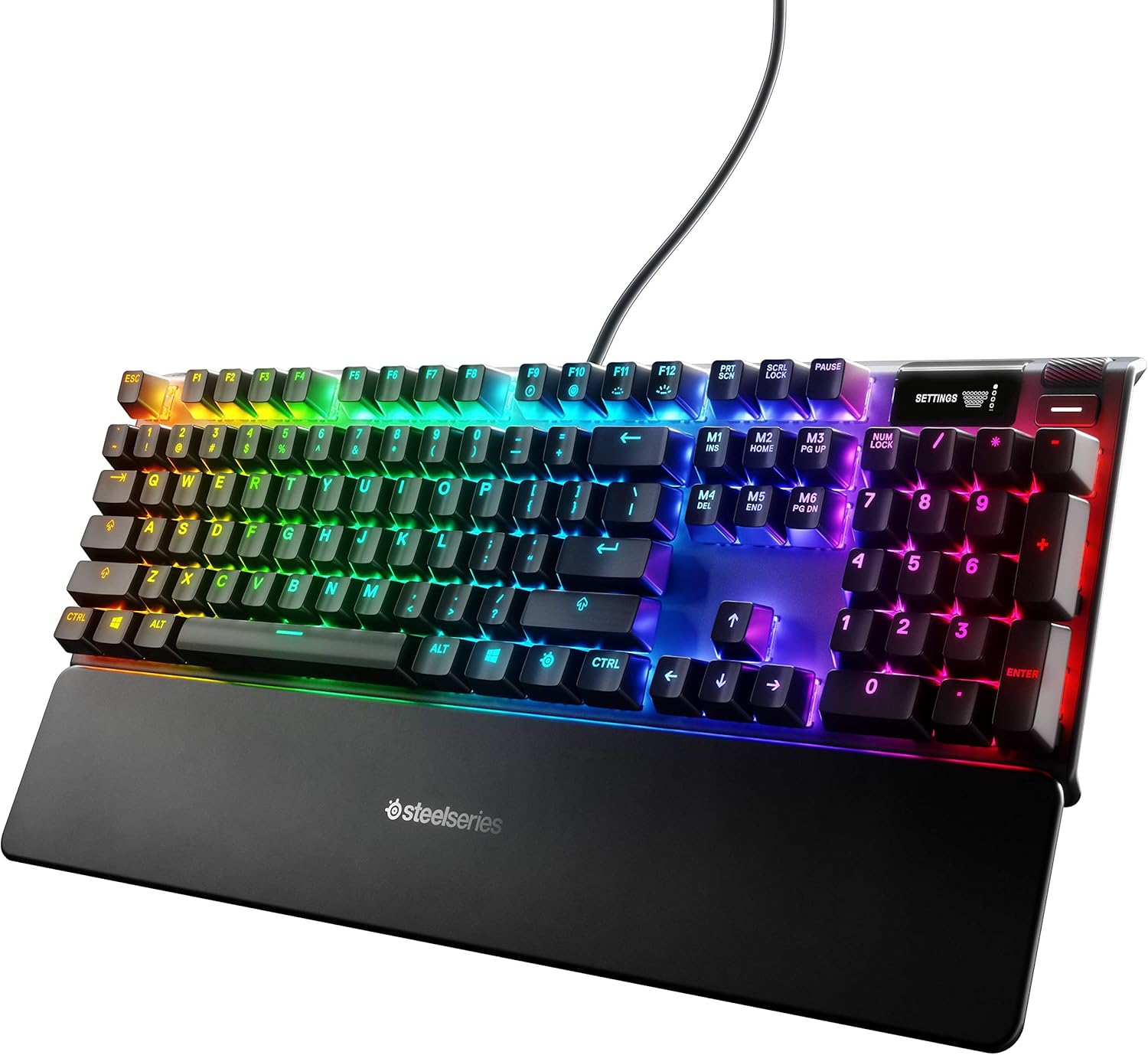
Figure 1: SteelSeries Apex 7 Mechanical Gaming Keyboard with RGB illumination and wrist rest.
What's in the Box
- Apex 7 Gaming Keyboard
- Magnetic Wrist Rest
- Product Information Guide
Setup
- Connect the Keyboard: Plug the keyboard's USB cable into an available USB port on your PC or Mac. The keyboard may require two USB ports for full functionality (one for the keyboard, one for the USB passthrough).
- Attach the Wrist Rest: The premium magnetic wrist rest can be easily attached to the front edge of the keyboard for ergonomic support.
- Install Software: Download and install the SteelSeries Engine software from the official SteelSeries website. This software is required for advanced customization of RGB illumination, key bindings, and OLED display functions.
- Adjust Keyboard Angle: Utilize the adjustable feet on the underside of the keyboard to set your preferred typing angle.

Figure 2: Adjustable feet on the underside of the keyboard for ergonomic positioning.
Operating Instructions
OLED Smart Display and Media Controls
The integrated OLED Smart Display and dedicated media controls provide on-the-fly information and customization options without requiring software interaction. Use the clickable metal roller and media key to navigate menus and adjust settings.
- Volume Roller: The metal roller controls system volume. Pressing it mutes/unmutes audio.
- Media Key: Located next to the volume roller, this button controls media playback (play/pause, skip track).
- OLED Menu Navigation: Press and hold the media key to enter the OLED menu. Use the volume roller to scroll through options and press the roller to select.
- Customization: The OLED can display information from games, Spotify, or Discord. It also allows for software-free customization of settings.

Figure 3: Detail of the OLED Smart Display and media controls.
RGB Illumination
The Apex 7 features per-key RGB illumination, offering 16.8 million colors for unmatched customization. Lighting effects can be configured via the SteelSeries Engine software or through the OLED display.

Figure 4: Dynamic per-key RGB illumination on the Apex 7 keyboard.
USB Passthrough
An illuminated USB passthrough port is located on the keyboard, allowing you to connect other USB devices directly to your keyboard for convenience.

Figure 5: Illuminated USB passthrough port for connecting peripherals.
Mechanical Switches
The Apex 7 utilizes durable mechanical gaming switches, specifically linear red switches, known for their smooth and quiet operation. These switches provide consistent movement from top to bottom without a tactile bump, allowing for rapid actuation.

Figure 6: Mechanical switches are designed for durability and responsiveness.
Aircraft Grade Aluminum Alloy Frame
The keyboard is constructed with an aircraft-grade aluminum alloy frame, ensuring enhanced durability and stability during intense gaming sessions.

Figure 7: The robust aluminum alloy frame contributes to the keyboard's longevity.
Maintenance
- Cleaning: Use a soft, dry cloth to wipe down the keyboard surface. For deeper cleaning, gently remove keycaps and use compressed air to clear debris from beneath the switches. The magnetic wrist rest can be easily detached and cleaned.
- Software Updates: Regularly check for and install updates for the SteelSeries Engine software to ensure optimal performance and access to new features.
Troubleshooting
- Keyboard Not Responding: Ensure all USB cables are securely connected to your computer. Try connecting the keyboard to a different USB port. Restart your computer.
- RGB Lighting Issues: Verify that the SteelSeries Engine software is running and updated. Check lighting profiles within the software or via the OLED display.
- OLED Display Not Working: Ensure the keyboard is properly connected. Check for any software conflicts or updates.
- Key Malfunctions: If a specific key is not registering or feels unusual, try removing the keycap and cleaning the switch area with compressed air. If the issue persists, contact SteelSeries support.
Specifications
| Feature | Detail |
|---|---|
| Brand | SteelSeries |
| Model Number | 64636 |
| Series | Apex 7 Mechanical Gaming Keyboard – Red Switch |
| Hardware Platform | PC, Mac |
| Operating System | PC, Mac |
| Item Weight | 2.1 pounds |
| Product Dimensions | 5.5 x 17.2 x 1.6 inches |
| Color | Red – Linear & Quiet |
| Power Source | Corded Electric |
| Connectivity Technology | Wired |
| Keyboard Description | Gaming |
| Recommended Uses | Gaming |
| Special Features | Backlit, Ergonomic, Wrist Rest, Integrated Stand, Customizable Display Keys, Volume Roller |
| Keyboard Backlighting | RGB |
Official Product Video
Video 1: An overview of the SteelSeries Apex 7 Mechanical Gaming Keyboard, highlighting its key features and design.
Warranty and Support
For warranty information, technical support, or to download the latest SteelSeries Engine software, please visit the official SteelSeries website. Keep your purchase receipt for warranty claims.
Online resources and FAQs are available to assist with common questions and issues.
Related documents64636


Ask a question about this manual
Ask about setup, troubleshooting, compatibility, parts, safety, or missing instructions. Manuals+ will review the question and use this page’s manual context to help answer it.