
1. Introduction
Thank you for purchasing the Eaglerich 10-inch Android Car Radio. This device is designed to enhance your driving experience with advanced multimedia, navigation, and connectivity features. This manual provides essential information for the safe and efficient operation of your new car radio. Please read it thoroughly before installation and use, and keep it for future reference.
2. Safety Information
- Installation: Professional installation is recommended to ensure proper wiring and functionality. Incorrect installation can damage the device or your vehicle.
- Power Supply: Connect the device only to a 12V DC power supply with a negative ground.
- Operation: Do not operate the device in a way that distracts you from driving. Always prioritize road safety.
- Temperature: Avoid exposing the device to extreme temperatures or direct sunlight for prolonged periods.
- Cleaning: Use a soft, dry cloth for cleaning. Do not use abrasive cleaners or solvents.
3. Package Contents
Verify that all items are present in the package:
- Eaglerich 10-inch Android Car Radio Unit
- Power Cable
- RCA Cable
- Rear Camera Input Cable
- 2 x USB Cables
- Mounting Bracket
- GPS Antenna
- User Manual

This image displays the various components included with the Eaglerich 10-inch Android Car Radio, such as the main unit, power cables, RCA cables, USB cables, mounting brackets, and GPS antenna.
4. Product Overview
The Eaglerich 10-inch Android Car Radio features a large touch panel display and runs on the Android operating system, providing a versatile in-car entertainment and navigation solution.
4.1 Key Features
- 10-inch Touch Screen Display (1024*600 resolution)
- Android Operating System (Android 8.1 or later)
- Built-in GPS Navigation
- Wi-Fi Connectivity (802.11b/g/n)
- Bluetooth for Hands-Free Calling and Music Streaming
- Mirror Link Functionality (Android via USB, iPhone via Wi-Fi)
- Digital Sound Processing (DSP) with 48 equalization bands
- Support for Steering Wheel Control
- Rear Camera Input with Automatic Switching
- 4*45W Audio Output
- 16GB Internal ROM, expandable up to 32GB via USB/SD

This image illustrates the Eaglerich car radio's Android 10.0 operating system, showcasing its user interface with a variety of pre-installed and downloadable applications.

This image highlights the high-definition IPS display screen, which offers a wide 178-degree viewing angle for clear visibility from various positions. Note: While the product description states 1024x600 resolution, this image indicates 1280x720 IPS display.
5. Installation
5.1 Wiring Diagram
Refer to the provided wiring diagram for correct connections. Ensure all connections are secure to prevent malfunctions.
- Power Cable: Connect to the vehicle's 12V power supply (ACC, B+, GND).
- GPS Antenna: Connect to the dedicated GPS antenna port and mount in a location with a clear view of the sky.
- Radio Antenna: Connect to the vehicle's radio antenna.
- USB Cables: Connect external USB devices for media playback or phone charging.
- Rear View Camera Input: Connect your reverse camera to this input.
- AUX Cable: For additional audio/video input/output.
This image shows the back interface of the Eaglerich car radio, detailing the various ports for power, GPS antenna, radio antenna, USB cables, and AUX input/output.
5.2 Mounting
Use the provided mounting brackets to secure the unit in your vehicle's double DIN slot. Ensure the unit is firmly in place to prevent movement during driving.
6. Operating Instructions
6.1 Power On/Off
Press the power button on the unit or your steering wheel control to turn the device on or off. The unit will automatically power on when the vehicle's ignition is turned on.
6.2 Basic Navigation
The main interface provides access to various functions. Tap icons to open applications such as Navigation, Radio, Bluetooth, Music, and Settings.
6.3 System Settings
Access the 'Settings' menu to configure various aspects of the device:
- Language: Select your preferred OSD language (supports English, Japanese, etc.).
- Date & Time: Set the correct date and time.
- Display: Adjust brightness, wallpaper, and screen timeout.
- Sound: Configure audio settings, including volume levels and DSP.
6.4 GPS Navigation
The unit features built-in GPS. You can download and use online GPS applications like Waze, Navfree, or Google Maps. The system supports background map execution and voice guidance.

This image shows the car radio displaying a GPS navigation map, indicating its Wi-Fi and GPS capabilities for online and offline mapping.
6.5 Bluetooth Functionality
Pair your mobile phone via Bluetooth for hands-free calling and audio streaming. The unit has a built-in microphone and supports phone directory synchronization. Music playback will automatically pause during incoming calls.
- Pairing: Go to Bluetooth settings on the car radio and your phone, search for the device, and pair.
- Calls: Make and receive calls directly from the car radio interface.
- Music: Stream audio from your phone to the car radio.

This image illustrates the FM radio interface, Bluetooth audio playback, and HiFi audio settings, demonstrating the unit's audio capabilities.
6.6 Wi-Fi Connectivity
Connect to a Wi-Fi hotspot (e.g., from your mobile phone) to access online features, download apps, and stream content.
- Connecting: Go to Wi-Fi settings, scan for available networks, select yours, and enter the password.
6.7 Multimedia Playback
The unit supports various digital media formats including JPEG, WMA, MP3, and MP4. You can play media from USB drives or SD cards (if an adapter is used, as there is no direct TF/Micro SD slot).
6.8 Mirror Link
- Android Phones: Connect your Android phone via a USB cable to mirror its screen and control it from the car radio.
- iPhones (Air Play): Connect your iPhone via Wi-Fi to mirror its screen.
6.9 Digital Sound Processing (DSP)
The built-in DSP allows for advanced audio customization with 48 equalization bands and 9 equalization modes. Adjust sound settings to your preference for optimal audio quality.
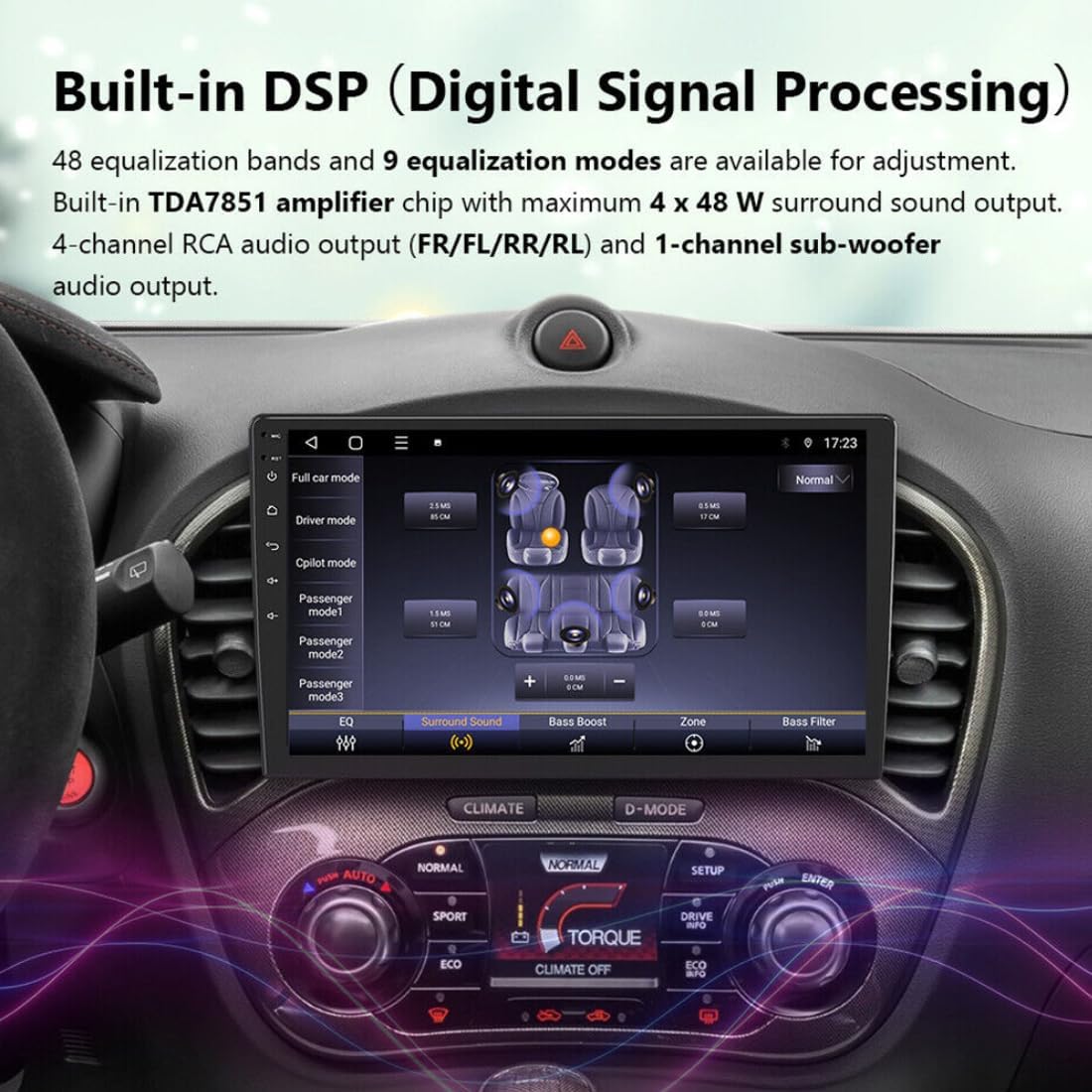
This image displays the Digital Signal Processing (DSP) interface, allowing users to fine-tune audio settings with equalization bands and sound modes for a personalized listening experience.
6.10 Steering Wheel Control
The car radio supports steering wheel control with analogue signals. You can map up to 18 frequently used functions to your factory steering wheel audio keys for convenient operation. This includes activating voice assistants like Siri or Google Assistant.
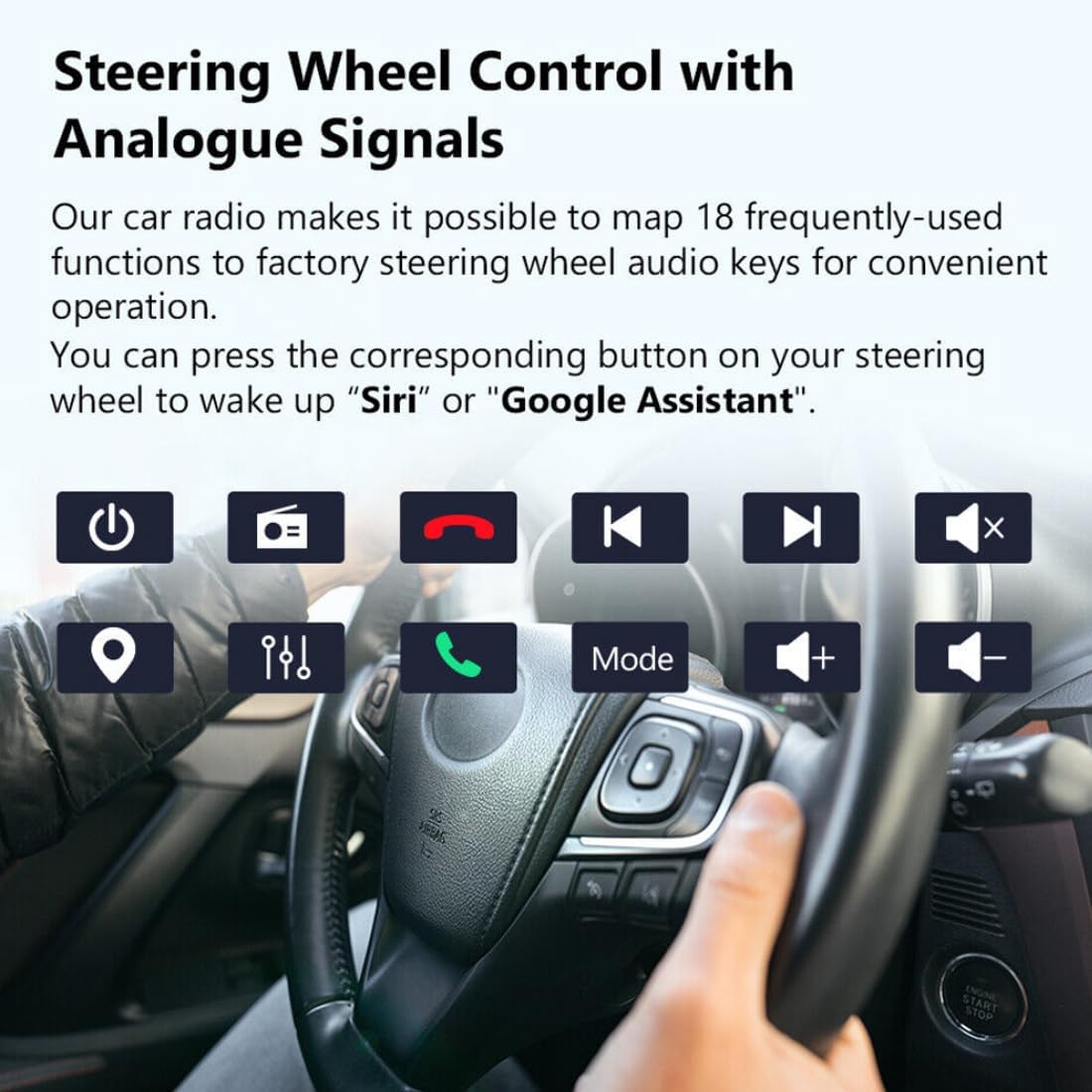
This image illustrates the steering wheel control feature, showing various functions that can be mapped to the vehicle's steering wheel buttons for easy access to the car radio's features.
6.11 Reverse Camera Function
When a reverse camera is connected, the unit will automatically switch to the reverse image display when the vehicle is put into reverse gear. This feature includes support for HD images, night vision, 170-degree wide angle, and parking assistance.

This image demonstrates the reverse camera function, showing the automatic display of the rear view with parking guidelines when the car is in reverse. Features like HD image, night vision, and wide-angle view are highlighted.
7. Maintenance
- Screen Cleaning: Use a soft, lint-free cloth to clean the touch screen. For stubborn smudges, slightly dampen the cloth with water or a screen-safe cleaner.
- Software Updates: Periodically check for software updates to ensure optimal performance and access to new features. Refer to the manufacturer's website or contact support for update procedures.
- Avoid Liquids: Keep liquids away from the device to prevent damage.
8. Troubleshooting
| Problem | Possible Cause | Solution |
|---|---|---|
| No Power | Incorrect wiring, blown fuse, vehicle power issue. | Check power cable connections. Inspect vehicle fuses. Consult a professional installer. |
| No Sound | Volume too low, mute activated, speaker wiring issue. | Increase volume. Check mute status. Verify speaker connections. |
| GPS Not Working | GPS antenna not connected or poorly positioned, outdated maps. | Ensure GPS antenna is connected and has a clear view of the sky. Update maps if necessary. |
| Bluetooth Pairing Failure | Device not in pairing mode, incorrect password, interference. | Ensure both devices are in pairing mode. Re-enter password. Move closer to the unit. |
| Touch Screen Unresponsive | System freeze, debris on screen. | Restart the unit. Clean the screen. If issue persists, contact support. |
9. Specifications
| Feature | Specification |
|---|---|
| Display Size | 10 inches |
| Resolution | 1024*600 (HD 1080P video support) |
| Operating System | Android 8.1 (or later) |
| RAM | 1 GB |
| ROM | 16 GB |
| Max External Memory | 32 GB |
| CPU | Quad Core |
| Output Power | 4*45 W |
| Voltage | 12 V |
| Material Type | Aluminum + Plastic + Electronic |
| Item Size | 254 mm * 150 mm |
| Item Weight | 1.2 kg |
| Connectivity | Wi-Fi (802.11b/g/n), Bluetooth, USB |
| Special Features | GPS, FM Transmitter, Radio Tuner, MP3 Players, Mobile Phone, Touch Screen, Charger, Built-in DSP, Steering Wheel Control, Mirror Link, Reverse Camera Input |
| Digital Media Format | JPEG, WMA, MP3, MP4, DVD-R/RW, CD, DVD-RAM |
| OSD Languages | Multiple, including English, Japanese, Spanish, German, French, Italian, Russian, etc. |
10. Warranty and Support
Eaglerich products are designed for reliability and performance. For warranty information, please refer to the documentation provided at the time of purchase or contact your retailer. For technical support, troubleshooting assistance, or inquiries about spare parts, please contact Eaglerich customer service through their official channels.