
1. Introduction
The Verbatim Keypad Secure USB-C 3.0 32GB Flash Drive provides secure data storage with AES 256-bit hardware encryption and integrated keypad access. This device is designed to protect your confidential data from unauthorized access. This manual will guide you through the setup, operation, maintenance, and troubleshooting of your flash drive.
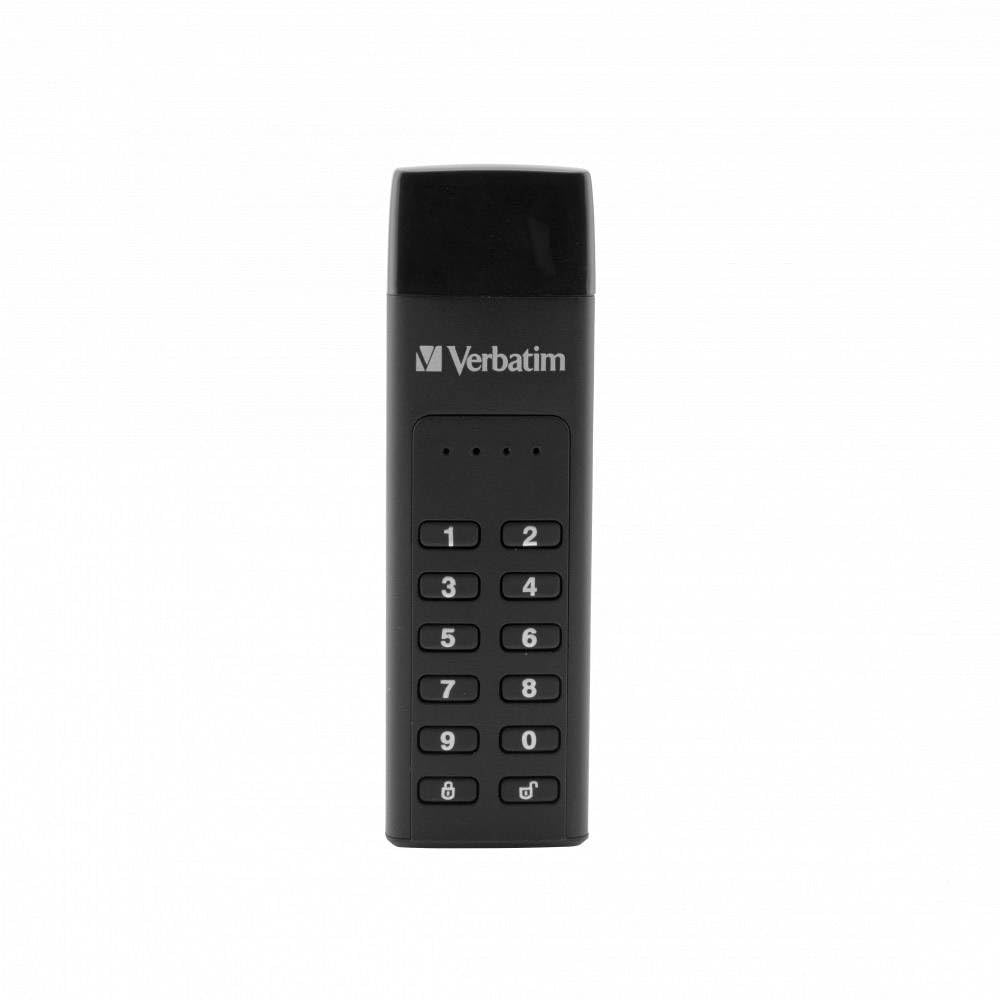
Image 1.1: Verbatim Keypad Secure USB-C 3.0 32GB Flash Drive
2. Safety Information
Before using the Verbatim Keypad Secure USB-C 3.0 32GB Flash Drive, please read all safety instructions. This device contains sensitive electronic components. Avoid exposing the drive to extreme temperatures, direct sunlight, or moisture. Do not attempt to disassemble the device. For detailed safety guidelines, refer to the official safety document provided by Verbatim, typically available on the product support page or included with the packaging.
3. Product Overview
The Verbatim Keypad Secure USB-C 3.0 32GB Flash Drive features a compact design with an integrated numeric keypad for PIN entry. It utilizes AES 256-bit hardware encryption to secure your data in real-time. The drive connects via a USB Type-C interface and includes a USB-C to USB-C extension cable for convenience.
Key Features:
- Hardware Encryption: AES 256-bit hardware encryption protects all data on the drive in real-time.
- Keypad Access: Integrated keypad for PIN entry, preventing password storage in the computer's volatile memory.
- Automatic Lock: The drive automatically locks and requires reformatting after 20 incorrect PIN entries, enhancing security against brute-force attacks.
- Fast Data Transfer: Offers read speeds up to 160 MB/s and write speeds up to 130 MB/s.
- USB-C Interface: Compatible with USB-C ports, including an extension cable for versatile connectivity.
4. Setup Instructions
Follow these steps to set up your Verbatim Keypad Secure USB-C 3.0 32GB Flash Drive for the first time:
- Connect the Drive: Plug the USB-C flash drive into an available USB-C port on your computer. You may use the included USB-C to USB-C extension cable if needed.
- Initial Recognition: The drive will initially appear as a CD-ROM drive containing the setup utility. Do not attempt to access the main storage partition yet.
- Run Setup Utility: Navigate to the virtual CD-ROM drive and run the setup application. Follow the on-screen prompts to initialize the drive.
- Set Administrator PIN: You will be prompted to set an Administrator PIN. This PIN must be between 7 and 15 digits long and cannot contain repeating or consecutive numbers (e.g., 1111111 or 1234567). Enter your desired PIN and confirm it.
- User PIN (Optional): You may also be prompted to set a User PIN. This is optional and provides an additional layer of access control.
- Drive Formatting: After setting the PIN(s), the drive will be formatted and the secure partition will become accessible. This process may take a few moments.
- Eject and Reconnect: Safely eject the drive from your computer, then reconnect it. The drive should now be ready for use, requiring PIN entry to unlock.

Image 4.1: Connecting the Keypad Secure USB-C Drive
Note: If you encounter difficulties during initial setup, refer to the troubleshooting section or the official Verbatim support website for detailed guides, which may include visual aids for different operating systems.
5. Operating Instructions
5.1 Unlocking the Drive
- Connect the Drive: Plug the Keypad Secure drive into your computer's USB-C port.
- Enter PIN: The keypad will illuminate. Enter your Administrator or User PIN.
- Press LOCK/UNLOCK: Press the LOCK/UNLOCK button (key icon) on the keypad.
- Access Data: If the PIN is correct, the drive will unlock, and the secure partition will become accessible on your computer.
5.2 Locking the Drive
To secure your data, always lock the drive when not in use:
- Manual Lock: Press and hold the LOCK/UNLOCK button for 3 seconds.
- Automatic Lock: The drive will automatically lock after a period of inactivity (default setting).
- Eject: Safely ejecting the drive from your operating system will also lock it.
5.3 Changing the PIN
It is recommended to change your PIN periodically for enhanced security:
- Unlock the Drive: Unlock the drive using your current Administrator PIN.
- Enter Change PIN Mode: Press and hold the SHIFT button, then press the LOCK/UNLOCK button.
- Enter Current PIN: Enter your current Administrator PIN and press LOCK/UNLOCK.
- Enter New PIN: Enter your new Administrator PIN (7-15 digits, no repeating/consecutive numbers) and press LOCK/UNLOCK.
- Confirm New PIN: Re-enter your new Administrator PIN and press LOCK/UNLOCK to confirm.
5.4 Data Transfer
Once unlocked, the drive functions like a standard USB flash drive. You can drag and drop files, copy, paste, and delete data as you would with any other storage device.
6. Maintenance
To ensure the longevity and optimal performance of your Verbatim Keypad Secure USB-C 3.0 32GB Flash Drive:
- Physical Care: Keep the drive clean and free from dust and debris. Use a soft, dry cloth for cleaning. Avoid exposing it to liquids.
- Environmental Conditions: Store and operate the drive within recommended temperature and humidity ranges. Avoid extreme heat or cold.
- Data Backup: Regularly back up important data stored on the drive to another secure location. The product description mentions included Nero backup software, which can be used for this purpose.
- Firmware Updates: Periodically check the Verbatim support website for any available firmware updates for your device.
7. Troubleshooting
If you encounter issues with your Verbatim Keypad Secure USB-C 3.0 32GB Flash Drive, refer to the following common problems and solutions:
7.1 Drive Not Recognized or Accessible
- Check Connection: Ensure the drive is fully inserted into the USB-C port. Try a different USB-C port or computer.
- PIN Entry: Make sure you have entered the correct PIN and pressed the LOCK/UNLOCK button. The drive will not be recognized as a storage device until unlocked.
- Initial Setup: If this is the first time using the drive, ensure you have completed the initial setup process, including setting the Administrator PIN and formatting the drive.
- Operating System Compatibility: Verify your operating system meets the minimum requirements (Windows 7/8/10, Mac OS X 10.4 or higher).
7.2 Incorrect PIN Entries / Drive Locked
- PIN Attempts: The drive will automatically lock after 20 consecutive incorrect PIN entries. If this occurs, the drive will require reformatting, which will erase all data.
- Forgotten PIN: If you forget your PIN, there is no recovery method without reformatting the drive. All data will be lost.
- Reformatting: To reformat a locked drive, you will need to use the setup utility. This process will erase all data and allow you to set a new Administrator PIN.
7.3 Slow Data Transfer Speeds
- USB Port: Ensure you are connected to a USB 3.0 (or higher) compatible port on your computer for optimal speeds. Connecting to a USB 2.0 port will result in slower transfers.
- Extension Cable: While convenient, some extension cables may limit transfer speeds. If experiencing slow speeds, try connecting the drive directly to the computer's USB-C port.
- Drive Temperature: Prolonged heavy use or large data transfers can cause the drive to heat up, potentially leading to a temporary reduction in transfer speeds to prevent overheating. Allow the drive to cool down.
8. Specifications
| Brand | Verbatim |
| Model Name | Keypad Secure |
| Model Number | 49430 |
| Storage Capacity | 32 GB |
| Interface | USB 3.0 (compatible with USB 2.0) |
| Connectivity Technology | USB Type A, USB Type C (via included cable) |
| Read Speed | Up to 160 MB/s |
| Write Speed | Up to 130 MB/s |
| Encryption | AES 256-bit Hardware Encryption |
| Dimensions (L x W x H) | 93.5 mm x 28 mm x 12 mm (approx. 15P x 9l x 2H cm) |
| Weight | 30 g |
| Color | Black |
| Compatible Devices | Windows PCs, Mac computers, TVs |
| Operating System Requirements | PC: Windows 10, 8, 7; Mac: Mac OS X 10.4 or higher |
9. Warranty and Support
9.1 Warranty Information
The Verbatim Keypad Secure USB-C 3.0 32GB Flash Drive comes with a manufacturer's warranty of 2 years. This warranty covers defects in materials and workmanship under normal use. Please retain your proof of purchase for warranty claims.
9.2 Technical Support
For further assistance, technical support, or to access additional resources such as updated drivers or detailed FAQs, please visit the official Verbatim support website. You can typically find contact information and support portals on the Verbatim brand website.


