
1. Introduction
Thank you for choosing the Rotor Riot MFi Certified Gamepad Controller for iOS. This manual provides essential information for setting up, operating, and maintaining your controller to ensure an optimal gaming experience on your Apple devices. This wired controller is designed to provide precise control and uninterrupted gameplay for a wide range of iOS games.
2. Product Overview & Key Features
The Rotor Riot MFi Certified Gamepad Controller offers a console-like gaming experience on your iOS device. Key features include:
- MFi Certified: Ensures full compatibility and optimal performance with Apple iOS devices.
- Wired Connection: Provides lag and latency-free gameplay for a responsive gaming experience.
- L3 + R3 Buttons: The only MFi certified gamepad controller on the market with L3 and R3 functionality.
- Power Pass-Through Charging: Allows you to charge your iPhone or iPad while playing, ensuring unlimited gaming sessions without draining your device's battery.
- Improved 8-Way D-Pad: Enhanced directional control for precision movements.
- Redesigned ZeroG Mobile Device Holder: Provides ultimate comfort and secure mounting for your iPhone or iPad.
- Wide Game Compatibility: Compatible with over 1,000 games and apps via the Ludu Mapp affiliate app.

Figure 2.1: Rotor Riot iOS Gamepad Controller connected to an iPhone, highlighting the Lightning connection for latency-free gaming.

Figure 2.2: The controller features power pass-through charging, allowing your device to charge during gameplay.

Figure 2.3: The redesigned ZeroG mobile device holder ensures secure and comfortable phone placement.
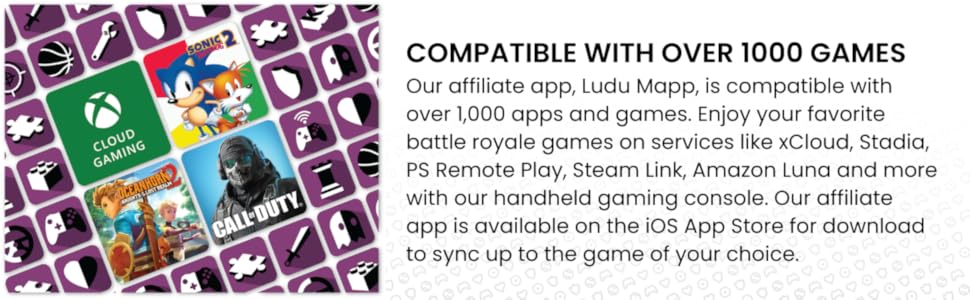
Figure 2.4: The Ludu Mapp app provides access to over 1,000 compatible games.
3. Setup Instructions
- Attach Your Device: Extend the ZeroG mobile device holder and securely place your iPhone or iPad into the holder. Ensure your device is centered and stable.
- Connect the Controller: Plug the integrated Lightning connector from the controller directly into your iOS device's Lightning port. The controller is wired, so no Bluetooth pairing is required.
- Download Ludu Mapp: For optimal game discovery and compatibility, download the Ludu Mapp app from the iOS App Store. This app helps you find games that support MFi controllers.
- Power Pass-Through (Optional): To charge your iOS device while playing, connect a Lightning charging cable (not included) to the pass-through port on the controller.
- Launch a Game: Open any MFi-compatible game on your iOS device. The controller should be automatically recognized.
Video 3.1: An official video demonstrating the setup and features of the Rotor Riot MFi Certified Gamepad Controller for iPhone.
4. Operating Instructions
Once connected, the Rotor Riot controller functions similarly to a standard console gamepad. Most MFi-compatible games will automatically map controls to the controller's buttons and joysticks.
- Analog Sticks: Use the left and right analog sticks for movement and camera control.
- D-Pad: The 8-way D-Pad provides precise directional input for menu navigation or specific game actions.
- Face Buttons (A, B, X, Y): Perform in-game actions as defined by the game.
- Shoulder Buttons (L1, R1) & Triggers (L2, R2): Used for various actions such as firing, aiming, or special abilities.
- L3 & R3: Pressing down on the analog sticks activates L3 and R3, offering additional customizable controls in supported games.
- Menu Buttons: The controller features dedicated menu buttons for in-game options or system functions.
Video 4.1: A detailed comparison of controller differences, including in-game usage for Call of Duty, demonstrating button functionality.
5. Maintenance
To ensure the longevity and optimal performance of your Rotor Riot controller, follow these maintenance guidelines:
- Cleaning: Use a soft, dry cloth to wipe down the controller regularly. For stubborn dirt, slightly dampen the cloth with water. Avoid harsh chemicals or abrasive cleaners.
- Storage: Store the controller in a cool, dry place away from direct sunlight and extreme temperatures. When not in use, ensure the cable is neatly coiled to prevent tangling or damage.
- Cable Care: Do not pull on the cable to disconnect it from your device or the controller. Always grasp the connector itself. Avoid bending or crimping the cable excessively.
6. Troubleshooting
If you encounter issues with your Rotor Riot controller, try the following solutions:
- Controller Not Responding: Ensure the Lightning connector is fully and securely plugged into your iOS device. Try unplugging and re-plugging the controller.
- Game Not Recognizing Controller: Verify that the game you are playing is MFi compatible. Check the game's settings for controller options. Restart the game or your iOS device.
- Lag or Input Delay: As a wired controller, lag is minimal. Ensure no other apps are running in the background that might consume significant system resources.
- Charging Issues: If pass-through charging is not working, ensure your external Lightning charging cable is functional and properly connected to both the controller and a power source.
- Ludu Mapp Issues: If the Ludu Mapp app is not functioning correctly, ensure it is updated to the latest version from the App Store.
- Button Mapping: Some games may require custom button mapping within their settings. Consult the specific game's instructions for details.
7. Specifications
| Feature | Detail |
|---|---|
| Brand | Rotor Riot |
| Model Name | Alpine Edition |
| Compatible Devices | iOS (iPhone, iPad, iPod running iOS 7 or later) |
| Controller Type | Gamepad, Joystick |
| Connectivity Technology | Lightning |
| Button Quantity | 16 |
| Item Weight | 280 Grams |
| Item Dimensions (L x W x H) | 5.91 x 4.33 x 1.97 inches |
| UPC | 856821008073 |
| Manufacturer | T2M |
8. Warranty and Support
For information regarding warranty coverage, returns, or technical support, please refer to the product packaging or visit the official Rotor Riot website. You may also contact the manufacturer, T2M, directly for assistance.


