
Introduction
This user manual provides comprehensive instructions for the Andoer HDV-201LM 1080P FHD Digital Video Camera. It covers setup, operation, maintenance, and troubleshooting to help you get the most out of your device. The Andoer HDV-201LM is a portable digital video camera designed for capturing high-quality photos and videos, making it ideal for preserving memories.
Package Contents
Upon opening the package, please verify that all the following items are included:
- 1 x Digital Video Camera
- 1 x Camera Bag
- 2 x Rechargeable Batteries (one already in camera)
- 1 x USB Cable
- 1 x AV Cable
- 1 x Remote Control
- 1 x User Manual (English)

Image: All items included in the Andoer HDV-201LM package, including the camera, batteries, cables, remote, and bag.
Setup
1. Battery Installation
The camera comes with two 3.7V 1500mAh rechargeable batteries. One battery is typically pre-installed. Before first use, ensure you remove any insulating film from the battery terminals.
- Open the battery compartment cover, usually located at the bottom or side of the camera.
- Insert the battery, ensuring the correct polarity as indicated inside the compartment.
- Close the battery compartment cover securely.
- Charge the battery fully before initial use using the provided USB cable.

Image: The Andoer HDV-201LM camera, two rechargeable batteries, and the remote control, illustrating the main components.
2. Memory Card Installation
The camera requires an SD card (not included) for storing photos and videos. A Class 10 or higher SD card is highly recommended for optimal performance and smooth recording.
- Locate the SD card slot, typically near the battery compartment.
- Insert the SD card with the metal contacts facing the correct direction until it clicks into place.
- To remove, gently push the card in until it springs out.
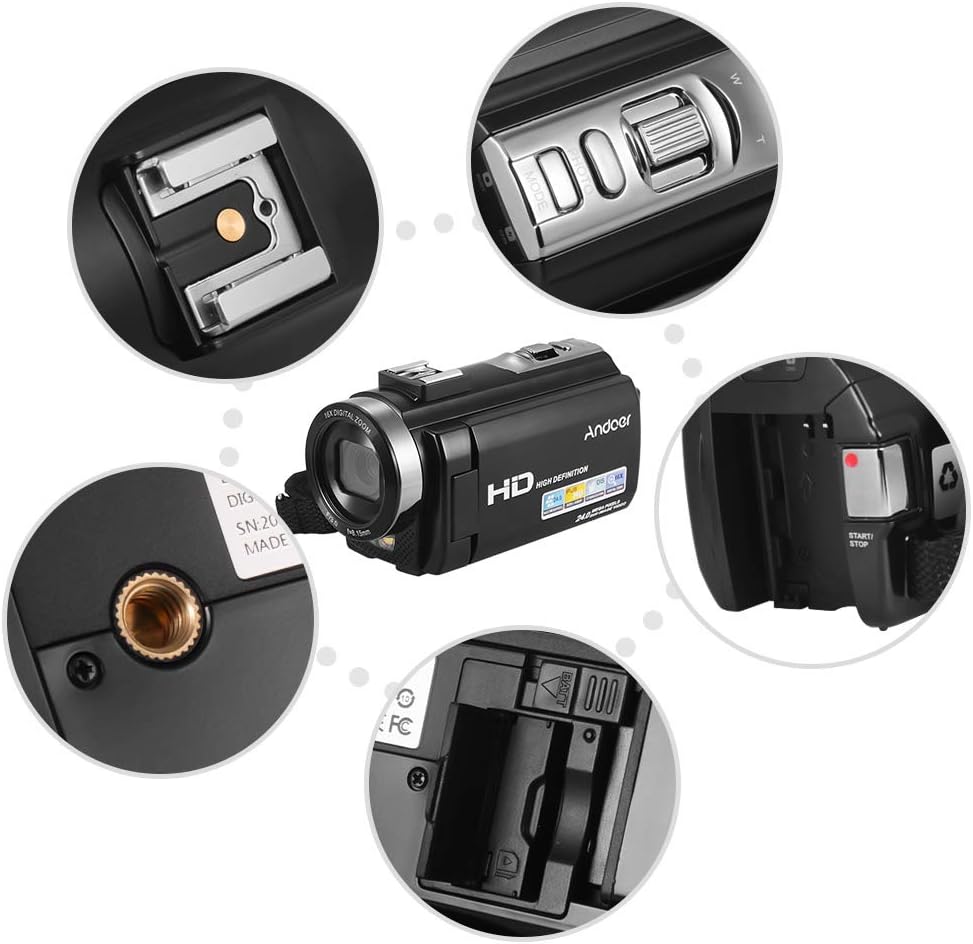
Image: Close-up views of various camera components, including the SD card slot, hot shoe mount, and control buttons.
3. Attaching External Accessories
The camera features a hot shoe mount for connecting external accessories such as microphones or LED video lights (sold separately).
- Slide the accessory onto the hot shoe mount located on top of the camera.
- Secure the accessory if it has a locking mechanism.
- For external microphones, connect the audio cable to the camera's microphone input port.

Image: Illustration of the hot shoe mount on the Andoer HDV-201LM camera, showing how external microphones and LED lights can be attached.
Operating Instructions
1. Power On/Off
- To power on, open the LCD screen or press the POWER button.
- To power off, close the LCD screen or press and hold the POWER button.
2. Recording Videos
The camera supports 1080P FULL HD video recording.
- Turn on the camera.
- Ensure the camera is in video recording mode (usually indicated by a video camera icon on the screen). If not, press the MODE button to switch.
- Press the START/STOP button to begin recording. The recording indicator will light up.
- Press the START/STOP button again to stop recording.
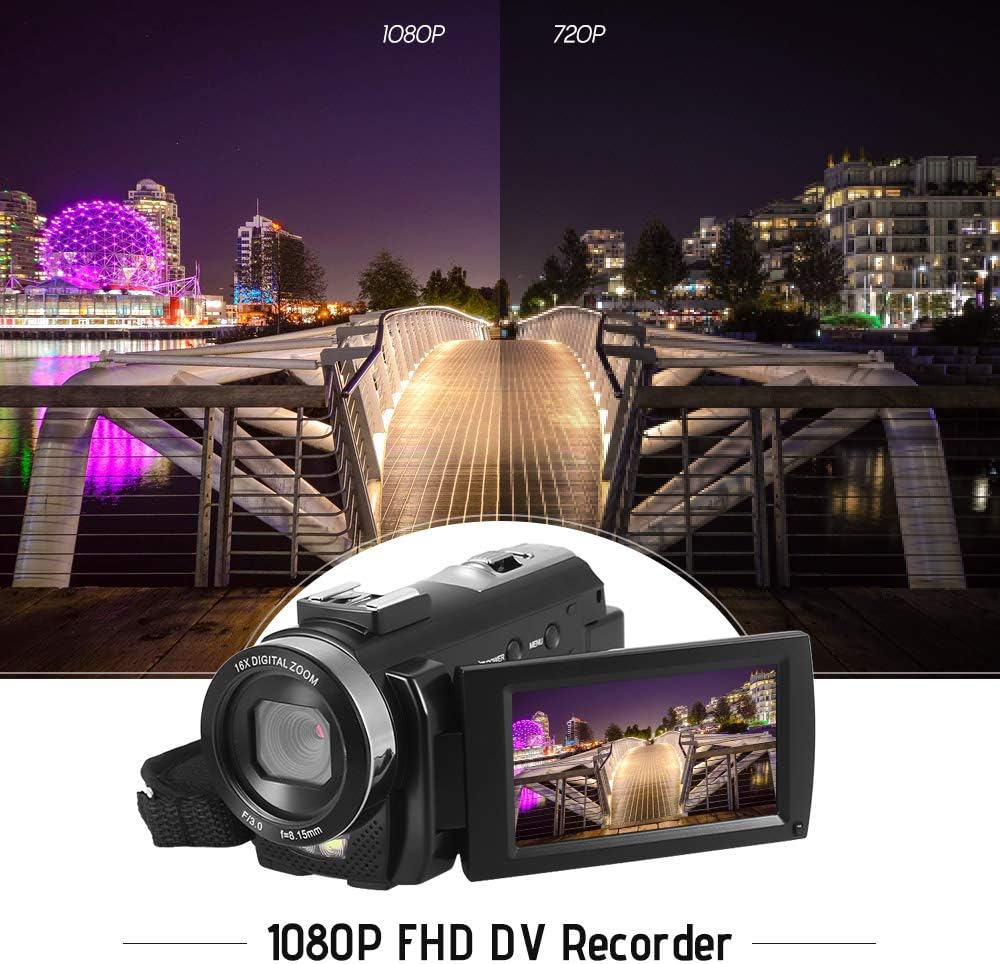
Image: Comparison of 1080P and 720P video quality, highlighting the 1080P FHD capability of the Andoer HDV-201LM camcorder.
3. Taking Photos
The camera can capture still images up to 24MP (interpolation).
- Turn on the camera.
- Press the MODE button to switch to photo mode (indicated by a camera icon).
- Frame your shot using the LCD screen.
- Press the PHOTO button (shutter button) to take a picture.
4. Using the LCD Screen
The 3.0-inch TFT-LCD screen offers 270° rotation for flexible viewing angles.
- Rotate the screen to face forward for self-recording or to various angles for comfortable viewing.
- The screen displays recording status, battery level, mode, and other settings.

Image: The Andoer HDV-201LM camera with its rotatable LCD screen open, showing the camera's compact design.
5. Digital Zoom
The camera features 16X digital zoom.
- Use the W (Wide) and T (Telephoto) buttons, typically located near the top of the camera, to zoom in or out.
- Note: Digital zoom may reduce image quality compared to optical zoom.

Image: Demonstrates the 16X digital zoom capability of the Andoer HDV-201LM, showing a zoomed-in view of a subject.
6. Menu Settings
Access the menu to adjust various camera settings:
- Press the MENU button to enter the settings menu.
- Use the navigation buttons (up/down/left/right) to select options.
- Press the OK button to confirm a selection.
- Press MENU again to exit.
Key settings include:
- White Balance: Auto, Daylight, Cloudy, Fluorescent, Tungsten.
- Mode: Auto, Night, Portrait, Landscape, Backlight, Sport, Party, Beach, High Sensitivity.
- Exposure: Adjust brightness from ±3.0EV.
- Self-timer: Off, 2s, 5s, 10s.
- Auto Power OFF: OFF, 1min, 3min, 5min.
- Other Functions: Face detection, smile capture, beauty face, anti-shake.

Image: A user holding and operating the Andoer HDV-201LM camera, demonstrating its portability and ease of use.
7. Connecting to a Computer (USB)
You can connect the camera to a computer to transfer files.
- Ensure the camera is powered on.
- Connect the camera to your computer using the provided USB cable.
- The camera will appear as a removable disk drive on your computer.
- You can now access and transfer your photos and videos.
Supported Operating Systems: Windows XP/Vista/7/8/10.

Image: Close-up view of the USB and TV output ports on the Andoer HDV-201LM camera, indicating connectivity options.
8. Connecting to a TV (AV Output)
View your recordings directly on a television using the AV cable.
- Connect one end of the AV cable to the camera's AV output port.
- Connect the other end to the AV input ports on your television (yellow for video, white/red for audio).
- Select the correct AV input source on your TV.
TV Output Standards: NTSC/PAL.
9. Using the Remote Control
The included remote control allows for convenient operation from a distance.
- Ensure the remote control battery (1 x 3V CR2025) is installed correctly.
- Point the remote control towards the camera's IR receiver.
- Use the buttons on the remote to control recording, playback, zoom, and menu navigation.
Maintenance
1. Cleaning the Camera
- Use a soft, dry cloth to clean the camera body.
- For the lens and LCD screen, use a specialized lens cleaning cloth and solution. Avoid abrasive materials.
- Do not use strong detergents or solvents.
2. Battery Care
- Store batteries in a cool, dry place when not in use.
- Avoid fully discharging batteries frequently to prolong their lifespan.
- If the camera will not be used for an extended period, remove the battery.
3. Storage
- Store the camera in its camera bag to protect it from dust and scratches.
- Keep the camera away from extreme temperatures, humidity, and direct sunlight.
Troubleshooting
| Problem | Possible Cause | Solution |
|---|---|---|
| Camera does not power on. | Battery is dead or not inserted correctly. Insulating film on battery. | Charge the battery. Reinsert the battery correctly. Remove insulating film. |
| Cannot record video/take photos. | No SD card or SD card full/corrupted. Incorrect mode. | Insert a valid SD card. Delete files or format SD card. Switch to correct mode. |
| Poor image/video quality. | Lens is dirty. Low light conditions. Digital zoom used excessively. | Clean the lens. Use LED fill light. Avoid excessive digital zoom. |
| Remote control not working. | Battery dead or incorrectly inserted. Obstruction between remote and camera. | Replace/reinsert remote battery. Ensure clear line of sight to IR receiver. |
| Camera freezes or becomes unresponsive. | Software glitch. | Remove and reinsert the battery to reset the camera. |
Specifications
| Feature | Detail |
|---|---|
| Brand | Andoer |
| Model Number | HDV-201LM |
| Sensor | 8MP CMOS Sensor, max. 24MP (interpolation) |
| External Memory | SD Card, max. 32G (Not included, Class 10+ recommended) |
| Camera Lens | Ff (F/3.0 f=8.15mm) |
| Screen | 3.0 Inch TFT-LCD (16:9), 270° rotation |
| Video Format & Resolution | AVI, 1920*1080P FULL HD/30fps, 1280*720 HD/30fps, VGA 640*480/30fps, QVGA 320*240/30fps |
| Image Format & Resolution | JPG, 5600*4200 (24MP Interpolation) / 5200*3900 (20MP Interpolation) / 4608*3456 (16MP Interpolation) / 4000*3000 (12MP Interpolation) / 3648*2736 (10MP Interpolation) / 3648*2048 HD (7M-Wide Interpolation) / 2592*1944 (5MP) / 2048*1536 (3MP) / 1920*1080 HD (2M-Wide) / 640*480 VGA |
| White Balance | Auto/ Daylight/ Cloudy/ Fluorescent/ Tungsten |
| Mode | Auto/Night/Portrait/Landscape/Backlight/Sport/Party/Beach/High Sensitivity |
| Exposure | ±3.0EV |
| Self-timer | Off, 2s, 5s, 10s |
| Auto Power OFF | OFF/1min/ 3min/ 5min |
| USB Port | USB2.0 |
| TV Output | NTSC/ PAL |
| Operating System Support | Windows XP/Vista/7/8/10 |
| Camera Power Supply | 1 * Battery 3.7V 1500mAh (included) |
| Remote Control Battery | 1 * 3V CR2025 Battery |
| Camera Size | 13.5 * 5.5 * 6.5cm / 5.3 * 2.2 * 2.6in |
| Camera Weight | 273g / 9.6oz (With battery) |
Warranty and Support
This product comes with standard manufacturer support. For extended coverage, consider the following options:
- 1 Year Extended Warranty Plan
- 2 Years Extended Warranty Plan
For technical support or warranty claims, please refer to the contact information provided with your purchase documentation or visit the official Andoer website.