
Introduction
Thank you for choosing the Blueendless 2-Bay SATA HDD/SSD Docking Station HD05. This device is designed to provide convenient access to 2.5-inch and 3.5-inch SATA hard drives and solid-state drives (HDDs/SSDs) for data transfer and offline duplication. Please read this manual carefully to ensure proper installation and operation.
Product Overview
Key Features:
- Supports simultaneous reading of two 2.5-inch or 3.5-inch SATA HDDs/SSDs.
- Integrated Hard Drive Duplicator Function (Offline Clone) for standalone drive duplication.
- Connects to a computer via USB 3.0 for use as an external hard drive dock.
- On/Off power switch for easy control.
- LED indicators for power and activity status.
- Hot-swappable, plug and play functionality; no drivers required for most operating systems.
- USB 3.0 interface provides data transfer rates up to 5 Gbps.
- Compatible with OS X, Linux, Windows 2000/XP/Vista/7/8/10 (32-bit & 64-bit), and Android (Smart TV).
Package Contents:
- Blueendless HDD Docking Station HD05
- USB 3.0 Data Cable
- Power Supply
- User Manual (this document)
Product Diagram:

Figure 1: Front view of the Blueendless HD05 Docking Station, showing the two drive bays and power button.
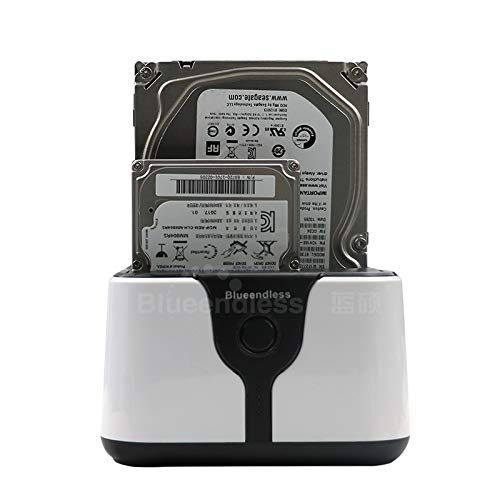
Figure 2: The docking station with a 3.5-inch HDD and a 2.5-inch HDD/SSD inserted into the bays, demonstrating drive compatibility.
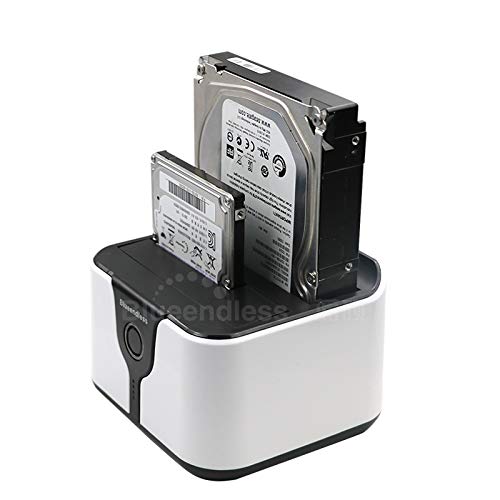
Figure 3: An angled view of the docking station with both 2.5-inch and 3.5-inch drives inserted, highlighting the compact design.
Setup
- Connect Power: Connect the provided power adapter to the docking station's power input and then to a wall outlet.
- Connect to Computer (Optional for Data Transfer): If using for data transfer, connect the supplied USB 3.0 data cable from the docking station's USB port to an available USB 3.0 port on your computer.
- Insert Drives: Carefully insert your 2.5-inch or 3.5-inch SATA HDDs/SSDs into the drive bays (Slot 1 and Slot 2). Ensure they are fully seated.
- Power On: Press the On/Off power switch on the docking station. The power LED indicator will illuminate.
- Driver Installation: For most modern operating systems (Windows, OS X, Linux), no additional drivers are required. The device should be recognized automatically.
Operating Instructions
A. Data Transfer Mode (Connected to Computer)
- Ensure the docking station is powered on and connected to your computer via the USB 3.0 cable.
- Insert one or two SATA HDDs/SSDs into the drive bays.
- Your operating system should detect the drives as external storage devices. You can now access, read, and write data to them as you would with any other external drive.
- To safely remove a drive, always use the "Safely Remove Hardware" option in your operating system before physically removing the drive or powering off the docking station.
B. Offline Clone Function (Standalone Duplication)
The offline clone function allows you to duplicate a hard drive without connecting to a computer. This is ideal for creating backups or upgrading drives.
- Prepare Drives:
- Insert the Source Drive (the drive you want to copy FROM) into Slot 1 (Source).
- Insert the Target Drive (the drive you want to copy TO) into Slot 2 (Target).
- Important: The target drive must be of equal or larger capacity than the source drive. All data on the target drive will be overwritten during the cloning process. Ensure you have backed up any important data from the target drive before proceeding.
- Disconnect from Computer: Ensure the USB data cable is disconnected from the docking station and your computer. The cloning process must be performed offline.
- Power On: Connect the power adapter and turn on the docking station.
- Initiate Clone: Press and hold the "Clone" button (usually located near the drive bays) for approximately 3-5 seconds until the clone progress LEDs begin to flash.
- Monitor Progress: The LED indicators will show the cloning progress (e.g., 25%, 50%, 75%, 100%). Do not interrupt the process.
- Completion: Once all progress LEDs are solid, the cloning process is complete. You can now safely power off the docking station and remove the drives.
Note: The cloning speed depends on the drive capacities and types. Larger drives will take longer to clone.
Maintenance
- Keep the docking station clean and free from dust. Use a soft, dry cloth for cleaning.
- Avoid exposing the device to extreme temperatures, humidity, or direct sunlight.
- Do not attempt to disassemble or repair the device yourself. This may void the warranty.
- Ensure proper ventilation around the device during operation, especially during long cloning processes.
Troubleshooting
- Issue: Drives not recognized by computer.
- Ensure the docking station is powered on and the USB 3.0 cable is securely connected to both the docking station and the computer.
- Try connecting to a different USB port on your computer.
- Test with a different USB 3.0 cable.
- Check if the drives are properly seated in the bays.
- Verify that the drives themselves are functional by testing them in another enclosure or directly connected to a computer.
- For new drives, they may need to be initialized and formatted in Disk Management (Windows) or Disk Utility (OS X) before they appear.
- Issue: Offline clone fails or does not start.
- Ensure the USB data cable is disconnected from the computer. The clone function is offline only.
- Verify that the source drive is in Slot 1 and the target drive is in Slot 2.
- Confirm that the target drive's capacity is equal to or greater than the source drive's capacity.
- Ensure both drives are properly inserted and detected by the docking station (power on, then insert drives, check activity LEDs).
- Press and hold the clone button for the required 3-5 seconds until the progress LEDs start flashing.
- If the drives are very old or have bad sectors, cloning might fail.
- Issue: Slow data transfer speeds.
- Ensure you are connected to a USB 3.0 port on your computer. USB 2.0 ports will result in slower speeds.
- Verify that the USB 3.0 cable is not damaged.
- The actual transfer speed also depends on the speed of the installed HDDs/SSDs.
Specifications
| Feature | Detail |
|---|---|
| Model | HD05 |
| Supported Drive Types | 2.5-inch / 3.5-inch SATA I/II/III HDD & SSD |
| Number of Bays | 2 |
| Interface | USB 3.0 (backward compatible with USB 2.0) |
| Data Transfer Rate | Up to 5 Gbps (USB 3.0) |
| Offline Clone Function | Supported (Standalone) |
| Compatible Operating Systems | OS X, Linux, Windows 2000/XP/Vista/7/8/10, Android (Smart TV) |
| Dimensions (L x W x H) | 118 x 115 x 89 mm (approx. 12 x 12 x 8 cm) |
| Item Weight | 254 g |
| Power Supply | External Power Adapter (included) |
Warranty and Support
This Blueendless HD05 Docking Station comes with a 6-month warranty from the date of purchase. This warranty covers manufacturing defects under normal use.
For technical support, warranty claims, or further assistance, please contact your retailer or the Blueendless customer service department through their official website or contact channels. Please have your product model number (HD05) and proof of purchase ready when contacting support.


