
Zizo SPK-RKZ2-BLK
ZIZO Rokr Z2 Portable Bluetooth Speaker User Manual
Model: SPK-RKZ2-BLK
1. Introduction
The ZIZO Rokr Z2 is a portable Bluetooth speaker designed for high-quality audio playback and versatile connectivity. It features a powerful 30W output, an 8-inch speaker, and a built-in rechargeable battery for extended use. With its integrated handle and wheels, it offers easy portability. This manual provides detailed instructions for setting up, operating, and maintaining your Rokr Z2 speaker.
Key features include:
- Wireless Bluetooth streaming from compatible devices.
- Integrated FM radio.
- USB and MicroSD card playback.
- 3.5mm AUX input for wired connections.
- Included microphone for voice input and recording.
- Rugged design for enhanced durability.
- Long-lasting 3000 mAh rechargeable battery.
2. Package Contents
Please check the box for the following items:
- 1x ZIZO Rokr Z2 Speaker
- 1x USB Charging Cable
- 1x 3.5mm Stereo Connection Cable (AUX Cable)
- 1x Microphone
- 1x Remote Control
- 1x Quick Start Guide
- 1x Warranty Card

Image: All components included in the ZIZO Rokr Z2 package. This includes the speaker, a wired microphone, a USB charging cable, a 3.5mm AUX cable, a remote control, a quick start guide, and a warranty card.
3. Product Overview
Familiarize yourself with the various parts and controls of your ZIZO Rokr Z2 speaker.
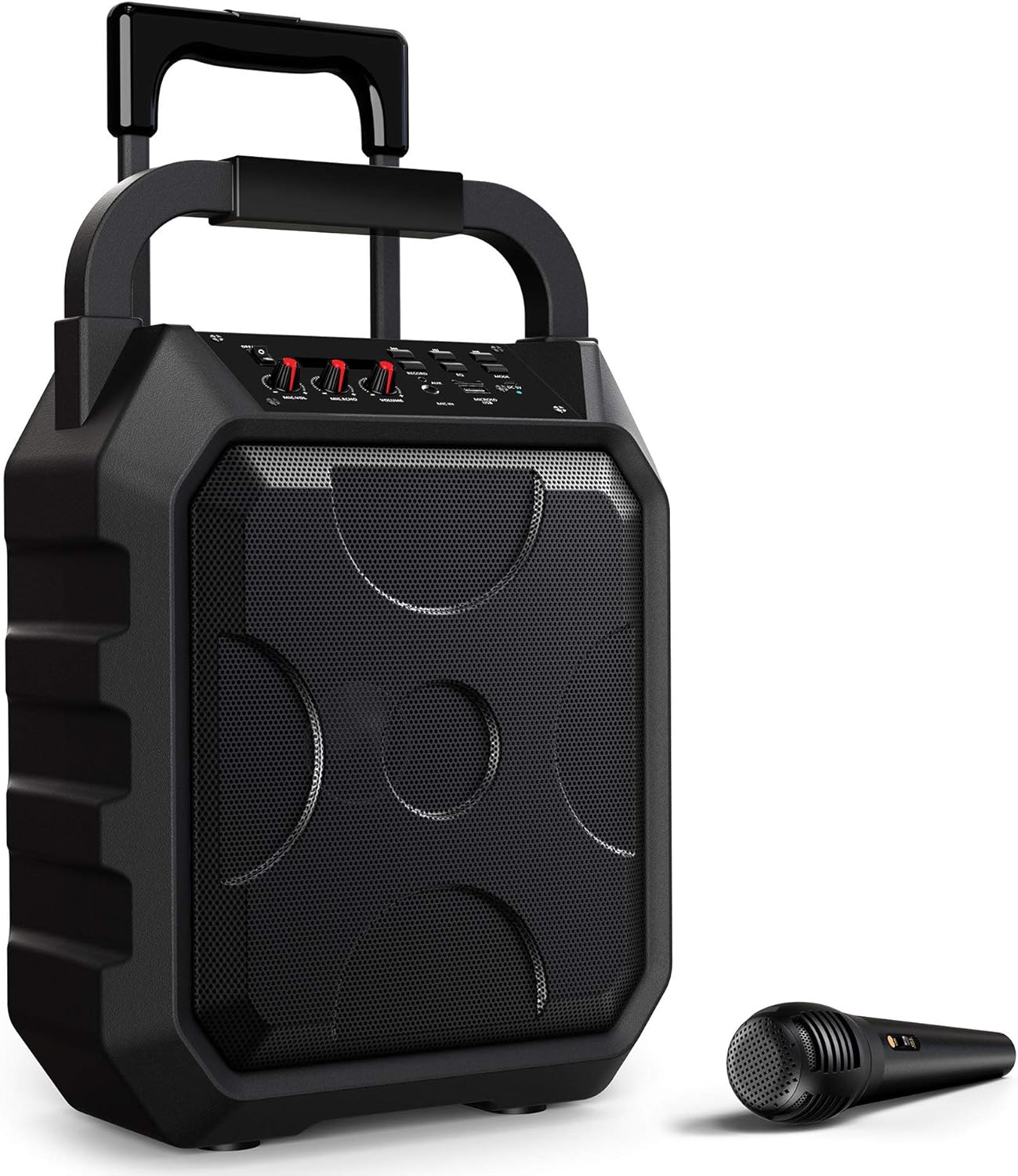
Image: The ZIZO Rokr Z2 speaker, showcasing its front grille, control panel on top, and extendable handle. A wired microphone is positioned next to it.

Image: A detailed view of the speaker's top control panel, showing various knobs and buttons for volume, mode selection, and input ports.
Control Panel Layout:
- Power Switch: Turns the speaker on or off.
- Volume Knobs: Separate controls for Master Volume, Microphone Volume, and Echo.
- Mode Button: Switches between Bluetooth, FM Radio, USB, MicroSD, and AUX input modes.
- Play/Pause Button: Controls media playback.
- Previous/Next Buttons: Navigates through tracks or FM radio stations.
- Record Button: Initiates recording when a microphone and storage are connected.
- USB Port: For USB flash drives.
- MicroSD Card Slot: For MicroSD memory cards.
- AUX Input (3.5mm): For connecting external audio devices via cable.
- Mic Input (6.35mm): For connecting the included microphone.
- DC 5V Input: For charging the speaker.
4. Setup
4.1 Initial Charging
- Before first use, fully charge the speaker. Connect the provided USB charging cable to the DC 5V input port on the speaker and the other end to a USB power adapter (not included) or a computer USB port.
- The charging indicator light will illuminate during charging and turn off when fully charged.
- A full charge typically takes several hours.
4.2 Powering On/Off
- To power on the speaker, locate the Power Switch on the control panel and slide it to the "ON" position.
- To power off the speaker, slide the Power Switch to the "OFF" position.
5. Operating Instructions
5.1 Bluetooth Pairing
The ZIZO Rokr Z2 speaker can wirelessly connect to any Bluetooth-enabled device.
- Power on the speaker. It will automatically enter Bluetooth pairing mode, indicated by a flashing LED light or an audible prompt.
- On your Bluetooth device (smartphone, tablet, laptop, etc.), enable Bluetooth and search for available devices.
- Select "ZIZO Rokr Z2" from the list of found devices.
- Once paired, the speaker will emit an audible confirmation, and the LED light will stop flashing.
- You can now play audio from your device through the speaker.

Image: The ZIZO Rokr Z2 speaker is compatible with a wide range of smart devices, including smartphones, tablets, laptops, and desktop computers, allowing for seamless wireless audio streaming.
5.2 FM Radio Operation
- Power on the speaker.
- Press the "Mode" button repeatedly until "FM" mode is selected.
- Press and hold the "Play/Pause" button to automatically scan and save available FM radio stations.
- Use the "Previous" and "Next" buttons to navigate between saved stations.
5.3 USB and MicroSD Playback
- Insert a USB flash drive or MicroSD card into the corresponding port on the control panel.
- The speaker will automatically switch to USB or MicroSD mode and begin playing audio files (MP3 format recommended).
- Use the "Play/Pause", "Previous", and "Next" buttons to control playback.
5.4 AUX Input
For devices without Bluetooth, use the AUX input.
- Connect one end of the provided 3.5mm stereo connection cable to the AUX input port on the speaker.
- Connect the other end to the headphone jack or audio output of your external device (e.g., MP3 player, computer).
- Press the "Mode" button until "AUX" mode is selected.
- Control playback from your external device.
5.5 Microphone Usage and Recording
The ZIZO Rokr Z2 includes a microphone for karaoke or public address functions, and also supports recording.
- Plug the included microphone into the Mic Input port on the speaker.
- Adjust the "Mic Vol" knob to control the microphone's volume.
- Adjust the "Echo" knob to add an echo effect to your voice.
- For Recording: Ensure a USB flash drive or MicroSD card is inserted. Press the "Record" button to start recording. Press it again to stop. Recorded files will be saved to the inserted storage device.

Image: The ZIZO Rokr Z2 speaker with its microphone connected, illustrating its recording capability. A tablet is shown nearby, suggesting use for karaoke or vocal practice.
6. Maintenance
6.1 Cleaning
- Wipe the speaker's exterior with a soft, dry cloth.
- Do not use abrasive cleaners, waxes, or solvents.
- Avoid getting moisture into any openings.
6.2 Storage
- Store the speaker in a cool, dry place away from direct sunlight and extreme temperatures.
- If storing for an extended period, charge the battery every 3-6 months to maintain its lifespan.
6.3 Battery Care
- Do not expose the battery to excessive heat or fire.
- Do not attempt to replace the battery yourself. Contact qualified service personnel if battery replacement is needed.
- Dispose of batteries according to local regulations.
7. Troubleshooting
| Problem | Possible Cause | Solution |
|---|---|---|
| No power | Battery is depleted. | Charge the speaker using the provided USB cable. |
| No sound | Volume is too low or muted. Incorrect mode selected. Device not paired (Bluetooth). | Increase master volume. Press "Mode" button to select correct input. Re-pair Bluetooth device. |
| Bluetooth connection unstable | Device is too far from speaker. Interference from other devices. | Move device closer to speaker. Avoid obstacles. Turn off other Bluetooth devices. |
| FM radio static | Weak signal. | Relocate the speaker to an area with better reception. Perform an auto-scan again. |
| Microphone not working | Microphone not fully plugged in. Mic volume too low. | Ensure microphone is securely connected. Increase "Mic Vol" knob. |
8. Specifications
| Feature | Detail |
|---|---|
| Model Name | Zizo Rokr Z2 |
| Model Number | SPK-RKZ2-BLK |
| Speaker Type | External |
| Max Speaker Output Power | 30 Watts |
| Subwoofer Diameter | 8 Inches |
| Connectivity Technology | Bluetooth, USB |
| Wireless Communication | Bluetooth |
| Audio Output Mode | Stereo |
| Compatible Devices | MP3 Player, Laptop, Game Console, Television, Tablet, Smartphone |
| Special Features | Rugged protection, Slim fit |
| Color | Black |
| Power Source | Battery Powered (3000 mAh Lithium) |
| Product Dimensions | 48.26 x 35.56 x 21.59 cm |
| Product Weight | 4.47 Kilograms |
| Included Components | USB charging cable, 3.5mm stereo connection cable, microphone |
| Waterproof | False |
9. Warranty and Support
9.1 Warranty Information
The ZIZO Rokr Z2 speaker comes with a limited manufacturer's warranty. Please refer to the warranty card included in your package for specific terms, conditions, and duration of coverage. Keep your proof of purchase for warranty claims.
9.2 Customer Support
For technical assistance, troubleshooting, or general inquiries, please visit the official ZIZO website or contact their customer support team. Contact details can typically be found on the manufacturer's website or on the product packaging.
Related documentsSPK-RKZ2-BLK

Ask a question about this manual
Ask about setup, troubleshooting, compatibility, parts, safety, or missing instructions. Manuals+ will review the question and use this page’s manual context to help answer it.