Download PDFFree PDF. The Save button below keeps a bookmark and private notes in your account.
Zoom LiveTrak L-20R Digital Mixer & Multitrack Recorder Instruction Manual
Model: L-20R | Brand: Zoom
1. Introduction
The Zoom LiveTrak L-20R is a rack-mountable digital mixer and multitrack recorder designed for musicians to control their live mix directly from the stage. This versatile unit offers extensive recording capabilities, flexible monitoring options, and seamless wireless control via iOS devices.
Main outputs, 6 customizable monitor outputs, and a dedicated output for FOH monitoring and mixing
Scene saving function, Up to 9 scenes saved at a time
20 built-in chorus, delay and reverb effects with adjustable parameters
22-in/4-out USB Audio Interface
2. Setup
2.1 Unpacking and Initial Inspection
Carefully remove the LiveTrak L-20R from its packaging. Inspect the unit for any signs of damage that may have occurred during transit. Ensure all accessories are present.
The package should include the LiveTrak L-20R unit, power adapter, and the BTA-1 Bluetooth remote adapter.
2.2 Power Connection
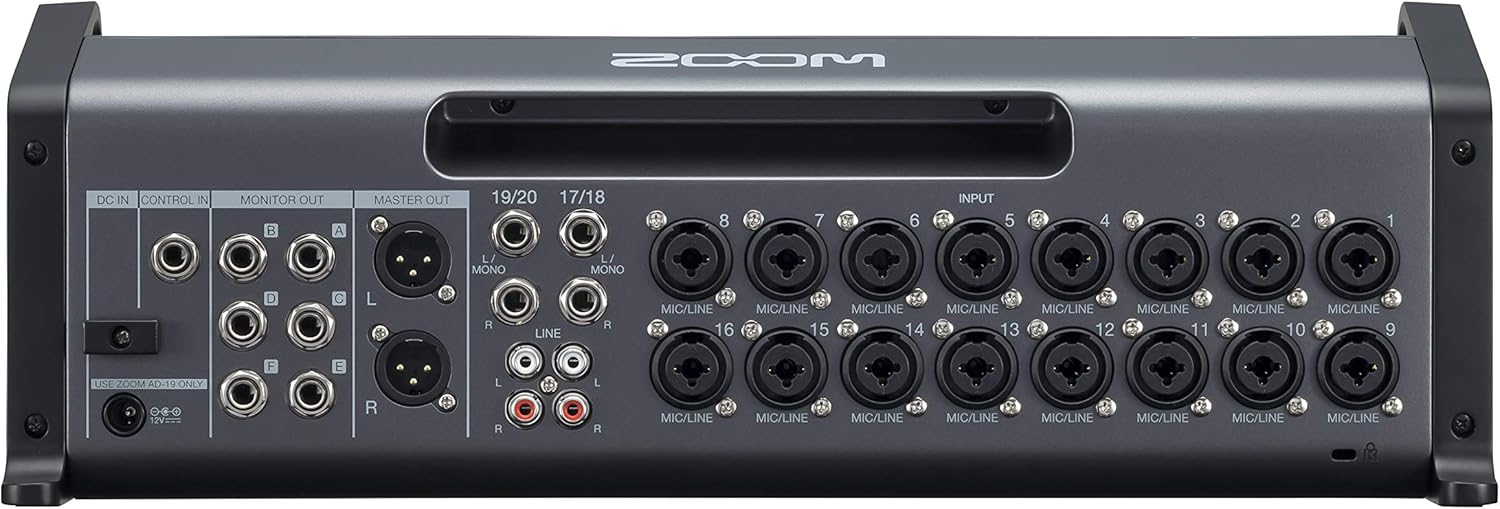
Connect the supplied power adapter to the DC IN port on the rear panel of the L-20R. Plug the adapter into a suitable power outlet. The unit features an ON/OFF switch for power control.
Image: Rear view of the Zoom LiveTrak L-20R, highlighting the DC IN port and other connections.
2.3 Input Connections
The L-20R features 16 microphone/line inputs (XLR/TRS combo jacks) and 2 stereo line inputs (TRS/RCA). Connect your microphones, instruments, and other audio sources to the appropriate input jacks on the rear panel.
Microphone/Line Inputs (1-16): Use XLR cables for microphones or TRS cables for line-level instruments.
Stereo Line Inputs (17/18, 19/20): Use TRS or RCA cables for stereo sources like keyboards or media players.
Image: Detailed view of the rear panel of the Zoom LiveTrak L-20R, showing the microphone/line inputs and stereo line inputs.
2.4 Output Connections
Connect your main speakers or front-of-house (FOH) system to the MASTER OUT XLR jacks. The L-20R also provides six customizable monitor outputs (TRS) for individual musician mixes.
MASTER OUT (L/R): Connect to your main PA system.
MONITOR OUT (A-F): Connect to personal monitors or headphones for individual mixes.
Image: Detailed view of the rear panel of the Zoom LiveTrak L-20R, showing the master outputs and monitor outputs.
2.5 Wireless Control Setup (iOS)
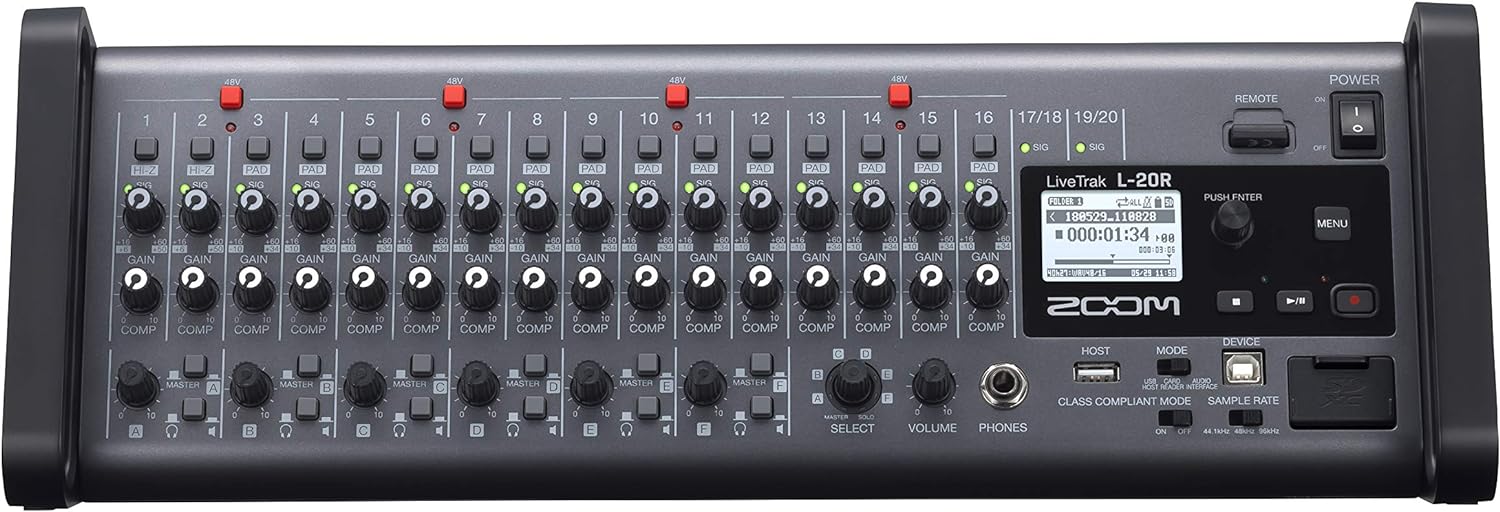
The L-20R supports wireless control via an iOS device (iPad) using the dedicated Remote Mixer app. Insert the BTA-1 Bluetooth adapter into the REMOTE port on the front panel. Follow the instructions in the iOS app to connect to your L-20R.
Image: Front panel of the Zoom LiveTrak L-20R, showing the REMOTE port where the BTA-1 Bluetooth adapter is inserted.
Note: The BTA-1 Bluetooth adapter is included with the L-20R. Ensure your iPad is running the latest version of the Remote Mixer app.
3. Operating Instructions
3.1 Basic Mixing and Gain Adjustment
Each input channel (1-16) features a GAIN knob, PAD switch, and COMP (compressor) button. Adjust the GAIN knob to achieve an optimal input level without clipping. Use the PAD switch for high-level signals. The COMP button activates the compressor for dynamic control.
Image: Close-up of the Zoom LiveTrak L-20R's front panel, showing individual channel controls including GAIN, PAD, and COMP buttons.
3.2 Monitor Mixes
The L-20R allows for six independent monitor mixes (A-F). Use the FADER MODE/SCENE buttons to select a monitor mix (A-F) and then adjust the channel faders to create a custom mix for each musician. The master fader controls the overall level of the selected monitor mix.
Video: This video demonstrates how to set up and adjust individual monitor mixes on the Zoom LiveTrak L-20R, highlighting the FADER MODE/SCENE buttons and channel faders.
3.3 Recording and Playback
Insert an SD card into the SD card slot. To record, arm the desired tracks by pressing their REC/PLAY buttons (they will light up red). Press the main RECORD button to start recording. To play back, disarm tracks and press the main PLAY button.
The L-20R supports 22-track simultaneous recording and 20-track playback. Recorded files are stored in WAV format on the SD card.
Image: Front panel of the Zoom LiveTrak L-20R, showing the transport controls (Record, Play, Stop) and the SD card slot.
3.4 Built-in Effects
The L-20R includes 20 built-in chorus, delay, and reverb effects. Use the dedicated FX SEND and FX RETURN controls to apply and adjust effects to individual channels or the master mix. The FX TYPE knob allows selection of different effect types.
Video: This video demonstrates the application and adjustment of built-in effects on the Zoom LiveTrak L-20R, showing the FX controls.
3.5 USB Audio Interface Mode
The L-20R can function as a 22-in/4-out USB audio interface. Connect the unit to your computer via USB. Select "DEVICE" mode and configure your Digital Audio Workstation (DAW) to recognize the L-20R as an audio interface. This allows for multi-track recording directly to your computer.
4. Maintenance
Cleaning: Use a soft, dry cloth to clean the exterior of the unit. Avoid using abrasive cleaners or solvents.
Storage: Store the L-20R in a cool, dry place away from direct sunlight and extreme temperatures.
Firmware Updates: Periodically check the Zoom website for firmware updates to ensure optimal performance and access to new features.
SD Card Care: Format your SD card regularly within the L-20R to maintain performance and prevent data corruption. Always safely eject the SD card before removal.
5. Troubleshooting
5.1 No Sound Output
Check all cable connections (inputs, outputs, power).
Ensure the L-20R is powered on.
Verify that channel faders and master faders are raised.
Check if any channels are muted or soloed.
Confirm that the correct monitor mix is selected if using monitor outputs.
5.2 Recording Issues
Ensure an SD card is inserted and has sufficient free space.
Verify that tracks are armed for recording (REC/PLAY button lit red).
Check input gain levels to ensure signals are present.
Ensure the SD card is formatted correctly (FAT32).
5.3 Wireless Control Disconnection
Confirm the BTA-1 Bluetooth adapter is securely inserted into the REMOTE port.
Check the Bluetooth settings on your iOS device and ensure it's connected to the L-20R.
Ensure the iOS device is within range of the L-20R.
Restart both the L-20R and the iOS Remote Mixer app.
6. Specifications
Item Weight
6 pounds (2722 Grams)
Product Dimensions
17.38 x 6.25 x 5.86 inches
Item Model Number
L-20R
Color Name
Black
Hardware Interface
USB
Supported Software
Remote Mixer app for iPad
Mixer Channel Quantity
20
Power Source
Corded Electric
Connectivity Technology
USB
First Available Date
June 4, 2019
7. Warranty & Support
For warranty information and technical support, please refer to the official Zoom website or contact their customer service directly. Keep your purchase receipt as proof of purchase for warranty claims.
Protection plans may be available for extended coverage. Please check with your retailer for details on available protection plans.
Ask about setup, troubleshooting, compatibility, parts, safety, or missing instructions. Manuals+ will review the question and use this page’s manual context to help answer it.