
1. Introduction
The Xiaomi Mi Router 4A Gigabit Edition (Model: R4AC) is a high-performance dual-band wireless router designed for home and small office environments. It features Gigabit Ethernet ports and supports both 2.4GHz and 5GHz Wi-Fi bands, providing fast and stable internet connectivity for multiple devices. This manual provides detailed instructions for the proper setup, operation, and maintenance of your router.
2. Package Contents
Before proceeding with the setup, please verify that all items are present in your package:
- Xiaomi Mi Router 4A Gigabit Edition (Host)
- Power Adapter
- User Manual (this document)

Image: Visual representation of the router, power cable, and instruction manual included in the package.
3. Product Overview
The Xiaomi Mi Router 4A Gigabit Edition features a minimalist design with four external antennas for enhanced signal coverage. It includes multiple ports for wired connections and LED indicators for status monitoring.
3.1 Front View

Image: Front view of the Xiaomi Mi Router 4A Gigabit Edition, showing its sleek white casing and four antennas.
3.2 Angled View with Antennas

Image: Angled view of the Xiaomi Mi Router 4A, highlighting its four external antennas in an upright position.
3.3 Dimensions
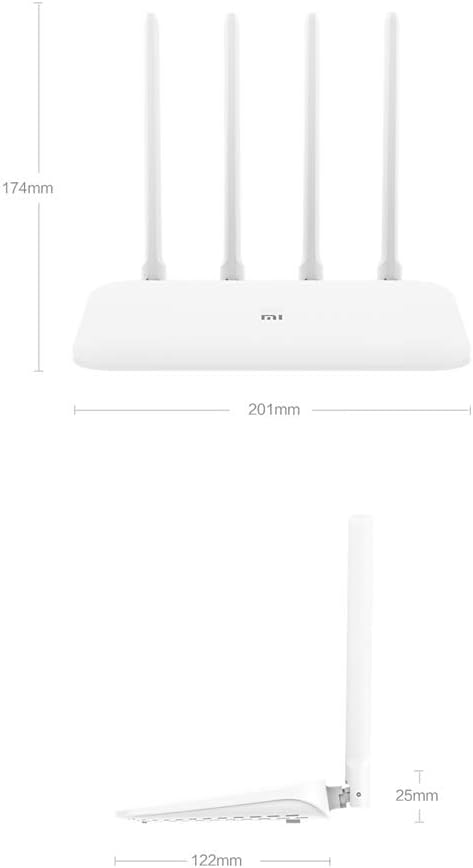
Image: Technical drawing displaying the dimensions of the Xiaomi Mi Router 4A, with measurements in millimeters.
3.4 Ports and Indicators
The router features:
- WAN Port: 1x 10/100/1000M adaptive port for connecting to your modem or internet service provider.
- LAN Ports: 2x 10/100/1000M adaptive ports for connecting wired devices like computers or gaming consoles.
- Power Input: For connecting the power adapter.
- System Reset Button: Used to restore factory settings.
- LED Indicators: Two indicators for system status and network activity.
4. Setup
4.1 Hardware Connection
- Connect the Power Adapter: Plug the power adapter into the router's power input and then into a power outlet.
- Connect to the Internet: Connect an Ethernet cable from your modem's LAN port to the router's WAN port.
- Connect Wired Devices (Optional): For wired connections, connect Ethernet cables from your devices to the router's LAN ports.
4.2 Initial Configuration
You can configure the router using a web browser or the Mi Wi-Fi mobile application.
- Connect to the Router's Wi-Fi: On your computer or smartphone, connect to the default Wi-Fi network broadcast by the router. The network name (SSID) and password are usually found on a label on the bottom of the router.
- Access the Configuration Interface:
- Web Browser: Open a web browser and enter the default IP address (e.g.,
192.168.31.1ormiwifi.com) into the address bar. Follow the on-screen instructions to set up your internet connection and Wi-Fi network. - Mi Wi-Fi App: Download and install the Mi Wi-Fi app on your smartphone. Open the app and follow the prompts to detect and configure your new router.
- Web Browser: Open a web browser and enter the default IP address (e.g.,
- Set Up Wi-Fi Name and Password: During the initial setup, you will be prompted to create a new Wi-Fi network name (SSID) and a strong password for both the 2.4GHz and 5GHz bands. The router supports a unified Wi-Fi name for both frequencies, allowing devices to automatically switch to the optimal band.

Image: Diagram illustrating the unified Wi-Fi name feature, where both 2.4GHz and 5GHz bands share a single SSID for seamless connectivity.
5. Operating Instructions
5.1 Connecting Devices
- Wi-Fi Connection: On your wireless devices (smartphones, tablets, laptops), search for your Wi-Fi network name (SSID) and enter the password you set during configuration.
- Ethernet Connection: For devices requiring a wired connection, plug an Ethernet cable from the device into one of the router's LAN ports.
5.2 Network Management Features
The router offers several features to manage and optimize your home network:
- Equipment Management: Control internet access times and accessible websites for specific devices.
- Intelligent Speed Limit: Allocate bandwidth on demand to ensure a smooth online experience for critical applications.
- Wi-Fi Optimization: Perform a one-click detection to improve network performance and resolve common Wi-Fi issues.
- Network Security: Active interception features help eliminate the risk of unauthorized access or network attacks.

Image: Icons representing various router features, including network management, speed measurement, bandwidth control, Wi-Fi optimization, and network security.
5.3 Device Capacity
The Xiaomi Mi Router 4A Gigabit Edition is equipped with 128MB of DDR3 memory, supporting stable data transmission for up to 128 connected devices simultaneously. This makes it suitable for smart homes with numerous connected gadgets.

Image: Illustration showing the router's 128MB memory capacity, capable of supporting up to 128 connected devices, surrounded by various smart home devices.
6. Maintenance
6.1 Firmware Updates
Regularly check for and install firmware updates to ensure optimal performance, security, and access to new features. Firmware updates can typically be performed through the router's web interface or the Mi Wi-Fi app.
6.2 Resetting the Router
If you encounter persistent issues or wish to clear all configurations, you can perform a factory reset:
- With the router powered on, locate the System Reset Button (usually a small pinhole button).
- Use a paperclip or a similar pointed object to press and hold the reset button for approximately 5-10 seconds until the LED indicators change behavior.
- Release the button. The router will restart with factory default settings. You will need to reconfigure it.
6.3 Environmental Considerations
To ensure the longevity and stable operation of your router, adhere to the following environmental guidelines:
- Operating Temperature: 0°C to 40°C (32°F to 104°F)
- Operating Humidity: 10% to 90% RH (non-condensing)
- Storage Temperature: -40°C to 70°C (-40°F to 158°F)
- Storage Humidity: 5% to 90% RH (non-condensing)
Avoid placing the router in direct sunlight, near heat sources, or in areas with high humidity.
Image: Details on recommended operating and storage temperature and humidity ranges for the router.
7. Troubleshooting
This section addresses common issues you might encounter with your Xiaomi Mi Router 4A Gigabit Edition.
- No Internet Access:
- Check if the WAN port cable is securely connected to your modem.
- Verify that your modem is working correctly and has an active internet connection.
- Restart both your modem and the router.
- Ensure the router's internet settings (e.g., PPPoE, DHCP, Static IP) are correctly configured according to your ISP.
- Wi-Fi Signal Weak or Unstable:
- Relocate the router to a central location, away from obstructions and interference sources (e.g., microwaves, cordless phones).
- Adjust the router's antennas for optimal signal direction.
- Use the Wi-Fi Optimization feature in the router's interface or app.
- Ensure your devices are connecting to the appropriate 2.4GHz or 5GHz band.
- Cannot Access Router Configuration Page:
- Ensure your device is connected to the router's network (either via Wi-Fi or Ethernet).
- Verify that you are entering the correct IP address (e.g.,
192.168.31.1) or domain (miwifi.com). - Clear your browser's cache or try a different browser.
- Temporarily disable any VPN or proxy settings on your device.
- Slow Internet Speed:
- Check your internet service provider's speed.
- Ensure no other devices are consuming excessive bandwidth. Use the Intelligent Speed Limit feature if necessary.
- Perform a Wi-Fi Optimization scan.
- If using Wi-Fi, try connecting via Ethernet to determine if the issue is wireless-related.
8. Specifications
Detailed technical specifications for the Xiaomi Mi Router 4A Gigabit Edition:

Image: Table detailing the router's internal specifications, including processor, memory, Wi-Fi standards, and port configuration.
| Feature | Description |
|---|---|
| Model Number | R4AC |
| Processor | MT7621A MPIS Dual Core 880MHz |
| ROM | 16MB |
| Product Memory (RAM) | 128MB DDR3 |
| 2.4G Wi-Fi | 2x2 (supports IEEE 802.11n protocol, up to 300Mbps) |
| 5G Wi-Fi | 2x2 (supports IEEE 802.11ac protocol, up to 867Mbps) |
| Product Antenna | 2x 2.4G (max gain 5dBi), 2x 5G (max gain 6dBi) |
| Machine Interface | 1x 10/100/1000M adaptive WAN port (Auto MDI/MDIX), 2x 10/100/1000M adaptive LAN ports (Auto MDI/MDIX) |
| LED Indicator | 2 |
| System Reset Button | 1 |
| Power Input Interface | 1 |
| Protocol Standard | IEEE 802.11a/b/g/n/ac, IEEE 802.3/3u |
| Dual Frequency | 2.4GHz and 5GHz |
| Wireless Channels (2.4GHz) | 1, 2, 3, 4, 5, 6, 7, 8, 9, 10, 11, 12, 13 |
| Wireless Channels (5GHz) | 36, 40, 44, 48, 149, 153, 157, 161, 165 |
| Operating System | RouterOS (Custom Xiaomi firmware) |
| Color | White |
| Dimensions (L x W x H) | 201mm x 122mm x 174mm (with antennas up) |
| Compatible Devices | Personal computer, laptop, tablet, smartphone, game console |
| Recommended Use | Home |

Image: Diagram illustrating the router's dual-core CPU with an 880MHz main frequency, emphasizing its processing capabilities.
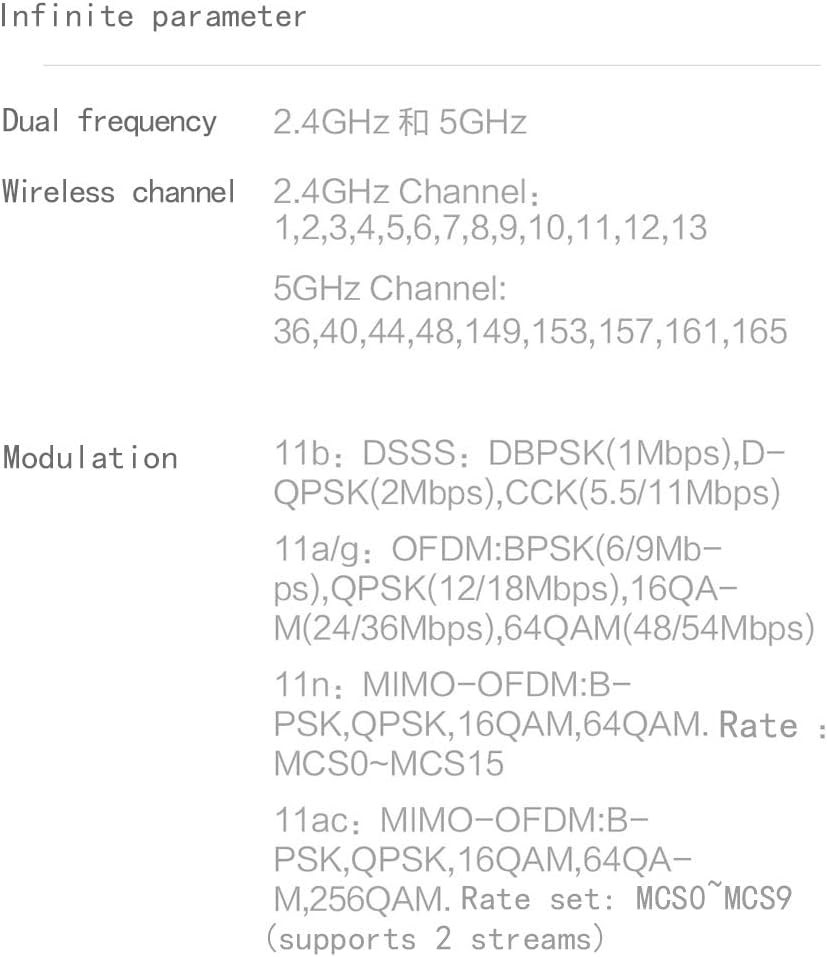
Image: Information on the specific wireless channels available for 2.4GHz and 5GHz bands, along with supported modulation types.
9. Warranty and Support
For warranty information, please refer to the warranty card included with your product or visit the official Xiaomi website for your region. Support resources, including FAQs and contact information, can also be found on the official Xiaomi support pages. Please retain your proof of purchase for warranty claims.


