
1. Introduction
The OKN AX210NGW WiFi 6E M.2 Wireless Module is an advanced network adapter designed to enhance wireless connectivity for compatible laptops and desktops. Featuring the latest 802.11ax technology and an upgraded Intel AX210 chipset, this module supports tri-band operation (2.4GHz, 5GHz, and 6GHz) with speeds up to 5400Mbps. It also integrates Bluetooth 5.3 for seamless peripheral connections. This manual provides essential information for proper installation, driver setup, operation, and troubleshooting.
2. Package Contents
Verify that all items are present in your package:
- 1x OKN AX210NGW WiFi 6E M.2 Wireless Module
- 1x Screw
- 1x Gasket
Video: This video demonstrates the unboxing and physical installation process of the WiFi 6 Adapter (AX200 model shown, similar for AX210). It guides users through opening the package, handling the module, and installing it into a laptop's M.2 slot.
3. Compatibility
This WiFi 6E module is designed for replacement in devices with an M.2 interface. It is compatible with:
- Laptops or Desktops with Intel CPUs.
- Some newer AMD CPUs.
- Operating Systems: Windows 10 (64-bit) and Windows 11 (64-bit).
Note: Lenovo's T-series notebooks may have a whitelist limit, making most of them incompatible. This module is an ideal replacement for older WiFi 5 or WiFi 4 based wireless modules such as AC9260, AC8260, or AC7265 with an M.2 interface.

Image: This image illustrates the M.2 E-key slot typically found on laptops (right) and the M.2 A-key slot on some desktop motherboards (left) where the WiFi module can be installed. Ensure your device has a compatible M.2 slot (Key A or Key E).
4. Key Features
- WiFi 6E Technology: Supports the latest 802.11ax standard, including the 6GHz band, OFDMA, and 1024QAM.
- Tri-Band Operation: Utilizes 2.4GHz, 5GHz, and 6GHz bands for optimal performance and reduced congestion.
- High Data Rates: Delivers up to 2.4Gbps (160MHz) and a maximum speed of 5400Mbps, enabling smooth 8K streaming and large file transfers.
- Bluetooth 5.3: Integrated Bluetooth for connecting wireless peripherals with improved range and stability.
- MU-MIMO: Enhances network efficiency by allowing the router to communicate with multiple devices simultaneously.
- Target Wake Time (TWT): Reduces power consumption for laptops by optimizing when and how often devices wake up to send or receive data, extending battery life.
- Increased Capacity: Offers up to 4X capacity improvement in dense or congested environments compared to 802.11ac.

Image: This graphic displays the potential maximum speeds across the three frequency bands supported by Wi-Fi 6E: 2400Mbps on 6GHz, 2400Mbps on 5GHz, and 574Mbps on 2.4GHz, suitable for various applications from 8K streaming to general browsing.
5. Setup & Physical Installation
Before proceeding with the physical installation, ensure you have downloaded the latest WiFi and Bluetooth drivers for the Intel AX210 from the official Intel website. It is recommended to uninstall and delete any existing network card drivers before replacing the hardware.
Steps for Laptop Installation:
- Power Off: Completely shut down your laptop and disconnect it from the power adapter.
- Remove Battery: If possible, remove the laptop battery to prevent accidental power-on.
- Access Panel: Carefully open the laptop's back panel to access the internal components. Refer to your laptop's service manual for specific instructions.
- Locate Old Card: Identify the existing wireless module, typically an M.2 card secured by a single screw and connected to two antenna wires.
- Remove Old Card: Unscrew the retaining screw, gently disconnect the antenna wires (usually black and white), and slide out the old wireless module.
- Install New Card: Insert the OKN AX210NGW module into the M.2 slot at an angle, then press it down and secure it with the screw.
- Connect Antennas: Carefully reattach the antenna wires to the corresponding connectors on the new module. The connectors are small, so take care to align them properly.
- Reassemble: Replace the back panel and battery.
Video: This video demonstrates the unboxing and physical installation process of the WiFi 6 Adapter (AX200 model shown, similar for AX210). It guides users through opening the package, handling the module, and installing it into a laptop's M.2 slot.
6. Driver Installation
Proper driver installation is crucial for the functionality of your new wireless module.
Recommended Driver Installation Process:
- Download Drivers: Before replacing the network card, download the latest WiFi and Bluetooth drivers for the Intel AX210 from the official Intel website. Search for "AX210" on Intel's support page.
- Uninstall Old Drivers: Remove/delete all existing paired Bluetooth devices. Turn off Bluetooth and WiFi. Uninstall the previous BT and WiFi drivers (and check the box to delete the drivers).
- Install New Hardware: Turn off the computer and perform the physical card swap as described in Section 5.
- Install New Drivers: Turn on the computer. Windows 10/11 may automatically recognize the hardware and install generic drivers. However, it is recommended to manually install the Intel drivers you downloaded. Run the downloaded driver executables for both WiFi and Bluetooth.
- Verify Installation: Check Device Manager to ensure the Intel AX210 WiFi and Bluetooth adapters are recognized without any yellow exclamation marks. If a yellow warning appears, right-click, select 'Update driver', and manually point to the downloaded driver file path.
- Re-pair Devices: After successful driver installation, re-pair your Bluetooth devices.
Important: If your laptop/desktop PC has a built-in WiFi function, please turn it off when using this module to avoid conflicts.
Video: This video provides a step-by-step guide on how to install the necessary drivers for the OKN WiFi 6 adapter. It covers downloading drivers from the Intel website and completing the installation process to enable full functionality of the wireless module.
7. Operating Instructions
Once the OKN AX210NGW module is physically installed and its drivers are successfully set up, you can connect to wireless networks and use Bluetooth devices.
Connecting to a Wi-Fi Network:
- Enable Wi-Fi: Ensure Wi-Fi is enabled in your operating system settings.
- Select Network: Click on the Wi-Fi icon in your system tray (Windows) or network settings (other OS) to view available networks.
- Connect: Select your desired Wi-Fi network (SSID) and click 'Connect'.
- Enter Password: If prompted, enter the network security key (password) and click 'Next' or 'Connect'.
- Verify Connection: Once connected, the Wi-Fi icon will indicate an active connection, and you should have internet access.
Using Bluetooth:
- Enable Bluetooth: Ensure Bluetooth is enabled in your operating system settings.
- Pair Device: Go to Bluetooth settings and initiate pairing with your Bluetooth device (e.g., headphones, mouse, keyboard).
- Follow Prompts: Follow any on-screen prompts to complete the pairing process.
Video: This video showcases a speed test demonstrating the performance of the OKN WiFi 6 adapter, illustrating its download and upload capabilities in a real-world network environment.
8. Troubleshooting
If you encounter issues with your OKN AX210NGW module, consider the following:
- Module Not Recognized: Check Device Manager. If a 'Network Controller' with a yellow exclamation mark appears, install the WiFi driver. If the warning persists after driver installation, right-click, select 'Update driver', and manually update by selecting the file path.
- No Wi-Fi Connection: Ensure the module is correctly seated in the M.2 slot and antenna wires are securely connected. Verify that Wi-Fi is enabled in your operating system.
- Slow Speeds: Network speed can be affected by various factors including your network environment, router capabilities, physical barriers, and other devices. Ensure your router supports WiFi 6E for optimal performance.
- Bluetooth Issues: If Bluetooth is not working, ensure the Bluetooth driver is installed. Try removing and re-pairing Bluetooth devices.
- Interference: If you have a built-in WiFi function on your laptop/desktop, ensure it is disabled to prevent conflicts with the new module.
- System Instability (BSOD): If experiencing Blue Screen of Death (BSOD) errors after installation, ensure all drivers are correctly installed and up-to-date. In rare cases, there might be compatibility issues with specific system configurations; consider consulting your device manufacturer's support.
9. Specifications
| Brand | OKN |
| Model Number | PCE-AX210 |
| Hardware Interface | M.2 (NGFF) |
| Data Link Protocol | Bluetooth 5.3, WiFi 6E/6GHz (802.11ax) |
| Data Transfer Rate | Up to 5400 Megabits Per Second |
| Supported Operating Systems | Windows 10 (64bit), Windows 11 (64bit) |
| Tri-Band Support | 2.4GHz, 5GHz, 6GHz (160MHz) |
| Technologies | MU-MIMO, OFDMA, Target Wake Time (TWT) |
| Item Weight | 4.54 g |
| UPC | 650728511724 |
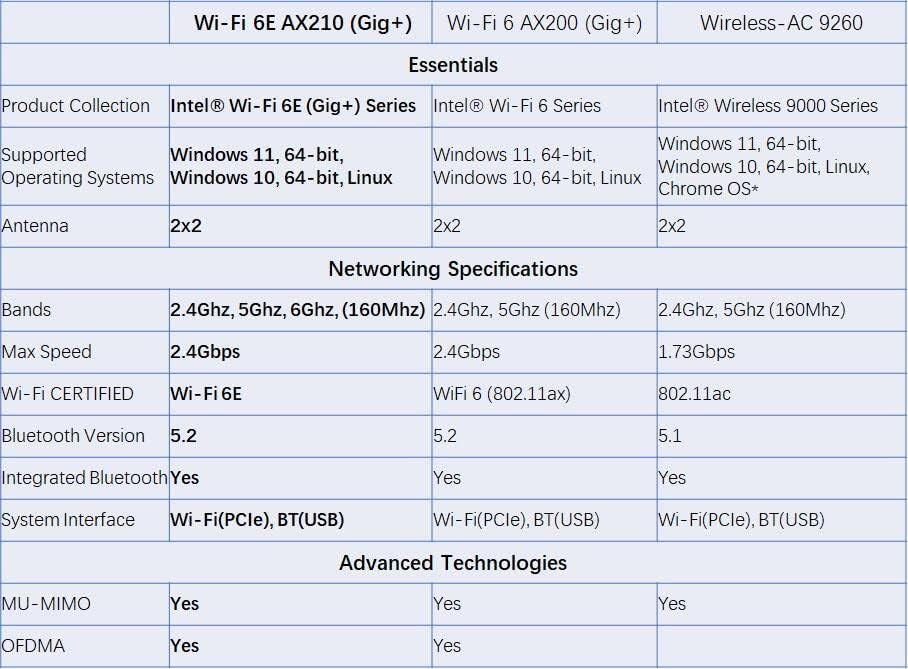
Image: This table provides a detailed comparison of key features and specifications for the Intel Wi-Fi 6E AX210 module, along with the Wi-Fi 6 AX200 and Wireless-AC 9260, highlighting supported operating systems, bands, max speed, Bluetooth version, and advanced technologies like MU-MIMO and OFDMA.
10. Support
For further assistance, technical support, or warranty inquiries, please refer to the contact information provided with your product packaging or visit the official OKN website. Ensure you have your product model number (PCE-AX210) and purchase details available when contacting support.


