
Introduction
The Eaglerich G6 is a compact car DVR camera designed to record driving events with a wide field of view. It features a 360-degree panoramic lens, 270-degree rotation, Wi-Fi connectivity, G-sensor, loop recording, and night vision capabilities to enhance your driving safety and record important moments.
Package Contents
Please verify that all items are present in the package:
- 1 x Dash Cam
- 1 x Remote Switch
- 1 x Car Charger
- 1 x English User Manual
Product Overview
Familiarize yourself with the components of your Eaglerich G6 Dash Cam:
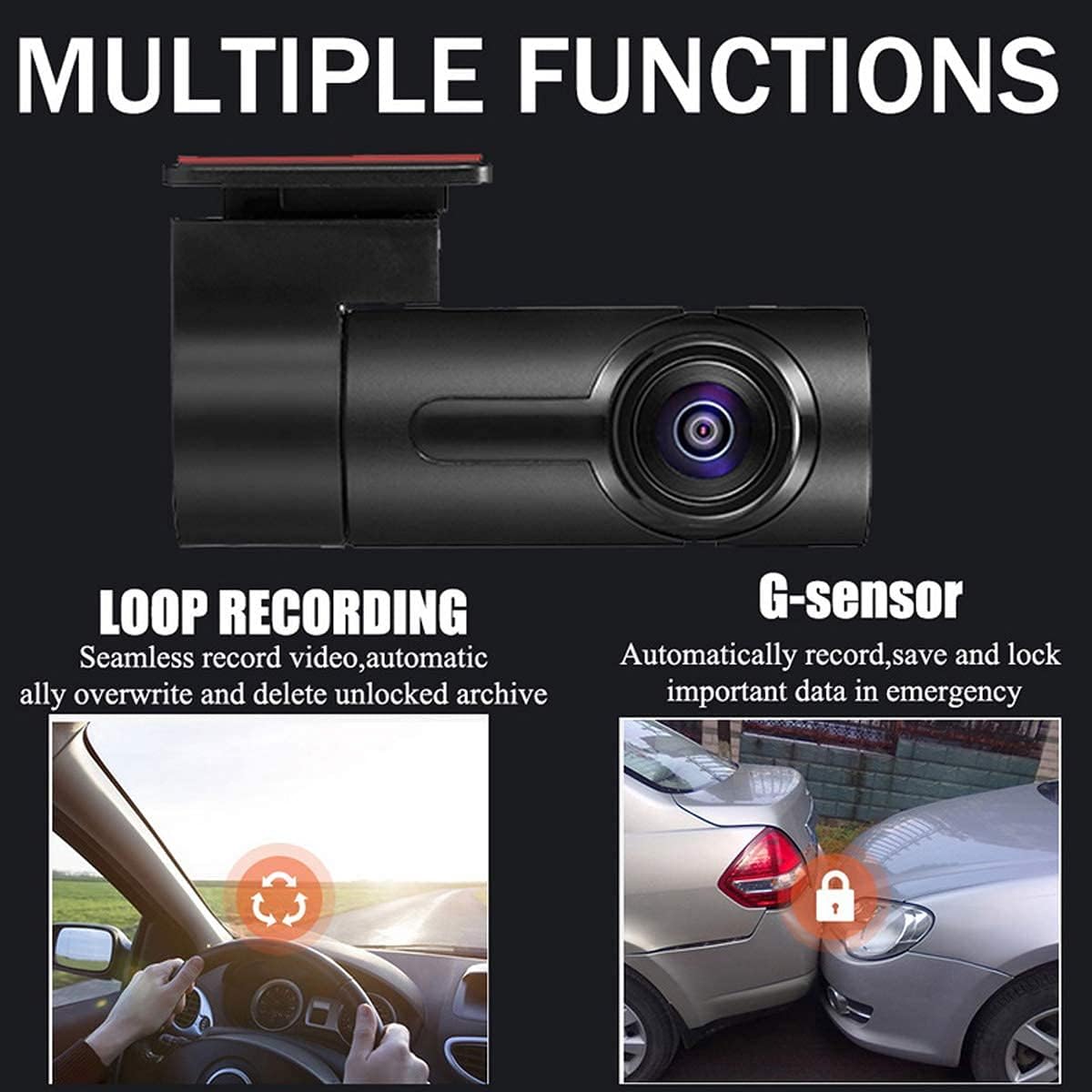
Image: Labeled components of the Eaglerich G6 Dash Cam. Key parts include the HD lens, microphone, indicator light, reset button, power input, TF card slot, and the adhesive paste area for mounting.
- HD Lens: Captures video footage.
- Microphone: Records audio inside the vehicle.
- Indicator Light: Displays device status (e.g., recording, power).
- Reset Button: Used to restart the device if it becomes unresponsive.
- Power Input: Connects to the car charger for power.
- TF Card Input: Slot for inserting the Micro TF memory card.
- Paste Area: Designated area for adhesive mounting to the windshield.
Setup
1. TF Card Installation
Insert a Class 10 or higher Micro TF card (up to 128GB) into the TF card slot. Ensure it is inserted correctly until it clicks into place. A high-speed card is essential for stable high-resolution video recording.
2. Power Connection
Connect the provided car charger to the device's power input and then plug the other end into your vehicle's 12V power outlet (cigarette lighter socket).
3. Mounting the Dash Cam
Clean the desired area on your windshield. Remove the protective film from the adhesive paste area on the dash cam mount and firmly press it onto the windshield. Position the camera to ensure a clear and unobstructed view of the road.

Image: The Eaglerich G6 Dash Cam, its car charger, and remote switch. Icons indicate features like a rotatable camera, motion detection, G-sensor, and Full HD 1080P video resolution.
4. Wi-Fi Connection (Mobile APP)
The G6 Dash Cam features a built-in Wi-Fi module. Download the dedicated mobile application to connect to the camera. This allows for real-time viewing of captured footage and device control. The Wi-Fi connection range can extend up to 100 meters in open conditions.

Image: The Eaglerich G6 Dash Cam connected to a smartphone via Wi-Fi, demonstrating its 100-meter connection capability and real-time viewing through the mobile app.
Operating Instructions
Automatic Recording
The device will automatically power on and begin recording when connected to your vehicle's power supply and the engine starts.
Loop Recording
The G6 continuously records video in segments. When the memory card is full, the oldest unlocked footage will be automatically overwritten by new recordings. This ensures uninterrupted recording without manual management.
G-Sensor (Emergency Recording)
The built-in G-sensor detects sudden impacts or collisions. In such events, the current video segment will be automatically locked and saved to prevent it from being overwritten by loop recording. This protects critical evidence.

Image: Visual representation of Loop Recording, which seamlessly overwrites old footage, and G-sensor, which automatically locks important data during emergencies like collisions.
Remote Snapshot
Use the included remote switch to take instant photos with a single press, capturing specific moments during your drive.
Night Vision
The camera is equipped with advanced night vision capabilities, allowing it to capture clear details even in low-light or nighttime conditions.
Parking Monitoring
For continuous parking monitoring, the dash cam requires a dedicated buck line connection to provide constant power to the device even when the vehicle is off. This feature enables motion detection and anti-theft surveillance.
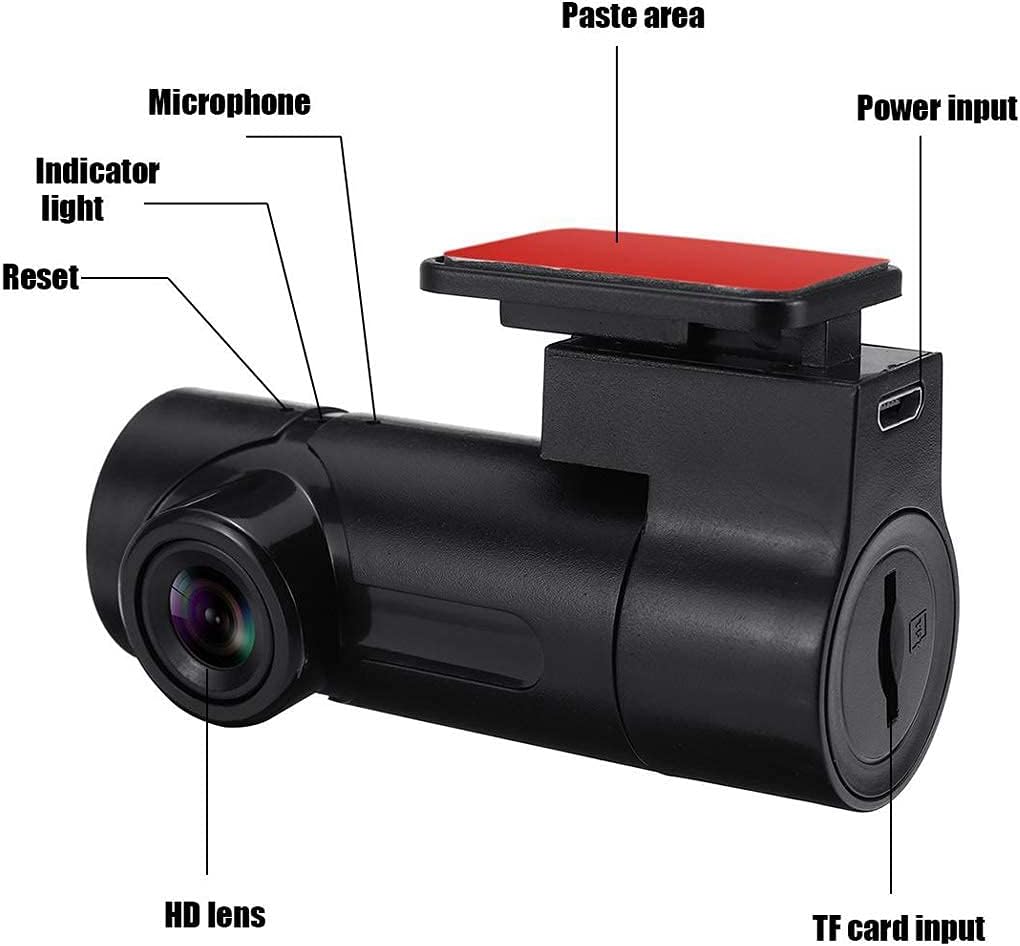
Image: Features designed to protect your car 24/7, including intelligent motion detection, anti-theft surveillance, and ultimate night vision for clear recording in darkness.
Lens Rotation
The camera lens offers a maximum rotation angle of 270 degrees, allowing you to adjust the recording perspective to capture various details inside or outside the vehicle as needed.
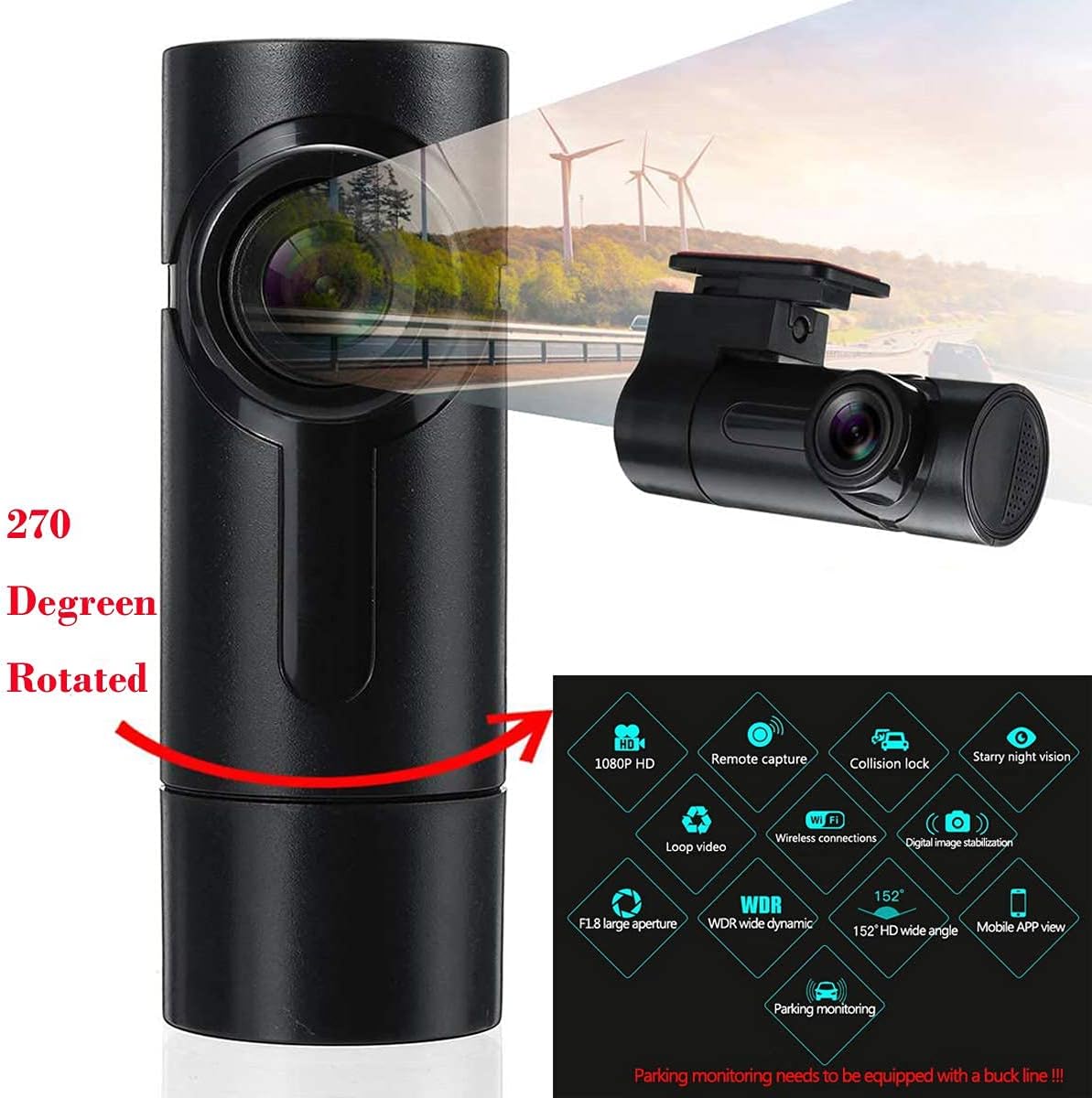
Image: The Eaglerich G6 Dash Cam highlighting its 270-degree rotatable lens and a comprehensive list of features including 1080P HD recording, WDR, G-sensor, night vision, and mobile app connectivity.
Maintenance
- Lens Cleaning: Regularly inspect the camera lens for dirt, dust, or fingerprints. Clean the lens gently with a soft, lint-free cloth to ensure clear image quality.
- TF Card Management: To maintain optimal performance and prevent file corruption, it is recommended to format the Micro TF card periodically using the smartphone application.
- Firmware Updates: Check the manufacturer's website or the mobile application for any available firmware updates to ensure your device has the latest features and bug fixes.
Troubleshooting
Refer to the following solutions for common issues:
- Problem: Cannot take photos or record video.
Solution: Verify that the TF card is correctly inserted into the slot. - Problem: Video recording hangs suddenly.
Solution: High-resolution video data is large. Ensure you are using a Class 10 or higher SDHC high-speed TF card, typically marked with 'C10' on its surface. - Problem: An error prompt appears on the screen during image or video playback.
Solution: This may indicate a TF card file error. Use the smartphone APP to access the TF card files and either delete corrupted files or format the TF card. - Problem: The recorded image is unclear.
Solution: Check if the camera lens has dirt or fingerprints. Clean the lens thoroughly before recording. - Problem: The phone disconnects from the device's Wi-Fi.
Solution: If the phone disconnects, remove the power cable from the dash cam, then re-insert the USB power cable and restart the device.
Specifications
| Product Type | Car DVR |
| Brand | Eaglerich |
| Model | G6 (Manufacturer Model: XKG62SWP-HR160) |
| OSD Language | English |
| Pixels | 130W |
| Lens Quantity | Single |
| Max External Memory | Micro TF Card (Max 128GB) |
| Video Format | AVI |
| Video Code | H.264 / 25fps |
| Camera Resolution | 1080p, 960P, 720p, 480P |
| Field of View | 360/270/220 degrees |
| Memory Card Speed | Class 10 required |
| Screen | No (Viewing via smartphone APP) |
| Battery Type | Lithium-ion battery |
| Battery Capacity | 230mAh |
| Connectivity | Wi-Fi |
| Features | G-sensor, Night Vision, Loop Recording, Parking Monitor, WDR |
| Mounting Type | Adhesive |
Warranty and Support
This user manual is for reference only. Product specifications and features may be subject to change without prior notice. For any issues not covered in this manual, or for warranty claims and technical support, please contact your local dealer or the manufacturer directly.
Please retain your purchase receipt for warranty purposes.