
1. Introduction
Thank you for choosing the DEEJAY LED BYTECH Micro USB Light Up Cable. This cable is designed for charging and data transfer for devices equipped with a Micro USB port. Its unique feature is the integrated LED lighting, which illuminates when connected and powered, providing both functionality and a distinctive visual element. Please read this manual carefully to ensure proper use and longevity of your cable.
2. Safety Information
- Do not expose the cable to water, moisture, or extreme temperatures.
- Avoid bending, twisting, or stretching the cable excessively, as this may damage internal wires.
- Keep the cable away from children and pets.
- Do not attempt to disassemble or modify the cable. Doing so will void any warranty and may cause damage.
- Ensure that the power source used with the cable is compatible with your device's charging requirements.
3. Package Contents
- 1 x DEEJAY LED BYTECH Micro USB Light Up Cable (Model BYMPCA121AC)
4. Setup
Follow these steps to connect your Micro USB Light Up Cable:
- Identify Ports: Locate the Micro USB port on your device (e.g., smartphone, tablet, portable speaker) and an available standard USB-A port on your power adapter, computer, or other charging device.
- Connect to Device: Gently insert the Micro USB connector end of the cable into the Micro USB port on your device. Ensure it is oriented correctly to avoid damage.
- Connect to Power/Data Source: Insert the standard USB-A connector end of the cable into the USB-A port on your power adapter or computer.
- Verify Connection: Once both ends are securely connected and power is supplied, the cable's LED lighting will activate, indicating a successful connection and power flow. Your device should begin charging or establish a data connection.
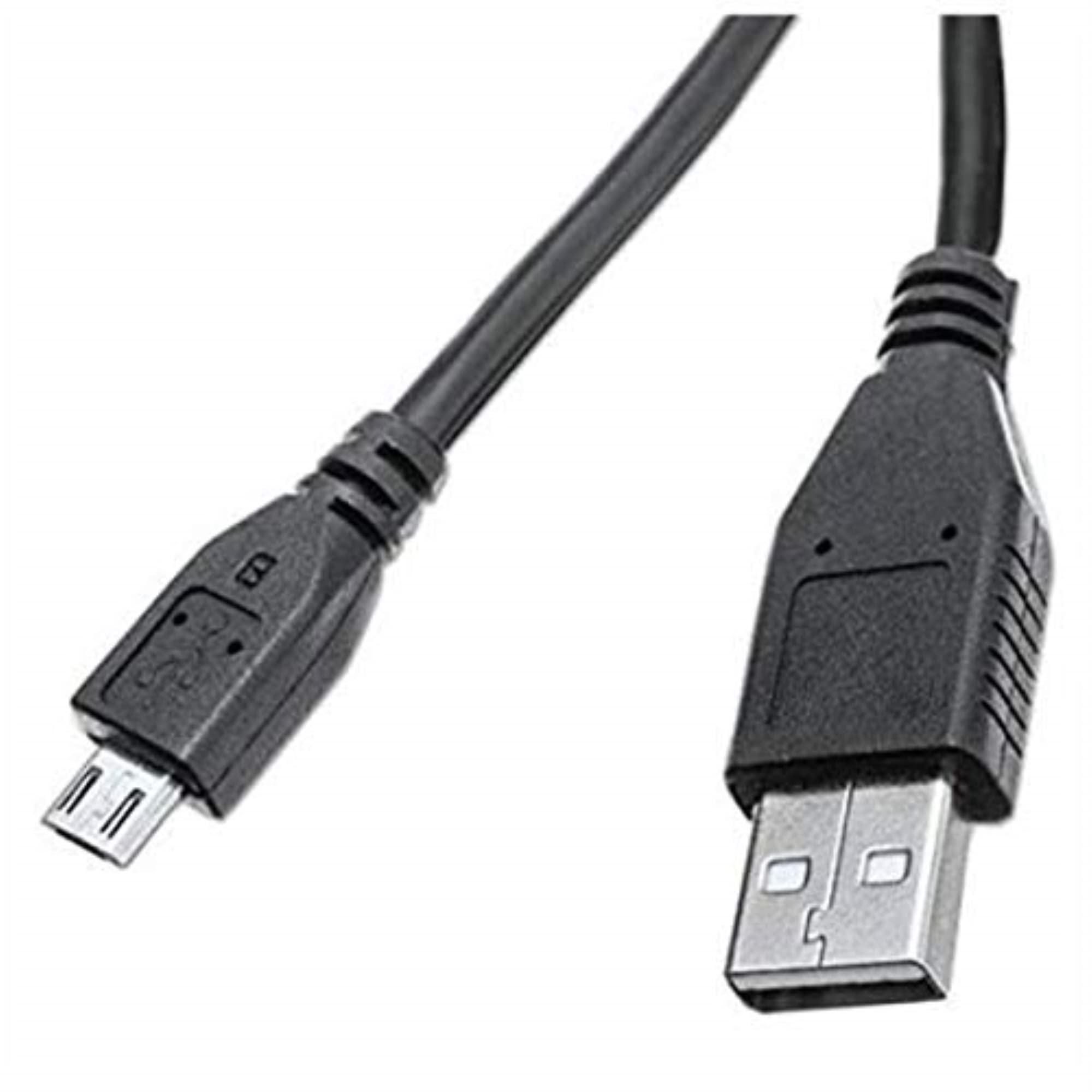
An image showing the BYTECH Micro USB Light Up Cable, highlighting its illuminated design and connectors.
5. Operating Instructions
The DEEJAY LED BYTECH Micro USB Light Up Cable operates automatically upon connection. No additional software or drivers are required for basic functionality.
- Charging: Connect the cable between your Micro USB device and a compatible USB power source (e.g., wall adapter, power bank, computer USB port) to charge your device's battery.
- Data Transfer: Connect the cable between your Micro USB device and a computer to transfer files, synchronize data, or perform software updates. Ensure your device is set to the appropriate USB mode (e.g., File Transfer, MTP) if prompted.
- LED Lighting: The integrated LED lighting will illuminate automatically when the cable is connected to a power source and a device, indicating active power flow. The lighting is a visual feature and does not affect the cable's core charging or data transfer functions.
6. Maintenance
To ensure the longevity and optimal performance of your cable, follow these maintenance guidelines:
- Cleaning: Use a soft, dry cloth to wipe the cable clean. Do not use liquid cleaners or abrasive materials.
- Storage: Store the cable in a cool, dry place, away from direct sunlight and extreme temperatures. Avoid tightly coiling or knotting the cable.
- Handling: Always grasp the connector housing when plugging or unplugging the cable. Avoid pulling directly on the cable itself, as this can damage the internal wiring.
- Inspection: Periodically inspect the cable and connectors for any signs of wear, fraying, or damage. Discontinue use if any damage is observed.
7. Troubleshooting
If you encounter issues with your BYTECH Micro USB Light Up Cable, refer to the following common problems and solutions:
- Problem: Cable LEDs are not lighting up.
Solution: Ensure both ends of the cable are securely connected to a powered USB port and a compatible device. Try connecting to a different USB port or power adapter to rule out issues with the power source. Verify that the device is powered on. - Problem: Device is not charging or data transfer is not working.
Solution:- Check that the cable is fully inserted into both the device and the power/data source.
- Ensure your device's Micro USB port is clean and free of debris.
- Try using a different USB port on your computer or a different wall adapter.
- Test the cable with another Micro USB compatible device, if available, to determine if the issue is with the cable or the original device.
- For data transfer, ensure your device's USB connection settings are correctly configured (e.g., 'File Transfer' mode).
- Problem: Intermittent connection.
Solution: Securely re-seat both connectors. Inspect the cable for any visible damage, kinks, or fraying. If damage is present, discontinue use and replace the cable.
8. Specifications
| Brand | DEEJAY LED |
| Model | BYMPCA121AC |
| Connector Type | Micro USB (Male) to USB-A (Male) |
| Cable Type | USB |
| Cable Length | 1 foot (approximately 0.3 meters) |
| Special Feature | Integrated LED Lighting |
| Compatible Devices | Devices with Micro USB ports (e.g., laptops, smartphones, tablets, cameras) |
| Item Shape | Round |
| Color | Black |
| UPC | 805112014255 |
9. Warranty Information
This product is covered by a standard manufacturer's warranty. The specific terms and duration of the warranty may vary. For detailed warranty information, please refer to the product packaging or contact DEEJAY LED customer support directly. Keep your proof of purchase for any warranty claims.
10. Customer Support
For technical assistance, troubleshooting, or inquiries regarding your DEEJAY LED BYTECH Micro USB Light Up Cable, please contact DEEJAY LED customer support. Contact information, including phone numbers or email addresses, can typically be found on the product packaging, the official DEEJAY LED website, or through your retailer.