
1. Introduction
The Shark IQ RV1001 Robot Vacuum is designed for efficient home cleaning with intelligent navigation and powerful suction. This manual provides essential information for setting up, operating, and maintaining your robot vacuum to ensure optimal performance.
Key Features:
- IQ NAV Technology: Maps your entire home for methodical, row-by-row cleaning and room-to-room navigation.
- Powerful Suction: Designed for effective pickup of large and small debris, including pet hair, on carpets and hard floors.
- Self-Cleaning Brushroll: Automatically removes hair wrap as it cleans, reducing maintenance.
- Shark Clean App & Voice Control: Schedule cleanings, target specific rooms, or control your robot using the app, Amazon Alexa, or Google Assistant.
- XL Dust Bin: Features a large capacity dust bin and a high-efficiency filter to capture dust, debris, and pet allergens.
2. Setup
2.1 Unpacking and Placement
Carefully remove all packaging materials from the robot and its accessories. Choose a permanent location for the charging dock against a wall in a central area with a clear, open space around it. Ensure the area is free from obstacles that could block the robot's path to the dock.

Image: The Shark IQ Robot Vacuum positioned near its charging dock. The dock should be placed against a wall in an open area.
2.2 Initial Charge
Place the robot onto the charging dock. The blue charging indicator lights on the robot will illuminate. Allow the robot to fully charge before its first use. A full charge can take several hours.
2.3 App and Wi-Fi Connectivity
Download the Shark Clean app from your smartphone's app store. Follow the in-app instructions to connect your robot to your home Wi-Fi network. This enables advanced features like home mapping, scheduling, and room selection.

Image: A person's hands holding a smartphone displaying the Shark Clean app interface, showing options for scheduling, cleaning, and mapping.

Image: A graphic illustrating the Shark IQ Robot Vacuum's compatibility with the Shark Clean app and voice control systems like Amazon Alexa and Google Assistant.
2.4 Home Mapping
The robot will create a map of your home during its initial cleaning runs. Ensure all doors are open and clear any obstacles to allow the robot to fully explore and map your home accurately. This map is crucial for features like Room Select.

Image: The Shark IQ Robot Vacuum navigating a kitchen floor, with blue lines overlaid to illustrate its mapping process and systematic cleaning pattern.
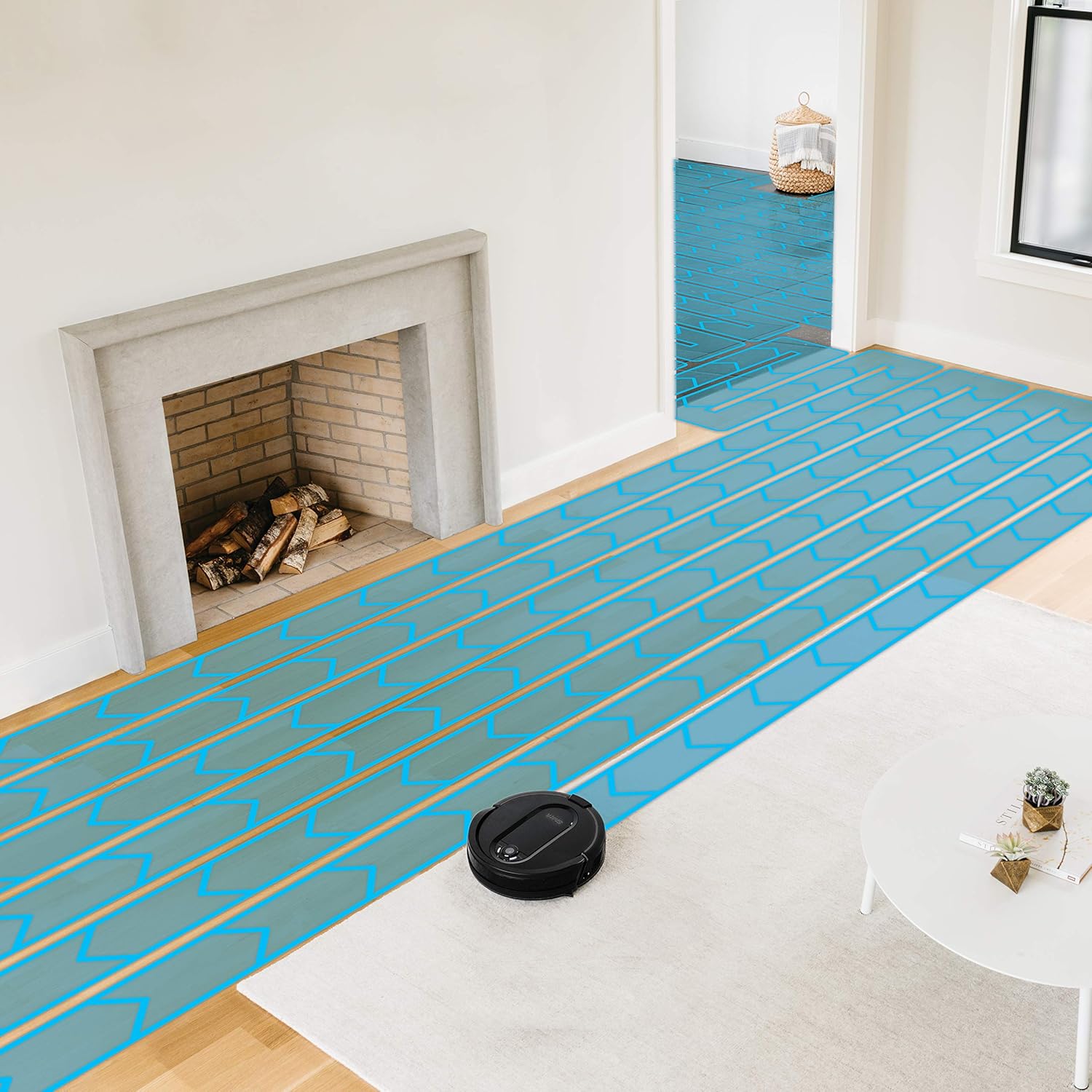
Image: The Shark IQ Robot Vacuum systematically cleaning a living room, with blue lines showing its organized, row-by-row cleaning path across both hard floor and carpeted areas.

Image: A visual representation of the Shark RV1001 Robot creating a detailed map of a room, showing its intelligent navigation and spatial awareness.
3. Operation
3.1 Starting a Clean Cycle
Press the CLEAN button on the robot or use the Shark Clean app to start a cleaning cycle. The robot will begin cleaning methodically, moving row by row and navigating from room to room.

Image: The Shark IQ Robot Vacuum on a floor that is half-cleaned, demonstrating its cleaning effectiveness on both carpet and hard floor surfaces.

Image: The Shark IQ Robot Vacuum actively cleaning a carpeted area, effectively picking up a visible trail of pet hair.
3.2 Using Room Select
Once your home is mapped, use the Shark Clean app to select specific rooms or areas for cleaning. This allows for targeted cleaning sessions based on your needs.
3.3 Voice Control
Integrate your Shark IQ Robot with Amazon Alexa or Google Assistant for hands-free control. Use voice commands to start, stop, or send your robot back to its dock.
Image: A person's hands holding a smartphone displaying the Shark Clean app interface, showing options for scheduling, cleaning, and mapping.
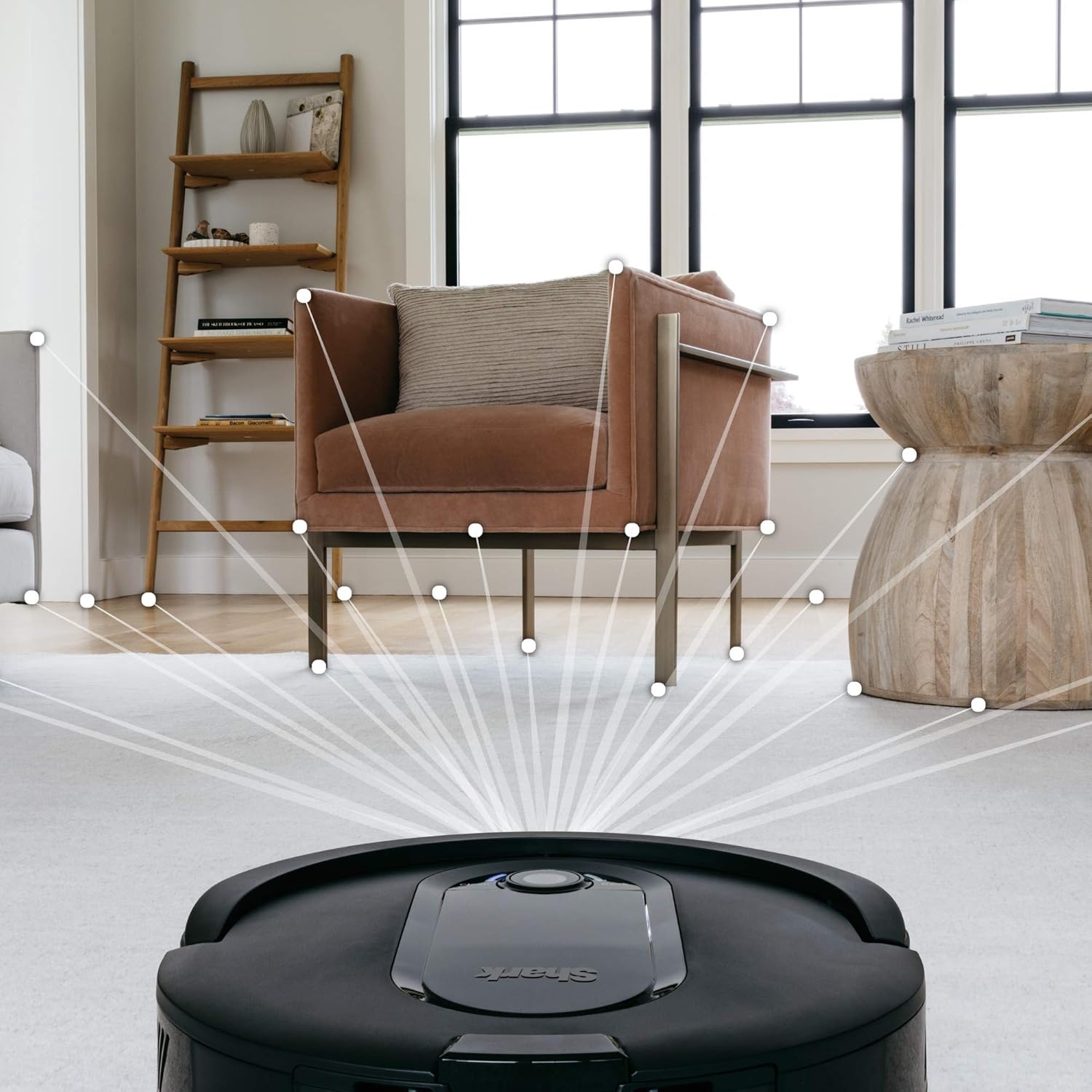
Image: The Shark IQ Robot Vacuum positioned on a wooden floor next to an Amazon Echo smart speaker, demonstrating its voice control capabilities. A person is visible in the background.
4. Maintenance
Regular maintenance is crucial for your Shark IQ Robot Vacuum to perform at its best. Follow these steps to keep your robot in optimal condition.
4.1 Emptying the Dust Bin
The XL dust bin should be emptied after each cleaning cycle, especially if you have pets. Press the dust bin release button and slide out the bin. Open the bin and discard debris. The high-efficiency filter should also be checked and cleaned regularly.

Image: A hand removing the dust bin from the Shark IQ Robot Vacuum, showing the process of emptying collected debris.
4.2 Cleaning the Self-Cleaning Brushroll
The self-cleaning brushroll is designed to prevent hair wrap, but occasional inspection and cleaning are recommended. Turn the robot over and remove the brushroll cover. Lift out the brushroll and remove any remaining debris or hair. Reinsert the brushroll and secure the cover.
Video: This video demonstrates the self-cleaning brushroll feature of the Shark IQ Robot Vacuum, showing how it prevents hair from wrapping around the brush.

Image: A close-up view of the Shark IQ Robot Vacuum's self-cleaning brushroll, highlighting its design to prevent hair entanglement.
4.3 Cleaning Side Brushes and Wheels
Periodically check the side brushes for debris and remove any tangled hair or strings. The wheels should also be kept clean to ensure smooth movement.

Image: An underside view of the Shark IQ Robot Vacuum, showcasing its dual side brushes designed to sweep debris into the cleaning path.
5. Troubleshooting
If you encounter issues with your Shark IQ Robot Vacuum, refer to the following common problems and solutions:
- Robot gets stuck frequently: Ensure the cleaning area is free of loose cables, small objects, or thick rugs that might impede movement. The robot may also get stuck under furniture if there isn't enough clearance.
- Poor cleaning performance: Check the dust bin for fullness and empty if necessary. Clean the brushroll, side brushes, and filters. Ensure the robot's sensors are clean.
- Connectivity issues (Wi-Fi/App): Verify your Wi-Fi password is correct and your router is within range. Try restarting your router and the robot. Ensure the Shark Clean app is updated to the latest version.
- Robot is loud: Some noise is normal during operation, especially on higher suction settings. If the noise is excessive or unusual, check for blockages in the brushroll or suction path.
- Robot not mapping correctly: Allow the robot to complete several full cleaning cycles to build a comprehensive map. Ensure consistent lighting conditions during mapping runs.
Video: This video provides an overview of the Shark IQ Robot Vacuum R101, highlighting its features and operation, which may assist in understanding its behavior during troubleshooting.
6. Specifications
| Brand | Shark |
| Model Name | Shark IQ Robot Vacuum RV1001, Wi-Fi Connected, Home Mapping |
| Model Number | RV1001 |
| Surface Recommendation | Hard Floor, Carpet |
| Special Feature | Cordless |
| Color | Black |
| Controller Type | Amazon Alexa, Google Assistant, Shark Clean App |
| Filter Type | Disk (Non-washable high-efficiency filter) |
| Battery Type | Lithium Ion |
| Power Source | Battery Powered |
| Item Weight | 5.7 Pounds |
| Cleaning Path Width | 5.63 inch |
7. Warranty & Support
7.1 Manufacturer's Warranty
The Shark IQ RV1001 Robot Vacuum comes with a 1-year limited warranty. Please retain your proof of purchase for warranty claims. For detailed terms and conditions, refer to the warranty card included in your product packaging or visit the official SharkNinja website.
7.2 Customer Support
For further assistance, technical support, or to order replacement parts, please contact SharkNinja customer service. You can find contact information on the official SharkNinja website or in your product's quick start guide.
Online Resources: Visit the SharkClean website for FAQs, video tutorials, and product registration.


