
1. Introduction
This manual provides detailed instructions for the installation, configuration, and operation of your COMFAST JOOWIN Outdoor Access Point WiFi Extender AC1200. This device is designed to provide reliable and extended wireless network coverage in outdoor environments, supporting various operating modes including Access Point, Repeater, and Router. Please read this manual thoroughly before use to ensure proper setup and optimal performance.
2. Package Contents
Verify that all items are present in your package. If any items are missing or damaged, please contact your retailer.
- 1 x JOOWIN Outdoor Access Point WiFi Extender AC1200
- 1 x PoE Power Adapter (Passive PoE)
- 1 x Ethernet Cable
- 2 x Mounting Straps/Ties
- 1 x Quick Installation Guide
3. Product Overview
The JOOWIN Outdoor Access Point AC1200 features a weatherproof casing designed for outdoor deployment. It includes integrated antennas and multiple ports for power and network connectivity.
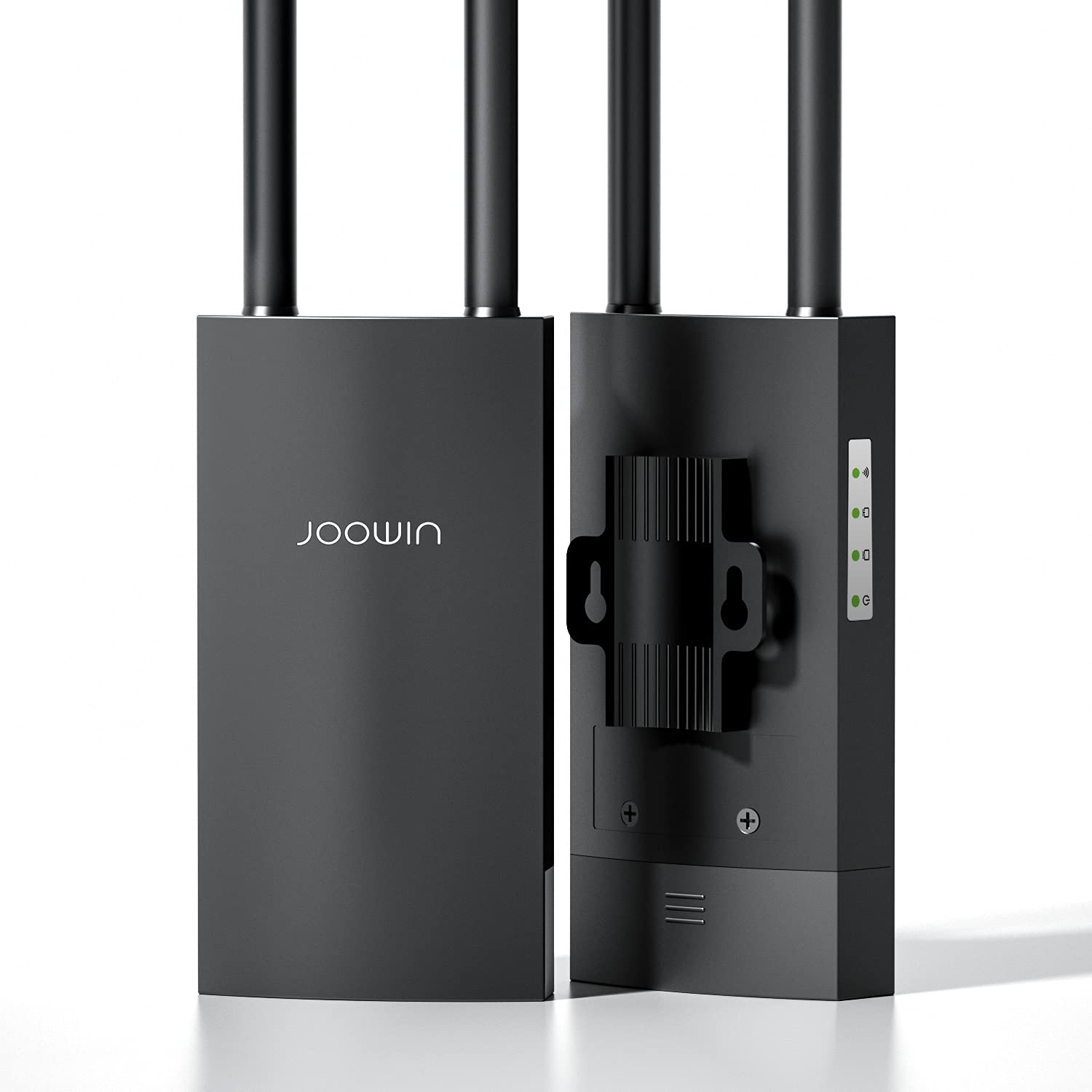
Figure 3.1: Front view of the JOOWIN Outdoor Access Point AC1200, showing its compact, weatherproof design suitable for outdoor installation.
3.1 LED Indicators
- Power LED: Indicates power status. Solid green when powered on.
- WAN/LAN LED: Indicates network activity on the Ethernet port. Blinks when data is transmitted.
- WiFi LED: Indicates wireless activity. Blinks when wireless data is transmitted.
3.2 Ports and Buttons
- LAN/WAN Port (PoE IN): Used for both data connection and power input via the Passive PoE adapter.
- Reset Button: Press and hold for approximately 10 seconds to restore factory default settings.
4. Setup
4.1 Physical Installation
Choose a suitable outdoor location for installation, ensuring clear line-of-sight to the desired coverage area. Mount the device using the provided mounting straps to a pole or mast. Ensure the device is positioned vertically with the ports facing downwards to prevent water ingress.
Figure 4.1: Illustrates the outdoor access point mounted on a pole using the provided straps, demonstrating proper vertical orientation.
4.2 Powering the Device (PoE)
- Connect one end of the Ethernet cable to the LAN/WAN (PoE IN) port on the outdoor access point.
- Connect the other end of this Ethernet cable to the "PoE" port on the provided Passive PoE adapter.
- Connect a second Ethernet cable from your router or network switch to the "LAN" port on the Passive PoE adapter.
- Plug the power cord from the PoE adapter into an electrical outlet. The Power LED on the access point should illuminate.
4.3 Initial Network Connection
After powering on, the device will broadcast a default Wi-Fi network (SSID). You can connect to this network from a computer or mobile device to access the web-based management interface for configuration.
- Default SSID: JOOWIN_XXXX (XXXX represents the last four digits of the MAC address)
- Default Password: None (or check the quick installation guide)
5. Operating Modes
The JOOWIN AC1200 supports multiple operating modes to suit various network requirements:
5.1 Access Point (AP) Mode
In AP mode, the device connects to a wired network and broadcasts a wireless signal, allowing wireless clients to connect to the existing wired network. This is ideal for extending Wi-Fi coverage from a wired router.
5.2 Repeater Mode
Repeater mode extends the range of an existing wireless network by receiving the signal and re-transmitting it. This mode is useful for eliminating Wi-Fi dead zones without requiring a wired connection to the main router.
5.3 Router Mode
In Router mode, the device acts as a primary router, connecting to an internet source (e.g., a modem) and providing both wired and wireless network access to clients. This mode is suitable for creating a new network.
6. Configuration
6.1 Accessing the Web Management Interface
- Connect your computer or mobile device to the access point's default Wi-Fi network (e.g., JOOWIN_XXXX).
- Open a web browser and enter the default IP address: 192.168.10.1 (or refer to the quick installation guide for the specific default IP).
- Enter the default username and password. Typically, both are admin.
- Follow the on-screen wizard to select your desired operating mode and configure network settings (SSID, password, security type).
Note: It is highly recommended to change the default administrator password for security reasons after initial setup.
6.2 Basic Wireless Settings
- SSID: Change the default network name to a unique identifier.
- Security Type: WPA2-PSK is recommended for optimal security.
- Password: Set a strong, unique password for your Wi-Fi network.
- Channel: For best performance, select a less congested channel (e.g., 1, 6, or 11 for 2.4GHz).
7. Maintenance
7.1 Firmware Updates
Periodically check the manufacturer's website for firmware updates. Firmware updates can improve performance, add new features, and address security vulnerabilities. Follow the instructions provided with the firmware update package carefully.
7.2 Cleaning
Ensure the device's exterior is kept clean. Use a soft, dry cloth to wipe away dust and dirt. Do not use liquid cleaners or abrasive materials.
8. Troubleshooting
| Problem | Possible Cause | Solution |
|---|---|---|
| No Power / Power LED Off | Power adapter not connected, faulty outlet, or faulty PoE connection. | Check power connections, try a different outlet, ensure Ethernet cable is securely connected to PoE adapter and device. |
| Cannot access web management interface | Incorrect IP address, device not powered on, or IP conflict. | Verify default IP (192.168.10.1), ensure device is powered, check computer's IP settings (should be DHCP or in the same subnet). Try resetting the device. |
| No Internet connection | Incorrect operating mode, upstream network issue, or incorrect WAN settings. | Check your main router's internet connection. Verify the access point's operating mode and WAN settings (e.g., DHCP, Static IP, PPPoE). |
| Weak Wi-Fi signal or slow speed | Obstructions, interference, or improper placement. | Relocate the device to a more central position with fewer obstructions. Change Wi-Fi channel to avoid interference. Ensure antennas are properly oriented (if external). |
If problems persist, please contact technical support.
9. Specifications
- Model: AC1200
- Brand: COMFAST
- Frequency Band Class: Dual-Band (2.4GHz & 5GHz)
- Wireless Standards: IEEE 802.11ac/a/b/g/n
- Data Rate: Up to 1200Mbps (300Mbps for 2.4GHz, 867Mbps for 5GHz)
- Antennas: Integrated Omni-directional
- Ports: 1 x 10/100Mbps WAN/LAN (PoE IN)
- Power Supply: Passive PoE (24V/0.5A)
- Dimensions: 13.9 x 3.31 x 1.73 inches (35.3 x 8.4 x 4.4 cm)
- Item Weight: 1.28 pounds (0.58 kg)
- Operating Temperature: -30°C to 70°C (-22°F to 158°F)
- Storage Temperature: -40°C to 85°C (-40°F to 185°F)
- Humidity: 10% to 90% non-condensing
- Weatherproof Rating: IP66 (or similar, typical for outdoor APs)
- ASIN: B07SBDHG6W
- UPC: 800629427949
10. Warranty and Support
This product comes with a standard manufacturer's warranty. Please refer to the warranty card included in your package or visit the COMFAST official website for detailed warranty terms and conditions. For technical support, troubleshooting assistance, or further inquiries, please contact COMFAST customer service through their official website or the contact information provided in your product documentation.
Manufacturer: JOOWIN
Brand: COMFAST