
OMOTON OM-Keyboard-KB066-Grey
OMOTON Bluetooth Keyboard User Manual
Model: OM-Keyboard-KB066-Grey
Brand: OMOTON
1. Introduction
This manual provides comprehensive instructions for the OMOTON Ultra-Slim Bluetooth Keyboard (Model: OM-Keyboard-KB066-Grey). Designed for seamless connectivity with various Bluetooth-enabled devices, particularly iPads, this keyboard offers a comfortable and efficient typing experience. Please read this manual thoroughly before using the product to ensure proper operation and longevity.
What's in the Box:
- OMOTON Bluetooth Keyboard
- User Manual
2. Features
- Cable-Free Bluetooth Connection: Connects wirelessly to mobile devices such as tablets and mobile phones, offering convenience with an operating distance of up to 10 meters.
- Super Compatibility: Compatible with iPads (10th, 9th, 8th, 7th Generation, Pro 13/12.9/11 inch, Air/Mini), Phones, and other Bluetooth-enabled tablets, laptops, and mobile phones.
- Reasonable Layout: Features a QWERTY layout with hotkeys customized for iPads, including volume control, music control, and brightness adjustment.
- Long Battery Life: Provides up to 30 days of continuous use and features an automatic sleep mode, allowing for up to half a year between battery changes. (Requires 2 X AAA Batteries, Not Included).
- Perfect Size: Designed to be large enough for comfortable typing yet compact enough for portability in a suitcase or handbag.
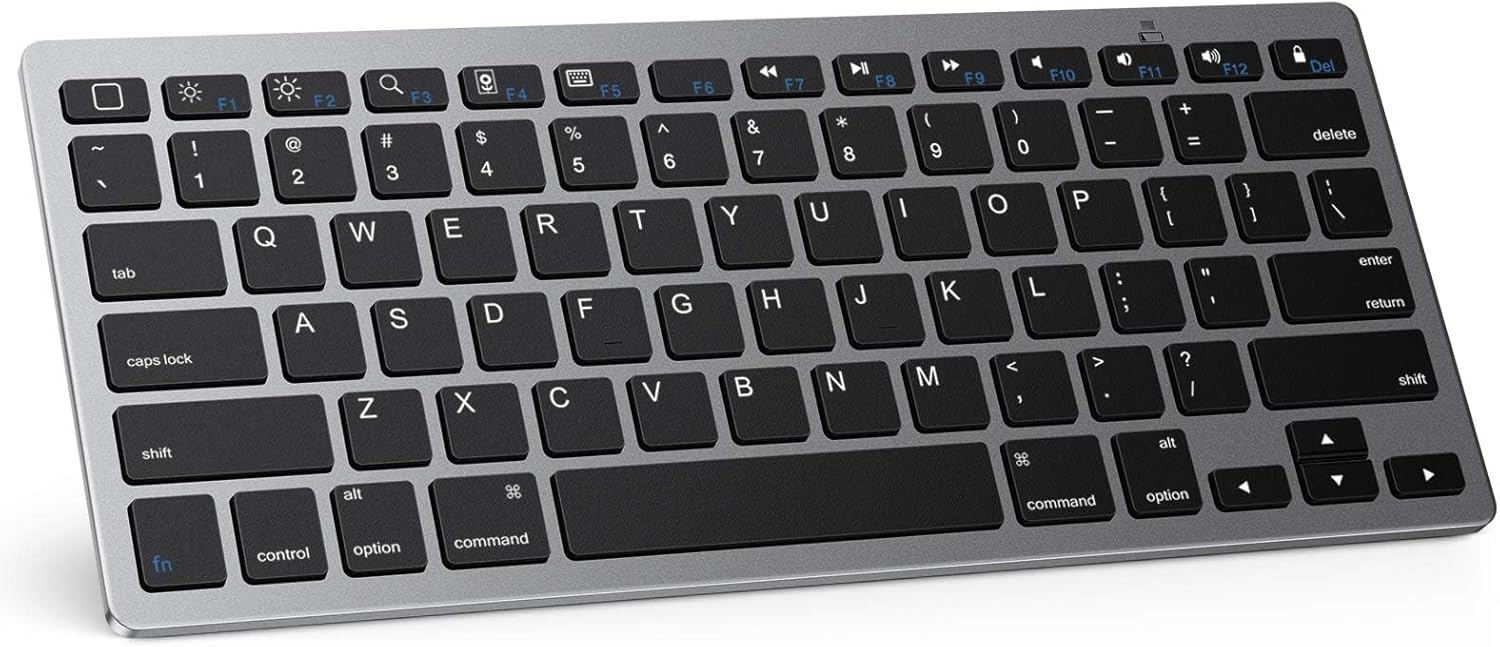
Figure 2.1: Top-down view of the OMOTON Ultra-Slim Bluetooth Keyboard.
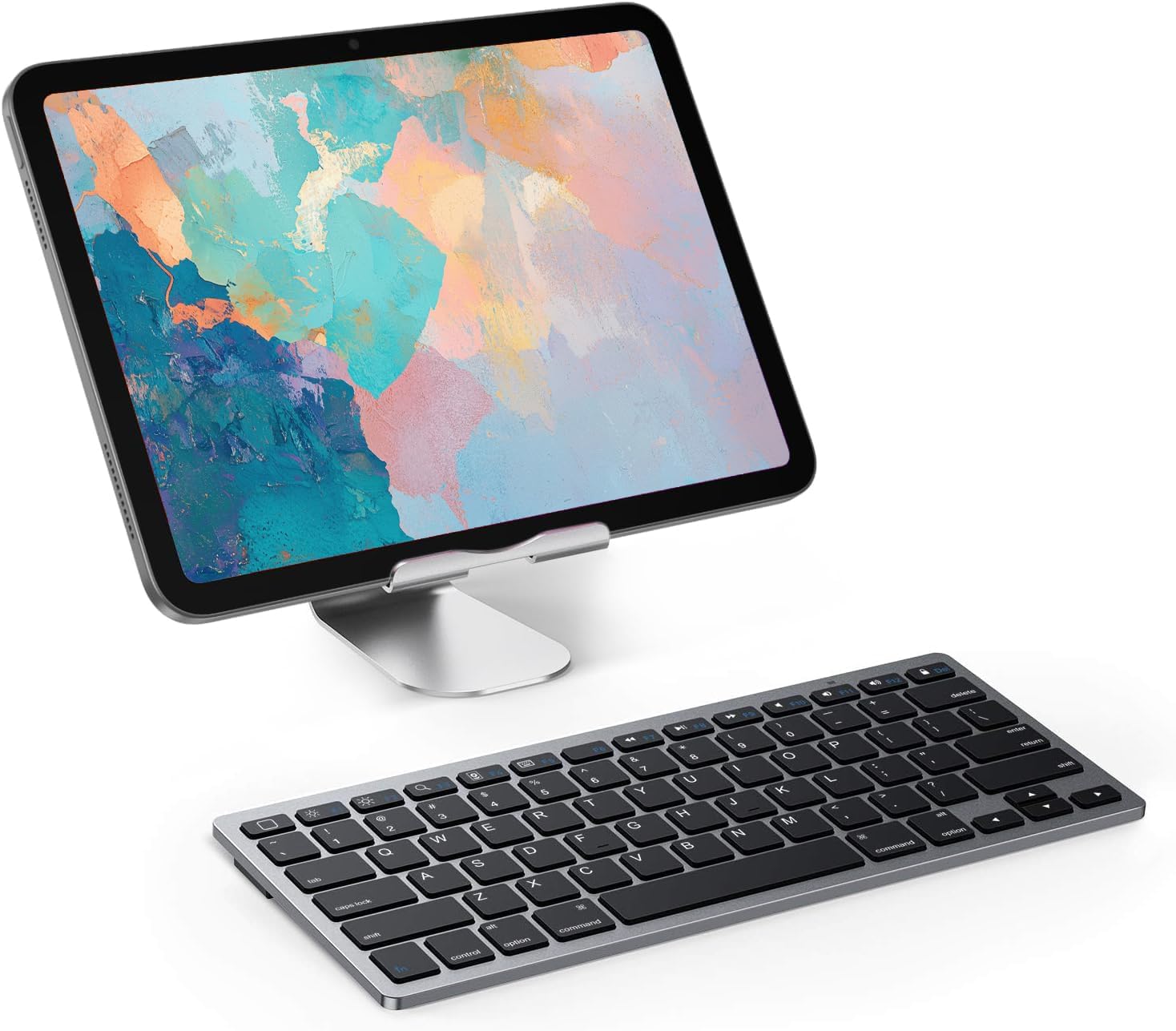
Figure 2.2: The OMOTON Bluetooth Keyboard positioned next to an iPad on a stand, demonstrating a typical setup.
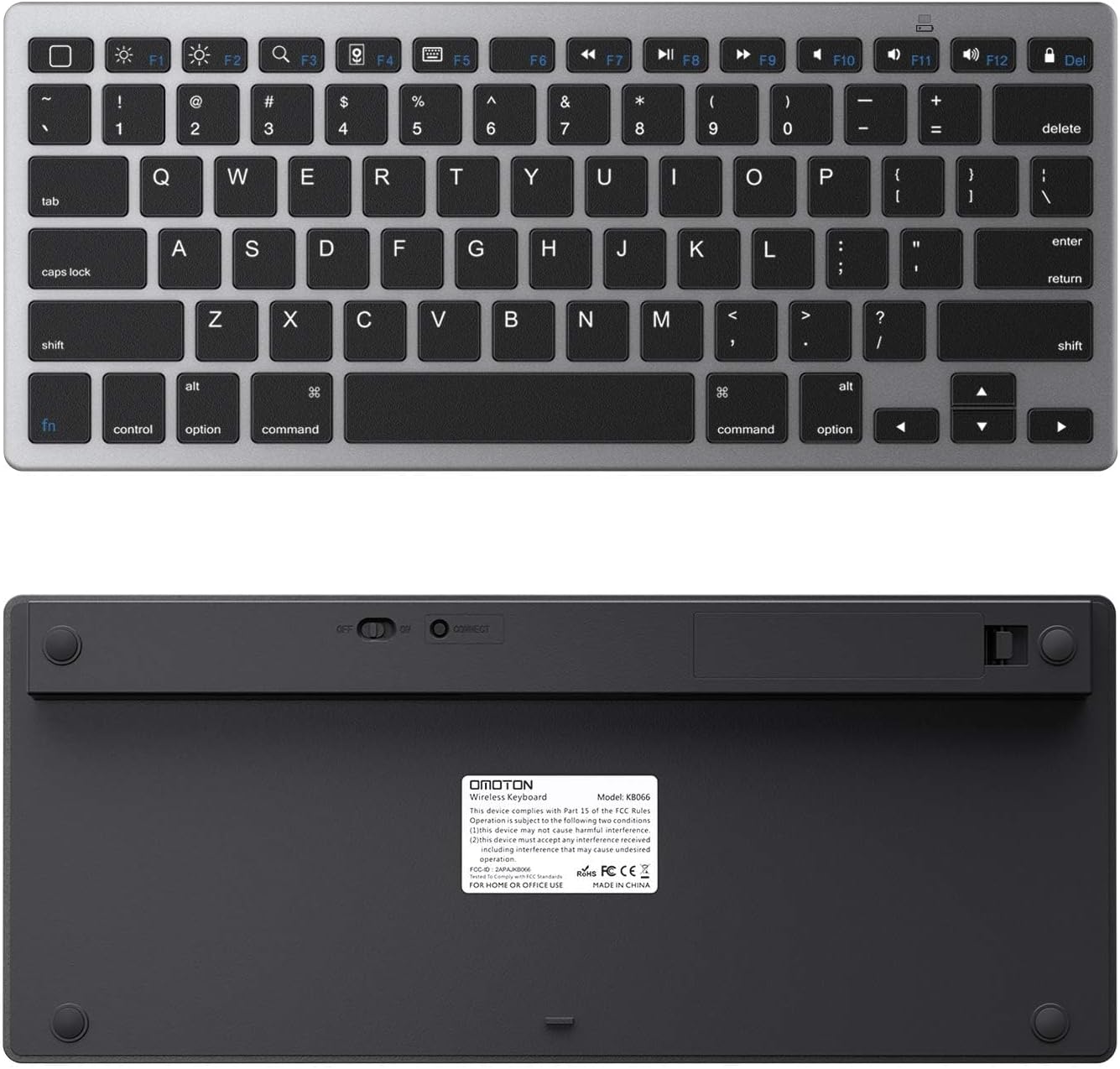
Figure 2.3: Top and bottom views of the keyboard, showing the sleek design and battery compartment.
3. Setup and Pairing
Follow these steps to set up your OMOTON Bluetooth Keyboard and pair it with your device.
3.1 Battery Installation
The keyboard requires 2 AAA batteries (not included) for operation.
- Locate the battery compartment on the underside of the keyboard.
- Open the battery compartment cover.
- Insert 2 AAA batteries, ensuring correct polarity (+/-).
- Close the battery compartment cover securely.

Figure 3.1: Keyboard dimensions: 11.2 inches (284.5mm) length, 4.7 inches (119.4mm) width, and 0.2 inches (5.1mm) thickness.
3.2 Bluetooth Pairing Process
To pair the keyboard with your device, follow these steps:
- Slide the power switch on the keyboard from OFF to ON.
- Double-click the "Connect" button or press and hold it for 2-3 seconds to activate pairing mode. The Bluetooth indicator light on the keyboard will blink.
- On your iPad or Bluetooth-enabled device, go to Settings > Bluetooth.
- Ensure Bluetooth is turned ON. Your device will search for nearby Bluetooth devices.
- From the list of available devices, select "Bluetooth Keyboard" to connect.
- If prompted, enter the PIN code displayed on your device's screen using the OMOTON keyboard, then press the "Enter" key.
- Once connected, the Bluetooth indicator light on the keyboard will stop blinking, and your device will show "Connected" next to "Bluetooth Keyboard".
Video 3.1: Official OMOTON video demonstrating the setup and pairing process for the Ultra-Slim Bluetooth Keyboard.
4. Operating Instructions
The OMOTON Bluetooth Keyboard features a standard QWERTY layout with additional function keys for enhanced productivity, especially with iPadOS/iOS devices.
4.1 Function Keys (Hotkeys)
The top row of keys (F1-F12) serves as hotkeys for quick access to various functions. These are optimized for iPadOS/iOS:
- F1 (Home): Returns to the home screen.
- F2 (Brightness Down): Decreases screen brightness.
- F3 (Brightness Up): Increases screen brightness.
- F4 (Search): Activates the search function.
- F5 (Keyboard Hide/Show): Toggles the on-screen keyboard.
- F7 (Previous Track): Skips to the previous music track.
- F8 (Play/Pause): Plays or pauses music/video.
- F9 (Next Track): Skips to the next music track.
- F10 (Mute): Mutes audio output.
- F11 (Volume Down): Decreases volume.
- F12 (Volume Up): Increases volume.
- Del (Delete): Deletes characters.

Figure 4.1: The keyboard features optimized multimedia keys designed for iPad OS/iOS.

Figure 4.2: The keyboard is fully compatible with iPad OS, providing a smooth and precise typing experience.

Figure 4.3: Close-up view highlighting the stable scissor structure beneath the keys, designed for comfortable and responsive typing.

Figure 4.4: The keyboard's broad compatibility with different Bluetooth-enabled devices, including various iPad and iPhone models.
5. Maintenance
Proper maintenance ensures the longevity and optimal performance of your OMOTON Bluetooth Keyboard.
- Cleaning: Use a soft, lint-free cloth slightly dampened with water or a mild cleaning solution to wipe the surface of the keyboard. Avoid excessive moisture.
- Dust Removal: Use compressed air to remove dust and debris from between the keys.
- Storage: When not in use, store the keyboard in a dry, cool place away from direct sunlight and extreme temperatures. Consider using a protective sleeve or case for travel.
- Battery Care: If the keyboard will not be used for an extended period, remove the AAA batteries to prevent leakage and potential damage.

Figure 5.1: The keyboard is available in multiple colors, allowing users to choose one that matches their device or preference.
6. Troubleshooting
If you encounter issues with your OMOTON Bluetooth Keyboard, refer to the following common problems and solutions:
| Problem | Possible Cause | Solution |
|---|---|---|
| Keyboard does not turn on. | Low or dead batteries; Power switch is OFF. | Replace batteries with new ones. Ensure the power switch is in the ON position. |
| Cannot pair the keyboard. | Bluetooth not enabled on device; Keyboard not in pairing mode; Device too far. | Ensure Bluetooth is ON in your device's settings. Press the "Connect" button on the keyboard to enter pairing mode. Move the keyboard closer to your device (within 10 meters). |
| Keyboard disconnects frequently. | Low battery; Interference; Device going to sleep. | Replace batteries. Minimize interference from other wireless devices. Some devices may disconnect Bluetooth accessories when idle; adjust device power settings if possible. |
| Keys are not responding or typing incorrectly. | Low battery; Software glitch; Physical damage. | Replace batteries. Restart both the keyboard and your device. Ensure no debris is lodged under the keys. |
7. Specifications
| Attribute | Detail |
|---|---|
| Product Dimensions | 11.22 x 4.72 x 0.24 inches (284.5 x 119.4 x 5.1 mm) |
| Item Weight | 12.7 ounces (360 grams) |
| Manufacturer | OMOTON |
| ASIN | B07S7VPQG6 |
| Country of Origin | China |
| Item Model Number | OM-Keyboard-KB066-Grey |
| Batteries Required | 2 x AAA batteries (Not Included) |
| Connectivity Technology | Bluetooth |
| Keyboard Description | Wireless |
| Color | Grey |
| Number of Keys | 78 |
| Special Feature | Portable, Hotkeys and Media Keys |
| First Available Date | March 26, 2018 |
8. Warranty and Support
Specific warranty details for the OMOTON Bluetooth Keyboard are not provided in this manual. For warranty information, technical support, or any product-related inquiries, please contact OMOTON customer service directly through their official website or the retailer where the product was purchased.
You can typically find contact information on the OMOTON brand's official website or by searching for "OMOTON customer support" online.
Related documentsOM-Keyboard-KB066-Grey


Ask a question about this manual
Ask about setup, troubleshooting, compatibility, parts, safety, or missing instructions. Manuals+ will review the question and use this page’s manual context to help answer it.