
Introduction
This manual provides detailed instructions for setting up, operating, and maintaining your Aluratek 17-inch WiFi Digital Photo Frame (Model AWS17F). This digital photo frame features a touchscreen IPS LCD display, 16GB of internal memory, and offers easy wireless photo sharing capabilities. Please read this manual thoroughly to ensure optimal performance and longevity of your device.
What's in the Box
- 17.3 inch WiFi Digital Photo Frame with Touchscreen IPS LCD Display and 16GB Built-in Memory
- Power Adapter
- Instructional Manual (this document)
- Registration Card
Product Overview
Key Features
- Wireless Photo Sharing: Share photos from anywhere in the world with a mobile internet connection.
- Touchscreen IPS LCD: User-friendly interface for fast navigation on the 17.3" display.
- Crisp, Clear Pictures: True digital LCD panel at 1920 x 1080 resolution with a 16:9 aspect ratio.
- Mobile App, Email, Social Media Support: Send photos via the dedicated smartphone app, Facebook Messenger, Twitter, or email.
- Easy to Use: Fast and easy navigation through touchscreen menus with no complex setup.
- Built-in Memory: 16GB internal memory for storing photos and videos.
- SD Card/USB Support: View photos and videos directly from an SD/SDHC card (up to 32GB) or USB flash drive.
- Clock, Calendar, Weather: Integrated functions to display time, date, and local weather.
- Digital Signage Solution: Suitable for displaying content in business environments.
Product Views

Front view of the Aluratek 17-inch WiFi Digital Photo Frame displaying its main menu interface.
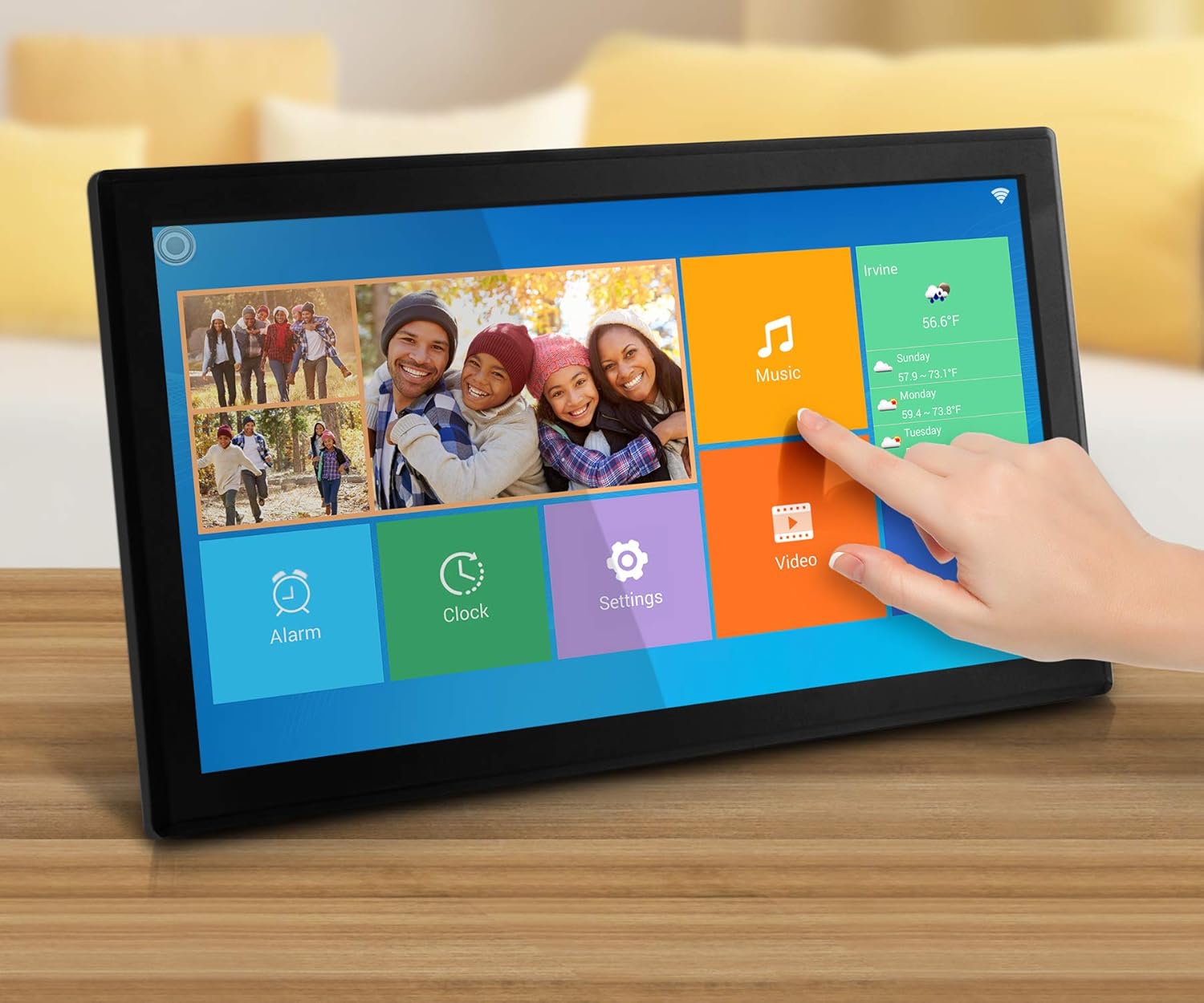
The digital photo frame showcasing a collage of family pictures on its vibrant display.

Rear view of the frame, highlighting the power input, USB port, SD card slot, and the integrated stand.

Side profile of the digital photo frame, illustrating its slim design and extended stand for tabletop use.
Setup
- Power On: Connect the provided power adapter to the frame and plug it into an electrical outlet. The frame will automatically power on.
- Initial Setup: Follow the on-screen prompts to select your language, time zone, and other basic settings.
- Connect to Wi-Fi:
- Navigate to the "Settings" menu on the touchscreen.
- Select "Wi-Fi" and choose your home network from the list.
- Enter your Wi-Fi password using the on-screen keyboard.
- Confirm connection.
- Install the Aluratek Smart Frame App:
- Download the "Aluratek Smart Frame" app from the Apple App Store (for iOS devices) or Google Play Store (for Android devices).
- Open the app and create an account.
- Pair your frame with the app by following the in-app instructions. This typically involves entering a unique Frame ID displayed on your digital photo frame.
- Email Setup for Photo Sharing:
- The frame will have a unique email address (e.g., yourframeID@wififrame.com).
- You can send photos directly to this email address from any device.
- For Facebook sharing, send a message to "Aluratek WiFi Frame" on Facebook Messenger with the subject line 'bd+frame ID' (e.g., bd123456) to bind your Facebook account.
Video: An overview of the Aluratek Digital Photo Frame, demonstrating initial setup and app connectivity for photo sharing. This video shows how to connect the frame to Wi-Fi and send photos using the companion app.
Operating Instructions
- Touchscreen Navigation:
- Tap icons to open applications (e.g., Photos, Music, Video, Settings).
- Swipe left or right to navigate through photos in a slideshow.
- Pinch to zoom in or out on images.
- Viewing Photos and Videos:
- From the home screen, tap the "Photos" or "Video" icon to access your media.
- Media can be stored on internal memory, an SD card, or a USB drive.
- The frame supports various image and video formats.
- Slideshow Settings:
- Within the photo viewer, tap the "Settings" icon (often a gear symbol).
- Adjust the Slideshow Interval to control how long each photo is displayed (e.g., 5, 10, 15 seconds, 1 minute, 5 minutes).
- Select a Slideshow Transition Effect (e.g., random, fade, wipe).
- Enable or disable Background Music during slideshows.
- Multi-Photo Display:
- Some display modes allow showing multiple photos on one screen simultaneously. Check the display settings within the photo application for available layouts.
Video: This video demonstrates the touchscreen functionality and various display options of the Aluratek Digital Photo Frame, including swiping through images and accessing settings.
Media Management
- Sending Photos via App: Use the Aluratek Smart Frame app to select and send photos directly from your smartphone to the frame. Photos will appear in the frame's internal storage or designated album.
- Sending Photos via Email: Email photos to the frame's unique email address. The frame will automatically download and display them.
- Using SD Card/USB Drive: Insert an SD/SDHC card (up to 32GB) or a USB flash drive into the designated slot on the frame. The frame will detect the storage device, allowing you to browse and play media directly or transfer it to internal memory.
- Internal Storage: The 16GB internal memory can store a large number of photos and short videos. Manage files through the frame's interface or by connecting it to a computer (if supported).
Advanced Features
- Clock, Calendar, Weather: Access these features from the main menu. Configure your location in settings for accurate weather updates.
- Alarm: Set alarms through the "Alarm" icon on the home screen.
- Digital Signage: The frame can be used to display advertisements, announcements, or other informational content in a business setting. Configure specific media playlists and display schedules through the settings.
Maintenance
- Cleaning: Use a soft, dry cloth to clean the screen and frame. Avoid abrasive cleaners or solvents.
- Placement: Place the frame on a stable, flat surface or mount it securely on a wall. Ensure adequate ventilation.
- Power Management: Always use the provided power adapter. Unplug the device during electrical storms or when not in use for extended periods.
Troubleshooting
| Problem | Possible Solution |
|---|---|
| Frame does not power on. | Ensure the power adapter is securely connected to both the frame and a working electrical outlet. Try a different outlet. |
| Cannot connect to Wi-Fi. | Verify your Wi-Fi password. Ensure the frame is within range of your router. Restart both the frame and your router. |
| Photos sent via app/email do not appear. | Check your internet connection. Ensure the frame is properly paired with the app/email account. Verify the frame's unique email address is correct. Some apps may have limits on the number of photos sent at once; try sending fewer. |
| Frame loses settings after power outage. | This may indicate a software or internal battery issue. Ensure the frame is connected to a stable power source. Contact Aluratek support if the issue persists. |
| Touchscreen is unresponsive or slow. | Restart the frame. Ensure the screen is clean and free of debris. If the issue continues, a factory reset might be necessary (refer to System Settings). |
| Images appear pixelated or unclear. | Ensure the original image files are of high resolution. The frame's display resolution is 1920 x 1080. Lower resolution images will appear less sharp. |
Specifications
- Brand: Aluratek
- Model Number: AWS17F
- Screen Size: 17.3 inches
- Display Type: Touchscreen IPS LCD
- Resolution: 1920 x 1080 (1080p)
- Aspect Ratio: 16:9
- Internal Memory: 16 GB
- Connectivity: Wi-Fi (802.11 b/g/n)
- Control Method: Touchscreen, Mobile App
- Compatible Devices: Personal Computer, Smartphones
- Power Source: Corded Electric
- Frame Material: Plastic
- Item Dimensions (L x W): 18.1"L x 3"W (Note: L typically refers to width and W to depth for frames.)
- Item Weight: 4.2 Pounds
Warranty and Support
The Aluratek 17-inch WiFi Digital Photo Frame (AWS17F) comes with a 1-Year Limited Warranty. For technical support, troubleshooting assistance, or warranty claims, please refer to the contact information provided on your registration card or visit the official Aluratek website.


