
1. Introduction
The Norwii N29 is a multifunctional wireless presentation remote designed to enhance your presentations. It features a bright laser pointer, long control range, and customizable buttons for seamless navigation through slides, controlling volume, and managing hyperlinks. Its plug-and-play design ensures easy setup across various operating systems and presentation software.

Image 1.1: Norwii N29 Wireless Presentation Remote
2. Package Contents
Please check the package for the following items:
- 1 x Norwii N29 Wireless Presenter
- 1 x USB Receiver
- 1 x User Manual
- 1 x Pouch
3. Product Overview
Familiarize yourself with the buttons and features of your Norwii N29 Wireless Presentation Remote:

Image 3.1: Detailed button functions of the Norwii N29 remote.
- LED Indicator: Shows connection status and low power alert.
- Power On/Off Switch: Located on the side to conserve battery.
- Volume Up/Down: Side buttons for system volume control.
- Top Key (Square icon): Single click for Tab, Long press for Alt+Tab (switch windows). Double click to open hyperlinks.
- Page Up (Left Arrow): Single click for Page Up.
- Page Down (Right Arrow): Single click for Page Down.
- Laser Key (Yellow button): Activates the red laser pointer.
- Integrated USB Receiver: Stored securely in the tail of the presenter.

Image 3.2: The USB receiver is stored in the tail of the presenter for convenience.

Image 3.3: The bumped design on the 'Page Down' key allows for tactile navigation without looking.
4. Setup
The Norwii N29 is a plug-and-play device, requiring no driver installation for basic functionality.
- Insert Battery: Open the battery cover and insert one AAA battery (not included) into the presenter, ensuring correct polarity.
- Retrieve USB Receiver: Gently pull out the USB receiver from the tail of the presenter.
- Connect to Computer: Plug the USB receiver into an available USB-A port on your computer (Laptop, Mac, Personal Computer).
- Power On: Slide the Power On/Off switch on the side of the presenter to the 'ON' position.
- Ready for Use: Your computer should automatically detect the device. You are now ready to use the presenter.
For a visual guide on setup, please refer to the video below:
Video 4.1: Official Norwii N29 'How to Use' video, demonstrating initial setup and basic functions.
5. Operating Instructions
5.1. Slide Navigation
- Press the Page Up (Left Arrow) key to move to the previous slide.
- Press the Page Down (Right Arrow) key to move to the next slide.
5.2. Laser Pointer
- Press and hold the Yellow Laser Key to activate the red laser pointer. Release to turn off.
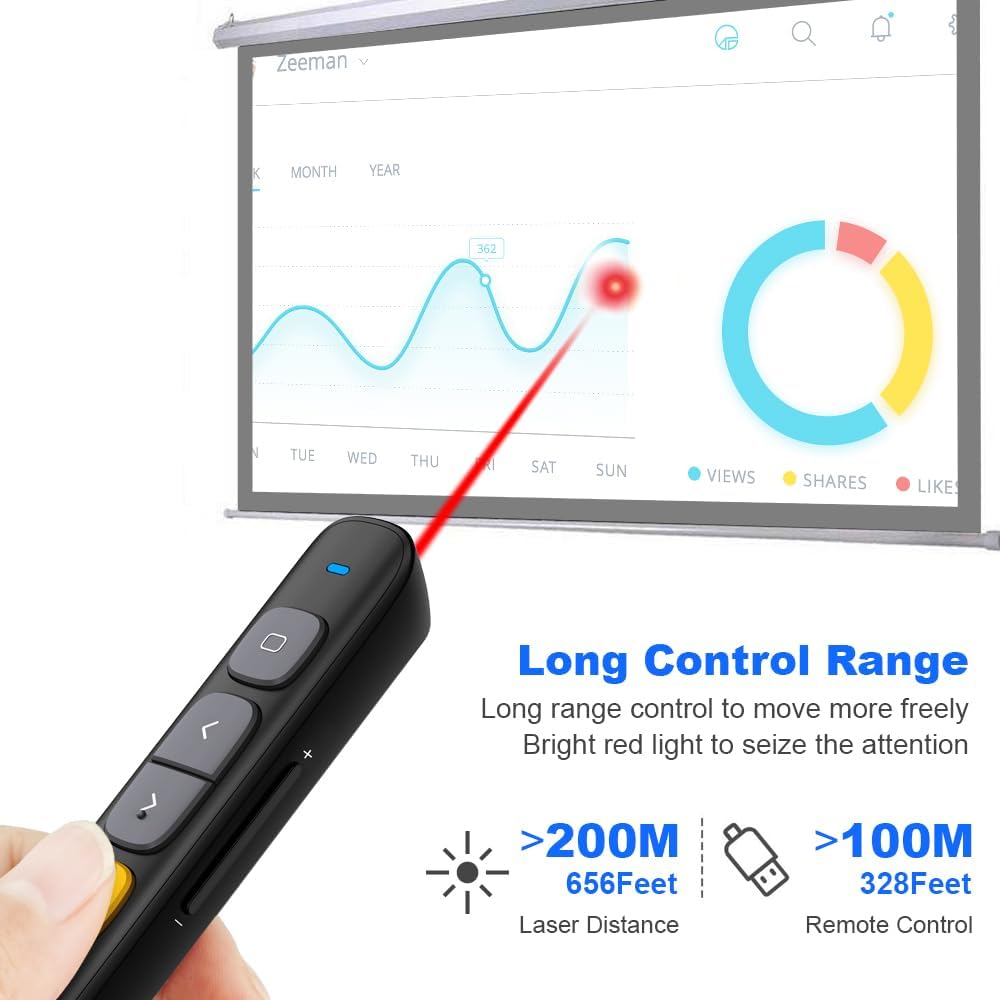
Image 5.1: The Norwii N29 offers a long control range for both the remote and the laser pointer.
5.3. Full Screen / Black Screen
- Full Screen: Long press the Page Up (Left Arrow) key to enter full screen mode in presentation software.
- Black Screen: Long press the Page Down (Right Arrow) key to turn the screen black during a presentation. Press any page turning key to exit black screen.
5.4. Hyperlink Control
- Select Hyperlink: Single click the Top Key (Square icon) to select a hyperlink on your slide. A dashed box will appear around the selected hyperlink.
- Open Hyperlink: Double click the Top Key (Square icon) to open the selected hyperlink.

Image 5.2: The top key allows for selection and activation of hyperlinks within presentations.
5.5. Volume Control
- Long press the Volume Up (+) key on the side to increase system volume.
- Long press the Volume Down (-) key on the side to decrease system volume.

Image 5.3: Side buttons provide convenient control over system volume.
5.6. Switching Active Windows
- Long press the Top Key (Square icon) to switch between active windows (equivalent to Alt+Tab).
6. Modes Switching
The Norwii N29 supports three different modes for its page navigation keys, allowing compatibility with various presentation software. You can switch between these modes by long pressing the '<' and '>' keys simultaneously for 1-3 seconds. The device automatically remembers the last used mode.

Image 6.1: Visual representation of the three operating modes for page navigation.
- Mode 1: Up/Down Keys (Default) - Usually used in PowerPoint, Keynote.
- Mode 2: Left/Right Keys - Usually used in Prezi.
- Mode 3: PgUp/PgDn Keys - Usually used in browser or photo viewer software.
7. Customizable Buttons
The Norwii N29 allows you to reprogram button functions using the Norwii Presenter software. This software can be downloaded from the official Norwii website.
- Download and install the Norwii Presenter software.
- Ensure the USB receiver is plugged into your computer and the presenter is turned on.
- Open the Norwii Presenter software.
- Navigate to the 'Customize' tab.
- Select the key you wish to customize.
- Choose the desired function from the available options for short press, long press, or double click.
- Save your changes.

Image 7.1: Screenshot of the Norwii Presenter software interface for customizing key functions.
8. Compatibility
The Norwii N29 Wireless Presentation Remote offers broad compatibility with various operating systems and presentation software.
8.1. Operating Systems
- Windows
- macOS
- Android
- Linux
8.2. Presentation Software
- PowerPoint
- Prezi
- Keynote
- Google Slides
- Propresenter
- MediaShout
- Word, Excel, ACD See, OneNote, Pages, Numbers, Photos (for PgUp/PgDn mode)

Image 8.1: The Norwii N29 is compatible with major operating systems and presentation applications.
9. Troubleshooting
If you encounter issues with your Norwii N29, please refer to the following common problems and solutions:

Image 9.1: Troubleshooting steps for common issues with the Norwii N29.
9.1. Weak Laser
- Ensure the battery has sufficient power. Replace if necessary.
- Note: Laser may appear weak on TV screens due to prohibitive regulations. For TV screens, consider Norwii N95s Pro or N97s models.
9.2. Short Control Range
- Ensure the battery has sufficient power.
- An obstruction between the wireless presenter and the USB receiver may shorten the control distance. Ensure a clear line of sight or reduce distance.
9.3. Laser Works, But Page Turn Does Not Respond
- Ensure that the presentation window is the currently active window on your computer.
- Long press the '<' and '>' keys for 3 seconds to switch among the 3 or 4 working modes (Up & Down, Left & Right, Scroll, PgUp & PgDn). Ensure the correct mode is selected for your software.
- For the first time on macOS, set the keyboard type to ANSI after plugging the USB receiver into your computer.
If these steps do not resolve your issue, please contact technical support.
10. Specifications
| Feature | Detail |
|---|---|
| Model Name | N29 |
| Connectivity Technology | Radio Frequency (2.4GHz RF) |
| Control Range | Up to 328 feet (100 meters) |
| Laser Distance | Up to 656 feet (200 meters) |
| Laser Type | Class II, Red |
| Output Power | <1mW |
| Battery Type | 1 x AAA battery (not included) |
| Dimensions | 139.2 x 19.2 x 15.4 mm |
| Item Weight | 26.9 Grams |
| Compatible Devices | Laptop, Mac, Personal Computer |
| Special Features | Reprogrammable buttons, Hyperlink & Volume Control, Integrated USB receiver storage, Bumped design for tactile feedback |
11. Warranty and Support
11.1. Warranty Information
The Norwii N29 Wireless Presentation Remote comes with a 1-year warranty from the date of purchase. This warranty covers manufacturing defects and malfunctions under normal use. Please retain your proof of purchase for warranty claims.
11.2. Technical Support
For technical assistance or further inquiries, please contact Norwii customer support. You can find contact information on the official Norwii website or through your retailer.


