1. Introduction
Thank you for choosing the Ssontong X10 Dual Dash Camera. This device is designed to provide comprehensive recording of your driving journey, offering both front and rear views in high definition. Equipped with advanced features such as loop recording, G-sensor emergency locking, parking monitoring, and motion detection, it ensures reliable evidence capture and enhanced vehicle security. Please read this manual carefully before operation to ensure proper installation and optimal performance.

Image 1.1: Front view of the Ssontong X10 Dual Dash Camera, displaying a car on its screen.
2. Package Contents
Please check the package for the following items:
- Ssontong X10 Dash Camera (Front Unit)
- Rear Camera
- Suction Mount
- Car Charger
- Mini USB Power Cable
- SD Card Reader
- User Manual (This document)
- Special Cleaning Cloth
Note: An SD card is NOT included and must be purchased separately. A Class 10 or above, 16GB or 32GB Micro SD card is recommended.
3. Product Features
The Ssontong X10 Dash Camera is equipped with a range of features to enhance your driving safety and recording experience:
- Dual Camera Recording: Simultaneous recording from front (170° wide-angle) and rear (140° wide-angle) cameras.
- Full HD 1080P Front Recording: Captures clear video at 1920x1080P (30fps).
- HD 720P Rear Recording: Records rear view at 1280x720P.
- 4-inch IPS Screen: Provides a clear display for real-time viewing and playback.
- Loop Recording: Automatically overwrites the oldest footage when the memory card is full, ensuring continuous recording.
- G-Sensor (Emergency Lock): Automatically detects sudden shakes or collisions and locks the current video footage to prevent it from being overwritten.
- Parking Monitor: Provides 24-hour protection by automatically recording when motion or impact is detected while parked.
- Motion Detection: Initiates recording when movement is detected in front of the camera.
- Night Vision & HDR: Enhanced low-light performance with infrared lens and High-Dynamic Range technology for clear nighttime recordings.
- Built-in Battery: Small internal battery for saving the last video file after external power is cut off.

Image 3.1: Overview of the Ssontong X10's key features and display.
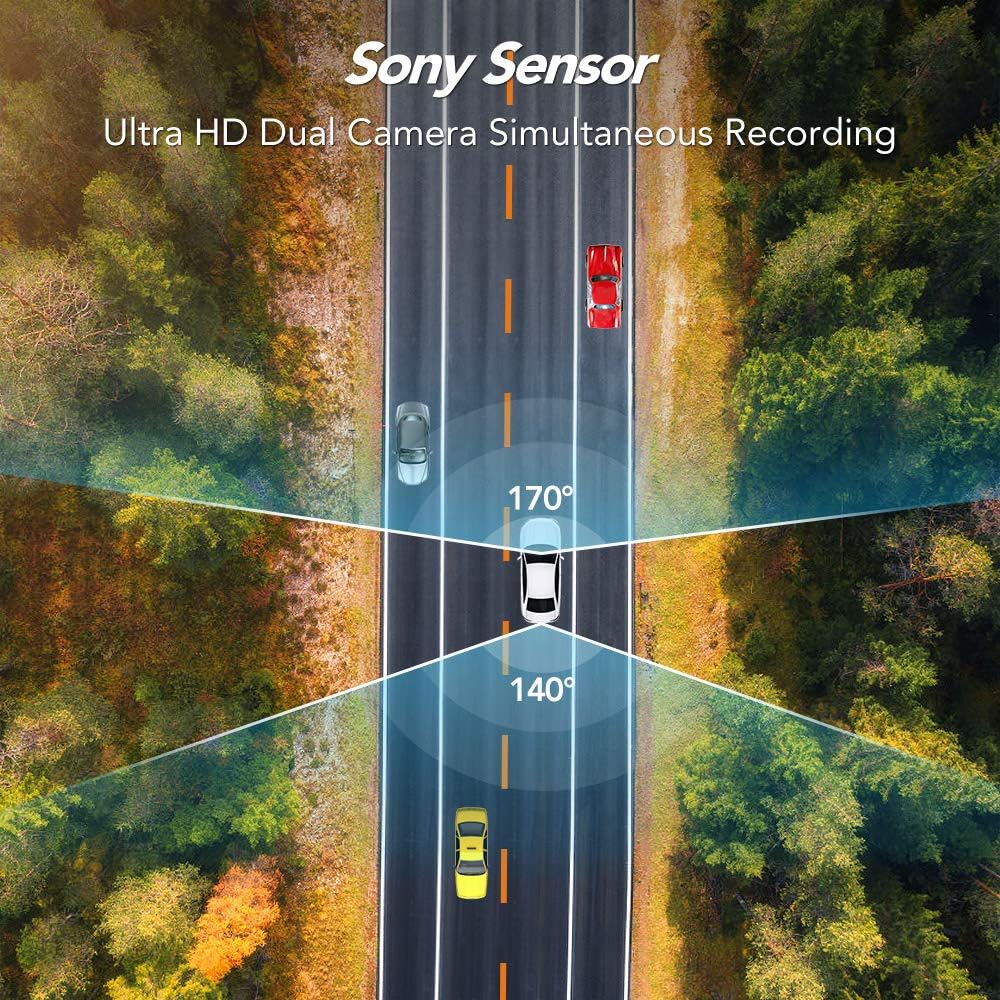
Image 3.2: Visual representation of the wide-angle lens coverage.

Image 3.3: Demonstration of the camera's high definition day and night vision.

Image 3.4: Example of the camera's performance in low-light and rainy conditions.
4. Setup
4.1 Before First Use
- Insert Micro SD Card: Before using the camera, insert a Class 10 or above Micro SD card (16GB or 32GB recommended) into the designated slot. Ensure the card is inserted correctly until it clicks into place.
- Format Micro SD Card: It is crucial to format the Micro SD card directly within the camera's menu before its first use and periodically thereafter to ensure stable recording and prevent data corruption. Navigate to the 'Format' option in the system settings menu.
4.2 Installation in Vehicle
- Mount the Dash Camera: Attach the suction mount to a clean, dry spot on your windshield, preferably behind the rearview mirror, to ensure it does not obstruct your view. Secure the dash camera to the suction mount.
- Install Rear Camera: Mount the rear camera on the rear windshield or license plate area. Route the cable discreetly to the front dash camera.
- Connect Power: Connect the Mini USB power cable to the dash camera and plug the car charger into your vehicle's cigarette lighter socket.
- Adjust Lens Angle: Power on the camera and adjust the lens angle to ensure it captures the desired view of the road ahead.
Important: The camera requires continuous external power to operate. The built-in battery is only for saving the last video file after power is cut off and will not power the camera for extended use.
5. Operating Instructions
5.1 Basic Operation
- Power On/Off: The camera is designed to automatically power on and begin recording when your vehicle starts and power off when the vehicle is turned off.
- Date & Time Setting: Upon first use, or after a power reset, set the correct date and time in the camera's settings menu. This ensures accurate timestamps on your recordings.
- Menu Navigation: Use the 'MODE', 'UP', 'DOWN', and 'OK' buttons on the side of the camera to navigate through the menu options and confirm selections.
5.2 Recording Modes
- Loop Recording: This feature ensures continuous recording by overwriting the oldest unlocked files when the memory card is full. You can set the duration of each video segment (e.g., 1, 3, or 5 minutes) in the settings.
- Emergency Recording (G-Sensor): When the built-in G-sensor detects a sudden impact or sharp braking, it automatically locks the current video segment, preventing it from being overwritten by loop recording. These files are stored in a separate folder.
- Parking Monitor: When enabled, the camera will automatically start recording if it detects a vibration or collision while the vehicle is parked and the engine is off. This feature requires a continuous power supply (e.g., hardwire kit, not included) for 24/7 monitoring.
- Motion Detection: When enabled, the camera will start recording when it detects movement in its field of view. This is typically used when the vehicle is parked.

Image 5.1: Emergency recording in action, locking important footage.

Image 5.2: The camera's parking monitor providing continuous protection.
Warning: Do not turn on Parking Monitoring and Motion Detection while driving, as this can interfere with normal recording and fill up the memory card with unnecessary locked files.
6. Maintenance
- Cleaning: Use the provided special cleaning cloth to gently wipe the camera lens and screen. Do not use abrasive cleaners or solvents.
- Temperature: Avoid leaving the camera in direct sunlight for extended periods or in environments where the temperature could exceed 170°F (75°C), as this can damage the device.
- SD Card Care: Regularly format your Micro SD card (at least once a month) to maintain optimal performance and prevent data corruption. Back up important files before formatting.
- Firmware Updates: Check the manufacturer's website periodically for any available firmware updates to improve performance and add new features.
7. Troubleshooting
- Camera does not turn on: Ensure the car charger is properly connected and the vehicle's power outlet is active. The camera requires external power to operate; the internal battery is only for emergency file saving.
- Camera turns off unexpectedly: Check the power connection. If the issue persists, the internal battery might be depleted or faulty. Ensure the car charger is providing stable power.
- "Low Battery" message: This indicates the internal battery is low. Connect the camera to external power via the car charger.
- Recording stops or freezes: This is often due to a faulty or incompatible Micro SD card. Ensure you are using a Class 10 or above card (16GB/32GB recommended) and format it regularly within the camera. Try a different, high-quality SD card.
- Video quality is poor: Ensure the lenses are clean. Check the recording resolution settings. For optimal quality, use 1080P for the front camera.
- G-sensor is too sensitive/not sensitive enough: Adjust the G-sensor sensitivity setting in the camera's menu.
- Parking Monitor/Motion Detection not working: Ensure these features are enabled in the settings. For continuous parking monitoring, a constant power supply (e.g., hardwire kit) is usually required, as the internal battery is limited.
- Date and Time are incorrect: Reset the date and time in the settings menu. If it resets frequently, the internal battery might be failing to retain settings.
8. Specifications
| Feature | Description |
|---|---|
| Screen | 4 inches IPS Screen |
| Front Lens Angle | 170° Wide-Angle |
| Rear Lens Angle | 140° Wide-Angle |
| Front Recording Resolution | 1920x1080P (30fps) |
| Rear Recording Resolution | 1280x720P |
| Aperture | F2.0 |
| Image Resolution | 12M |
| Micro SD Card Support | 16GB or 32GB, Class 10 or above (not included) |
| USB Interface | Mini USB |
| Dash Cam Dimensions | 4.5 x 2.5 x 1.3 inches |
| Power Source | Car Charger (DC 12V) |
| Internal Battery | Built-in (for emergency file saving only) |
9. Warranty and Support
For warranty information and technical support, please refer to the contact details provided with your purchase or visit the official Ssontong website. Keep your purchase receipt as proof of purchase for warranty claims.
For common questions and troubleshooting, please refer to the Troubleshooting section of this manual or the FAQ section on the Ssontong support page.


