
AUSDOM A1-AF640
AUSDOM AF640 1080P Webcam User Manual
Model: A1-AF640
Introduction
Thank you for choosing the AUSDOM AF640 1080P Webcam. This manual provides essential information for setting up, operating, and maintaining your webcam to ensure optimal performance for all your video communication needs.
What's in the Box:
- AUSDOM AF640 1080P Webcam
- User Manual
- Privacy Cover
Product Overview
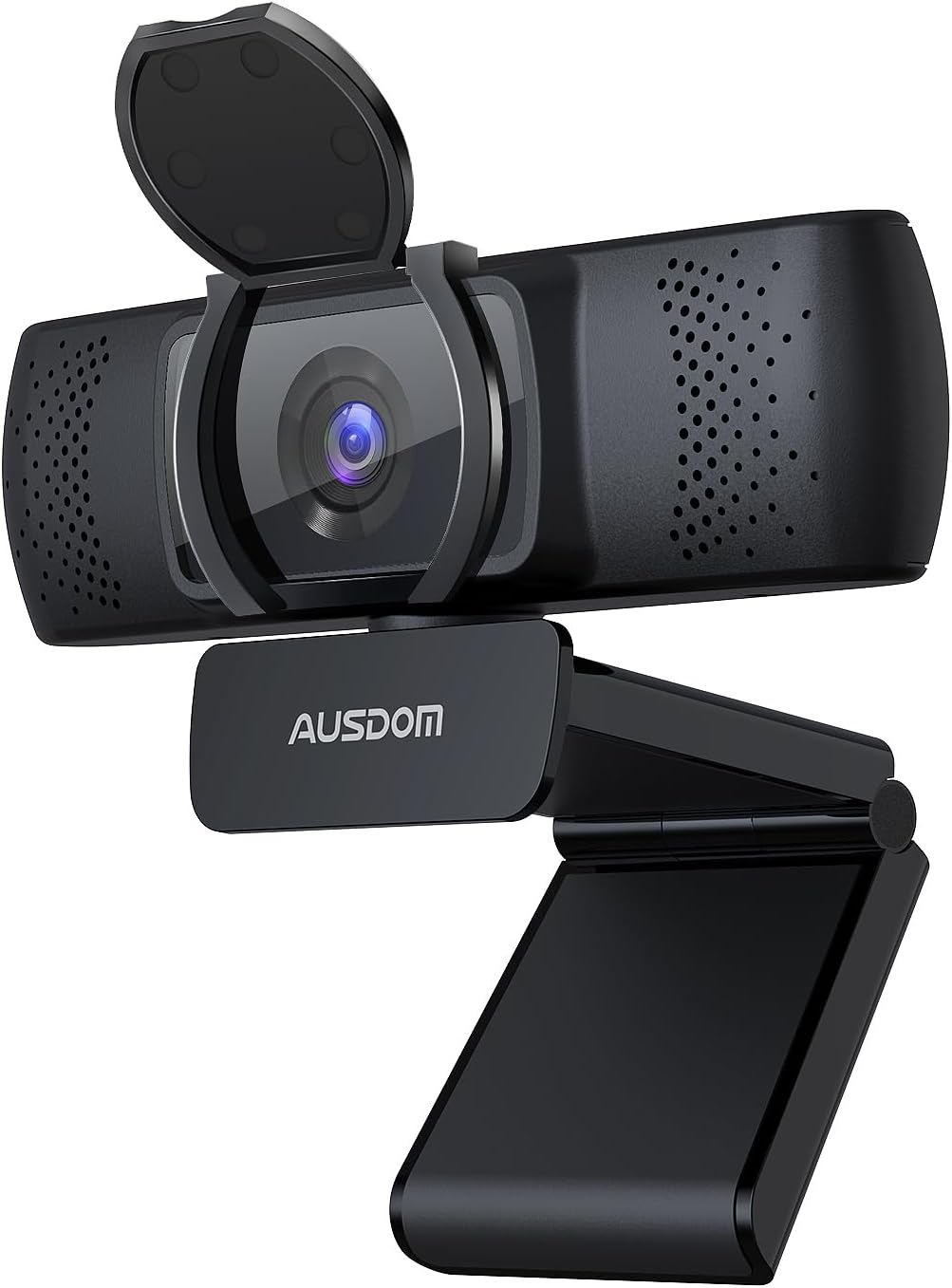
The AUSDOM AF640 1080P Webcam features a sleek black design with an integrated privacy cover and an adjustable base for versatile mounting options.

This image highlights the Full HD 1080P resolution and automatic light correction capabilities, ensuring clear video quality in various lighting conditions. It also shows the wide 90-degree field of view.
Setup Instructions
Mounting the Webcam:
- On a Monitor/Laptop: Open the adjustable base and place the webcam securely on top of your monitor or laptop screen. The base is designed to grip firmly without damaging your device.
- On a Tripod: The webcam's base includes a standard 1/4-inch screw thread, allowing it to be mounted on a tripod for more flexible positioning.

The flexible adjustable base allows for 180-degree vertical and 360-degree horizontal rotation, providing optimal viewing angles.
Connecting to Your Computer (Plug and Play):
- Locate an available USB port on your computer (Mac, PC, or laptop).
- Plug the USB connector of the webcam into the USB port.
- Your computer will automatically detect and install the necessary drivers. No additional software installation is required.
- The webcam is ready for use once the indicator light turns on.

The webcam connects directly via USB, offering a plug-and-play experience without the need for additional drivers or software.
Video Demonstration:
This video provides an overview of the AUSDOM AF640 1080P Webcam, demonstrating its features and ease of setup.
Operating Instructions
Using the Privacy Cover:
- To protect your privacy when the webcam is not in use, simply flip down the integrated privacy cover over the lens.
- To use the webcam, flip the privacy cover up to expose the lens.

The built-in privacy cover offers a simple and effective way to ensure your privacy when the webcam is not actively being used.
Adjusting the Webcam Angle:
- The webcam features a flexible base that allows for 360-degree horizontal rotation and 180-degree vertical tilt.
- Gently adjust the webcam to achieve your desired viewing angle for meetings, streaming, or recording.
Compatibility:
The AUSDOM AF640 webcam is widely compatible with various operating systems and video conferencing applications:
- Operating Systems: Windows XP/7/8/10, Mac OS 10.6, Android V5.0, Chrome OS.
- Applications: Zoom, Skype, YouTube, Google Meet, Microsoft Teams, FaceTime, and other major video software.
Key Features
- Full HD 1080P Video: Experience clear and smooth video with a resolution of 1920x1080 at 60 frames per second. The 5-layer anti-glare optical lens ensures crisp images.
- Built-in Dual Noise Reduction Microphones: Equipped with two noise-canceling microphones, the webcam captures your voice clearly, minimizing background noise for effective communication.
- Automatic Light Correction: The webcam features auto light correction technology that intelligently adjusts brightness and colors based on ambient light conditions, ensuring optimal video quality even in low-light environments.
- 90° Wide Field of View (FOV): The wide-angle lens allows for more participants to be included in the frame, making it ideal for group calls and presentations without constant camera adjustments.

The image illustrates the effectiveness of the dual noise reduction microphones in capturing clear audio by filtering out ambient sounds.

This graphic demonstrates how the built-in noise-canceling microphone isolates voice from background noise, enhancing audio clarity during calls.
Usage Scenarios
The AUSDOM AF640 Webcam is versatile and suitable for a variety of applications:
- Online Meetings & Conferencing: Ideal for professional virtual meetings with clear video and audio.
- Video Calling: Stay connected with friends and family through high-quality video calls.
- Live Streaming: Deliver smooth and clear live broadcasts on platforms like YouTube.
- Online Education: Participate in or conduct online classes with reliable video and sound.

The webcam is perfectly suited for online meetings, providing a clear view of participants and ensuring effective communication.
Specifications
| Feature | Detail |
|---|---|
| Brand | AUSDOM |
| Model Number | A1-AF640 |
| Video Capture Resolution | 1080p (1920x1080) at 60fps |
| Max Screen Resolution | FHD |
| Photo Sensor Technology | CMOS |
| Field of View (FOV) | 90° |
| Microphone | Built-in Dual Noise Reduction Mics |
| Connectivity Technology | USB |
| Hardware Platform | Mac, PC, Laptop |
| Operating System | Universal (Windows XP/7/8/10, Mac OS 10.6, Android V5.0, Chrome OS) |
| Item Weight | 7.4 ounces |
| Product Dimensions | 4.65 x 2.2 x 2.17 inches |
| Color | Black |
Troubleshooting
- Webcam not detected: Ensure the USB cable is securely plugged into a working USB port. Try a different USB port or restart your computer.
- Poor video quality: Check your lighting conditions. The webcam has automatic light correction, but sufficient ambient light is always recommended. Ensure your internet connection is stable.
- No audio from microphone: Verify that the webcam's microphone is selected as the input device in your computer's sound settings and in your video conferencing application.
- Privacy cover stuck: Gently check for any obstructions around the privacy cover.
Warranty and Support
AUSDOM offers a 12-month exclusive warranty for your product. Additionally, lifetime technical support is available to assist you with any questions or issues you may encounter.
For support, please refer to the contact information provided in your product packaging or visit the official AUSDOM website.
Related documentsA1-AF640


Ask a question about this manual
Ask about setup, troubleshooting, compatibility, parts, safety, or missing instructions. Manuals+ will review the question and use this page’s manual context to help answer it.