
Introduction
Thank you for choosing the Alacrity Mini Bluetooth 2D Barcode Scanner. This compact and versatile device offers multiple connectivity options, including Bluetooth, 2.4GHz wireless, and USB wired, making it suitable for a wide range of applications from retail to inventory management. This manual provides detailed instructions on setting up, operating, and maintaining your scanner to ensure optimal performance.
Package Contents
Please verify that all items are present in your package:
- 1 x X5DB Barcode Scanner
- 1 x Type-C USB Cable (3ft/95cm)
- 1 x 2.4GHz Wireless Dongle
- 1 x Hand Strap
- 1 x English User Manual

Image: Contents of the Alacrity X5DB Barcode Scanner package, showing the scanner, USB-C cable, 2.4GHz wireless dongle, and the user guide.
Product Overview
The Alacrity X5DB scanner is designed for portability and ease of use. Its compact size and lightweight construction make it ideal for mobile scanning tasks.

Image: A hand holding the Alacrity X5DB scanner, highlighting its small form factor and the prominent blue scan button.
Setup and Connection
1. Charging the Scanner
Before first use, fully charge the scanner. Connect the provided Type-C USB cable to the scanner's charging port and the other end to a USB power source (e.g., computer USB port, wall adapter). A full charge takes approximately 2 hours, providing up to 5 hours of continuous operation.

Image: Visual representation of the scanner's battery life, showing a full battery icon and text indicating 2 hours to fully charge for 5 hours of continuous use.
2. Connection Modes
The X5DB scanner supports three primary connection modes:
- Bluetooth Connection: Ideal for mobile devices like smartphones and tablets. Supports HID, SPP, and BLE protocols.
- 2.4GHz Wireless Connection: Uses the included USB dongle for wireless connection to computers without Bluetooth.
- USB Wired Connection: Direct connection via the USB cable for plug-and-play operation.
Bluetooth Pairing Instructions:
- Turn on the scanner.
- Scan the Bluetooth pairing barcode (refer to the included quick start guide for the specific barcode).
- On your device (smartphone, tablet, computer), enable Bluetooth and search for available devices.
- Select "Alacrity Scanner" or a similar name from the list to pair.
2.4GHz Wireless Setup:
- Plug the 2.4GHz wireless dongle into an available USB port on your computer.
- Turn on the scanner. The scanner should automatically connect to the dongle.
USB Wired Connection:
- Connect the Type-C USB cable to the scanner and the standard USB end to your computer.
- The scanner will function as a wired device and also charge simultaneously.

Image: An illustration demonstrating the wireless transmission range of the scanner, showing up to 150m/492ft in 2.4G wireless mode and 50m/164ft in Bluetooth mode in barrier-free environments.
Operating the Scanner
1. Supported Barcode Types
The Alacrity X5DB scanner is capable of decoding a wide range of 1D and 2D barcodes, including those on paper and digital screens:
- 1D Barcodes: Codabar, Code 11, Code 93, MSI, Code 128, UCC/EAN-128, Code 39, EAN-8, EAN-13, UPC-A, ISBN, Industrial 25, Interleaved 25, Standard 25, 2/5 Matrix.
- 2D Barcodes: QR Code, PDF417, Data Matrix, Aztec Code, Maxi Code.

Image: The scanner positioned next to a smartphone screen displaying both 1D and 2D barcodes, demonstrating its ability to read digital codes.
2. Scan Modes
The scanner offers flexible scanning modes to suit different operational needs:
- Trigger Scan Mode: Press the scan button to initiate a scan.
- Continuous Scan Mode: The scanner continuously emits a scan beam, ideal for high-volume scanning.
- Handsfree Auto-Detection Mode: The scanner automatically detects and scans barcodes when presented within its field of view.
3. Data Uploading Modes
Choose how the scanned data is transferred to your device:
- Instant Upload Mode: Barcode data is immediately transmitted to your connected device upon scanning.
- Storage Mode: Scanned barcodes are stored in the scanner's internal 16MB memory (up to 50,000 barcodes). Data can be uploaded to your device later when needed.
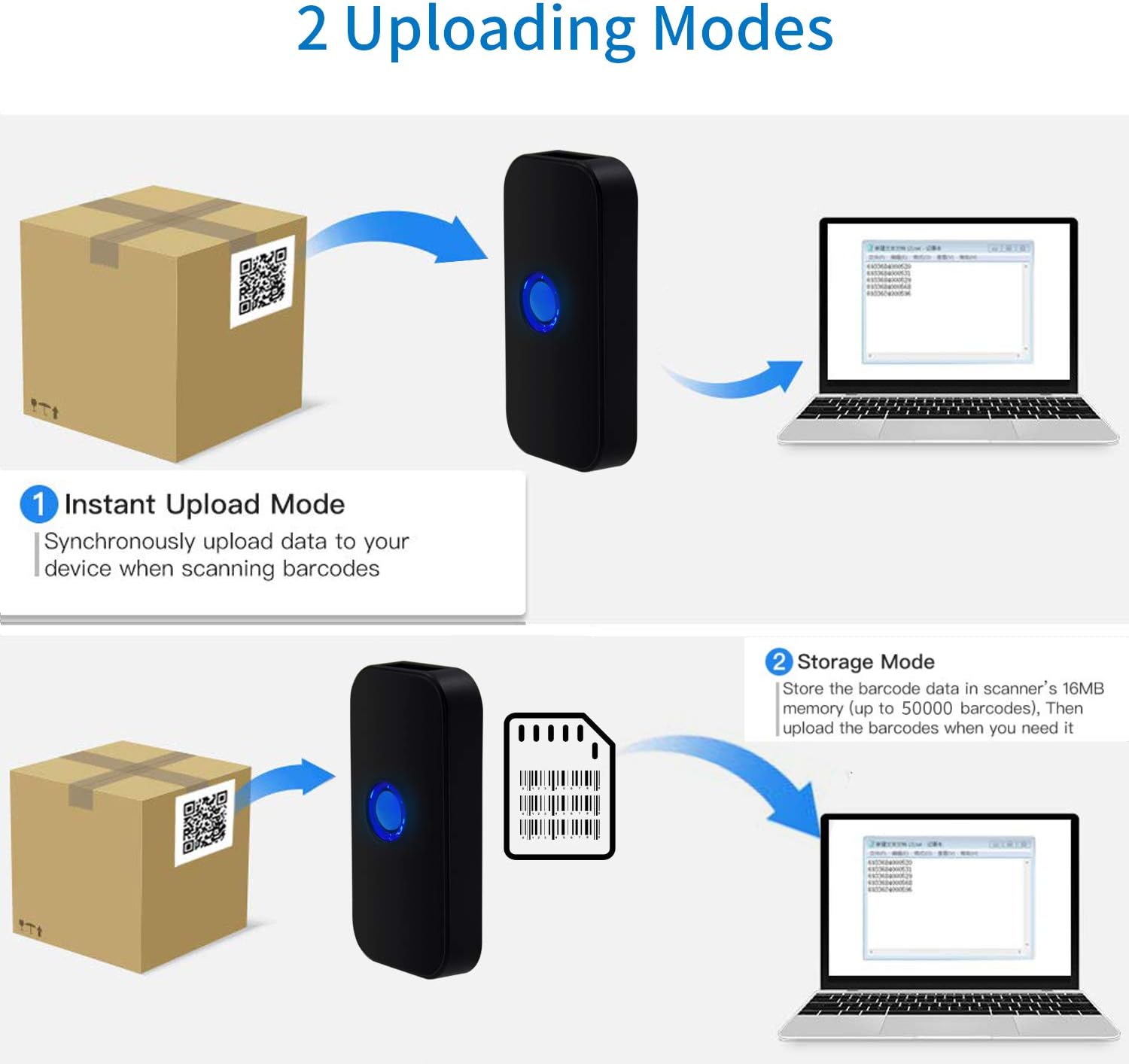
Image: A visual guide explaining the two data uploading modes: Instant Upload, where data is sent immediately, and Storage Mode, where data is saved internally for later transfer.
Customization Options
The Alacrity X5DB scanner offers several customizable settings to enhance user experience:
- Feedback Modes: Configure the scanner to provide feedback via vibration, LED indicators, or audible tones upon successful scans.
- Prefix/Suffix Settings: Add custom prefixes or suffixes (e.g., TAB, CR&LF) to scanned data for seamless integration with various software applications.
- Output Character Hiding: Option to hide specific output characters.
- Keyboard Languages: Supports multiple keyboard languages including English, Spanish, German, French, Italian, and Japanese.
Maintenance
To ensure the longevity and optimal performance of your Alacrity X5DB barcode scanner, follow these maintenance guidelines:
- Cleaning: Use a soft, dry cloth to clean the scanner's exterior. For the scanning window, use a lint-free cloth and a mild glass cleaner if necessary. Avoid abrasive cleaners or solvents.
- Storage: Store the scanner in a cool, dry place away from direct sunlight and extreme temperatures.
- Battery Care: Avoid fully discharging the battery frequently. If storing for an extended period, ensure the battery is partially charged (around 50%) to preserve its lifespan.
- Handling: Handle the scanner with care to prevent drops or impacts that could damage internal components.
Troubleshooting
If you encounter issues with your Alacrity X5DB scanner, refer to the following common problems and solutions:
| Problem | Possible Cause | Solution |
|---|---|---|
| Scanner not connecting via Bluetooth. | Not in pairing mode; device Bluetooth off; interference. | Ensure scanner is in Bluetooth pairing mode. Check device Bluetooth settings. Move closer to the device. |
| Scanner not reading barcodes. | Barcode damaged/unreadable; incorrect scan mode; low battery. | Try scanning a different, known good barcode. Ensure proper distance and angle. Check battery level. Verify scan mode settings. |
| Data not appearing on computer/device. | Incorrect connection mode; application not in focus; storage mode active. | Confirm correct connection (Bluetooth, 2.4G, USB). Ensure cursor is in the desired input field. If in storage mode, upload data manually. |
| Short battery life. | Frequent use; aging battery; improper charging. | Ensure full charge before use. Reduce continuous scanning if not needed. Consider battery replacement if significantly degraded. |
Specifications
| Feature | Detail |
|---|---|
| Model | X5DB |
| Dimensions | 3.14in (80mm) x 1.5in (38mm) |
| Weight | 1.23oz (35g) |
| Connectivity | Bluetooth (HID, SPP, BLE), 2.4GHz Wireless, USB Wired |
| Battery | 650mAh Lithium Polymer (rechargeable) |
| Charging Time | Approx. 2 hours |
| Continuous Working Time | Approx. 5 hours |
| Storage Capacity | 16MB (up to 50,000 barcodes) |
| 1D Decode Capability | Codabar, Code 11, Code 93, MSI, Code 128, UCC/EAN-128, Code 39, EAN-8, EAN-13, UPC-A, ISBN, Industrial 25, Interleaved 25, Standard 25, 2/5 Matrix |
| 2D Decode Capability | QR Code, PDF417, Data Matrix, Aztec Code, Maxi Code |
| Compatible OS | Windows XP/7/8/10, Mac OS, Linux, Android, iOS |
Warranty and Support
Alacrity products are designed for reliability and performance. For warranty information or technical support, please refer to the contact details provided in your product packaging or visit the official Alacrity website. Please retain your proof of purchase for warranty claims.