
Introduction
This manual provides comprehensive instructions for the Antec VSK10 Micro-ATX computer case. Please read this manual carefully before installation to ensure proper setup and optimal performance of your system.
Product Overview
The Antec VSK10 is a Micro-ATX case designed for efficient system building, offering a balance of functionality and compact design. It supports Micro-ATX and ITX motherboards and provides various features for component installation and cooling.
Key Features:
- Motherboard Support: Up to Micro-ATX
- Cooling: Supports up to 4 x 140mm fans and 280mm radiator (front), 1 x 120mm fan (rear, included)
- Drive Bays: 2 x 3.5" HDD (compatible with 2 x 2.5" SSD), 2 x 2.5" SSD
- Expansion Slots: 4
- Front I/O: 2 x USB 3.0 Ports
- Material: SPCC + Plastic

Image Description: An angled front view of the Antec VSK10 Micro-ATX computer case, showcasing its sleek black design and front panel.
Setup and Installation
This section details the steps required to install your components into the Antec VSK10 case. Ensure your system is powered off and unplugged before beginning installation.
1. Preparing the Case
Remove the side panels by unscrewing the thumbscrews located at the rear of the case. Gently slide the panels backward and lift them off. This provides access to the interior for component installation.
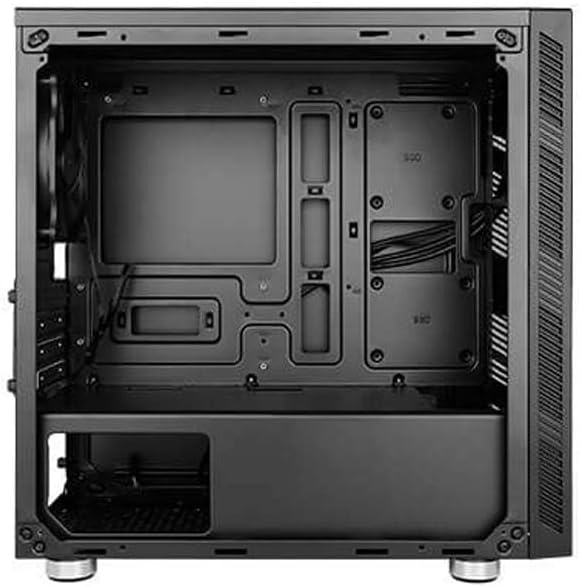
Image Description: An internal view of the Antec VSK10 Micro-ATX case, showing the motherboard tray, drive bays, and power supply shroud. Cable routing cutouts are visible.
2. Motherboard Installation
Align your Micro-ATX or ITX motherboard with the pre-installed standoffs inside the case. Carefully place the motherboard onto the standoffs and secure it using the provided screws. Ensure the I/O shield is installed in the rear opening before securing the motherboard.
3. Power Supply Installation
Install the power supply unit (PSU) into the dedicated compartment at the bottom rear of the case. Ensure the PSU fan faces the bottom ventilation opening for optimal airflow. Secure the PSU with screws from the rear of the case.

Image Description: Rear exterior view of the Antec VSK10 case, showing the I/O shield cutout, four expansion slots, the rear fan mount, and the power supply mounting area at the bottom.
4. Drive Installation
The VSK10 case supports both 3.5" HDDs and 2.5" SSDs:
- 3.5" HDD / 2.5" SSD: Install drives into the removable drive cage located beneath the PSU shroud. Follow the instructions for your specific drive type to secure it within the cage.
- 2.5" SSD: Dedicated mounting points are available on the motherboard tray for 2.5" SSDs. Secure these drives directly to the tray using screws.
5. Expansion Card Installation
Remove the necessary expansion slot covers from the rear of the case corresponding to your expansion card (e.g., graphics card). Insert your expansion card into the motherboard's PCIe slot and secure it with a screw.
6. Fan and Radiator Installation
The VSK10 offers flexible cooling options:
- Front: Supports 2 x 140mm or 3 x 120mm intake fans, or a 280mm radiator.
- Rear: Includes 1 x 120mm exhaust fan.
- Top: Supports 2 x 120mm or 2 x 140mm fans.
Ensure fans are oriented correctly for optimal airflow (typically intake at the front, exhaust at the rear and top).

Image Description: Front exterior view of the Antec VSK10 case, featuring a brushed black finish and a side intake vent for airflow.
7. Cable Management
Utilize the cable routing cutouts and tie-down points located behind the motherboard tray to manage and organize your cables. Effective cable management improves airflow and the overall aesthetic of your build.
Operating Instructions
Front Panel I/O
The front panel provides convenient access to essential ports and controls for your system.
- Power Button: Press to power on or power off the system.
- Reset Button: Press to restart the system.
- USB 3.0 Ports (x2): Connect USB 3.0 compatible devices for high-speed data transfer.
- Audio Jacks: Connect headphones and microphones.

Image Description: An angled view of the Antec VSK10 case, highlighting the top panel with front I/O ports including two USB 3.0 ports and audio jacks, alongside the power and reset buttons.
Maintenance
Regular maintenance helps ensure the longevity and optimal performance of your PC components and the case itself.
- Dust Filters: The VSK10 includes dust filters to prevent dust buildup. Regularly clean these filters by removing and washing them with water, or by using compressed air. Ensure they are completely dry before reinstallation.
- Interior Cleaning: Periodically open the case and use compressed air to remove dust from internal components such as fans, heatsinks, and graphics cards. Avoid touching components directly.
- Cable Management Check: Ensure cables remain neatly routed and do not obstruct airflow or interfere with fan operation.
Troubleshooting
This section addresses common issues you might encounter during or after system assembly.
- System Not Powering On:
- Check all power connections, including the PSU to the wall outlet, PSU to motherboard (24-pin and CPU 8-pin), and front panel power switch header.
- Ensure the PSU switch at the rear is in the 'ON' position.
- No Display Output:
- Verify that the monitor is connected to the graphics card (or motherboard integrated graphics, if applicable) and is powered on.
- Reseat the graphics card and RAM modules firmly into their slots.
- Overheating:
- Ensure all case fans are spinning and oriented correctly for optimal airflow.
- Clean dust filters and internal components to remove any dust buildup.
- Verify the CPU cooler is properly seated and making good contact with the CPU.
- USB Ports Not Working:
- Check if the front panel USB 3.0 header is correctly connected to the corresponding header on the motherboard.
Specifications
The following table details the technical specifications of the Antec VSK10 Micro-ATX Case.
| Feature | Specification |
|---|---|
| Model Name | VSK10 |
| Case Type | Micro-ATX Case |
| Motherboard Support | Micro-ATX, ITX |
| Material | SPCC + Plastic |
| Drive Bays (Internal) | 2 x 3.5" HDD (compatible with 2 x 2.5" SSD), 2 x 2.5" SSD |
| Expansion Slots | 4 |
| Front Fan Support | 2 x 140mm or 3 x 120mm |
| Rear Fan Support | 1 x 120mm (included) |
| Top Fan Support | 2 x 120mm or 2 x 140mm |
| Front Radiator Support | Up to 280mm |
| Rear Radiator Support | Up to 120mm |
| Front I/O Ports | 2 x USB 3.0, Audio In/Out |
| Maximum GPU Length | 350 mm |
| Maximum CPU Cooler Height | 160 mm |
| Maximum PSU Length | 160 mm |
| Product Dimensions (LxWxH) | 17 x 10 x 9 inches (approx. 432 x 254 x 229 mm) |
| Item Weight | 8.14 pounds (approx. 3.7 kg) |
Warranty and Support
For detailed warranty information, terms, and conditions, please refer to the official Antec website or the warranty card included with your product. For technical support or further assistance, please visit the Antec support page or contact their customer service department. Keep your proof of purchase for any warranty claims.


