
1. Introduction
This manual provides detailed instructions for the NEWCARE 4K@60Hz HDMI 2.0 Switch 3 In 1 Out. This device allows you to connect up to three HDMI source devices to a single HDMI display, simplifying your entertainment setup and reducing cable clutter. Please read this manual thoroughly before use to ensure proper operation and to maximize your product experience.
2. Features
- 3-Input, 1-Output HDMI Switching: Connects up to three HDMI source devices (e.g., PC, Laptops, Xbox 360, PS3/PS4/PS5, Roku Express, Amazon Fire TV Stick, Blu-ray DVD, Game Consoles) to one HDMI display (e.g., Full HD TVs, projectors, monitors). Note: This device does not support 1 input to 3 outputs.
- 4K Ultra HD Resolution: Supports HDMI output video resolutions including 4K/60/24Hz, 2K/60/30/24Hz, 3D, 1080P, 1080i, 720P, 720i, 576P, 576i, 480P. Maximum supported resolution is 4K x 2K (3840 x 2160) at 60Hz.
- Advanced Video Support: Compatible with HDCP2.2, 3D video formats, 12-bit Deep Color, and RGB 8:8:8.
- Stable Transmission: Features 24K Gold Plated corrosion-resistant connectors for superior signal transfer. Supports high performance up to 18Gbps without lag or loss of picture and sound quality. For optimal 4K@60Hz performance, use input and output HDMI cables ≤1.5m (4.9ft).
- Easy Operation: Features a key-press switching function to manually select the desired input port. No external power is typically required.
3. Package Contents
Verify that all items are included in your package:
- 1 x NEWCARE HDMI 2.0 Switcher
- 1 x 2.6FT High-Speed HDMI Output Cable
- 1 x User Manual
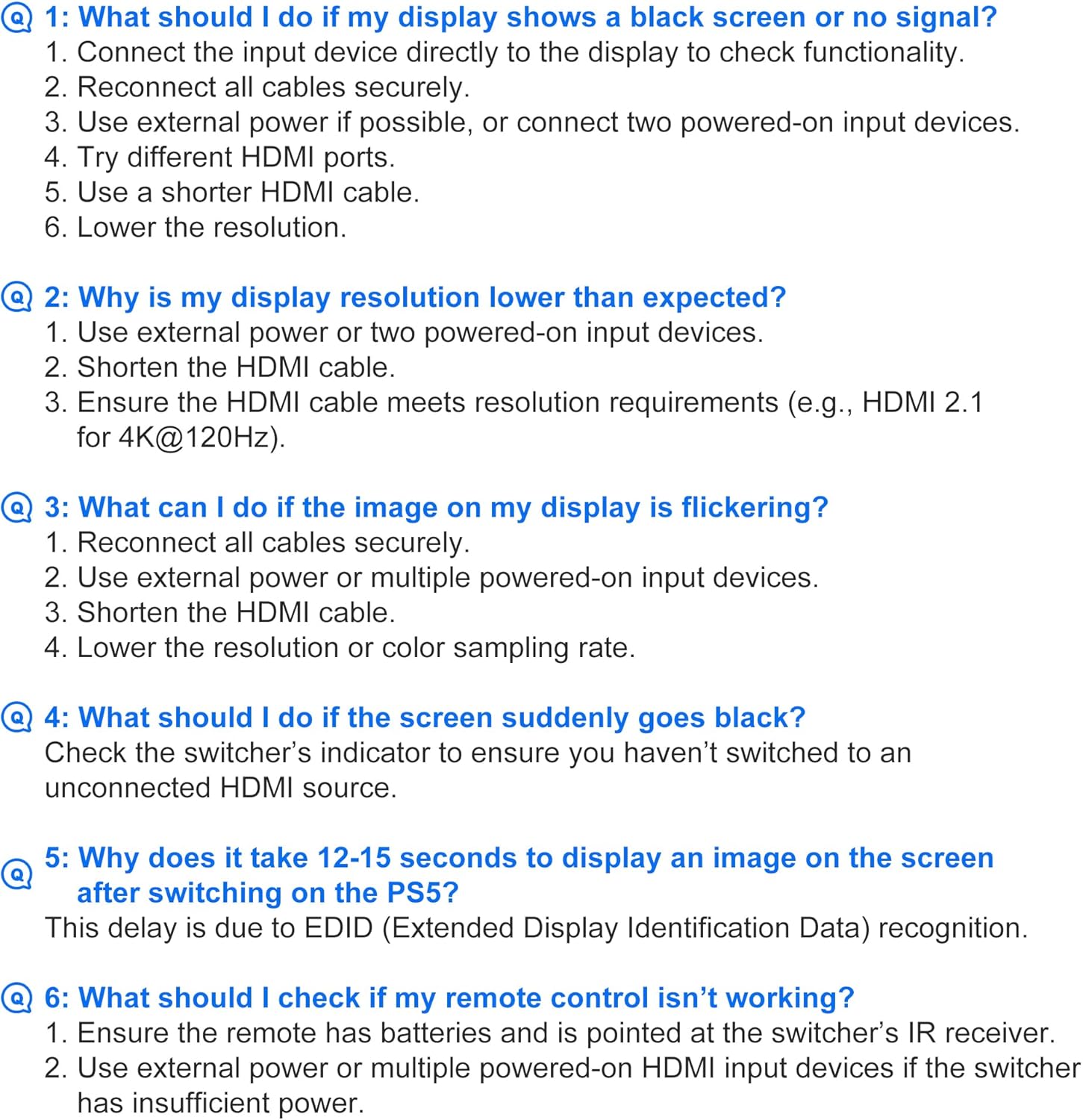
Image: Package contents showing the HDMI switch, HDMI cable, and user manual.
4. Product Overview

Image: The NEWCARE HDMI Switch, showing the 'Output' port, 'Select' button, and three 'Input' ports.
The NEWCARE HDMI Switch features a compact design with clearly labeled ports for easy connection:
- HDMI Output: Connects to your display (TV, monitor, projector).
- Select Button: Press to cycle through the three HDMI input sources.
- HDMI Input 1, 2, 3: Connect your source devices (e.g., gaming consoles, media players, computers).
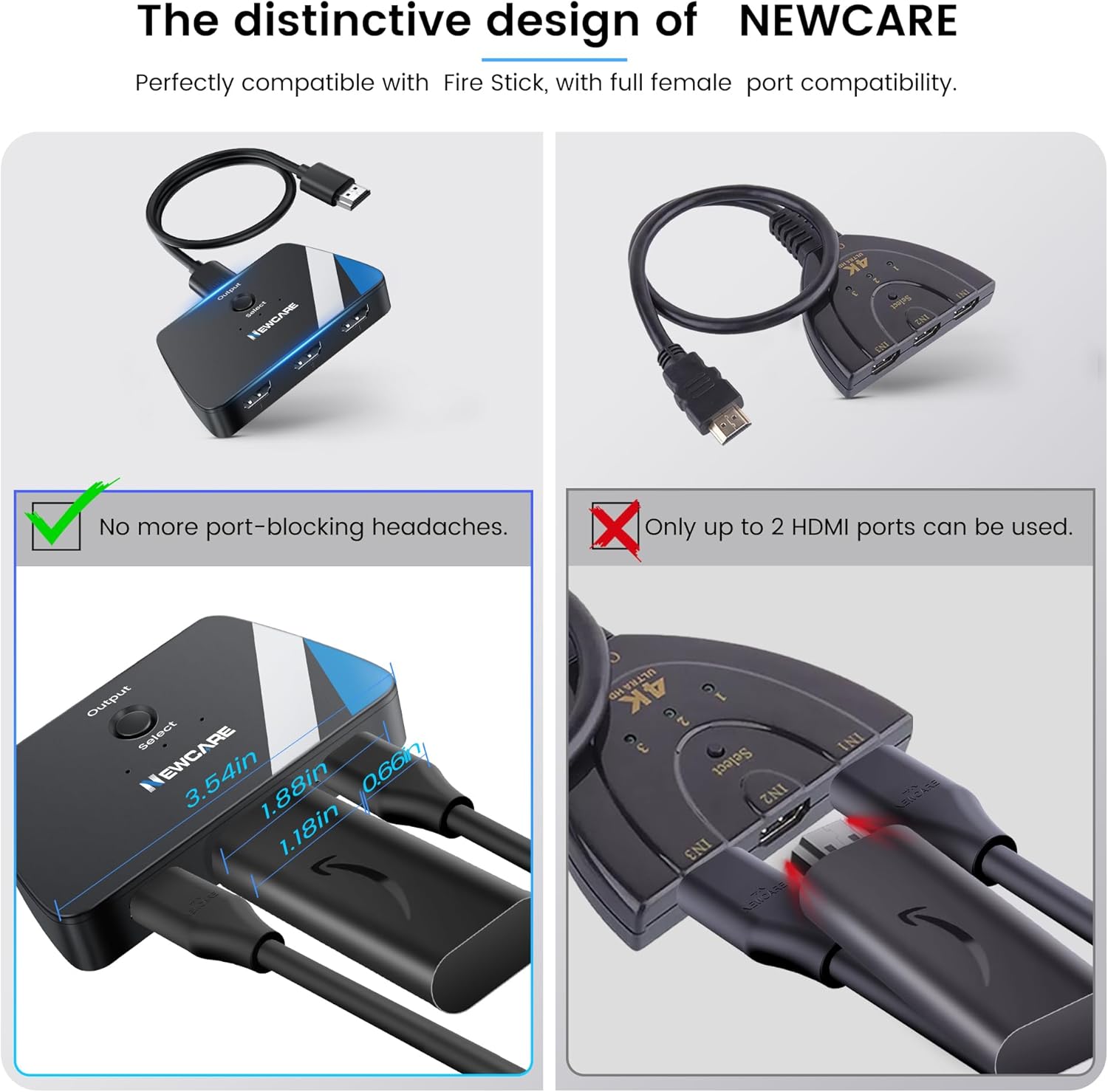
Image: The distinctive design of the HDMI switch, highlighting its compact size and efficient port spacing to prevent interference with other cables.
5. Setup Instructions
Follow these steps to set up your HDMI switch:
- Connect Output: Plug the integrated HDMI output cable from the NEWCARE HDMI Switch into an available HDMI input port on your TV, monitor, or projector.
- Connect Input Devices: Connect your HDMI source devices (e.g., PS5, Xbox, PC) to the HDMI Input 1, 2, and 3 ports on the switch using high-quality HDMI cables.
- Power On Devices: Ensure all connected HDMI source devices and your display are powered on. For some devices, the HDMI switch may require at least two or all three source devices to be powered on to function correctly due to power requirements.
- Select Input on Display: Switch your TV or monitor's input source to the HDMI port where the NEWCARE HDMI Switch is connected.
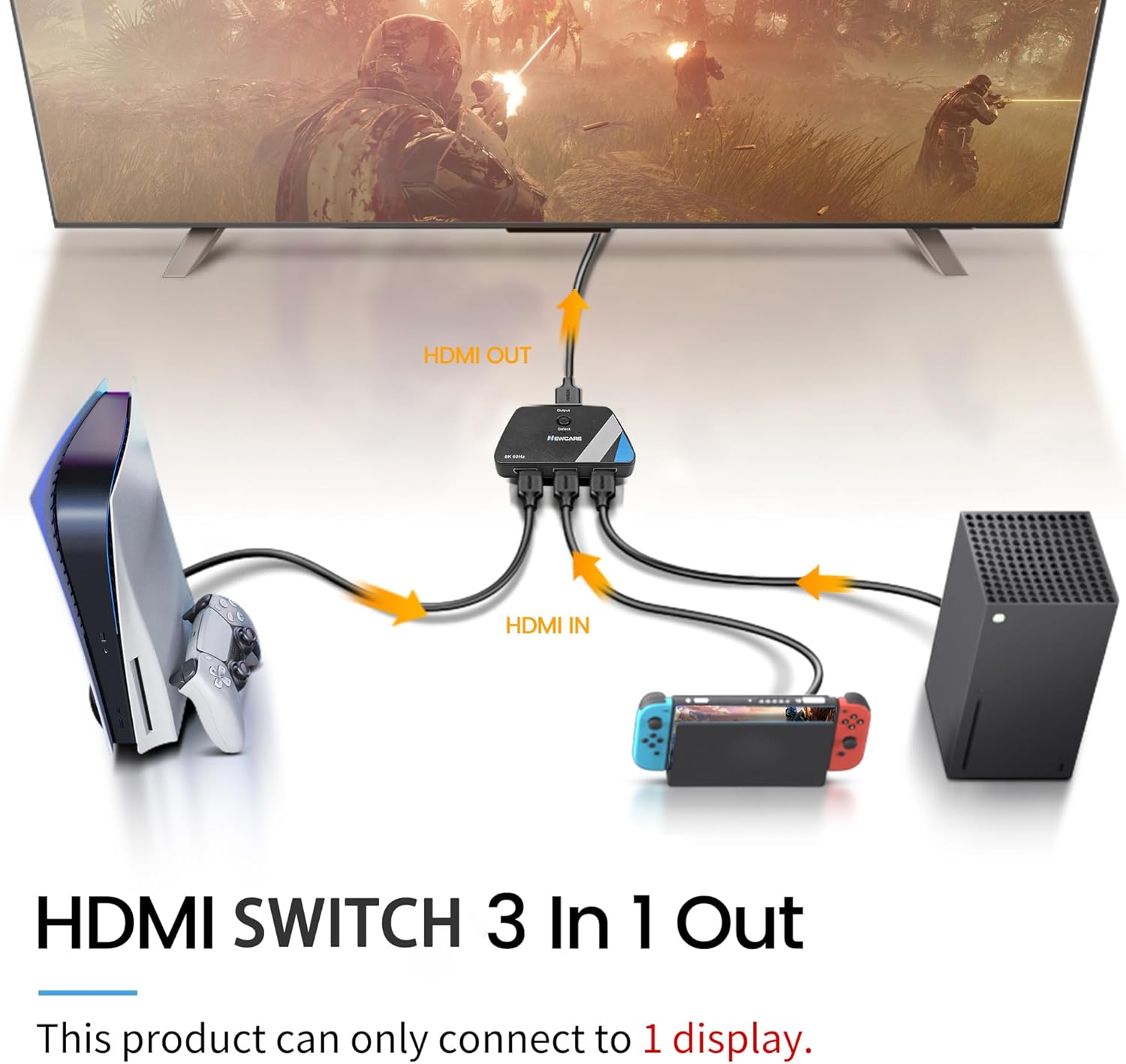
Image: Connection diagram illustrating how to connect multiple HDMI input devices to the switch and then to a single display.
Video: This video demonstrates the physical connection process of the NEWCARE HDMI Switch, showing how to plug in input devices and connect the switch to a monitor.
6. Operating Instructions
To switch between your connected HDMI devices:
- Manual Switching: Press the 'Select' button on the top of the HDMI switch to cycle through the connected input sources (HDMI 1, HDMI 2, HDMI 3). The LED indicator next to the selected input will illuminate.
- Automatic Switching: This model does not support automatic input switching. You must manually press the 'Select' button to change sources.

Image: A user pressing the 'Select' button on the HDMI switch to toggle between connected devices.
7. Specifications
| Attribute | Value |
|---|---|
| Product Dimensions | 2.15 x 3.5 x 0.8 inches |
| Item Weight | 3.52 ounces |
| Item Model Number | HDMI Switch 3 in 1 Out |
| Brand | NEWCARE |
| Connector Type | HDMI |
| Compatible Devices | Switch, Switch 2, PS5/3/4/4 pro, Blu-ray player, Firestick, Xbox 360, Xbox series x, Apple TV, Roku, DVD player, PC, laptop, HDTV, projectors, Gaming Console |
| Cable Type | HDMI |
8. Troubleshooting
If you encounter issues with your HDMI switch, please refer to the following common solutions:
- No Display / Black Screen / No Signal:
- Ensure all HDMI cables are securely connected.
- Verify that the input source device is turned on.
- Try connecting the input device directly to the display to check its functionality.
- If using 4K@60Hz, ensure HDMI cables are ≤1.5m (4.9ft).
- For some devices, ensure at least two or all three source devices are powered on to provide sufficient power to the switch.
- Lower the resolution of the input source.
- Resolution Lower Than Expected:
- Ensure your HDMI cables meet the resolution requirements (e.g., HDMI 2.0 for 4K@60Hz).
- Use shorter HDMI cables, especially for 4K@60Hz.
- Ensure adequate power supply by turning on multiple input devices if necessary.
- Flickering Image:
- Reconnect all cables securely.
- Ensure adequate power supply by turning on multiple input devices if necessary.
- Try a shorter HDMI cable.
- Lower the resolution or color sampling rate of the input source.
- Screen Suddenly Goes Black:
- Check the switch's indicator light to confirm you haven't accidentally switched to an unconnected HDMI source.
- Ensure the active input device is still powered on and sending a signal.
- Delay in Displaying Image (e.g., on PS5): This delay is typically due to EDID (Extended Display Identification Data) recognition. It is normal behavior.

Image: Visual troubleshooting steps for common display problems with the HDMI switch.
Video: This video provides troubleshooting tips for common issues encountered with the HDMI switch, such as no signal or flickering.
9. Maintenance
To ensure the longevity and optimal performance of your NEWCARE HDMI Switch, follow these maintenance guidelines:
- Cleaning: Use a soft, dry cloth to clean the exterior of the device. Avoid using liquid cleaners or aerosols, as they may damage the unit.
- Storage: Store the device in a cool, dry place away from direct sunlight and extreme temperatures.
- Handling: Handle the device and its cables with care. Avoid bending or twisting cables excessively, which can damage internal wires.
- Ventilation: Ensure the device is placed in an area with adequate ventilation to prevent overheating.
10. Warranty and Support
NEWCARE is committed to providing high-quality products and excellent customer service. This product comes with dedicated after-sale support.
- Warranty Information: For specific warranty details and duration, please refer to the product packaging or contact NEWCARE customer support directly.
- Customer Support: If you have any questions, require assistance, or experience issues not covered in this manual, please contact NEWCARE customer support. You will always receive friendly and helpful support.

