1. Introduction
This manual provides detailed instructions for the setup, operation, and maintenance of your TEEMI T26 QR Barcode Scanner. The T26 is a versatile handheld automatic USB wired 1D/2D barcode scanner designed for efficient data capture in various environments. It features plug-and-play functionality and includes an intelligent stand for hands-free operation.
2. Safety Information
- Do not expose the scanner to extreme temperatures, humidity, or corrosive substances.
- Avoid dropping the scanner or subjecting it to severe impacts.
- Do not attempt to disassemble or modify the scanner. This will void the warranty.
- Keep the scanner away from strong magnetic fields.
- Use only the provided USB cable for connection.
3. Package Contents
Verify that all items are present in the package:
- TEEMI T26 Barcode Scanner
- Intelligent Stand
- USB Data Cable
- User Manual (this document)

Image: The TEEMI T26 QR Barcode Scanner with its intelligent stand and USB cable.
4. Product Overview
The TEEMI T26 scanner is designed for ergonomic handling and efficient scanning. Key components include the scanning window, trigger button, and USB port. The intelligent stand allows for hands-free operation and automatic mode switching.

Image: Close-up view of the scanner's high-performance CMOS imaging chip and double lighting LEDs, highlighting its strong decoding ability for various barcode types including Data Matrix and USPS Intelligent Mail Barcode.
5. Setup
5.1 USB Plug-and-Play Connection
The TEEMI T26 scanner is designed for simple plug-and-play operation. No drivers are required for most operating systems.
- Connect the USB data cable to the scanner's USB port.
- Plug the other end of the USB data cable into an available USB port on your computer (Windows, Linux, Mac OS).
- The scanner will be automatically recognized by your system and is ready for use.
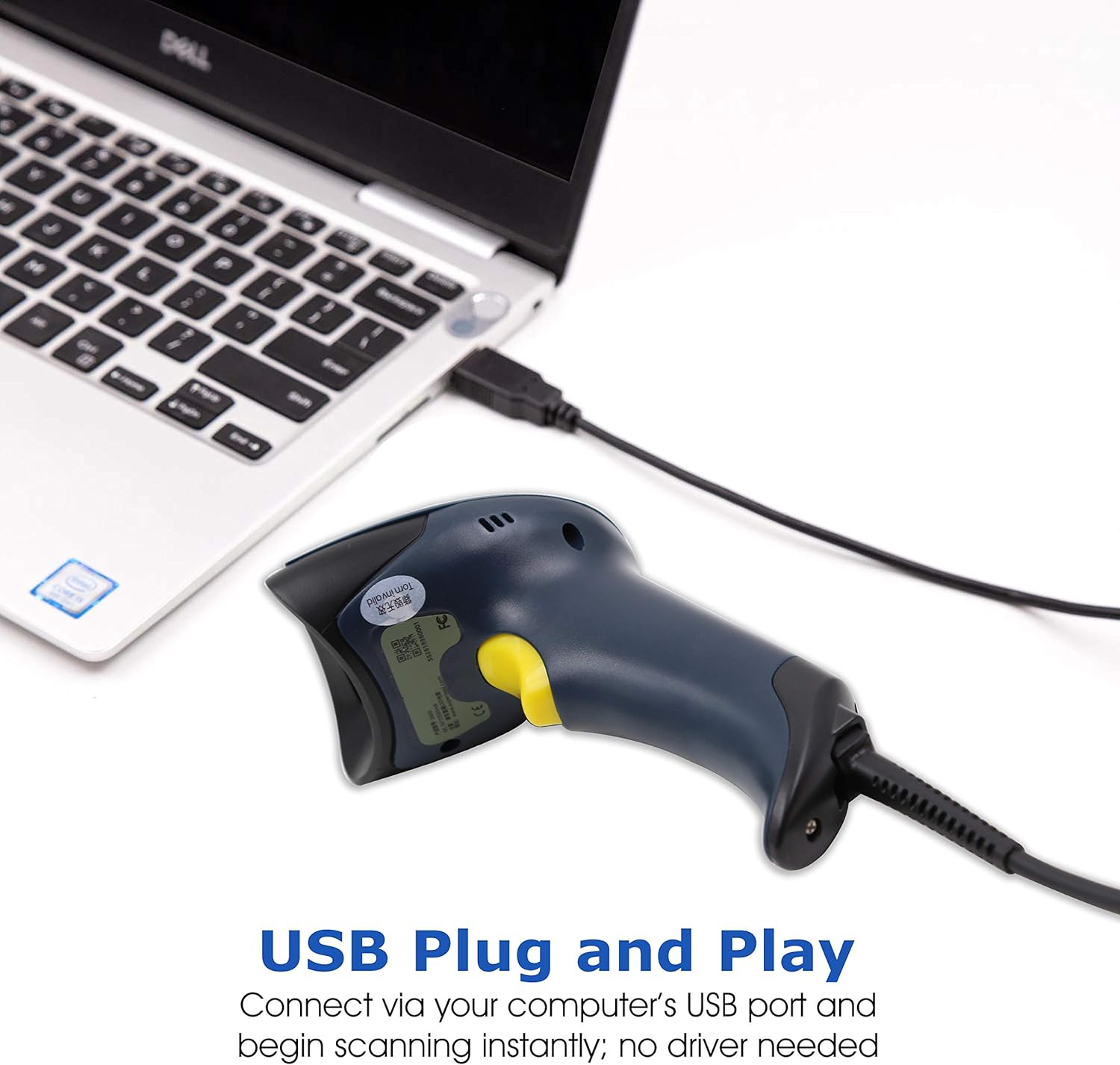
Image: The scanner connected to a laptop via its USB cable, demonstrating the plug-and-play setup.
For Android or iOS devices that support OTG (On-The-Go), you can connect the scanner using a USB OTG adapter or cable (not included).

Image: The scanner connected to a smartphone via a USB OTG adapter, illustrating its compatibility with mobile devices.
5.2 Intelligent Stand Setup
The intelligent stand allows the scanner to automatically switch between trigger mode and hands-free presentation mode.
- Assemble the stand components if necessary.
- Place the scanner into the stand. A magnet in the stand will activate the hands-free mode.
- When the scanner is removed from the stand, it will revert to trigger mode.

Image: The intelligent stand demonstrating its flexible neck and 360-degree rotation, with an inset showing the magnetic activation of hands-free mode when the scanner is placed in the stand.
6. Operating Instructions
6.1 Scanning Modes
The TEEMI T26 supports three scanning modes:
- Trigger Scan Mode: Press the trigger button to initiate a scan. Release to stop.
- Automatic Scanning Mode: The scanner automatically detects barcodes within its field of view and scans them without requiring a trigger press. This mode is typically activated when the scanner is placed in its intelligent stand.
- Continuous Scanning Mode: The scanner continuously emits a scan beam, scanning any barcode that passes through its field of view. This mode is useful for high-volume scanning.
6.2 Scanning Barcodes
The T26 can read various types of barcodes on different media, including printed labels and digital screens.
- 1D Barcodes: UPC/EAN, Code 128, Code 39, etc.
- 2D Barcodes: QR Code, Data Matrix, PDF417, Aztec Code, etc.
- Digital Codes: Scan barcodes directly from mobile phone displays, including digital coupon codes.
- Special Codes: Supports scanning of driver's licenses and IMB (Intelligent Mail Barcode).

Image: Examples of the scanner's wide application, including scanning digital coupon codes, driver's licenses, medical codes, and book barcodes. It also shows its ability to read reverse printed, distorted, colorful, UPC/EAN with supplementary, damaged, and reflective codes.

Image: The scanner demonstrating its capability to read barcodes from digital screens, such as smartphones, including Micro PDF417, PDF417, and QR Codes.
6.3 Hands-free Omnidirectional Scanning
When placed in the intelligent stand, the scanner can operate in hands-free omnidirectional mode, allowing for quick and efficient scanning from various angles without precise alignment.

Image: The scanner in its stand, demonstrating hands-free omnidirectional scanning of a QR code displayed on a smartphone screen.
6.4 Illumination and Aiming
The scanner employs highly visible red aimer dots for accurate targeting and flicker-free white soft illumination to reduce eye strain during prolonged use. The LED illumination can be adjusted as needed.
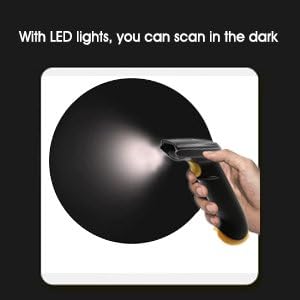
Image: Illustration showing the scanner's LED lights illuminating a dark area, indicating its capability to scan in low-light conditions.
6.5 Haptic Feedback
The scanner provides haptic feedback (vibration) after a successful scan, which is particularly useful in noisy environments where audible beeps might be difficult to hear.
7. Advanced Features and Customization
7.1 Data Formatting
The scanner offers robust data formatting capabilities, allowing you to customize the output data:
- Add prefixes and suffixes to scanned data.
- Delete specific characters from scanned data.
- Enable or disable specific barcode types.
- Adjust sound settings.
- Set uppercase/lowercase output.
- Powerful driver's license data parsing feature.
Refer to the supplementary programming guide (if provided separately) for detailed instructions on configuring these settings using programming barcodes.
7.2 USB Modes Supported
The TEEMI T26 supports multiple USB communication modes to ensure compatibility with various systems and applications:
- USB HID (Human Interface Device): Standard keyboard emulation mode, where scanned data is input as if typed from a keyboard.
- USB Virtual COM Port: Emulates a serial port, allowing software to communicate with the scanner as a serial device. Drivers may be required for this mode on some systems.
- USB HID POS Mode: Optimized for Point-of-Sale systems.
8. Maintenance
Proper maintenance ensures the longevity and optimal performance of your scanner.
- Cleaning: Use a soft, clean, lint-free cloth slightly dampened with water or a mild cleaning solution to wipe the exterior of the scanner. Do not use abrasive cleaners or solvents.
- Scanning Window: Keep the scanning window clean and free of dust or smudges to ensure accurate scanning. Use a lens cleaning cloth if necessary.
- Storage: When not in use, store the scanner in a cool, dry place away from direct sunlight.
9. Troubleshooting
If you encounter issues with your TEEMI T26 scanner, refer to the following common problems and solutions:
| Problem | Possible Cause | Solution |
|---|---|---|
| Scanner does not power on. | USB cable not properly connected or faulty USB port. | Ensure the USB cable is securely connected to both the scanner and the computer. Try a different USB port. |
| Scanner does not read barcodes. | Barcode damaged, poor lighting, incorrect scanning angle, or scanner not in correct mode. | Ensure barcode is clear and undamaged. Adjust lighting. Try different scanning angles. Verify scanner is in the correct operating mode (trigger, auto, continuous). Clean scanning window. |
| Scanned data is incorrect or incomplete. | Barcode not fully read, or data formatting settings are incorrect. | Ensure the entire barcode is within the scanning area. Check data formatting settings (prefixes, suffixes, character deletion) in the programming guide. |
| Scanner beeps but no data is transmitted. | Incorrect USB mode selected or application not ready to receive input. | Verify the USB mode (HID, Virtual COM) matches your system's configuration. Ensure the cursor is in the input field of your application. |
If the problem persists after trying these solutions, please contact TEEMI customer support.
10. Specifications
| Feature | Description |
|---|---|
| Scan Pattern | 2D area image (640x480 pixel array) |
| Scan Angle | Horizontal 55°, Vertical 37.5° |
| Decode Capability | Reads standard 1D, PDF, 2D barcodes (e.g., UPC/EAN, Code 128, QR Code, Data Matrix, PDF417) |
| Dimensions (LxWxH) | 10.7 cm x 7 cm x 18 cm (approx. 4.2 x 2.7 x 7 inches) |
| Weight | 130g (approx. 4.6 oz) |
| Interface | USB (HID, Virtual COM, HID POS) |
| Power Source | USB Wired |
| Compatible Devices | Laptop and Tablet with USB port (Windows, Linux, Mac OS, Android/iOS with OTG) |
| Drop Resistance | Withstands 50 times 1.6m (5.2 ft) drops to concrete |
| Scan Rate | 100 fps |
11. Warranty and Support
11.1 Warranty Information
TEEMI products are covered by a limited warranty against defects in materials and workmanship. Please refer to the warranty card included with your product or visit the official TEEMI website for detailed warranty terms and conditions. Keep your purchase receipt as proof of purchase for warranty claims.
11.2 Customer Support
For technical assistance, troubleshooting, or general inquiries, please contact TEEMI customer support through their official website or the contact information provided on your product packaging. When contacting support, please have your product model number (T22N-AU) and purchase details ready.


