
XTRONS TID101L
XTRONS 10.1-inch 2DIN Android Car Navigation System User Manual
Model: TID101L
1. Introduction
This manual provides detailed instructions for the installation, operation, and maintenance of your XTRONS 10.1-inch 2DIN Android Car Navigation System. Please read this manual thoroughly before using the product to ensure proper function and safety. Keep this manual for future reference.
2. Safety Information
- Do not operate the device in a way that distracts you from driving. Always prioritize road safety.
- Ensure all wiring is correctly connected to prevent damage to the unit or vehicle.
- Avoid exposing the unit to extreme temperatures, direct sunlight for prolonged periods, or excessive moisture.
- Do not attempt to disassemble or modify the unit. This may void the warranty and cause damage.
- Consult a qualified technician for installation if you are unsure about any steps.
3. Package Contents
Verify that all items listed below are included in your package:
- Main Unit (10.1-inch Android Car Navigation System)
- ISO Cable (1)
- Camera Cable (1)
- 4G Antenna (1)
- GPS Antenna (1)
- SIM Card Slot (1)
- USB Cables (2)
- Mounting Screws (8)
- Mounting Tools (2)
- User Manual (English/Japanese PDF version available)

Image: Included accessories, including cables, antennas, mounting hardware, and the user manual.
4. Product Overview
The XTRONS 10.1-inch 2DIN Android Car Navigation System (Model TID101L) is an advanced in-car entertainment and navigation unit. It features a large IPS HD touchscreen, an Octa-Core processor, 4GB RAM, and 64GB ROM for smooth performance. Key functionalities include 4G communication, wireless CarPlay and Android Auto support, Bluetooth 5.0, and dual-band WiFi.
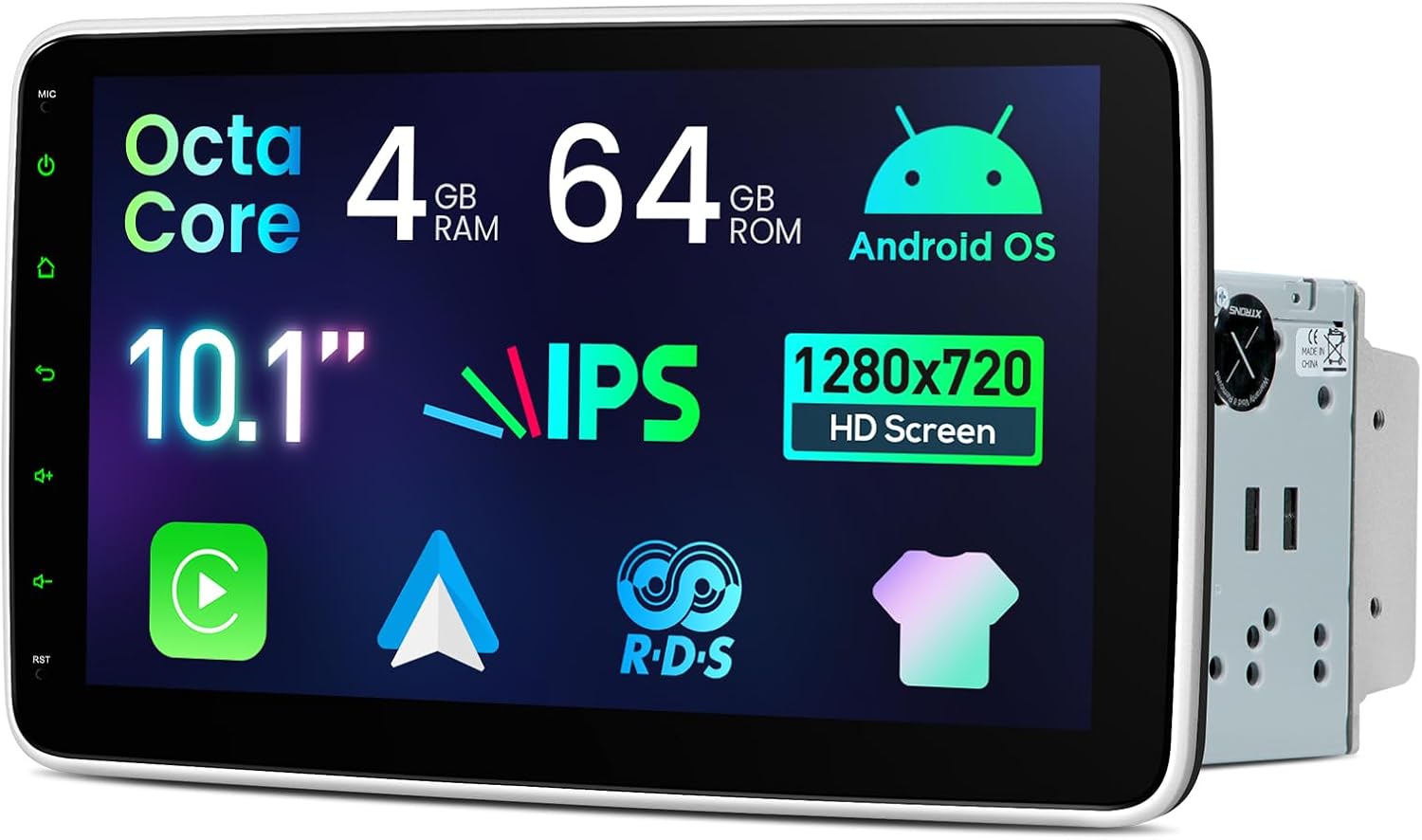
Image: Front view of the XTRONS 10.1-inch car navigation system, highlighting its large display and side controls.
4.1 Key Features
- Display: 10.1-inch IPS HD Screen (1280x720 resolution), 1080P video support, 178° wide viewing angle, 100% sRGB color accuracy.
- Performance: Octa-Core processor, 4GB RAM, 64GB ROM for efficient operation.
- Connectivity: Built-in 4G communication module (SIM card required), Dual Band WiFi, Bluetooth 5.0.
- Smartphone Integration: Wireless and wired Apple CarPlay and Android Auto support.
- Audio: 4x45W high-power amplifier, 10-band equalizer for customizable sound.
- User Interface: Multiple UI themes, Multi-Window View (PIP/PBP) for multitasking.
- Adjustability: Screen can be adjusted vertically (50mm range) and tilted/swiveled (up to 40 degrees).

Image: Overview of the system's core features including Octa-Core, 4GB RAM, 64GB ROM, Android OS, 10.1-inch IPS HD screen, 4G LTE, wireless CarPlay/Android Auto, 4x45W amplifier, AHD camera support, Bluetooth 5.0, and Dual Band WiFi.

Image: Details of the 10.1-inch IPS screen, showing 1280x720 pixel resolution, 1080P video compatibility, 178° ultra-wide viewing angle, and 100% sRGB color accuracy.
4.2 Controls and Ports
The unit features a physical volume knob, USB ports, reset button, microphone input, and AUX input on the front panel for easy access.
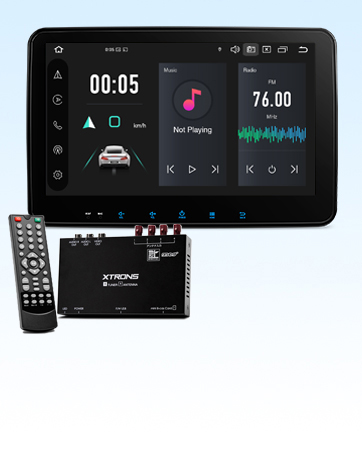
Image: Close-up of the front panel showing the physical volume knob, USB port, reset button, microphone input, and AUX input.
5. Installation
This unit is designed for 2DIN installation. Ensure your vehicle has a compatible 2DIN opening. Professional installation is recommended.
5.1 Dimensions and Adjustability
The main unit has dimensions of 179(W) × 120(D) × 50(H)mm, with a display dimension of 264(W) × 156(H)mm. The screen can be adjusted vertically by 50mm and tilted/swiveled up to 40 degrees for optimal viewing.

Image: Diagrams illustrating the screen's vertical adjustment range of 50mm, and tilt/swivel adjustment up to 40 degrees.
5.2 Wiring Diagram
Refer to the wiring diagram below for proper connection of all cables. Incorrect wiring can cause damage to the unit or vehicle electrical system.

Image: Detailed wiring diagram showing connections for radio antenna, 4G antenna, GPS antenna, USB ports, Bluetooth antenna, camera power, brake signal, backup camera input, external mic, video input, subwoofer output, front camera input, audio outputs (front/rear), audio inputs (left/right), amp control, SIM card slot, steering wheel control (KEY1, KEY2), reverse signal, auto antenna, and ISO power cable.
Key to Wiring Diagram:
1. Radio Antenna Port
2. 4G Antenna
3. GPS Antenna
4. USB Port 1
5. USB Port 2
6. WiFi Antenna
7. Bluetooth Antenna
8. Camera Power 12V
9. Brake Signal Wiring
10. Backup Camera Video Input
11. External Mic Terminal
12. Video Input
13. Subwoofer Output
14. Front Camera Video Input
15. Audio Output (Front Right)
16. Audio Output (Front Left)
17. Audio Input (Left)
18. Audio Input (Right)
19. Amp Control
20. SIM Card Slot
21. Steering Control KEY2 (5V)
22. Reverse Signal Wiring
23. Auto Antenna
24. Steering Control KEY1 (5V)
25. ISO Power Cable
6. Initial Setup
6.1 Power On and Basic Settings
After successful installation, turn on your vehicle's ignition. The unit should power on automatically. Follow any on-screen prompts for initial setup, such as language selection and time zone.
6.2 Connecting Your Smartphone (CarPlay / Android Auto)
The unit supports both wireless and wired Apple CarPlay and Android Auto. To connect:
- Ensure your smartphone has CarPlay or Android Auto enabled.
- For wired connection, connect your phone to the unit's USB port using a compatible USB cable.
- For wireless connection, enable Bluetooth and Wi-Fi on your phone and pair it with the unit. Follow the on-screen instructions to initiate CarPlay or Android Auto.
- On Android phones, ensure USB debugging is enabled for wired connections.
Video: Demonstration of connecting a mobile phone to the XTRONS unit for Android Auto and CarPlay functionality. The video shows the steps for both wired and wireless connections.

Image: Depicts the unit displaying Apple CarPlay and Android Auto interfaces, showing both wireless and wired connection options.
7. Operating Instructions
7.1 Navigation
The unit supports various navigation applications available on the Android platform. Install your preferred navigation app from the Google Play Store. The built-in GPS antenna ensures accurate positioning.
7.2 Audio and Video Playback
Enjoy music and videos from various sources, including USB, Bluetooth streaming, and installed apps like YouTube Music. The 10-band equalizer allows you to customize sound to your preference.
Video: An overview of the unit's features and how to use them, including navigation, media playback, and app usage. This video demonstrates the smooth operation and various functionalities.
7.3 Radio
The unit features an FM/AM radio tuner with a SI4745 chip driver for enhanced signal strength and reduced noise. Scan and save your favorite stations for easy access.

Image: Displays the radio interface with frequency tuning and preset stations, emphasizing the SI4745 chip driver for clear reception and high signal strength.
7.4 Bluetooth Functionality
Connect your smartphone via Bluetooth 5.0 for hands-free calling, phonebook synchronization, and audio streaming. Enjoy clear calls and high-quality music playback.

Image: Illustrates Bluetooth 5.0 features including hands-free calling, phonebook sync, Bluetooth music playback, and call history display.
7.5 Steering Wheel Control
The unit supports steering wheel controls, allowing you to manage audio playback, volume, and calls without taking your hands off the wheel. Configure the controls in the system settings.

Image: Shows the integration of steering wheel controls with the car navigation system, allowing control of music playback and other functions.
7.6 Multi-Window View (PIP/PBP)
Utilize the multi-window feature to run two applications simultaneously, such as navigation and video playback, enhancing convenience during driving.
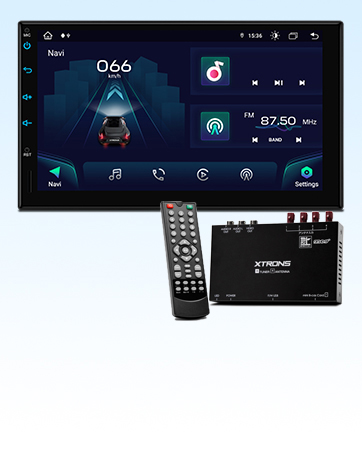
Image: Demonstrates the multi-window view, showing a map application and a music player running side-by-side on the screen.
8. Maintenance
- Cleaning: Use a soft, dry cloth to clean the screen and unit. For stubborn marks, slightly dampen the cloth with water. Avoid harsh chemicals or abrasive materials.
- Software Updates: Periodically check for software updates to ensure optimal performance and access to new features. Updates can usually be found on the manufacturer's website or through the unit's settings.
- Storage: If storing the vehicle for an extended period, ensure the unit is powered off to prevent battery drain.
9. Troubleshooting
If you encounter issues, refer to the following common problems and solutions:
| Problem | Possible Cause | Solution |
|---|---|---|
| Unit does not power on. | Incorrect wiring, blown fuse, vehicle power issue. | Check power connections, vehicle fuse box, and ensure ignition is on. |
| No sound. | Volume too low, incorrect audio source, speaker wiring issue. | Increase volume, select correct audio source, check speaker connections. |
| CarPlay/Android Auto not connecting. | Incorrect USB cable, USB debugging off (Android), phone not authorized. | Use original/certified USB cable, enable USB debugging, authorize phone on unit. |
| GPS signal weak/lost. | GPS antenna obstructed or improperly installed. | Ensure GPS antenna has a clear view of the sky and is securely connected. |
| Screen unresponsive. | Temporary software glitch. | Press the reset button (RST) on the front panel using a thin object. |
If the problem persists after trying these solutions, please contact XTRONS customer support.
10. Specifications
| Feature | Detail |
|---|---|
| Screen Size | 10.1 inches |
| Display Type | LCD (IPS) |
| Map Type | Asia (via installed apps) |
| Product Dimensions | 26.4 x 17 x 15.6 cm (Main Unit: 179x120x50mm, Display: 264x156mm) |
| Product Weight | 1.2 kg |
| Manufacturer Reference | DE123L |
| Brand | XTRONS |
| Model Name | DE Series (TID101L) |
| Compatible Vehicle Type | Passenger Car |
| Special Features | Hands-free calling, CarPlay, Android Auto, 4G, WiFi, GPS |
| Connectivity Technology | Wi-Fi, Bluetooth, USB, 4G |
| Included Components | Main unit, cables, Japanese manual (PDF available) |
| Audio Output Mode | Stereo |
| Mounting Type | Dashboard Mount (2DIN) |
| Operating Voltage | DC 12V (10.8V to 16V usable) |
11. Warranty and Support
XTRONS products come with a 1-year warranty. If you encounter any issues or have questions regarding your product, please contact XTRONS customer support via email. An electronic PDF version of the Japanese manual is available for download upon request after contacting support.
For additional support and resources, please visit the official XTRONS store: XTRONS Store
Related documentsTID101L


Ask a question about this manual
Ask about setup, troubleshooting, compatibility, parts, safety, or missing instructions. Manuals+ will review the question and use this page’s manual context to help answer it.