
Autoland Scientech AUTOLAND e iSCAN
AUTOLAND E-iSCAN User Manual
Automotive Bluetooth Wireless Full System OBD2 Scan Tool
Product Overview
The AUTOLAND E-iSCAN is a comprehensive automotive diagnostic tool designed for full system OBD2 scanning. It offers advanced functions such as Oil Reset, Electronic Parking Brake (EPB), Battery Management System (BMS), Steering Angle Sensor (SAS), and Tire Pressure Monitoring System (TPMS). This tool is compatible with a wide range of vehicles, including cars, heavy-duty diesel trucks, and motorhomes.
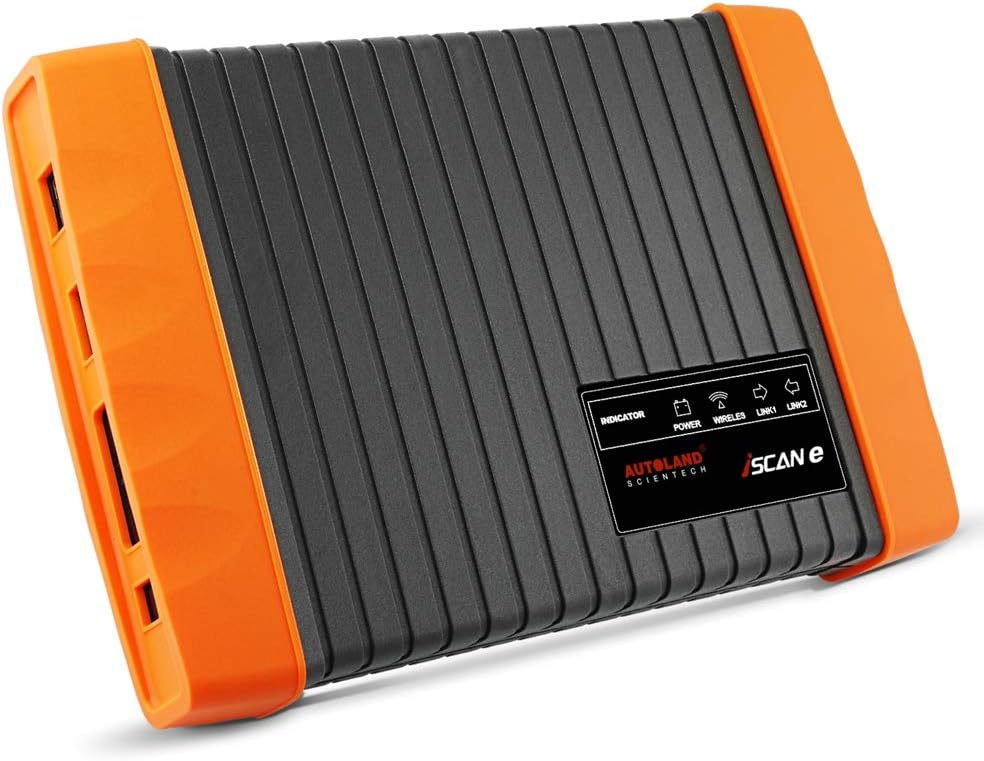
Figure 1: The AUTOLAND E-iSCAN diagnostic tool, featuring a compact design with indicator lights for power, wireless, and link status.
Setup Guide
Before using your AUTOLAND E-iSCAN, ensure your smartphone or tablet meets the minimum hardware requirements:
- Internal storage: 32GB or above
- Operating System: Android 6.0 or higher
To begin setup:
- Download the official AUTOLAND E-iSCAN application from your device's app store.
- Ensure your device's Bluetooth is enabled.
- Plug the E-iSCAN device into your vehicle's OBD2 port. The device's indicator lights will illuminate.
- Open the AUTOLAND E-iSCAN app and follow the on-screen prompts to pair with the device via Bluetooth.
- Once paired, the "LINK" indicator on the E-iSCAN device will show a stable connection.
Operating Instructions
The AUTOLAND E-iSCAN allows for comprehensive vehicle diagnostics. Key functions include reading and clearing fault codes, and viewing live data streams across all supported systems.
Performing a Full System Scan:
- Connect the E-iSCAN to the vehicle's OBD2 port and ensure it's paired with your smart device.
- From the main menu of the application, select "Diagnose".
- Choose "All" to initiate a full system scan, or select specific systems (e.g., Engine, Transmission, ABS) for targeted diagnostics.
- The tool will display any detected fault codes. Select a code for more detailed information.
- To clear fault codes, select the "Clear Code" option after addressing the underlying issue.
Accessing Live Data Stream:
View real-time data from various vehicle sensors and components to aid in diagnosis.
- After selecting a system (or "All"), navigate to the "Data Stream" option within the application.
- A list of available data parameters will be displayed. Select the parameters you wish to monitor.
- The data will be presented in numerical or graphical format, updating in real-time.
Special Functions (Oil Reset, EPB, BMS, SAS, TPMS):
These functions are typically found under a "Special Functions" or "Service" menu within the application. Follow the on-screen instructions for each specific reset or calibration procedure.
- Oil Reset: Used to reset the oil service light after an oil change.
- EPB (Electronic Parking Brake): For servicing brake pads on vehicles with electronic parking brakes.
- BMS (Battery Management System): For registering new batteries or resetting battery parameters.
- SAS (Steering Angle Sensor): To calibrate the steering angle sensor after repairs or alignment.
- TPMS (Tire Pressure Monitoring System): For relearning TPMS sensors or performing TPMS resets.
Video 1: This video demonstrates the support list for heavy duty trucks, showcasing the wide range of vehicle models and systems compatible with the AUTOLAND E-iSCAN tool.
Maintenance
To ensure the longevity and optimal performance of your AUTOLAND E-iSCAN:
- Cleaning: Wipe the device with a soft, dry cloth. Do not use abrasive cleaners or solvents.
- Storage: Store the device in a cool, dry place, away from direct sunlight and extreme temperatures.
- Software Updates: Regularly check for and install software updates for the mobile application to ensure compatibility with new vehicle models and access to the latest features. Updates are typically available through your device's app store.
- Battery: The device contains a Lithium Polymer battery. Avoid fully discharging the battery for extended periods. Charge the device regularly, even when not in use, to maintain battery health.
Troubleshooting
If you encounter issues with your AUTOLAND E-iSCAN, refer to the following common problems and solutions:
| Problem | Possible Cause | Solution |
|---|---|---|
| Device does not power on. | Not properly connected to OBD2 port; vehicle ignition off; device battery depleted. | Ensure secure connection to OBD2 port. Turn vehicle ignition to ON position. Charge the device if it has an internal battery. |
| Cannot connect via Bluetooth. | Bluetooth not enabled on smart device; device out of range; interference; app permissions. | Verify Bluetooth is on. Move closer to the device. Check app permissions for Bluetooth access. Restart both devices. |
| "Empty screen" or no data after selecting "Diagnose". | Software compatibility issue; vehicle not supported for full system scan; app error. | Ensure your app is updated to the latest version. Verify vehicle compatibility with the E-iSCAN for full system diagnostics. Try restarting the app and device. |
| App crashes or freezes. | Insufficient smart device storage or RAM; outdated Android OS. | Ensure your smart device has at least 32GB internal storage and Android 6.0 or higher. Close other apps. Reinstall the E-iSCAN application. |
Specifications
- Model: AUTOLAND e iSCAN
- Brand: Autoland Scientech
- Item Weight: 3.53 pounds
- Package Dimensions: 14.06 x 10.63 x 5.51 inches
- Batteries: 1 Lithium Polymer battery (included)
- Operating System Compatibility: Android (6.0 or higher recommended)
- Screen Size (recommended for smart device): 8 Inches
- UPC: 712321439116
- Connectivity: Bluetooth
- Functions: Read & clear fault codes, data stream, Oil Reset, EPB, BMS, SAS, TPMS.
Warranty and Support
For warranty information and technical support, please refer to the official Autoland Scientech website or contact their customer service directly. Contact details are typically provided in the product packaging or on the manufacturer's website.
Manufacturer: Autoland Scientech
For further assistance, you may visit the Autoland Scientech Store on Amazon.
Related documentsAUTOLAND e iSCAN

Ask a question about this manual
Ask about setup, troubleshooting, compatibility, parts, safety, or missing instructions. Manuals+ will review the question and use this page’s manual context to help answer it.