
DELTACO USB-C to HDMI Adapter Instruction Manual
Model: B07RP127LD
1. Introduction
This manual provides essential information for the proper setup, operation, and maintenance of your DELTACO USB-C to HDMI Adapter. Please read these instructions carefully before using the product to ensure optimal performance and safety. This adapter allows you to connect a USB-C enabled device to an HDMI display, monitor, or projector.
2. Product Overview
The DELTACO USB-C to HDMI Adapter is a compact device designed to convert a USB Type-C signal to an HDMI output. It features a durable black casing and gold-plated connectors for reliable signal transmission.
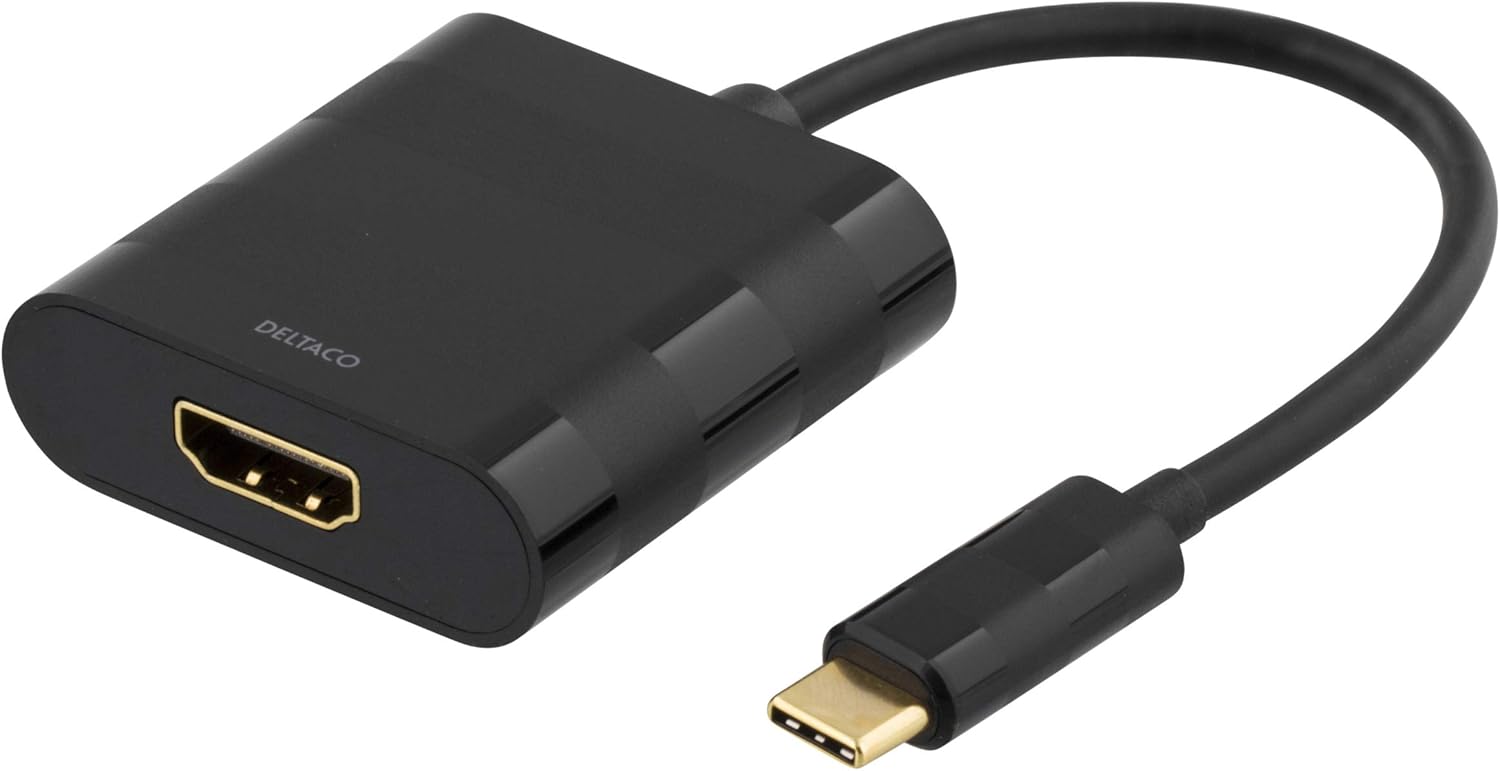
This image displays the DELTACO USB-C to HDMI Adapter. It features a black casing with the 'DELTACO' logo, an HDMI output port on one end, and a short cable leading to a USB-C input connector on the other end. The connectors are gold-plated.
Package Contents:
- 1 x DELTACO USB-C to HDMI Adapter
3. Setup
Follow these steps to connect your DELTACO USB-C to HDMI Adapter:
- Identify Compatible Devices: Ensure your source device (laptop, tablet, smartphone) has a USB Type-C port that supports video output (DisplayPort Alternate Mode).
- Connect to Source Device: Insert the USB Type-C connector of the adapter into the USB Type-C port on your source device.
- Connect to Display: Connect one end of an HDMI cable (not included) to the HDMI port on the adapter.
- Connect to Display Input: Connect the other end of the HDMI cable to an available HDMI input port on your display, monitor, or projector.
- Select Input Source: On your display, select the correct HDMI input source using the display's menu or remote control.
4. Operating Instructions
Once connected, your source device should automatically detect the external display. You may need to configure display settings on your source device:
- Windows: Right-click on the desktop, select 'Display settings', and choose 'Extend these displays' or 'Duplicate these displays' as needed.
- macOS: Go to 'System Preferences' > 'Displays' to arrange or mirror your displays.
- Android/iOS: Settings may vary by device. Typically, the device will automatically mirror the screen or offer display options.
Ensure your source device is powered on and the display is set to the correct HDMI input.
5. Maintenance
To ensure the longevity and proper functioning of your adapter, follow these maintenance guidelines:
- Cleaning: Use a soft, dry cloth to clean the adapter. Avoid using liquid cleaners or solvents.
- Storage: Store the adapter in a cool, dry place away from direct sunlight and extreme temperatures.
- Handling: Avoid bending or twisting the cable excessively. Do not apply excessive force when connecting or disconnecting the adapter.
6. Troubleshooting
If you encounter issues with your adapter, refer to the following common solutions:
- No Display Output:
- Ensure all cables are securely connected.
- Verify that your source device's USB-C port supports video output (DisplayPort Alternate Mode).
- Check the display's input source selection.
- Try a different HDMI cable or display.
- Restart your source device.
- Flickering or Intermittent Display:
- Ensure the resolution and refresh rate settings on your source device are compatible with your display.
- Check for loose connections.
- Minimize interference from other electronic devices.
- No Audio:
- Ensure your display has built-in speakers or is connected to external audio.
- Check audio output settings on your source device to ensure HDMI is selected.
7. Specifications
| Feature | Detail |
|---|---|
| Brand | DELTACO |
| Model Number | B07RP127LD |
| Connectors | USB Type-C (Input), HDMI (Output) |
| Color | Black |
| Number of Ports | 2 (1x USB-C, 1x HDMI) |
| Approx. Item Dimensions (L x W x H) | 50 x 50 x 28 centimeters (Note: These dimensions may refer to packaging) |
8. Warranty Information
This product is covered by a standard manufacturer's warranty. For specific details regarding warranty terms, duration, and claims, please refer to the documentation provided with your purchase or visit the official DELTACO website. Keep your proof of purchase for warranty purposes.
9. Support
For technical assistance, troubleshooting beyond this manual, or product inquiries, please contact DELTACO customer support. Contact information can typically be found on the DELTACO website or on the product packaging.
Online Resources: Visit the official DELTACO website for FAQs, driver downloads (if applicable), and additional support resources.


