
1. Product Overview
The Symcode 2D Bluetooth Ring Barcode Scanner is a wearable, wireless, and compact device designed for efficient barcode reading. Its ring design allows for comfortable wear on the finger, enhancing user satisfaction and productivity. This scanner supports a wide range of 1D and 2D barcodes and offers versatile connectivity options for various operating systems and devices.

Figure 1: Symcode 2D Bluetooth Ring Barcode Scanner
2. Package Contents
Upon opening the package, please verify that all items listed below are present and in good condition:
- 1 x Mini Barcode Scanner
- 1 x English Version User Manual
- 1 x USB Cable
- 1 x Charger Head
- 1 x Mobile Phone 4.0 Receiver (Bluetooth Dongle)

Figure 2: Package Contents
3. Features
- Wearable Ring Design: Allows for comfortable use on the finger, left or right, increasing satisfaction and comfort during extended use.
- Dual Wireless Connectivity: Supports both 2.4G Wireless (via dongle) and Bluetooth 4.0 for flexible connection to various devices.
- Wide Compatibility: Compatible with Microsoft Windows XP/7.0/8.0/10, Android, and iOS devices.
- Extensive Barcode Support: Scans 1D codes (UPC, EAN, Code128, Code39, Code11, Interleaved 2 of 5, Codabar, etc.) and 2D codes (PDF417, Data Matrix, QR Code, etc.).
- Long Transmission Distance: Up to 30 feet (10m) for Bluetooth and up to 492ft (150m) in barrier-free environments for 2.4G wireless.
- Two Upload Modes: Supports Instant Upload Mode (synchronous data upload) and Storage Mode (stores up to 50,000 barcodes in 512KB memory for later upload).
- Long-Lasting Battery: Provides up to 6 hours of continuous scanning and a standby time of up to 720 hours. Fully recharges in approximately 1.5 hours.
4. Setup
4.1 Charging the Scanner
Before initial use, fully charge the scanner using the provided USB cable and charger head. Connect the USB cable to the scanner's charging port and the other end to a power source. The charging indicator light will show the charging status.

Figure 3: Battery Information
4.2 Connecting to a Device
The scanner offers two primary connection methods: 2.4G Wireless via dongle and Bluetooth 4.0.
4.2.1 2.4G Wireless Connection (via Dongle)
- Plug the 2.4G wireless receiver (dongle) into an available USB port on your laptop, PC, or POS system.
- Turn on the barcode scanner. It should automatically pair with the dongle.
- A successful connection will be indicated by a specific sound or light on the scanner.
4.2.2 Bluetooth 4.0 Connection
- Ensure Bluetooth is enabled on your mobile phone, tablet, or computer.
- Turn on the barcode scanner.
- On your device, search for available Bluetooth devices. The scanner should appear as "Barcode Scanner HID" or similar.
- Select the scanner to pair. A successful connection will be indicated by a specific sound or light on the scanner.

Figure 4: Wireless Connection Options

Figure 5: Transmission Distance
Video 1: Demonstrates unboxing, product rotation, and connecting the scanner to a laptop and mobile device via Bluetooth for scanning.
5. Operating Instructions
5.1 Wearing the Scanner
The ring scanner is designed to be worn on your finger. Adjust the strap for a comfortable and secure fit. The scanner head can be rotated 180 degrees to accommodate different scanning angles and user preferences.

Figure 6: 180 Degree Rotation
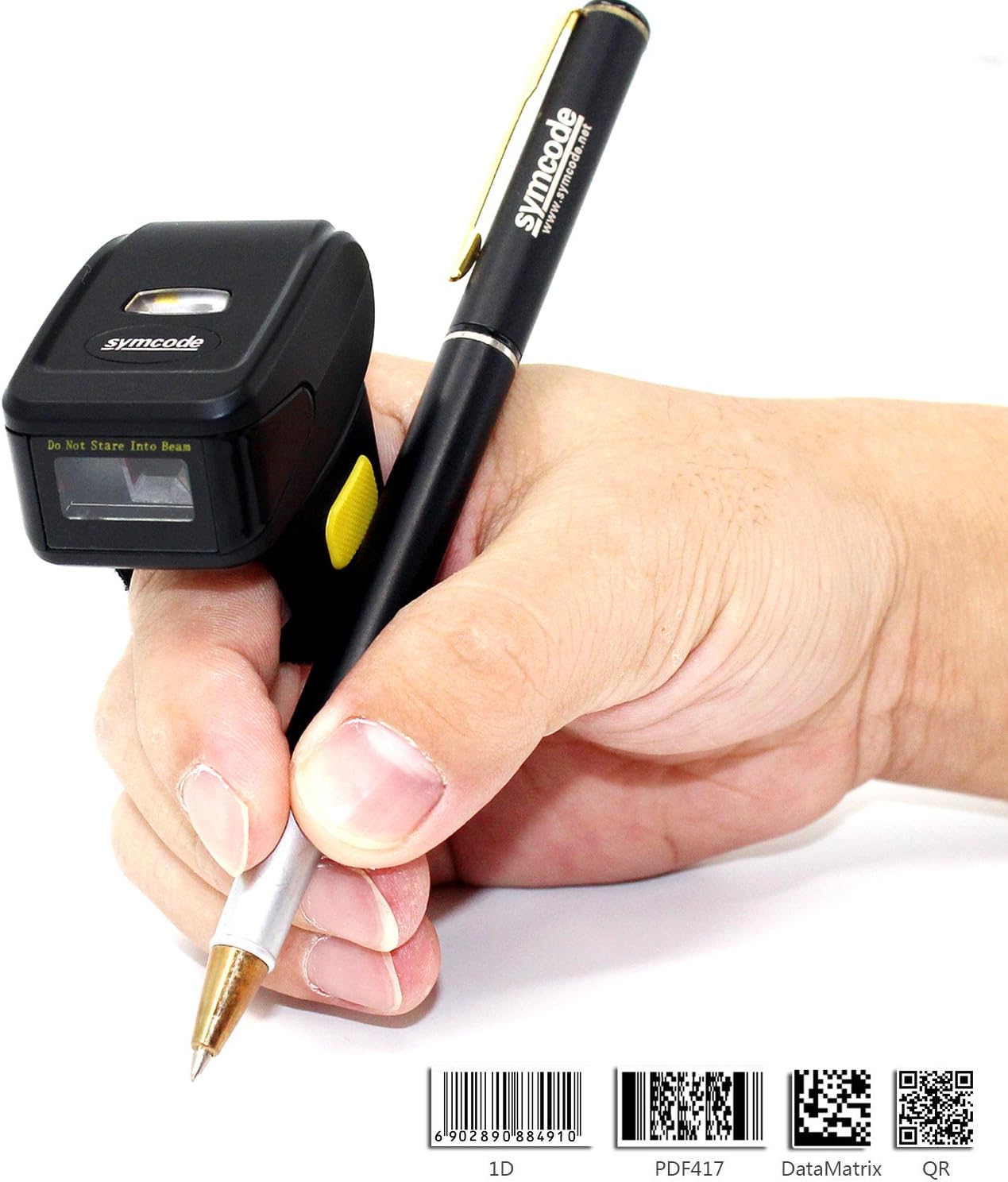
Figure 7: Ergonomic Use
5.2 Scanning Barcodes
Once connected, point the scanner's laser at the barcode you wish to scan and press the trigger button. The scanner will emit a beep and/or flash to indicate a successful scan. The scanned data will appear on your connected device.
5.3 Upload Modes
The scanner supports two data upload modes:
- Instant Upload Mode: Data is synchronously uploaded to your device as soon as a barcode is scanned. This is ideal for real-time inventory management or POS systems.
- Storage Mode: Barcode data is stored in the scanner's internal memory (up to 512KB, capable of holding over 50,000 barcodes). This mode is useful when working out of range of your device. Data can be uploaded later when a connection is re-established. Refer to the included user manual for specific instructions on switching between modes and uploading stored data.

Figure 8: Two Upload Modes
6. Specifications
| Feature | Detail |
|---|---|
| Model Number | MJ-R30CB-2D |
| Light Source | 650nm visible laser |
| Scan Rate | 100 ± 10 scans/second |
| Reading Preciseness | 0.10mm (4mil) |
| Interface | Mobile phone wireless 4.0 (Bluetooth) |
| Battery | DC 3.7V, 360mA Li-ion battery (1 Lithium Ion battery included) |
| Memory | 512KB |
| Supported OS | Microsoft Windows XP/7.0/8.0/10, Android, iOS |
| Reading Distance | 2.5-600mm (100% UPC/EAN) |
| Supported Barcode Types | Codabar, Code 11, Code 93, MSI, Code 128, UCC/EAN-128, Code 39, EAN-8, EAN-13, UPC-A, ISBN, Industrial 25, Interleaved 25, Standard 25, 2/5 Matrix, GS1 DataBar (formerly RSS) variants, PDF417, Data Matrix (ECC200, ECC000, 050, 080, 100, 140), QR Code |
| Scan Scope | 10mm-250mm |
| Scanning Angle | Roll: ±35 degree / Pitch: ±65 degree / Yaw: ±50 degree |
| Bit Error Rate | 1/5 million |
| Power Voltage | 5V |
| Safety Performance | CE & Rohs |
| Dimensions | 150mm x 50mm x 65mm (Product: 1.81 x 1.97 x 1.38 inches) |
| Weight | 95g (4.4 ounces) |
7. Maintenance
To ensure the longevity and optimal performance of your Symcode barcode scanner, follow these maintenance guidelines:
- Cleaning: Use a soft, dry cloth to clean the scanner's exterior. For the scanning window, use a lens cleaning cloth to avoid scratches. Do not use abrasive cleaners or solvents.
- Storage: Store the scanner in a cool, dry place away from direct sunlight and extreme temperatures.
- Battery Care: Avoid fully discharging the battery frequently. Recharge the scanner when the battery low indicator appears. If storing for an extended period, charge the battery to about 50% and recharge every few months.
- Handling: Handle the scanner with care. Avoid dropping it or subjecting it to strong impacts, as this can damage internal components.
8. Troubleshooting
If you encounter issues with your scanner, please refer to the following common troubleshooting steps:
- Scanner not turning on: Ensure the battery is charged. Connect the scanner to the charger and try again.
- No data transmitted after scanning: Verify that the scanner is properly connected to your device (Bluetooth or 2.4G wireless). Check the device's input settings to ensure it's ready to receive data.
- Unable to pair via Bluetooth: Ensure the scanner is in pairing mode. On your device, try forgetting the scanner and re-pairing. Make sure no other Bluetooth devices are interfering.
- Poor scanning performance: Ensure the barcode is clean and not damaged. Adjust the distance and angle of the scanner to the barcode. Check for sufficient lighting.
- Incorrect data output: Verify the scanner's configuration settings. You may need to scan specific configuration barcodes from the full user manual to adjust settings like prefix/suffix or data format.
For more detailed troubleshooting or issues not covered here, please consult the comprehensive user manual included in your package or contact Symcode customer support.
9. Warranty and Support
Symcode products are designed for reliability and performance. For information regarding product warranty, please refer to the warranty card included with your purchase or visit the official Symcode website. For technical support, product inquiries, or service requests, please contact Symcode customer service through the channels provided on their official website or the product packaging.
Visit the official Symcode Store for more products and support: Symcode Amazon Store
Additional resources may be available on the manufacturer's website: www.cnlhwood.com