
Introduction
Thank you for choosing the Technical Pro FXA16 Smart Pedestal Fan. This 16-inch standing fan is designed to provide efficient air circulation and features advanced smart home integration with Amazon Alexa and Google Home voice control. This manual provides detailed instructions for assembly, operation, maintenance, and troubleshooting to ensure optimal performance and a seamless user experience.
Important Safety Information
Please read all safety warnings and instructions carefully before using this product. Failure to follow these instructions may result in electric shock, fire, or serious injury.
- Always unplug the fan from the power outlet before cleaning, servicing, or moving.
- Do not operate the fan with a damaged cord or plug. If the cord or plug is damaged, contact qualified service personnel.
- Do not run cord under carpeting. Do not cover cord with throw rugs, runners, or similar coverings. Arrange cord away from traffic area and where it will not be tripped over.
- This fan is intended for indoor use only. Do not use outdoors or in wet locations.
- Do not insert fingers or any other objects through the grille when the fan is operating.
- Supervise children when the fan is in use. This appliance is not intended for use by persons (including children) with reduced physical, sensory or mental capabilities, or lack of experience and knowledge, unless they have been given supervision or instruction concerning use of the appliance by a person responsible for their safety.
- Ensure the fan is placed on a stable, level surface to prevent tipping.
- Do not use this fan near windows, as rain may create an electrical hazard.
- Do not use this fan in areas where gasoline, paint, or flammable liquids are stored.
Package Contents
Verify that all components are present in the package:
- Fan Motor Unit with Control Panel
- Front Grille
- Rear Grille
- Fan Blades
- Base
- Adjustable Stand Pole
- Grille Locking Nut
- Blade Cap
- Power Cord (integrated)
- User Manual (this document)
Setup and Assembly
Follow these steps to assemble your Technical Pro FXA16 fan and connect it to your Wi-Fi network.
1. Fan Assembly
- Attach the adjustable stand pole to the base, ensuring it is securely fastened.
- Place the rear grille onto the motor unit, aligning the notches. Secure it with the grille locking nut.
- Slide the fan blades onto the motor shaft, ensuring they are properly seated. Secure the blades with the blade cap, turning it counter-clockwise to tighten.
- Attach the front grille to the rear grille, aligning the clips. Secure the grilles together using the provided clips or screws, if applicable.
- Mount the assembled fan head onto the adjustable stand pole.

Image: The assembled Technical Pro FXA16 fan shown alongside a smartphone displaying the control app, an Amazon Echo Dot, and a Google Home Mini, illustrating its smart home compatibility.

Image: A side profile view of the Technical Pro FXA16 Smart Pedestal Fan, highlighting its adjustable height and sleek design.

Image: A rear view of the Technical Pro FXA16 Smart Pedestal Fan, showing the motor housing and the back of the fan grille.
2. Wi-Fi Connection and App Setup
The FXA16 fan requires a 2.4 GHz Wi-Fi network for smart control. It is not compatible with 5 GHz networks.
- Download the compatible smart home application (e.g., Smart Life, Tuya Smart) from your mobile device's app store (iOS or Android).
- Register or log in to your account within the app.
- Plug in the fan to a power outlet. The fan's Wi-Fi indicator light should begin to blink, indicating it's in pairing mode. If not, refer to the fan's control panel for a Wi-Fi reset button or combination (often holding the power button for 5-10 seconds).
- In the app, tap "Add Device" or the "+" icon. Select "Fan" or "Small Home Appliance" from the device list.
- Follow the on-screen instructions in the app to connect the fan to your 2.4 GHz Wi-Fi network. This typically involves entering your Wi-Fi password.
- Once connected, the Wi-Fi indicator light on the fan will become solid, and the fan will appear in your app's device list.

Image: A detailed view of the Technical Pro FXA16 fan's control panel and a smartphone displaying the fan's mobile application, with icons indicating oscillating function, adjustable height, and timer settings.

Image: A collage demonstrating the Wi-Fi control capabilities of the Technical Pro FXA16 fan, showing a user interacting with the mobile app, the fan in a room setting, and a close-up of the app interface with control options like switch, wind speed, timer, oscillating, and normal/sleep mode.
3. Voice Control Integration (Amazon Alexa / Google Home)
To enable voice control, link your smart fan app account with your Amazon Alexa or Google Home account.
- Open the Amazon Alexa app or Google Home app on your mobile device.
- Navigate to the "Skills & Games" section (Alexa) or "Works with Google" section (Google Home).
- Search for the smart home app you used to set up your fan (e.g., "Smart Life" or "Tuya Smart").
- Enable the skill/service and link your account by entering your smart home app credentials.
- Once linked, discover devices. Your Technical Pro FXA16 fan should appear in your smart home device list.
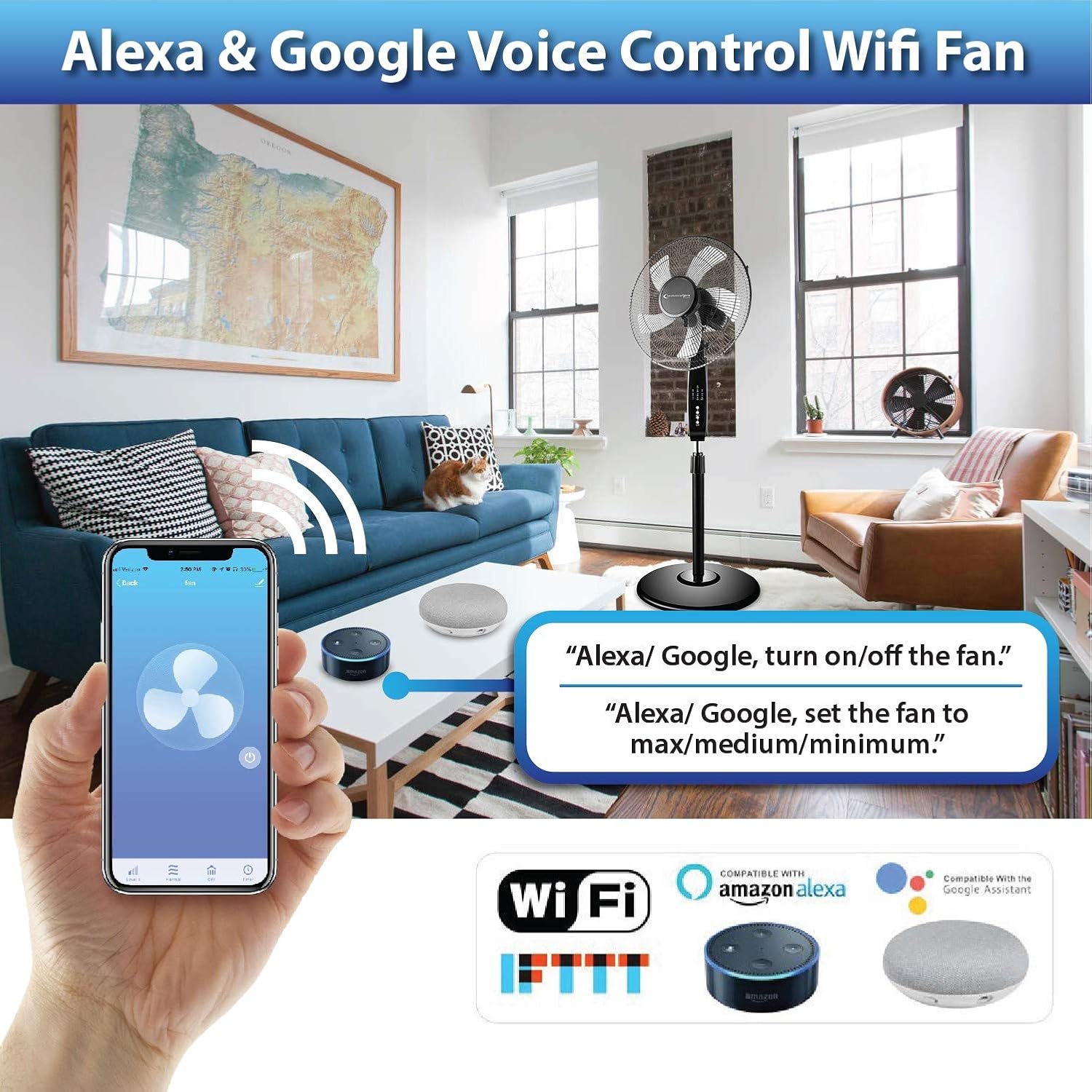
Image: The Technical Pro FXA16 fan in a living room setting, demonstrating its compatibility with Amazon Alexa and Google Assistant for voice control, with example voice commands displayed.
Operating Instructions
Manual Control Panel
The fan features a control panel on its stand for direct operation.
- Power Button: Press to turn the fan On or Off.
- Speed Button: Cycle through fan speeds (e.g., 1, 2, 3).
- Mode Button: Switch between different modes (e.g., Normal, Sleep, Nature).
- Oscillation Button: Turn oscillation On or Off.
- Timer Button: Set a timer for automatic shut-off (e.g., 1H, 2H, 4H).
Mobile App Control
Once connected to the app, you can control all fan functions remotely.
- Power: Toggle the fan On/Off.
- Fan Speed: Adjust fan speed from 1 to 3.
- Modes: Select Normal, Sleep, or Nature mode. Sleep mode typically reduces fan speed and noise for quiet operation.
- Oscillation: Enable or disable the oscillating feature for wider air distribution.
- Timer: Set a countdown timer for the fan to automatically turn off.
- Scheduling: Create custom schedules for the fan to turn on/off or change settings at specific times.
- Multi-User Sharing: Share control of the fan with other family members through the app.
Voice Control Commands
Use the following example commands with Amazon Alexa or Google Home:
- "Alexa/Google, turn on the fan."
- "Alexa/Google, turn off the fan."
- "Alexa/Google, set the fan speed to 1/2/3."
- "Alexa/Google, set the fan to sleep mode."
- "Alexa/Google, set a timer for the fan for 1 hour."
- "Alexa/Google, turn on oscillation for the fan." (Note: Oscillation control via voice may vary depending on the smart home platform and app integration.)
Adjustable Height
The fan's height can be adjusted by loosening the height adjustment knob on the stand pole, extending or retracting the pole to the desired height, and then tightening the knob securely.
Maintenance
Regular cleaning will help maintain the fan's performance and extend its lifespan.
- Cleaning the Fan:
- Always unplug the fan before cleaning.
- Use a soft, damp cloth to wipe the exterior surfaces of the fan.
- To clean the fan blades and inside the grilles, carefully remove the front grille. Wipe the blades and grilles with a soft, dry or slightly damp cloth.
- Ensure all parts are completely dry before reassembling and plugging in the fan.
- Do not use abrasive cleaners or solvents, as they may damage the fan's finish.
- Storage: When not in use for extended periods, store the fan in a cool, dry place, preferably in its original packaging to protect it from dust.
Troubleshooting
If you encounter issues with your Technical Pro FXA16 fan, refer to the following common problems and solutions.
| Problem | Possible Cause | Solution |
|---|---|---|
| Fan does not turn on. | Not plugged in; power outlet issue; power button not pressed. | Ensure the fan is securely plugged into a working power outlet. Press the power button on the control panel or via the app. |
| Wi-Fi connection fails or disconnects. | Incorrect Wi-Fi password; 5 GHz network used; fan too far from router; network interference. |
|
| Voice control not working. | App not linked to Alexa/Google Home; device not discovered; incorrect commands. |
|
| Fan is noisy or vibrating. | Loose parts; fan not on a level surface; dust buildup on blades. |
|
If the problem persists after trying these solutions, please contact Technical Pro customer support for further assistance.
Specifications
| Brand | Technical Pro |
| Model Name | FXA16B (TPFXA16) |
| Type | Pedestal Fan |
| Fan Size | 16 Inch |
| Power Source | AC |
| Voltage | 120 Volts (AC) |
| Wattage | 16 watts |
| Noise Level | 4 dB |
| Control Method | Voice, App, Manual Buttons |
| Special Features | Wi-Fi Enabled, Oscillating, Adjustable Height, Timer, Compatible with Amazon Alexa/Google Home |
| Product Dimensions (LxWxH) | 16"D x 16"W x 50"H |
| Item Weight | 10 Pounds |
| Color | Black |
| UPC | 817802016357 |
Warranty and Support
For warranty information and customer support, please refer to the purchase documentation or contact the seller directly. Product warranties can vary, and it is recommended to confirm the specific terms and conditions applicable to your purchase.
For technical assistance or inquiries, please visit the Technical Pro website or contact their customer service department.
- Technical Pro Store Link: Visit the Technical Pro Store on Amazon
