
Introduction
The TP-Link Deco M3 Whole Home Mesh WiFi System is designed to provide seamless, strong WiFi coverage throughout your home, eliminating dead zones. This system utilizes mesh technology where multiple Deco units work together to form a unified network with a single WiFi name, ensuring uninterrupted connectivity as you move from room to room.
This manual provides detailed instructions for setting up, operating, maintaining, and troubleshooting your Deco M3 system to ensure optimal performance and a reliable internet experience.
Package Contents
Your TP-Link Deco M3 (3-Pack) system typically includes the following items:
- 1x Deco M3R (Main Router Unit)
- 2x Deco M3W (Plug-in Satellite Units)
- 1x Ethernet Cable
- 3x Power Adapters (one for each unit)
- Quick Installation Guide

Image: The TP-Link Deco M3 (3-Pack) system showing one main router unit and two smaller plug-in satellite units.
Setup Guide
Setting up your Deco M3 system is a straightforward process using the Deco app. Follow these steps for a quick and easy installation:
1. Download the Deco App
Search for "TP-Link Deco" in the App Store (iOS) or Google Play Store (Android) and download the app. This app will guide you through the entire setup process.
Video: Official TP-Link Deco Mesh WiFi System setup overview, demonstrating the simplicity of the app-guided installation process.
2. Connect the Main Deco Unit
- Power off your modem.
- Connect one end of the Ethernet cable to your modem's LAN port and the other end to one of the Ethernet ports on the main Deco M3R unit.
- Power on your modem, then power on the main Deco M3R unit. Wait for the LED light on the Deco unit to pulse blue, indicating it's ready for setup.
3. Configure via Deco App
- Open the Deco app on your smartphone or tablet.
- Follow the on-screen instructions to create a TP-Link ID (if you don't have one) and set up your new WiFi network, including a network name (SSID) and password.
- The app will guide you through connecting to the Deco unit via Bluetooth and configuring its settings.
4. Add Satellite Deco Units
Once the main Deco unit is set up, you can add the satellite Deco M3W units to expand your WiFi coverage.
- Plug a Deco M3W unit into a wall outlet in an area where you need extended WiFi coverage. Ensure it's within range of another Deco unit.
- Wait for the LED light on the M3W unit to pulse blue.
- In the Deco app, tap the "Add Another Deco" button and follow the instructions to add the new unit to your mesh network. The app will help you find the optimal placement for the satellite units.
Image: A diagram illustrating how the compact plug-in Deco M3W satellites extend WiFi coverage by plugging directly into wall outlets.
Operating Your Deco M3 System
Your Deco M3 system creates a single, unified WiFi network for your entire home. Devices will automatically connect to the Deco unit with the strongest signal as you move around.
Deco App Features
The Deco app provides comprehensive control and monitoring capabilities for your mesh network:
- Network Overview: View the status of your Deco units and connected devices.
- Parental Controls: Manage internet access for family members, set time limits, and block inappropriate content.
- Antivirus: Protect your network from malicious content and intrusions (features may vary by subscription).
- QoS (Quality of Service): Prioritize devices or activities for optimal performance (e.g., gaming, streaming).
- Guest Network: Create a separate WiFi network for guests to ensure the security of your main network.
- Firmware Updates: Keep your Deco system up-to-date with the latest features and security enhancements.
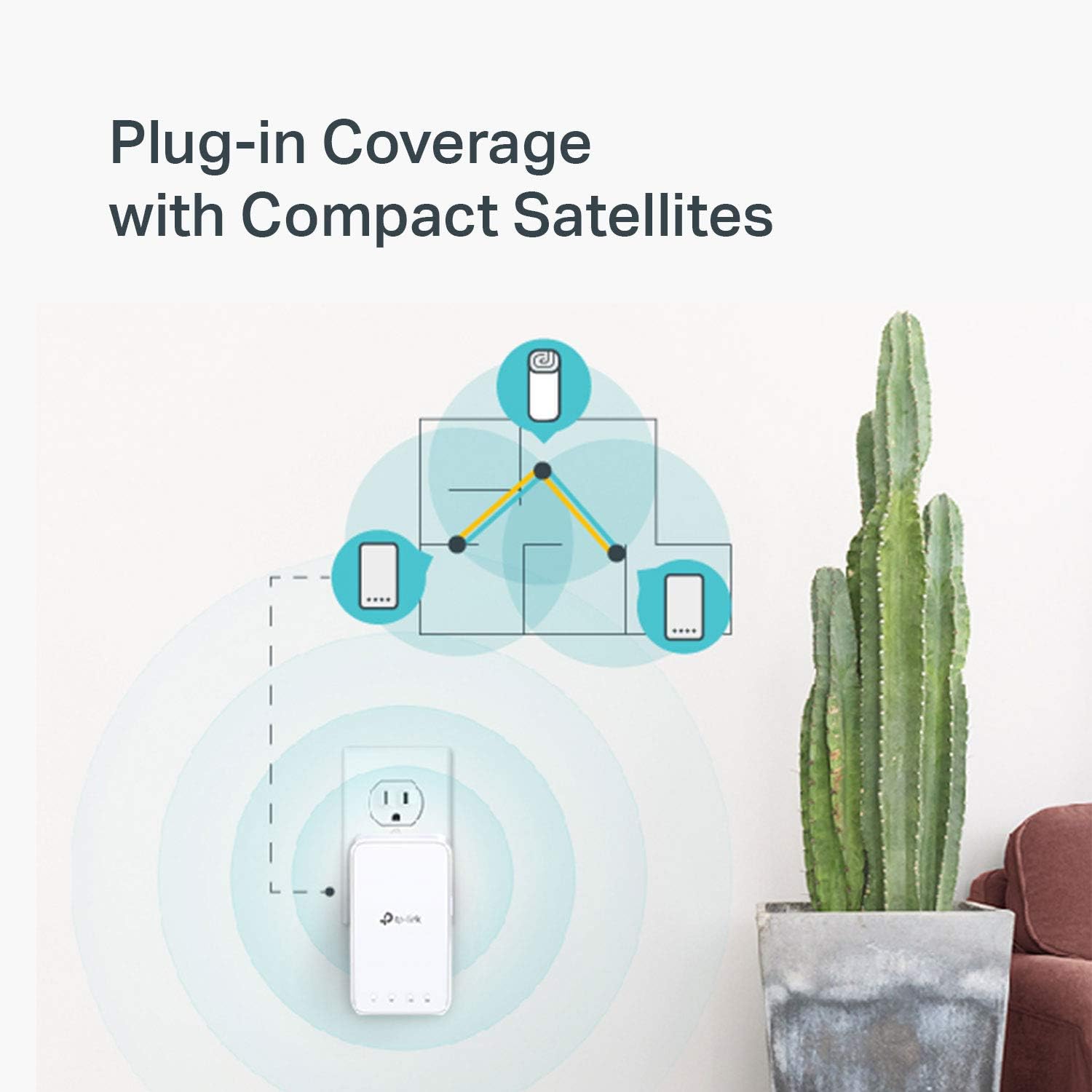
Image: Icons representing various parental control features available in the Deco app, such as user profiles, filter levels, time limits, reports, and the ability to suspend WiFi.
Maintenance
Regular maintenance helps ensure the longevity and optimal performance of your Deco M3 system.
- Keep Firmware Updated: Regularly check for and install firmware updates via the Deco app. Updates often include performance improvements and security patches.
- Optimal Placement: Ensure Deco units are placed in open areas, away from obstructions, large metal objects, and interference sources like microwaves or cordless phones.
- Cleanliness: Keep the units clean and free from dust buildup, especially around ventilation areas, to prevent overheating. Use a soft, dry cloth for cleaning.
- Restart Periodically: A periodic restart (e.g., once a month) of your Deco units and modem can help resolve minor network issues and refresh connections.
Troubleshooting
If you encounter issues with your Deco M3 system, try the following troubleshooting steps:
No Internet Connection
- Check Modem: Ensure your modem is working correctly and has an active internet connection. Try restarting your modem.
- Cable Connections: Verify that all Ethernet cables are securely connected between the modem and the main Deco unit.
- Deco LED Status: Check the LED status on your main Deco unit. A solid green light indicates a healthy connection. If it's red or pulsing, refer to the Deco app for specific error messages.
Video: TP-Link's official guide on troubleshooting if the main Deco unit fails to configure, providing steps to resolve common setup issues.
Weak WiFi Signal or Dead Zones
- Relocate Deco Units: Try moving satellite Deco units closer to the main unit or to a more central location within the problematic area.
- Obstructions: Ensure there are no major physical obstructions (thick walls, large appliances) blocking the signal path between Deco units.
- Add More Units: For very large homes or homes with many signal-blocking elements, consider adding additional Deco units to expand coverage.
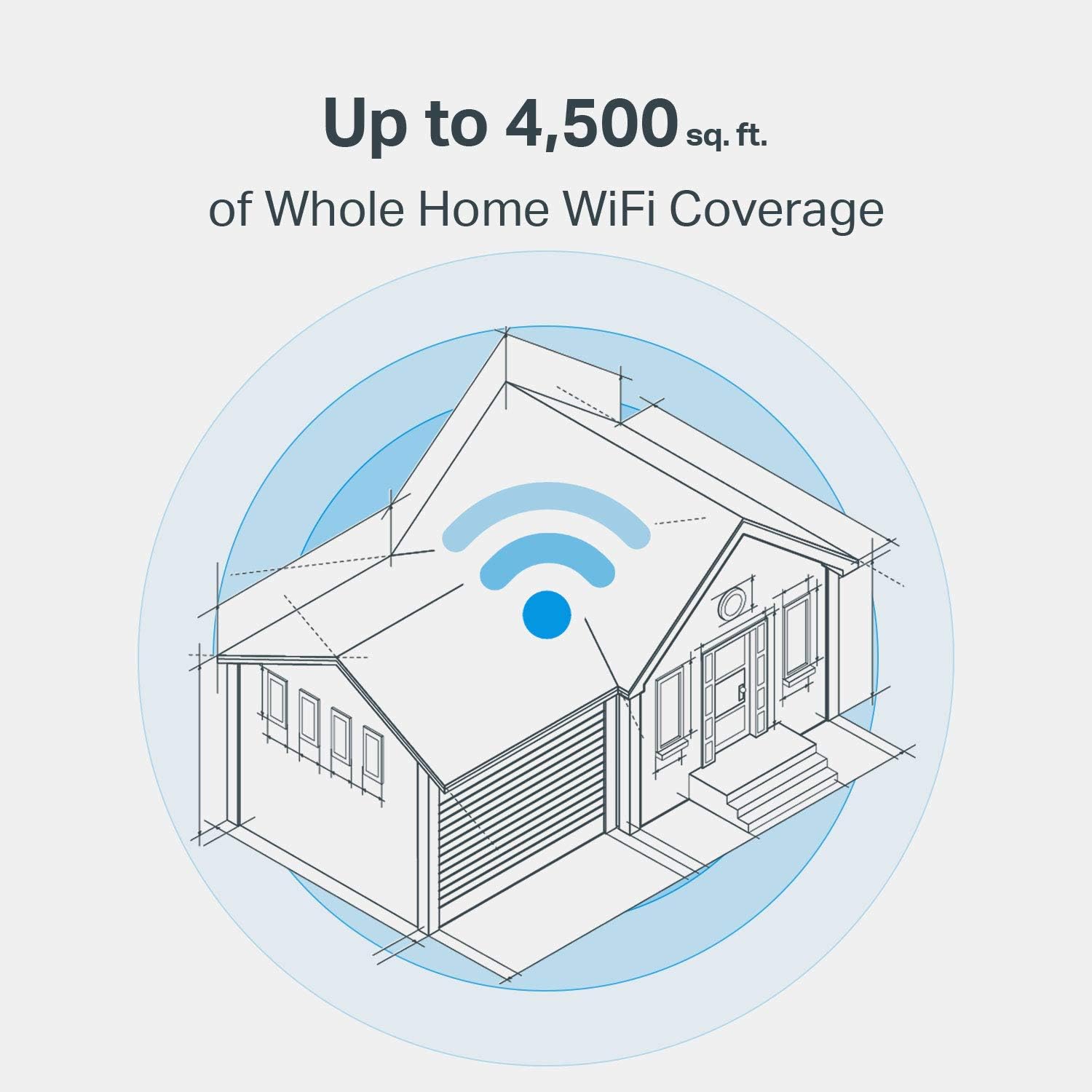
Image: An architectural diagram illustrating how the Deco M3 system provides up to 4,500 sq. ft. of whole home WiFi coverage, highlighting the spread of the wireless signal.
Devices Not Connecting
- Verify WiFi Password: Double-check that you are entering the correct WiFi network name and password.
- Restart Device: Restart the device that is having trouble connecting.
- Forget Network: On the problematic device, "forget" the WiFi network and then try to reconnect.
Specifications
| Feature | Detail |
|---|---|
| Model | Deco M3 (3-Pack) |
| Wireless Type | 802.11ac |
| Wireless Speed | AC1200 (300 Mbps on 2.4 GHz, 867 Mbps on 5 GHz) |
| Frequency | Dual-Band (2.4 GHz & 5 GHz) |
| Coverage | Up to 4,500 sq. ft. (with 3 units) |
| Ethernet Ports | 2x Gigabit Ethernet ports per main unit (WAN/LAN auto-sensing) |
| Dimensions (Main Unit) | 7.48 x 3.57 x 3.57 inches |
| Operating System | TP-Link OS |
| Features | Mesh WiFi, Parental Controls, QoS, Antivirus (via HomeCare) |
Warranty and Support
TP-Link provides industry-leading support for its products.
- Warranty: The TP-Link Deco M3 system comes with a 2-year limited warranty. Please retain your proof of purchase for warranty claims.
- Technical Support: For technical assistance, you can contact TP-Link's 24/7 technical support.
- Online Resources: Visit the official TP-Link support website for FAQs, user guides, firmware downloads, and community forums: www.tp-link.com/support


