
YOTON 16W1, 18S1, 1601, 1802
YOTON Printer Suction Fan Instruction Manual
Model: Lecai 16W1, 18S1, 1601, 1802, Mootooh, Shenhua Compatible
Brand: YOTON
1. Introduction
This manual provides essential information for the proper installation, operation, and maintenance of your YOTON Printer Suction Fan. Designed for compatibility with various plotter models including Lecai 16W1, 18S1, 1601, 1802, Mootooh, and Shenhua, this silent blower is crucial for maintaining optimal printing conditions by ensuring proper air circulation and solvent fume extraction. Please read this manual thoroughly before use to ensure safe and efficient operation.
2. Product Overview and Components
The YOTON Printer Suction Fan is a compact, square-shaped blower designed for integration into eco-solvent plotter systems. It features a durable plastic housing and a brushless DC motor for quiet and efficient performance. Each fan unit includes a two-wire connection for power.
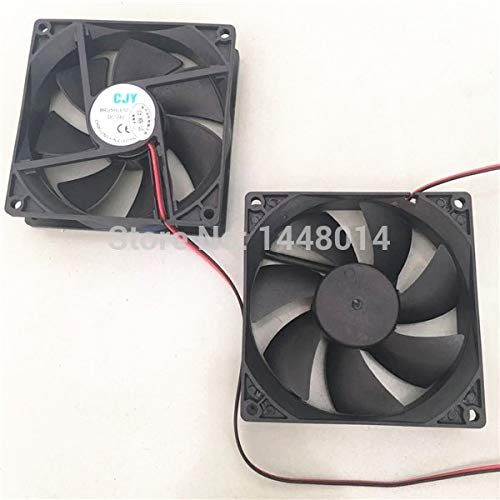
Figure 2.1: Two YOTON Printer Suction Fans. This image displays two fan units, highlighting their compact square design and the wiring for power connection. One fan shows the top surface with a manufacturer's label, while the other clearly displays its fan blades.
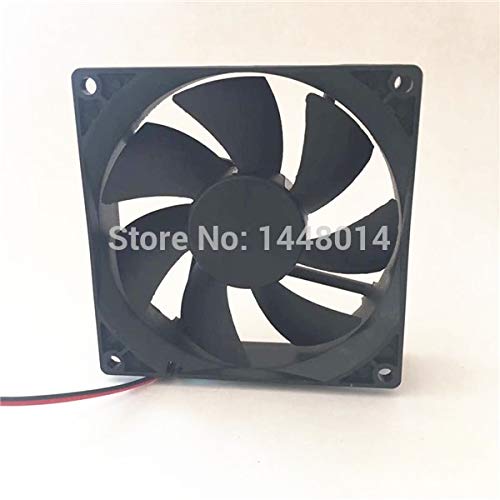
Figure 2.2: Side View of a Single Fan. This perspective illustrates the fan's square frame and the arrangement of its blades, designed for efficient air movement within a plotter system.
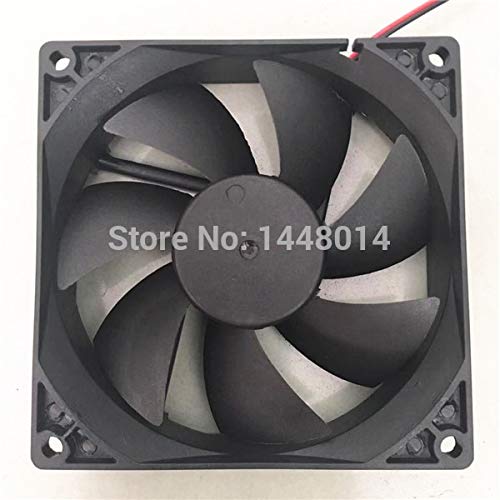
Figure 2.3: Top View of a Single Fan. This image provides a clear view of the fan blades and the four corner mounting holes, indicating how the fan is secured within the printer or plotter chassis.
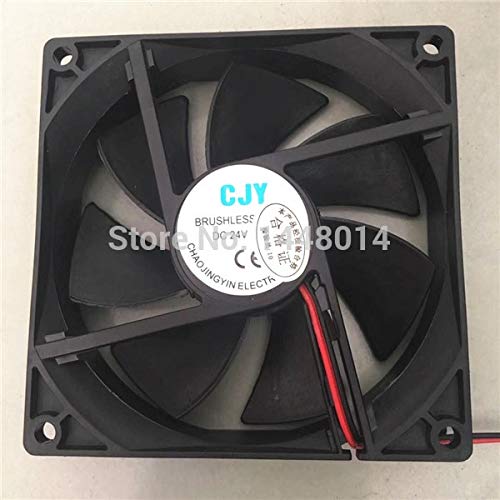
Figure 2.4: Fan Label Detail. A close-up of the fan's label, displaying key specifications such as 'CJY Brushless DC 24V CE', confirming its brushless motor type and operating voltage, along with compliance markings.
3. Specifications
| Attribute | Value |
|---|---|
| Brand | YOTON |
| Compatible Devices | Printer (Lecai 16W1, 18S1, 1601, 1802, Mootooh, Shenhua) |
| Material | Plastic |
| Wattage | 16 watts |
| Dimensions | 9cm x 9cm (approximate, based on product title) |
| Motor Type | Brushless DC (based on image label) |
| Voltage | 24V DC (based on image label) |
4. Setup and Installation
Installation of the YOTON Printer Suction Fan typically involves replacing an existing fan or integrating it into a new system. Always ensure the printer or plotter is powered off and disconnected from the main power supply before beginning any installation or maintenance.
4.1 Safety Precautions
- Always disconnect power to the printer/plotter before installation.
- Wear appropriate personal protective equipment (PPE) if necessary.
- Handle components carefully to avoid damage.
- Ensure proper ventilation in your workspace.
4.2 Installation Steps
- Locate the Fan Bay: Identify the designated fan mounting location within your plotter or printer chassis. This is often near the print head or solvent collection area.
- Remove Old Fan (if applicable): If replacing an old fan, carefully disconnect its wiring and unscrew it from its mounting points.
- Position the New Fan: Place the YOTON suction fan into the bay, ensuring the airflow direction is correct for your system's requirements (typically pulling air out or directing it towards a filter). The fan's label often indicates airflow direction.
- Secure the Fan: Use appropriate screws to secure the fan to the mounting points. Ensure it is firmly in place to prevent vibration.
- Connect Wiring: Connect the fan's two wires (red and black) to the corresponding power terminals on your plotter's control board or power supply. Pay close attention to polarity (red for positive, black for negative) to prevent damage. Consult your plotter's service manual for specific wiring diagrams if unsure.
- Verify Connections: Double-check all connections to ensure they are secure and correctly polarized.
- Close Chassis: Carefully reassemble any covers or panels removed during installation.
- Test Functionality: Reconnect the printer/plotter to power and turn it on. Observe the fan to ensure it spins freely and quietly.
5. Operation
The YOTON Printer Suction Fan operates automatically once properly installed and powered. Its primary function is to create airflow within the plotter's enclosure, which is critical for:
- Fume Extraction: Removing solvent vapors and other airborne particles generated during the printing process, contributing to a safer working environment and preventing accumulation of harmful substances.
- Temperature Regulation: Assisting in dissipating heat generated by internal components, thus maintaining optimal operating temperatures for the printer's electronics and print heads.
- Ink Drying: Facilitating the drying process of eco-solvent inks by promoting air circulation over the printed media.
The fan is designed for continuous operation during printing tasks. No user intervention is typically required for its day-to-day functioning.
6. Maintenance
Regular maintenance ensures the longevity and efficient performance of your suction fan. Perform these checks periodically:
- Cleaning Fan Blades: Over time, dust, ink residue, and other debris can accumulate on the fan blades, reducing efficiency and potentially causing imbalance. With the power disconnected, gently clean the blades using a soft brush or compressed air. Avoid using liquids directly on the fan.
- Checking for Obstructions: Ensure there are no cables, wires, or other foreign objects obstructing the fan's rotation.
- Inspecting Wiring: Periodically check the fan's wiring for any signs of wear, fraying, or loose connections.
- Listening for Unusual Noises: A properly functioning fan should operate quietly. If you hear grinding, rattling, or excessive noise, it may indicate a worn bearing or an obstruction.
Note: Always disconnect power to the printer/plotter before performing any maintenance.
7. Troubleshooting
If you encounter issues with your YOTON Printer Suction Fan, refer to the following common problems and solutions:
| Problem | Possible Cause | Solution |
|---|---|---|
| Fan does not spin | No power; Incorrect wiring; Faulty fan | Check power connection to the plotter. Verify fan wiring polarity (red to positive, black to negative). Test fan with a known good power source if possible. Replace fan if faulty. |
| Fan spins slowly or weakly | Insufficient power; Obstruction; Dirty blades | Ensure adequate power supply. Check for and remove any obstructions. Clean fan blades thoroughly. |
| Fan is noisy (grinding, rattling) | Worn bearings; Obstruction; Loose mounting | Check for and remove any obstructions. Ensure fan is securely mounted. If noise persists, the fan bearings may be worn, requiring replacement. |
| Excessive vibration | Unbalanced blades; Loose mounting | Clean blades to remove any uneven debris. Ensure fan is securely mounted. |
If troubleshooting steps do not resolve the issue, contact your product supplier or a qualified technician for further assistance.
8. Warranty and Support
Specific warranty terms and support information for the YOTON Printer Suction Fan are typically provided by the seller or manufacturer at the time of purchase. Please refer to your purchase documentation, the product packaging, or the seller's website for details regarding warranty coverage, return policies, and technical support contacts.
For general inquiries or assistance, you may also visit the YOTON Store on Amazon.
Ask a question about this manual
Ask about setup, troubleshooting, compatibility, parts, safety, or missing instructions. Manuals+ will review the question and use this page’s manual context to help answer it.