Introduction
The AKASO WT50 Mini Projector is a compact and versatile device designed for both home and outdoor entertainment. Featuring DLP projection technology, 1080P resolution support, WiFi and Bluetooth connectivity, and a built-in Android system, it offers a portable solution for displaying content from various sources. This manual provides essential information for setting up, operating, and maintaining your projector.
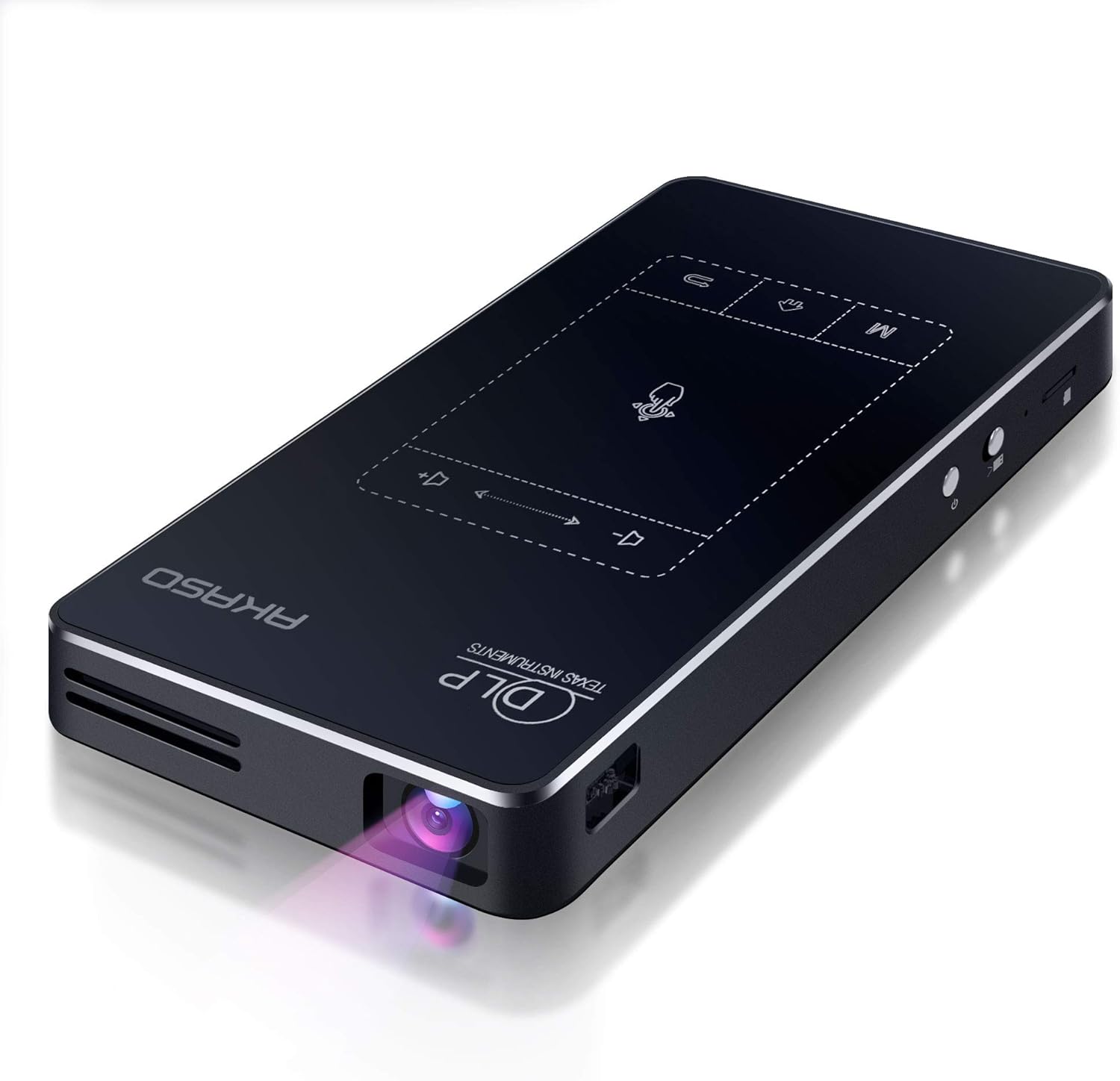
Image: AKASO WT50 Mini Projector, showcasing its sleek, compact design with the projection lens visible.
What's in the Box
Upon receiving your AKASO WT50 Mini Projector, please verify that all components are present and undamaged. The standard package includes:
- AKASO WT50 Mini Projector
- 360° rotatable support bracket
- Charging Cable (original cable recommended for compatibility)
- Remote Control
- User Manual (this document)
Note: If any accessories are missing or damaged, please contact our after-sales service immediately.
Product Overview
The AKASO WT50 is designed for portability and ease of use, integrating advanced projection technology with smart features.
Key Features:
- Super Portable Design: Compact (5.71 x 3.15 x 0.79 inches) and lightweight (0.64 lbs) for easy transport.
- Clear and Bright DLP Projection: Utilizes advanced DLP technology for sharper images without pixelation or the 'screen door effect', offering higher brightness and richer colors.
- Multiple Connectivity Options: Supports wireless screen mirroring (AirPlay, WiFi display/Miracast, EShare, DLNA) and wired connections (USB, HDMI, Audio, Micro SD).
- Built-in Android 9.0 System: Access to over 3 million apps from the Google Play Store.
- Convenient Control Options: Remote control and touchscreen panel with automatic keystone correction.
- Built-in Battery: 5000mAh battery provides approximately 2 hours of screen projection.

Image: Detailed view of the AKASO WT50 Mini Projector, highlighting its various ports (USB, HDMI, DC, Headset) and control buttons (Touch panel, Home, Menu, Volume, Power switch, Lens focus dial).
Physical Controls and Ports:
- Power Button: Located on the side, press and hold to power on/off.
- Focus Dial: Manual adjustment for image sharpness, typically located near the lens.
- Touch Panel: Intuitive touch controls on the top surface for navigation and settings.
- USB Ports: For connecting USB drives or other peripherals.
- HDMI Input: For connecting external devices like laptops, gaming consoles, or TV sticks.
- Audio Jack (3.5mm): For connecting headphones or external speakers.
- DC Input: For connecting the power adapter to charge the device.
- Micro SD Slot: For expanding storage or playing media directly.
Setup
- Initial Charge: Before first use, fully charge the projector using the provided original charging cable. The charging port is labeled 'DC'.
- Remote Control Setup: Insert AAA batteries (not included) into the remote control.
- Power On: Slide the power switch to the 'on' position and then press the power button. The projector will boot up, and the lens will emit light.
- Placement: Position the projector on a stable surface. The included 360° rotatable support bracket or a mini tripod can be used for optimal positioning.
- Focus Adjustment: Use the manual focus dial on the side of the projector to achieve a clear image.
- Keystone Correction: The projector supports automatic keystone correction. If manual adjustment is needed, navigate to the settings menu.
Operating Instructions
1. Navigation and Control
You can navigate the projector's interface using either the touchscreen panel on the device or the remote control.
- Touchscreen Panel: Use the intuitive touch interface for direct control.
- Remote Control: Provides full control over menus, volume, and playback.

Image: A hand interacting with the touch-sensitive control panel on the AKASO WT50 Mini Projector, demonstrating ease of use.
2. Connectivity Options
The projector offers diverse ways to connect to your devices:
- Wireless Screen Mirroring: Connect your smartphone or tablet via AirPlay (for iOS), WiFi display (Miracast for Android), EShare, or DLNA. Note: Due to copyright restrictions, some streaming services like Hulu and Netflix cannot be mirrored wirelessly. You can download their apps directly onto the projector via the Google Play Store.
- HDMI: Connect devices like laptops, gaming consoles, or Blu-ray players using an HDMI cable.
- USB: Play media files directly from a USB flash drive.
- Micro SD: Insert a Micro SD card to access stored media.
- Bluetooth: Connect external Bluetooth speakers or headphones for enhanced audio.

Image: AKASO WT50 Mini Projector displaying various connectivity options including USB, HDMI, Airplay, and Bluetooth, with connected devices like a laptop, game controller, smartphone, tablet, and smart speaker.
3. Image Adjustment
- Automatic Keystone Correction: The projector automatically adjusts the image to ensure it remains visually square, even when the projector's position changes.
- Manual Focus: Use the focus dial on the side of the projector to sharpen the image.

Image: Demonstration of AKASO WT50 Mini Projector's auto keystone correction and manual focus, showing how distorted images are automatically or manually corrected for clarity.
4. Android System and Apps
The built-in Android 9.0 system allows you to download and use a wide range of applications directly from the Google Play Store. This enables direct access to streaming services, productivity tools, and more, without needing an external device.

Image: AKASO WT50 Mini Projector interface showing the Android 9.0 system with various app icons like YouTube, Netflix, and Google Play Store.
Maintenance
- Cleaning the Lens: Use a soft, lint-free cloth specifically designed for optical lenses to gently wipe the projector lens. Avoid abrasive materials or harsh chemicals.
- Cleaning the Exterior: Wipe the projector's exterior with a soft, dry cloth. Do not use liquid cleaners directly on the device.
- Storage: When not in use, store the projector in a cool, dry place away from direct sunlight and extreme temperatures. Ensure the lens cover is closed to protect it from dust and scratches.
- Battery Care: For optimal battery life, avoid fully discharging the battery frequently. Charge the projector regularly, even if not in constant use.
Troubleshooting
| Problem | Possible Cause | Solution |
|---|---|---|
| Projector does not turn on | Low battery or power issue | Ensure the projector is fully charged or connected to power. Check the power adapter and cable. |
| Image is blurry | Incorrect focus or keystone | Adjust the manual focus dial. Check keystone correction settings (automatic or manual). |
| No image from connected device | Incorrect input source or cable issue | Verify the correct input source (HDMI, USB, etc.) is selected. Check cable connections. |
| Cannot connect via screen mirroring | Network issues or app restrictions | Ensure both devices are on the same WiFi network. Some copyrighted content cannot be mirrored wirelessly; try downloading the app directly on the projector. |
| Poor sound quality or no sound | Volume settings or external audio device issue | Adjust projector volume. Check external speaker/headphone connection or Bluetooth pairing. |
Specifications
| Feature | Detail |
|---|---|
| Brand | AKASO |
| Model Number | WT50 |
| Item Weight | 0.64 lbs (approx. 1.74 pounds listed in specs, using feature bullet for consistency) |
| Product Dimensions | 5.71 x 3.15 x 0.79 inches |
| Display Resolution | 1920 x 1080 (1080P) |
| Connectivity Technology | 3.5mm Jack, HDMI, USB, Wi-Fi |
| Special Features | Built-In Wi-Fi, Digital Keystone Correction, Lightweight, Portable, Short Throw |
| Battery | 1 Lithium Ion battery required (included), 5000mAh (approx. 2 hours projection) |
| Operating System | Android 9.0 |
Warranty and Support
For any questions, concerns, or to inquire about warranty information and after-sales service, please refer to the contact details provided with your product packaging or visit the official AKASO website. Always use the original charging cable to avoid incompatibility issues.


