
Introduction
This manual provides essential information for setting up, operating, maintaining, and troubleshooting your Acer Swift 3 SF314-55-58P9 laptop. Please read it thoroughly to ensure optimal performance and longevity of your device.
Package Contents
Upon unpacking, verify that the following items are included:
- Laptop
- AC Adapter
- Power Cord
Initial Setup
Unpacking
Carefully remove the laptop and all accessories from the packaging. Ensure all components listed in the 'Package Contents' are present and undamaged.
Powering On
- Connect the AC adapter to the laptop's power port and then to a power outlet. The battery may not be fully charged upon first use. Allow the laptop to charge for at least 30 minutes before initial power-on.
- Press the power button to turn on your laptop.
- Follow the on-screen instructions to complete the Windows 10 Professional setup, including language, region, network connection, and user account creation.
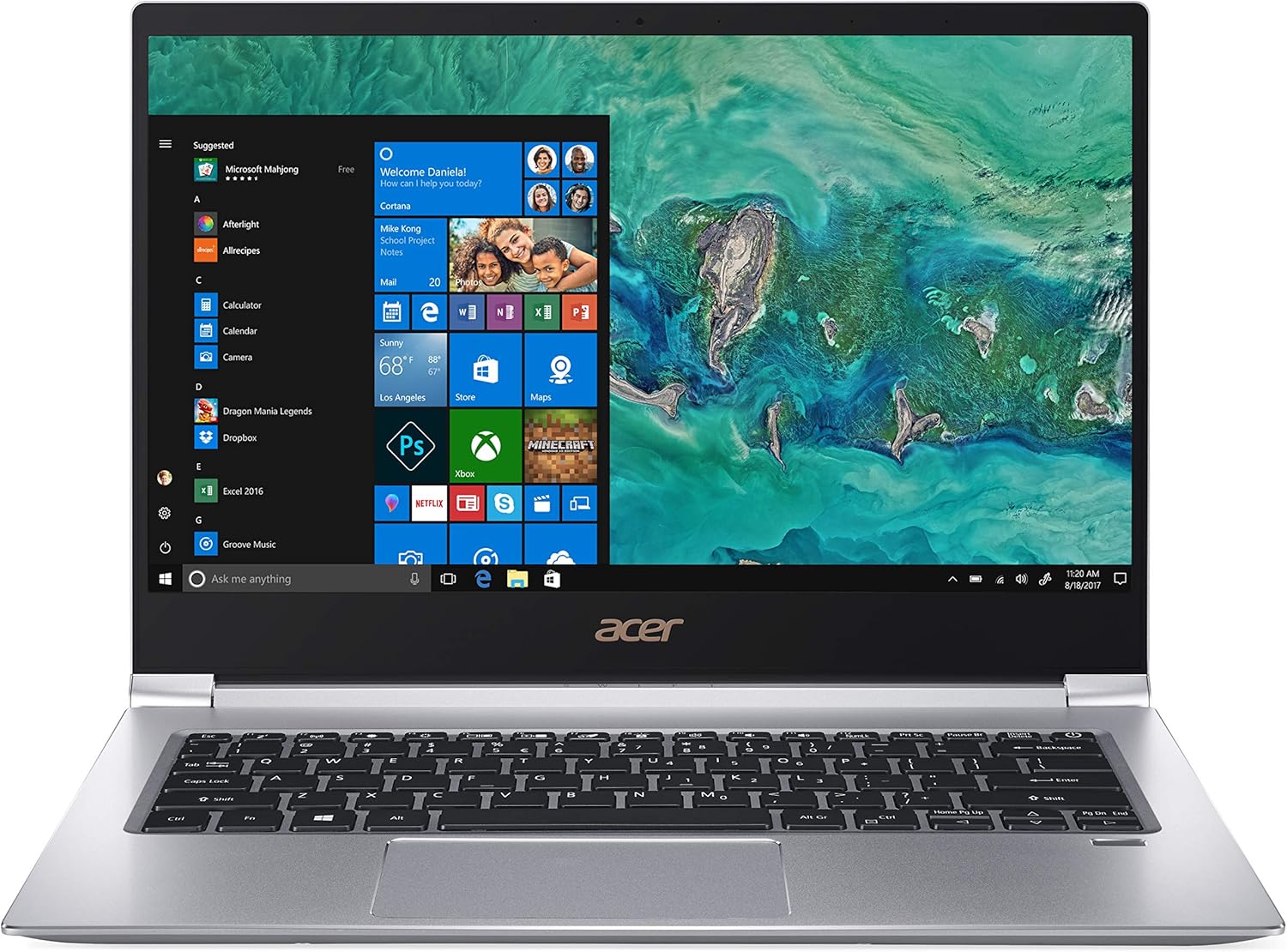
Image: Front view of the Acer Swift 3 laptop with Windows 10 desktop displayed.
Operating Your Acer Swift 3
Keyboard and Touchpad
The Acer Swift 3 features a full-size backlit keyboard for comfortable typing in various lighting conditions. The integrated precision touchpad supports multi-touch gestures for intuitive navigation.

Image: Top-down view of the Acer Swift 3 keyboard and touchpad.
Ports and Connectivity
Your laptop is equipped with a variety of ports for connecting external devices and accessories. These include:
- 1 x USB Type-C port (USB 3.1 Gen 2, up to 10 Gbps, supports DisplayPort over USB Type-C & USB Charging)
- 2 x USB 3.0 ports (one with power-off charging)
- 1 x HDMI port with HDCP support
- 1 x Secure Digital (SD) card reader
For wireless connectivity, the laptop includes Intel Wireless-AC 9560 802.11ac Gigabit WiFi (Dual-Band 2.4GHz & 5GHz) and Bluetooth 5.0.

Image: Left side view of the Acer Swift 3, showing the power input, USB 3.0 port, SD card slot, and audio jack.

Image: Right side view of the Acer Swift 3, showing the USB Type-C port, HDMI port, and another USB 3.0 port.
Display
The 14-inch Full HD (1920 x 1080) widescreen LED-backlit IPS display provides clear and vibrant visuals with wide viewing angles.
Audio and Webcam
Experience clear audio with Acer True Harmony Technology and two built-in stereo speakers. Acer Purified.Voice technology with two built-in microphones enhances voice clarity for calls and recordings. The HD Webcam (1280 x 720) supports Super High Dynamic Range (SHDR) for improved image quality.
Fingerprint Solution
The Acer Bio-Protection Fingerprint Solution offers enhanced security and convenient login via Windows Hello Certification.
Battery Management
The laptop is powered by a 4-cell Li-Ion battery (3220 mAh) providing up to 12 hours of battery life. To maximize battery lifespan, avoid fully discharging the battery frequently and store the laptop in a cool, dry place when not in use for extended periods.
Maintenance and Care
Cleaning
Regularly clean your laptop to prevent dust buildup and maintain its appearance. Use a soft, lint-free cloth slightly dampened with water or a specialized screen cleaner for the display. For the keyboard and chassis, use a soft brush or compressed air to remove debris.
Storage
When storing the laptop for an extended period, ensure it is turned off, not just in sleep mode. Store it in a protective sleeve or bag to prevent scratches and impacts. Avoid extreme temperatures and humidity.
Troubleshooting Common Issues
Power Issues
If the laptop does not turn on, ensure the AC adapter is securely connected to both the laptop and a working power outlet. Check if the power indicator light is on. If the battery is completely drained, it may take a few minutes of charging before the laptop can power on.
Display Problems
If the screen remains black, try adjusting the display brightness using the function keys. Connect an external monitor via the HDMI port to check if the issue is with the laptop's internal display or the graphics output.
Connectivity Issues
For Wi-Fi problems, ensure Wi-Fi is enabled in Windows settings. Restart your router and the laptop. For Bluetooth issues, ensure Bluetooth is enabled and the device you are trying to connect is in pairing mode.
Audio Problems
If there is no sound, check the volume levels in Windows and ensure speakers are not muted. Verify that the correct audio output device is selected in sound settings.
Technical Specifications
| Feature | Specification |
|---|---|
| Brand | Acer |
| Model Name | SF314-55-58P9 |
| Screen Size | 14 Inches |
| Color | Silver |
| Hard Disk Size | 256 GB PCIe SSD |
| CPU Model | Intel Core i5-8265U (8th Gen) |
| RAM Memory Installed Size | 8 GB DDR4 OnBoard |
| Operating System | Windows 10 Professional |
| Special Feature | Backlit Keyboard, Fingerprint Recognition |
| Graphics Coprocessor | Intel UHD Graphics 620 |
| Item Weight | 2.98 Pounds (1.35 kg) |
| Resolution | 1920 x 1080 pixels (Full HD) |
| Battery Cell Type | Lithium Ion (4-cell, 3220 mAh) |
| Battery Life | Up to 12 Hours |
| Total USB Ports | 3 (1x USB Type-C, 2x USB 3.0) |
| HDMI Ports | 1 |
| Wireless Technology | Intel Wireless-AC 9560 802.11ac Gigabit WiFi, Bluetooth 5.0 |
| Audio Features | Acer True Harmony Technology, Two Built-in Stereo Speakers, Acer Purified.Voice |
| Webcam | HD Webcam (1280 x 720) with SHDR |
Warranty and Customer Support
Warranty Information
Your Acer Swift 3 SF314-55-58P9 laptop comes with a One-year International Travelers Limited Warranty (ITW). Please refer to the warranty card included with your product for full terms and conditions and registration details.
Customer Support
For further assistance, technical support, or warranty claims, please visit the official Acer support website or contact their customer service. Have your model number (SF314-55-58P9) and serial number ready when contacting support.


